-
-
MAM 登録のための Citrix Gateway を介した Okta 認証
-
-
-
This content has been machine translated dynamically.
Dieser Inhalt ist eine maschinelle Übersetzung, die dynamisch erstellt wurde. (Haftungsausschluss)
Cet article a été traduit automatiquement de manière dynamique. (Clause de non responsabilité)
Este artículo lo ha traducido una máquina de forma dinámica. (Aviso legal)
此内容已经过机器动态翻译。 放弃
このコンテンツは動的に機械翻訳されています。免責事項
이 콘텐츠는 동적으로 기계 번역되었습니다. 책임 부인
Este texto foi traduzido automaticamente. (Aviso legal)
Questo contenuto è stato tradotto dinamicamente con traduzione automatica.(Esclusione di responsabilità))
This article has been machine translated.
Dieser Artikel wurde maschinell übersetzt. (Haftungsausschluss)
Ce article a été traduit automatiquement. (Clause de non responsabilité)
Este artículo ha sido traducido automáticamente. (Aviso legal)
この記事は機械翻訳されています.免責事項
이 기사는 기계 번역되었습니다.책임 부인
Este artigo foi traduzido automaticamente.(Aviso legal)
这篇文章已经过机器翻译.放弃
Questo articolo è stato tradotto automaticamente.(Esclusione di responsabilità))
Translation failed!
NetScaler Gateway を介した Okta による MAM 登録の認証
Citrix Endpoint Management は、NetScaler Gateway を介した Okta 資格情報による認証をサポートしています。この認証方法は、Citrix Secure Hub を介して MAM に登録するユーザーのみが利用できます。
-
前提条件
-
Citrix Endpoint Management を構成して、MAM に登録されたデバイスの ID プロバイダー (IdP) として NetScaler Gateway を介して Okta を使用するには、次の前提条件が満たされていることを確認してください。
-
MDM に登録されたデバイスの IdP として、Citrix Cloud を介した Okta で Citrix Endpoint Management を構成します。MDM 用の Okta の構成について詳しくは、「Citrix Cloud を介した Okta による認証」を参照してください。
- プラットフォームに応じて、次の関連する機能フラグをそれぞれ有効にします。
- iOS:
- iOS-V3Form-MAM
- iOS-SAMLAuth-MAM
- Android:
- Android-V3Form-MAM
- Android-SAMLAuth-MAM
注:
この機能を有効にするには、サポートチームにお問い合わせください。
-
- Citrix Secure Hub の最新バージョンをダウンロードしてインストールします。
- Okta サービスが組織で利用可能であり、関連するユーザーとグループが Okta に作成またはインポートされていることを確認します。
Citrix Endpoint Management での NetScaler Gateway の構成
-
Citrix Endpoint Management コンソールにサインインし、Settings
 アイコンをクリックします。
 -
Server の下の NetScaler Gateway をクリックします。
-
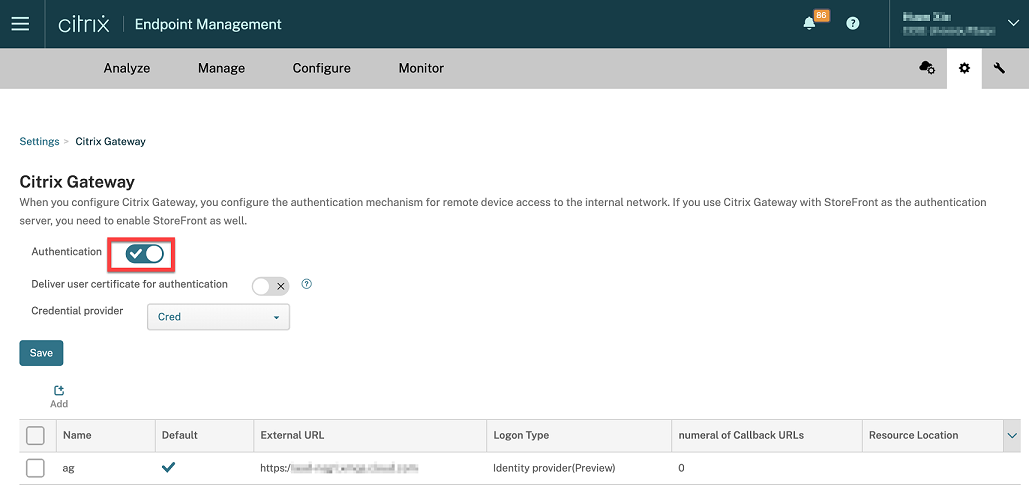
Authentication トグルボタンを有効にします。
-
ゲートウェイの Logon Type が Identity provider であることを確認します。
-
Save をクリックします。
オンプレミス NetScaler Gateway の準備
-
Citrix Endpoint Management 用にオンプレミス NetScaler Gateway が構成されていない場合は、次の手順を実行します。
-
Citrix Endpoint Management コンソールで、Settings
アイコンをクリックします。 -
Server の下の NetScaler Gateway をクリックします。
-
Edit をクリックします。
-
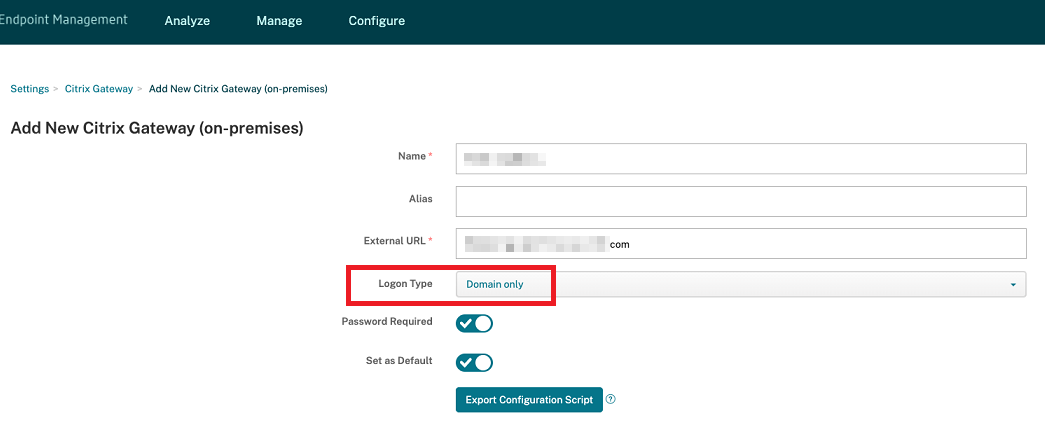
Logon Type ドロップダウンメニューをクリックし、Domain only を選択します。
-
Export Configuration Script をクリックします。
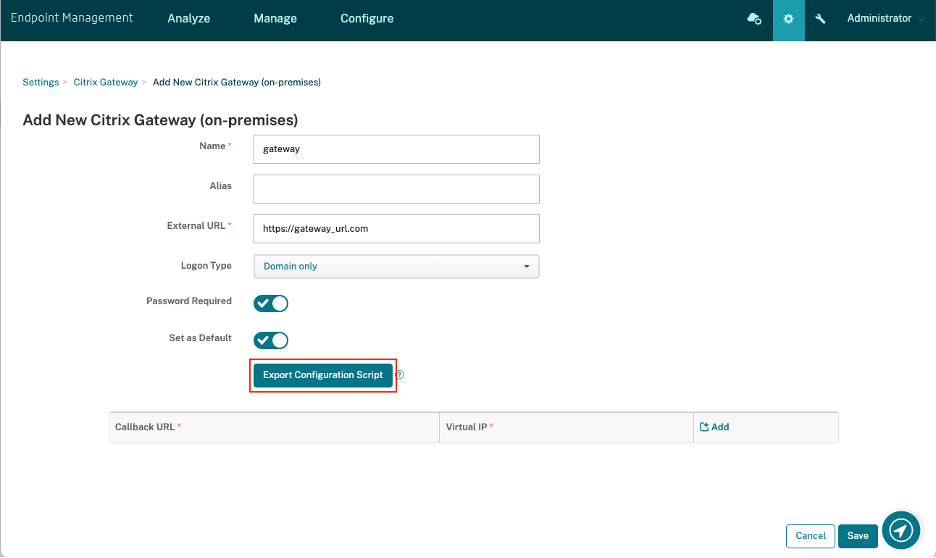 Export Configuration Script がダウンロードされます。
 -
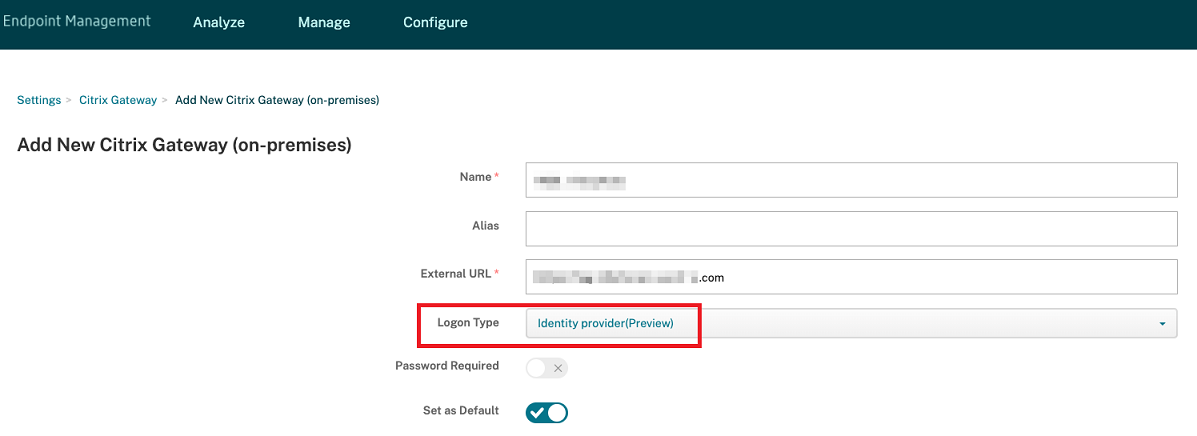
Logon Type ドロップダウンメニューをクリックし、Identity provider を選択します。
-
Save をクリックします。
-
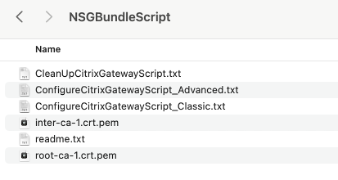
ダウンロードした zip ファイルを開き、そこからファイルを抽出します。
-
抽出された .txt ファイル内のスクリプトを実行して、オンプレミス NetScaler Gateway を準備します。
-
-
Citrix ADC 管理コンソールにサインインし、NetScaler Gateway > Virtual Servers に移動します。
-  1.  Citrix Endpoint Management のセットアップに関連するゲートウェイをクリックします。

-  1.  オンプレミス NetScaler Gateway 上の既存の認証ポリシーをすべてバインド解除します。
Okta の構成
-
管理者として Okta にサインインします。
-
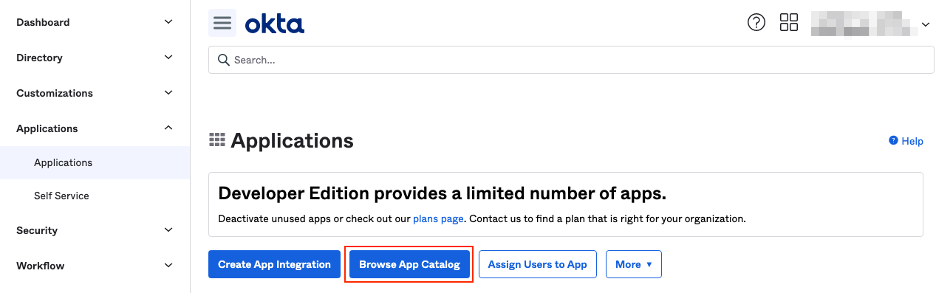
Applications > Applications > Browse App Catalog をクリックします。
-
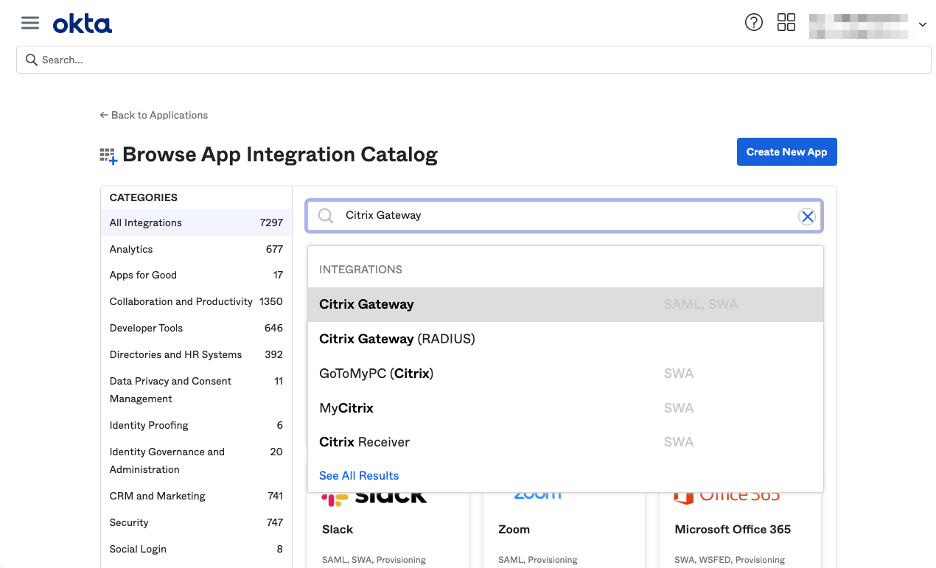
Browse App Integration Catalog の検索バーに「NetScaler Gateway」と入力し、NetScaler Gateway (SAML, SWA) を選択します。
-
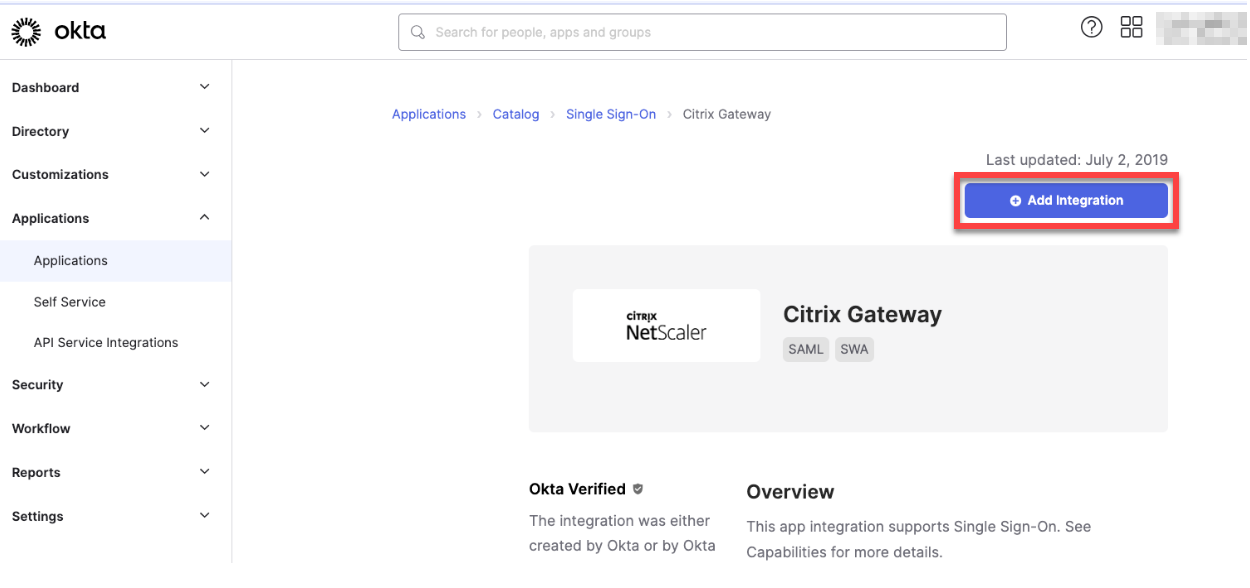
Add Integration をクリックします。
-
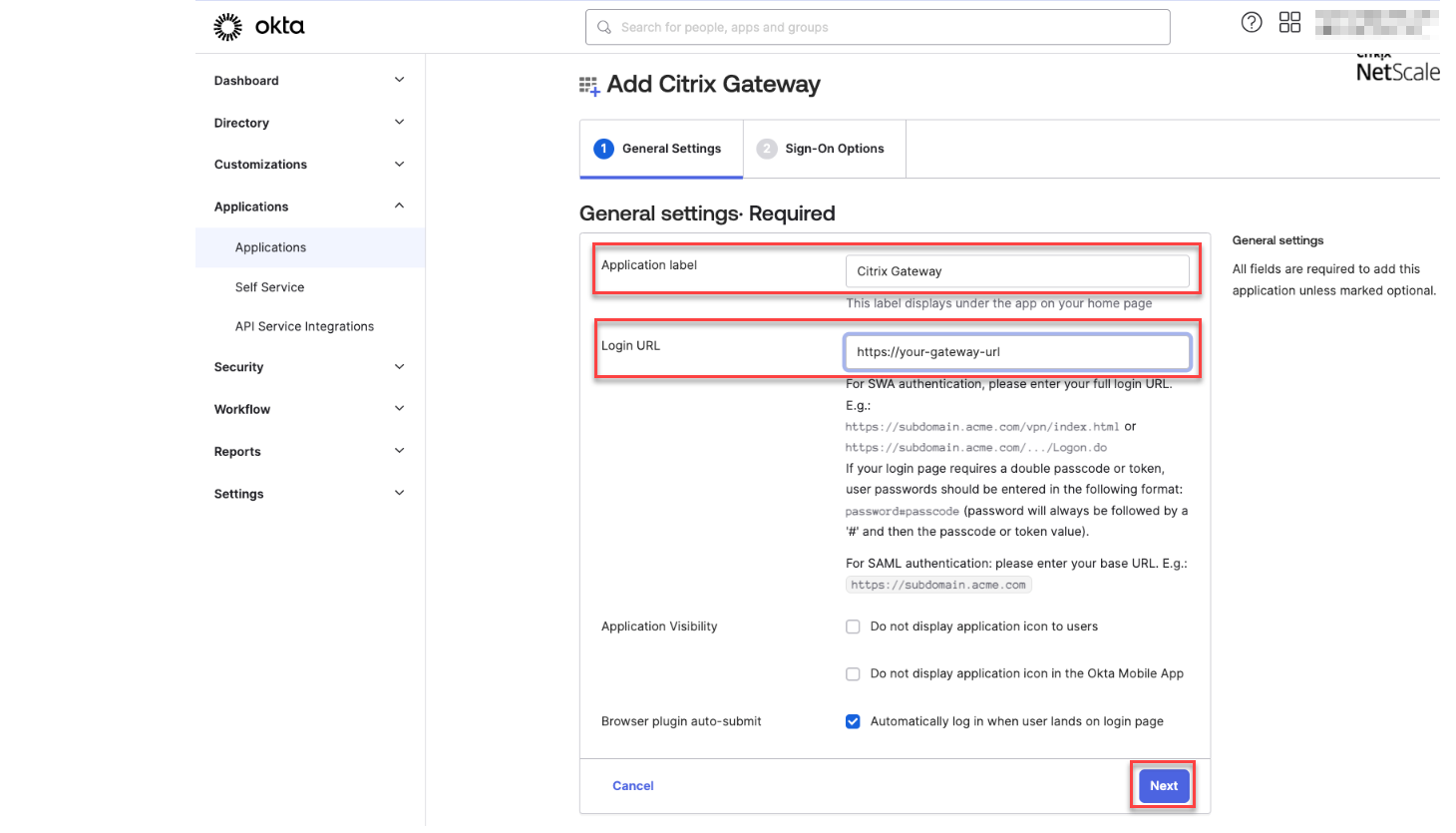
Application label フィールドに適切な名前を入力します。
-
Login URL フィールドにゲートウェイ仮想サーバーの URL を入力し、Next をクリックします。
注:
Login URL フィールドに入力された URL は、Citrix Endpoint Management 設定の NetScaler Gateway URL と同じである必要があります。
-
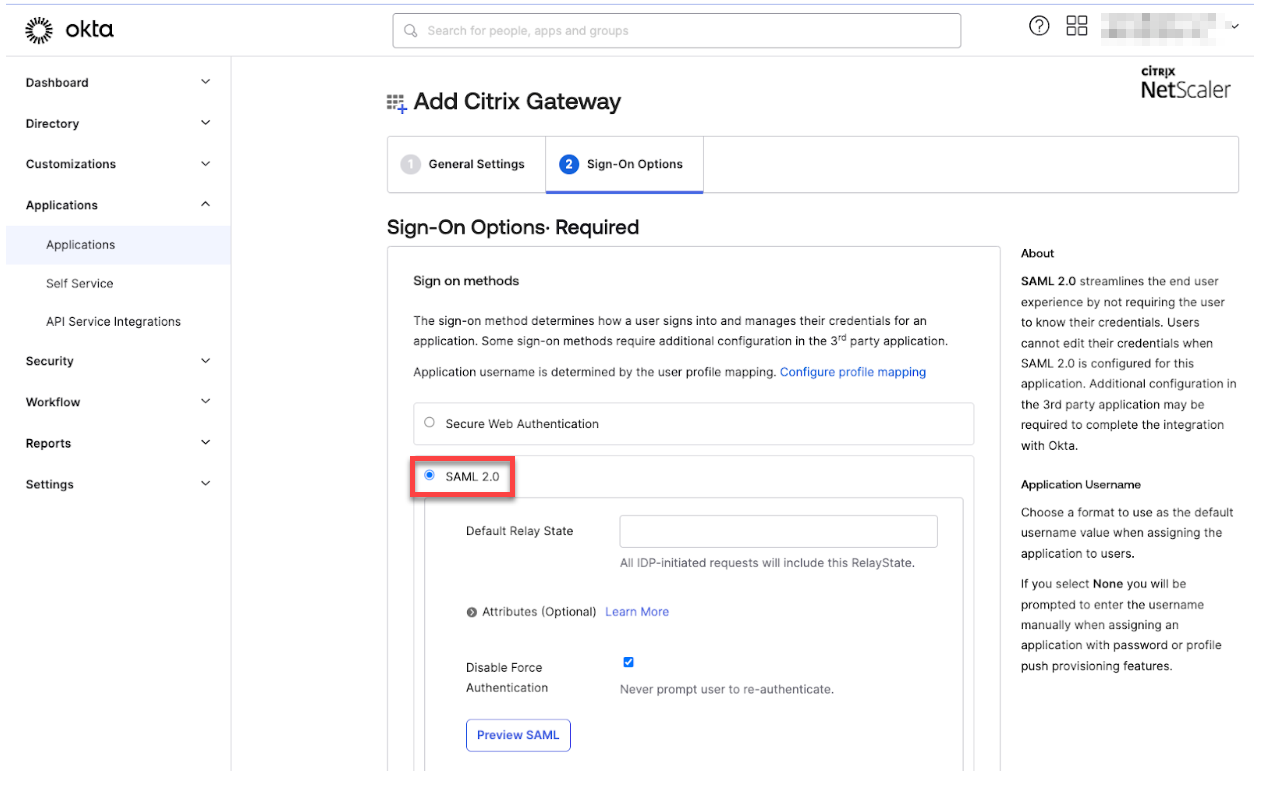
Sign-On Options Required > Sign on methods で、SAML 2.0 を選択します。
-
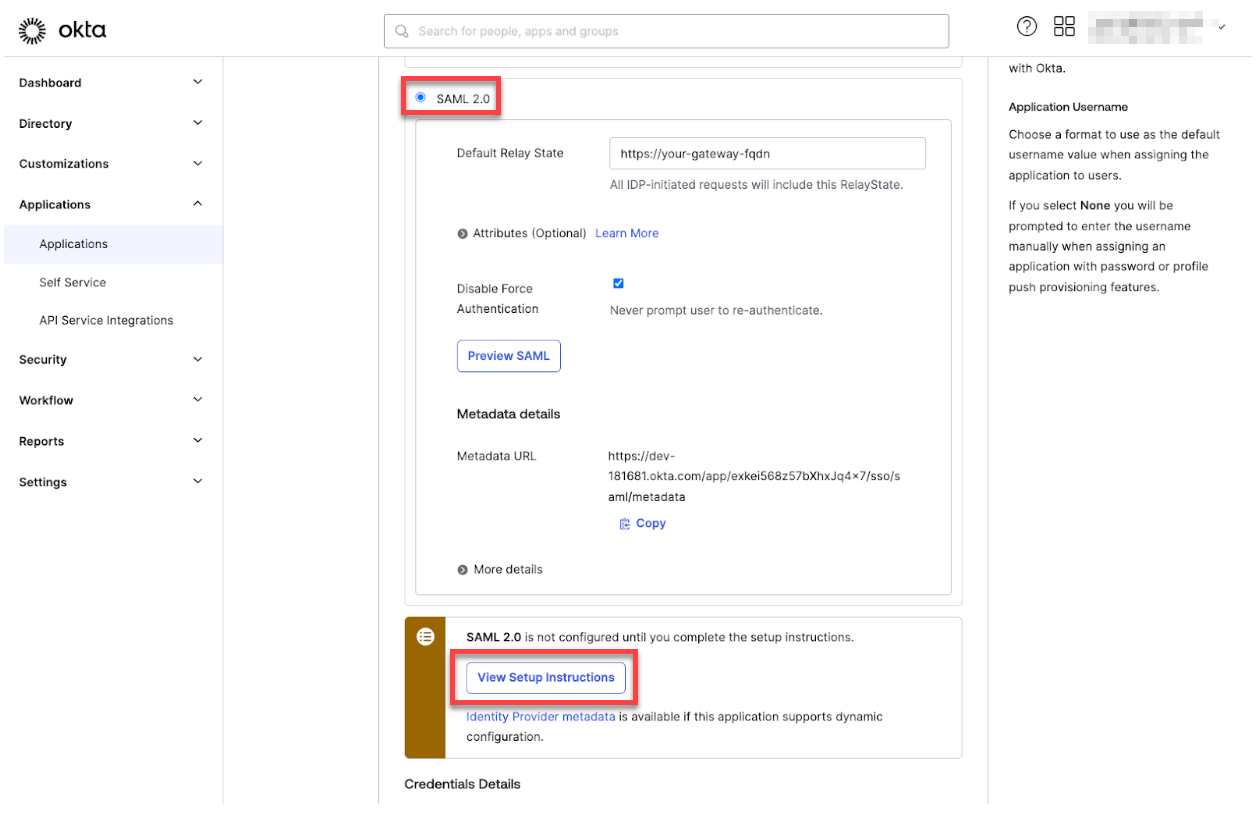
View Setup Instructions をクリックし、ページに記載されている手順に従って、Citrix® オンプレミスゲートウェイ管理コンソールで SAML ポリシーを作成します。
注:
- NetScaler Gateway バージョン 11.1 以降を構成する際に CA 証明書をインストールした後、SAML アクションを作成します。SAML アクションを作成するには、**Security** > **AAA - Application Traffic** > **Policies** > **Authentication** > **Advanced Policies** > **Actions** > **SAML Actions** に移動します。**Add** をクリックし、前のページに記載されている情報を入力します。**Netscaler Gateway** > **Policies** > **Authentication** > **SAML** > **Servers** というページに記載されているナビゲーションは使用しないでください。 - また、SAML ポリシーを作成する手順も、それらの手順がクラシックポリシーを使用しているため、使用しないでください。現在は高度なポリシーを使用しています。高度なポリシーを使用して SAML ポリシーを作成するには、次の手順 9 を実行します。 -
SAML アクションに対応する SAML ポリシーを作成し、次のように認証仮想サーバーにポリシーをバインドします。
-
Security > AAA-Application Traffic > Policies > Authentication > Advanced Policies に移動し、Add をクリックします。
-
「Create Authentication Policy」ページで、次の詳細を入力します。
- Name - SAML ポリシーの名前を指定します。
- Action Type - 認証アクションタイプとして SAML を選択します。
- Action - SAML ポリシーをバインドする SAML サーバープロファイルを選択します。
-
Expression - SAML ポリシーがユーザーを SAML サーバーで認証する必要があるかどうかを判断するために使用するルールまたは式の名前が表示されます。テキストボックスで、SAML ポリシーを有効にし、対応する SAML アクションを実行するために、値 rule =
trueを設定します。
-
SAML ポリシーを VPN 仮想サーバーにバインドし、認証プロファイルを介して VPN 仮想サーバーを認証仮想サーバーにリンクします。バインド手順の詳細については、「認証ポリシーのバインド」を参照してください。
-
-
GUI を使用して認証仮想サーバーをセットアップする を使用して AAA 仮想サーバーを作成します。
-
認証仮想サーバーを構成する を使用して AAA 仮想サーバーを構成します。
-
認証プロファイル を使用して認証プロファイルを作成および構成します。
-
認証プロファイルをGateway仮想サーバーにバインドし、すべての構成を保存します。
-
CitrixオンプレミスGateway管理コンソールでSAMLポリシーを作成した後、[完了] をクリックします。
これで、Citrix Endpoint Management統合用の2つのアプリケーション、つまりCitrix Cloud用のWebアプリケーションとCitrix Endpoint Management MAM認証用のSAMLアプリケーションが表示されます。
-
作成したSAMLアプリケーションに関連するユーザーとグループを割り当てます。
これで、OktaがMAMに登録されたデバイスのIDプロバイダーとして追加され、Oktaを使用してそれらを認証できます。
予期される動作
次の例はAndroidデバイスを使用しています。
-
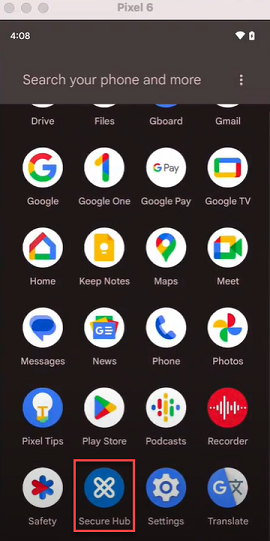
モバイルデバイスで、Citrix Secure Hubアプリを開きます。
-
必要な権限を付与します。
-
サインインページで、組織から提供された資格情報を入力し、[次へ] をタップします。
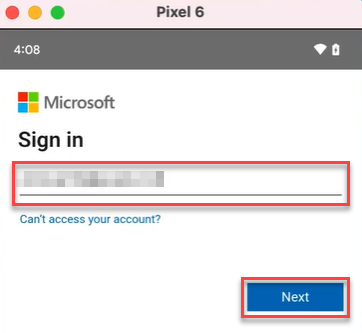
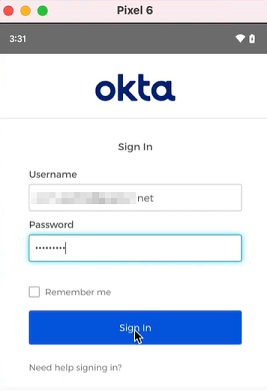
Oktaサインインページにリダイレクトされます。
-
Oktaサインインページで、資格情報を入力し、[サインイン] をタップします。
-
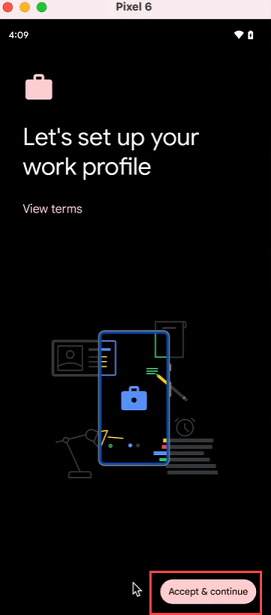
[仕事用プロファイルを設定しましょう] ページで、[同意して続行] をタップします。
-
Citrix Secure HubアプリのPINを作成し、確認します。
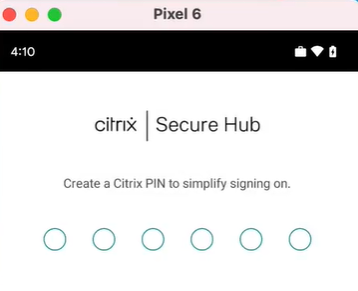
Citrix Secure Hubのホームページに正常にリダイレクトされます。
共有
共有
This Preview product documentation is Citrix Confidential.
You agree to hold this documentation confidential pursuant to the terms of your Citrix Beta/Tech Preview Agreement.
The development, release and timing of any features or functionality described in the Preview documentation remains at our sole discretion and are subject to change without notice or consultation.
The documentation is for informational purposes only and is not a commitment, promise or legal obligation to deliver any material, code or functionality and should not be relied upon in making Citrix product purchase decisions.
If you do not agree, select I DO NOT AGREE to exit.