Context-based application routing
When an app is configured, routing types are defined for the application URL and its related domains or app destinations under app configuration. The routing type defined here applies to all users who have access to the app. However, there can be scenarios where admins want to route the same app differently based on user context. For example, an internal app URL or destination must be routed directly instead of via Secure Private Access when users are inside the corporate network.
You can configure this using Routing Exceptions in access policies (for specific users) or session policies (all users). The Routing Exceptions configuration in the access policies allows admins to edit the routing type for users or machines that match the conditions defined in the policy. Because this setting is part of an access policy, it applies only to the users and machines included in that policy.
Note:
If there is a routing configuration within an access policy, then it overrides the app configuration.
The following examples demonstrate the routing exception use cases.
Use case: Context-based routing
Scenario:
- Group A users: Employees of company ABC who access the Outlook app and Microsoft Teams app through NetScaler Gateway that is routed internally.
- Group B users: Employees of a third-party company working with ABC. They access certain applications (excluding Outlook) through NetScaler Gateway. They also have their own Outlook application accessed over the internet and do not want to route their Outlook traffic through NetScaler Gateway.
Problem:
- Group B users log in to the Secure Access client to access ABC apps.
- Their requests to access Outlook through their native browser are routed through NetScaler Gateway, resulting in access denial.
- The destination domain for the Outlook application is the same for both Group A and Group B users.
- The access policy allows access only for Group A users, causing access denial for Group B users when they try to launch Microsoft Teams or Outlook.
- Group B users cannot access their company Outlook because of this routing issue.
Solution:
The ABC company admin can make the following configuration changes to resolve this issue:
- Define a new access policy specifically for Group B users accessing the Office 365 app.
-
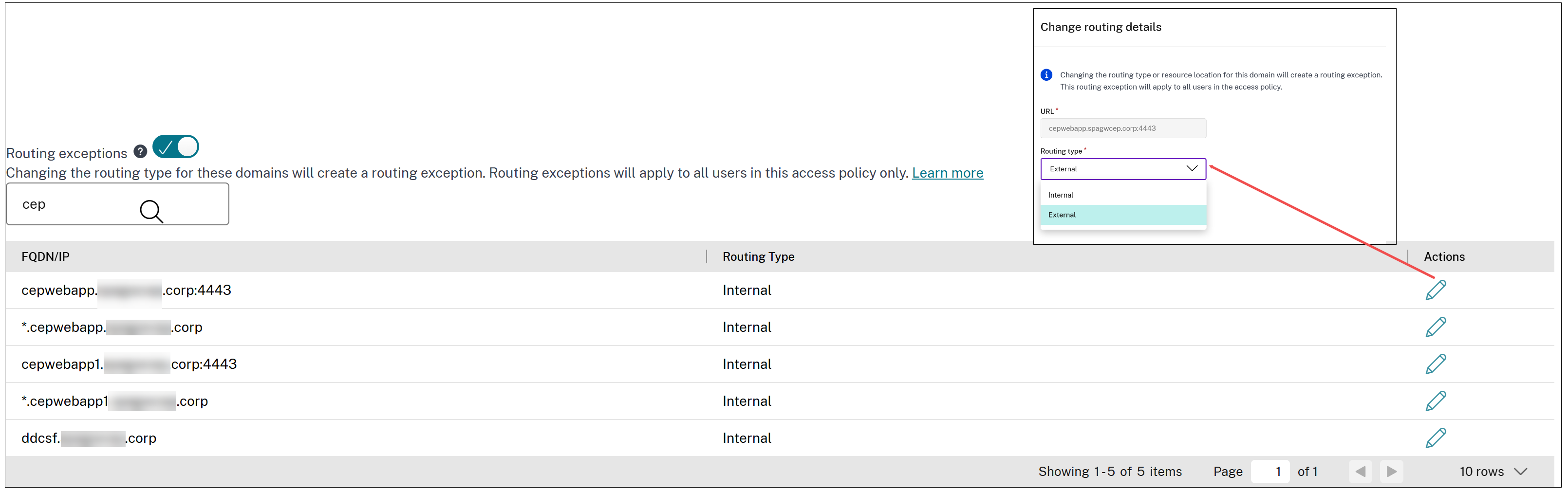
In the access policy, enable the Routing exceptions option.
The admin can view the list of all URLs and related domains of all internal apps associated with the access policy.
-
For all Office 365 app URLs, configure the routing to happen externally.
This ensures that Group B users’ requests to access their Outlook application are routed over the internet, bypassing NetScaler Gateway.
By implementing these changes, Group B users can access their company Outlook application over the internet without being routed through NetScaler Gateway, while still maintaining access to other ABC applications as needed.
Steps to change the routing type
- Create or edit an access policy. For detailed instructions, see Configure access policies.
- In the access policy, enable the Routing exceptions toggle to ON.
- From the list of app URLs and related domains associated with the access policy, locate the domains whose routing type you want to change.
- Change the routing type (for example, from Internal to External) for the selected domains based on the user context you want to apply.
- Save the access policy.
Use case: Route internal corporate users directly to back-end applications
Admins can configure session policies to route internal corporate users directly to back-end apps without tunneling traffic through NetScaler Gateway. Session policies offer dynamic routing based on factors, such as network location and device posture.
For details on configuring a session policy, see Configure session policies.
Note:
- Session policy settings are applied at the session level to all applications rather than being tied to specific applications.
- Session policies can be assigned to all users or a subset of users.
Routing precedence
Session policies work alongside access policies, with access policies taking precedence if there is a conflict. In such scenarios, access policy routing exceptions override session policies. If neither an access policy nor a session policy is configured, global routing settings (Settings > Application Domain) apply.
Supported Citrix Secure Access™ clients
The following versions of Citrix Secure Access client support routing of users directly to the back-end applications.
- macOS - 24.11.1 and later.
- Windows - 24.11.1.17 and later. Also, the EnableContextualAccess VPN client registry must be enabled. For more information, see NetScaler Gateway Windows VPN client registry keys.
Example use case
Scenario:
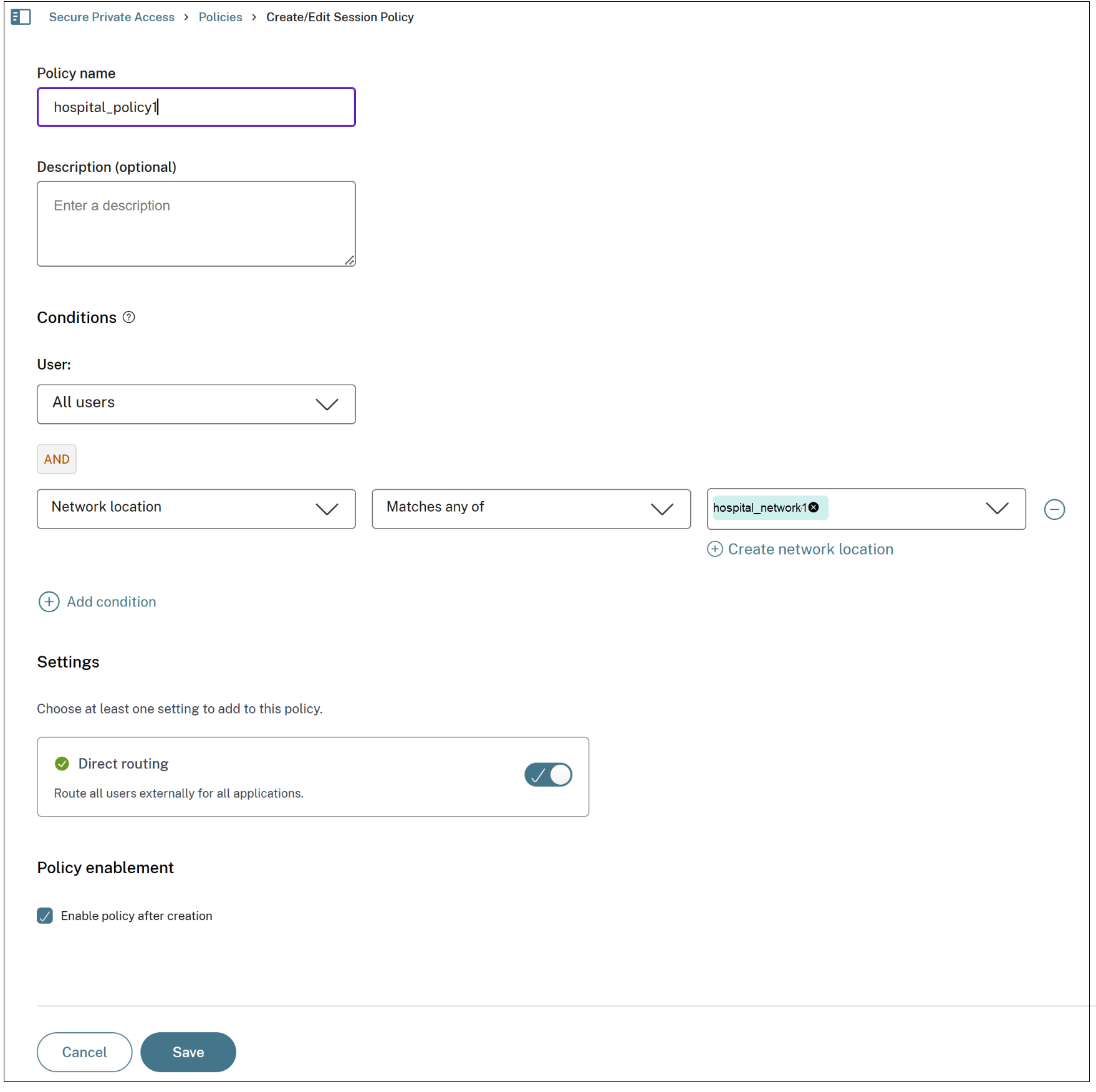
In a hospital, when users are connected to the hospital network “hospital_network1”, then traffic from apps must flow directly to the back-end apps, as these apps are directly reachable on the hospital network. If the users are outside the hospital network, then the app traffic must be tunneled.
Solution:
- Add app1, app2 with routing set to Internal.
- Add an access policy for the apps (app1, app2) to grant access.
- Add a session policy to configure conditions to specify the user group and network locations that must be considered when granting access.
- Select the User condition and set it to All users.
- Add a Network Location condition. Set it to Matches any of and specify the network location “hospital_network1”. This ensures that traffic coming from “hospital_network1” flows directly to the back-end apps.
You can also enable routing exceptions for this scenario. For example, if app1 must always be tunneled even on the hospital network, then routing exceptions can be configured for domains of app1 in the access policy. When this is done, the routing exception takes precedence over the session policy.
Configure direct routing within the hospital network using session policies
You can use a session policy to allow users to directly access back-end applications by bypassing the NetScaler Gateway tunneling.
For details on configuring a session policy, see Configure session policies.