Licensing guide for Citrix uberAgent 7.4.x and earlier
Before you start
- Ensure that you have a valid entitlement that includes Citrix uberAgent.
- Verify that you have at least one account that has access to your licenses in the MyCitrix portal.
Downloading the License
Citrix uberAgent does not require a license server component. Therefore, the license file (uberagent.lic) has to be distributed to all endpoints where uberAgent is installed. To do so, use the Citrix Manage license portal to allocate the licenses, download the license file, and distribute it to the endpoints.
- From a web browser, go to www.citrix.com.
- Click Sign In > My Account and enter your user ID and password.
- Select Manage Licenses.
-
The landing page displays only new licenses within 30 days and expiring term licenses. Use the Find a license by… search to find all licenses using one of the search criteria. For uberAgent licenses, click the Download uberAgent license button.
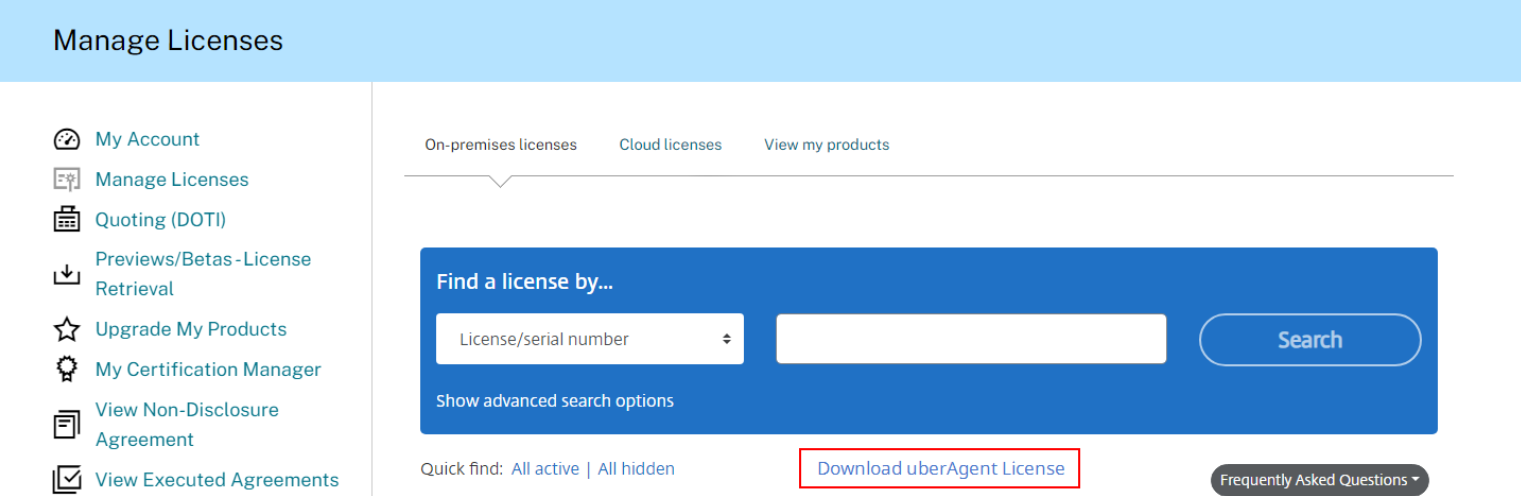
- Download the license file, and save the file to a location from where you can distribute it to your endpoints. Note that the license file only works if it has not been modified.
Manual Installation
To apply a license file to an uberAgent installation, follow the steps below:
- Locate the license file that was downloaded from your MyCitrix portal.
- Copy the license file into uberAgent’s installation directory which resolves to
%ProgramFiles%\Citrix\uberAgentby default on Windows or to its configuration directory/Library/Application Support/uberAgenton macOS. - After pasting the license file, make sure to start or restart the uberAgent service or daemon to apply the new uberAgent license file.
Central License File Management
uberAgent can install license files automatically from a centrally managed license file share. For details on Central License File Management, see the product documentation. With this approach, the license file downloaded from MyCitrix portal has to be placed on the configured file share instead of the installation directory.
Renew a License
Citrix uberAgent does not have an auto-renew feature. To renew a license, download the latest copy of your uberAgent license file from the MyCitrix portal and apply it as described above. uberAgent is able to work with multiple license files. The agent will use the first license file that is valid (more details).
Note:
If you have previously deployed an uberAgent license that was not issued by Citrix, you can also follow the steps above to renew your uberAgent license.
Advanced Licensing Options
Please review the uberAgent product documentation for knowledge base articles about the licensing.