System bar
The System bar provides various functions and can be configured.

| Description | |
|---|---|
| 1 | Show start menu with application selection and system commands (see below) |
| 2 | Show desktop |
| Minimizes all open windows. | |
| 3 | Taskbar for displaying applications with an open window. |
| 4 | System icons to easily change the settings for hybrid work scenarios (e.g. video, audio, monitor layout, network). Click a system icon to open the Quick system access panel. Tooltips display status information for the system icons as soon as the mouse pointer is positioned over the icon. |
To display information about active third-party software (e.g. Zoom, Cisco Secure Client), click on the up arrow  -icon -icon |
|
| If a USB storage device is connected, its icon appears and can be clicked to open the USB info popup (see Viewing USB device info). The icon is not shown otherwise. |
Using Quick system access
Click any system icon (audio, network, or the time) to open Quick system access. It provides direct access to the most common settings without opening the full Device configuration.
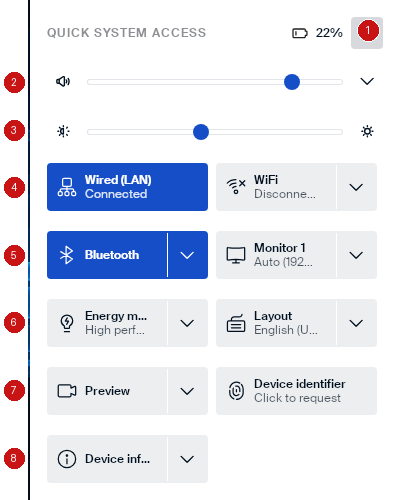
| Description | |
|---|---|
| 1 | Battery charge level. Click the gear icon to open Device configuration. |
| 2 | Volume slider. Click the arrow to expand separate sliders for the individual audio devices. |
| 3 | Brightness slider for the display. |
| 4 | Wired (LAN) and WiFi tiles, showing the connection status. Click a tile to connect, disconnect, or open its connection details. |
| 5 | Bluetooth tile to turn Bluetooth on or off. Monitor 1 tile, showing the active resolution; click to open display settings. |
| 6 | Energy mode tile, showing the active power management profile. Layout tile, showing the active keyboard layout. |
| 7 | Preview tile to show or hide the webcam preview. Device identifier tile; click Click to request to have the device request and display a fresh device identifier from Scout. |
| 8 | Device info tile. Click to expand a summary of device details such as MAC address and serial number. |
Click a tile’s arrow to expand it for more options, or click the tile itself to toggle it, depending on the tile.
Viewing USB device info
Note:
The USB icon and the USB info popup are only available while a USB storage device is connected. The icon disappears again after the device is removed.
When a USB storage device is connected, its icon appears in the system bar, as shown below:

Click the icon to open the USB info popup:
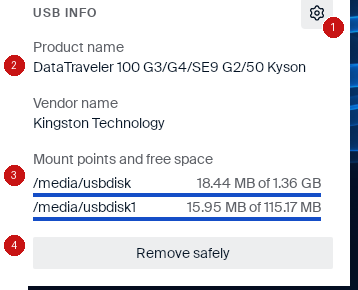
| Description | |
|---|---|
| 1 | Click the gear icon to open Device configuration, on the Hardware and Bluetooth dialog. |
| 2 | Product name and Vendor name of the connected device. |
| 3 | Mount points and free space, listing each partition’s mount point and the free space out of its total capacity. |
| 4 | Click Remove safely to unmount the device before physically disconnecting it. |
System bar
Copied!
Failed!