Printer
Printer is where you configure locally connected and network-connected printers.
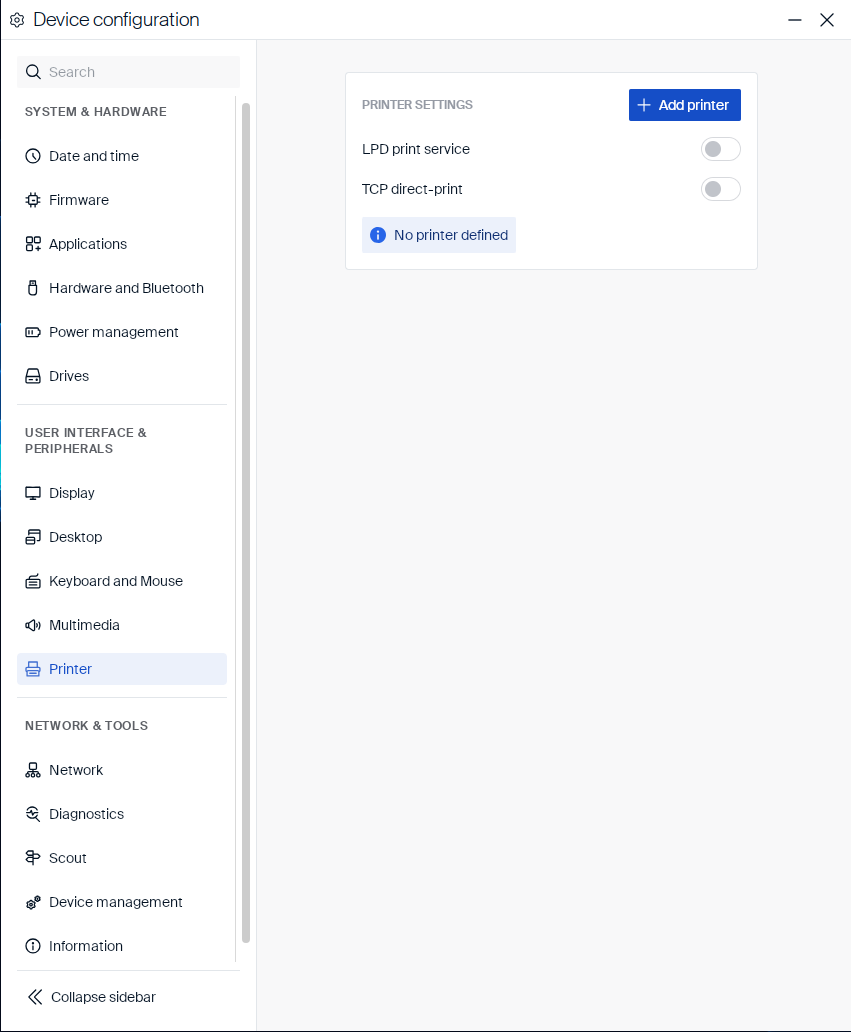
Print services
These toggles turn on services that let the device accept print jobs sent to it over the network:
| Setting | Type | Description |
|---|---|---|
| LPD print service | Toggle | Enables the Line Printer Daemon service, so the device can accept print jobs sent to it over the network. |
| TCP direct-print | Toggle | Enables direct TCP printing to a network printer connected to the device. |
Turning on TCP direct-print shows three number fields, one for each connection it listens on. Adjust each port with its -/+ buttons:
| Setting | Type | Default |
|---|---|---|
| USB on port | Number field | 9101 |
| COM 1 on port | Number field | 9102 |
| COM 2 on port | Number field | 9103 |
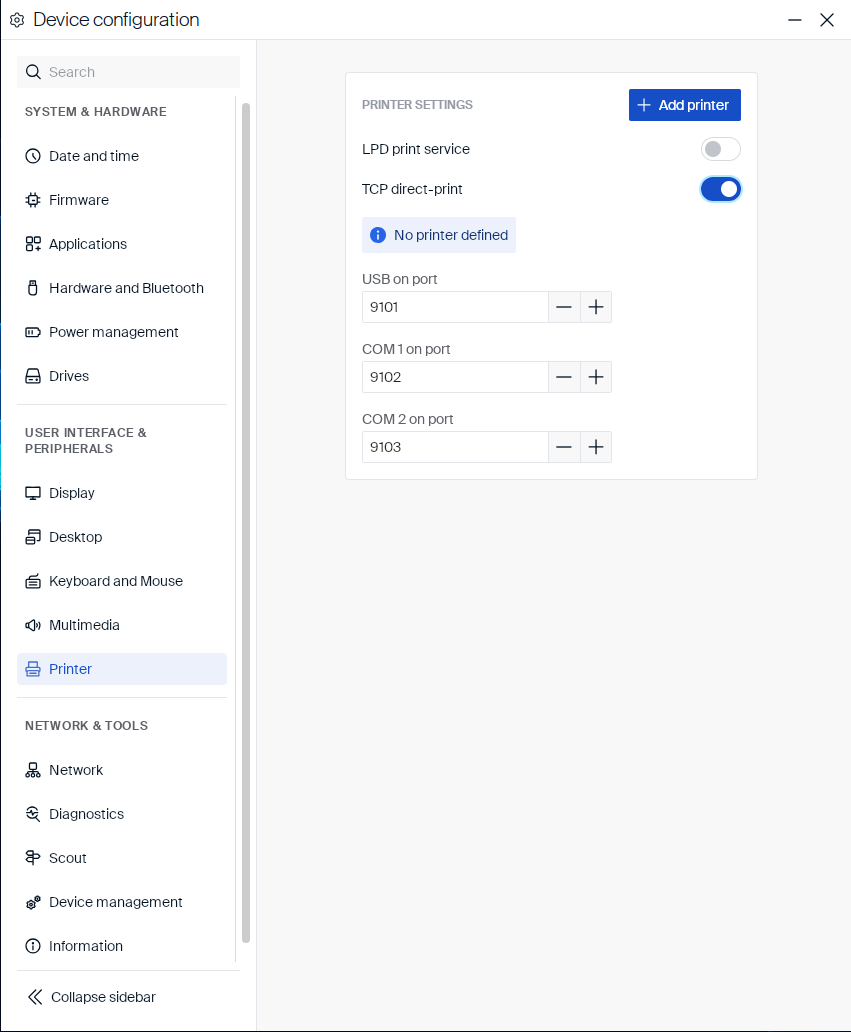
While no printer is configured yet, a No printer defined message appears below these toggles.
Adding a printer
-
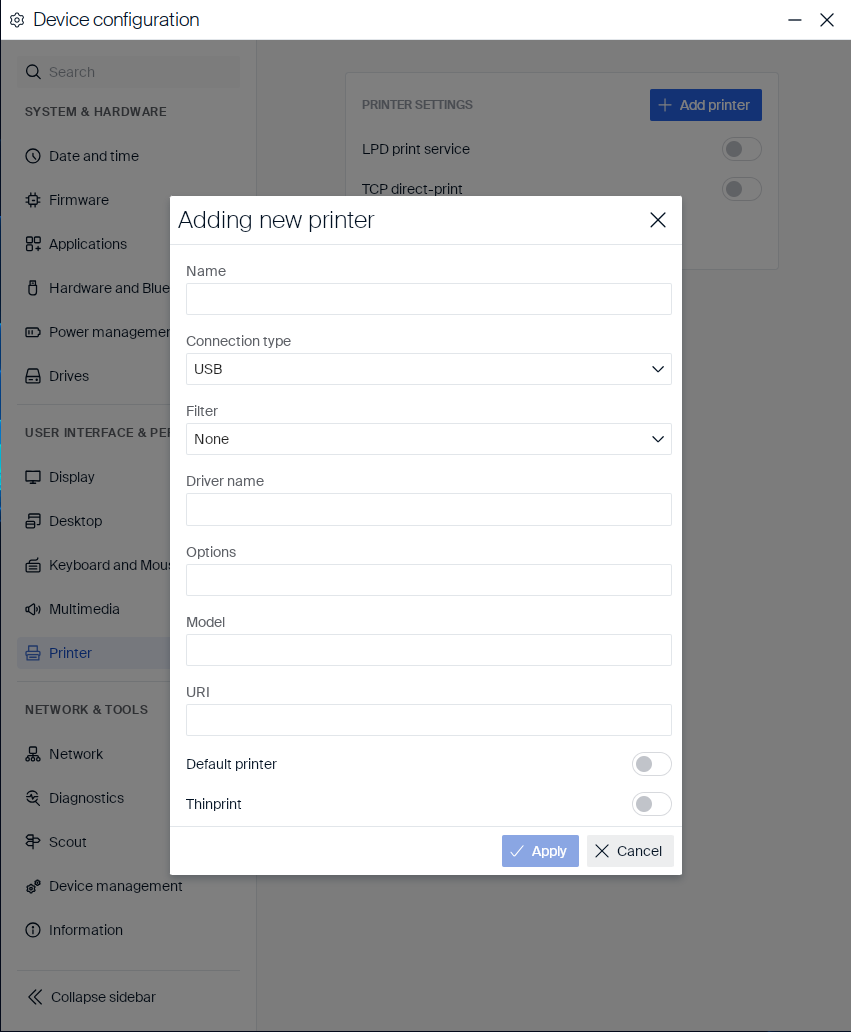
Click Add printer.
-
Fill in the following fields to identify the printer and how it connects to the device:
Field Type Description Name Text field Name the printer appears under in application print dialogs. Connection type Dropdown USB,Network,Parallel, orCOM 1.Printer address Text field Hostname or IP address of the network printer. Only shown when Connection type is Network.Printer queue Text field Print queue name on the network printer. Only shown when Connection type is Network.Filter Dropdown None,Text, orPCL2.Driver name Text field Identifier of the printer driver to use. Options Text field Additional driver options. Model Text field The printer’s exact model, used to select a matching driver. URI Text field Connection URI for the printer. Default printer Toggle Makes this the default printer. Thinprint Toggle Enables printing through a ThinPrint connection. Class Text field ThinPrint class to use. Only shown when Thinprint is on. Selecting
Networkas the Connection type shows the Printer address and Printer queue fields right below it: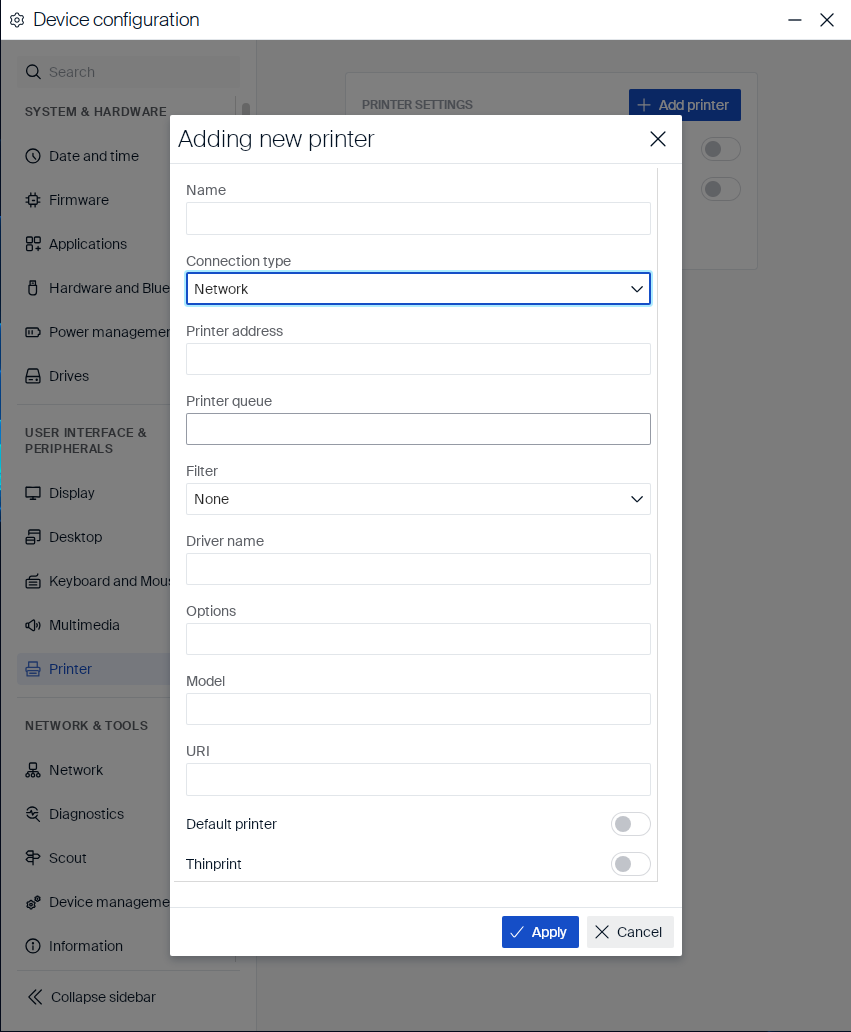
-
Click Apply to save the printer, or Cancel to close the dialog without saving it.
The printer appears in the printer list. To remove a printer, use its delete action in the list.