Device management
Device management is located under Network & Tools in the Device configuration dialog.
It provides firmware updates, configuration fetches, credential changes, and factory resets.
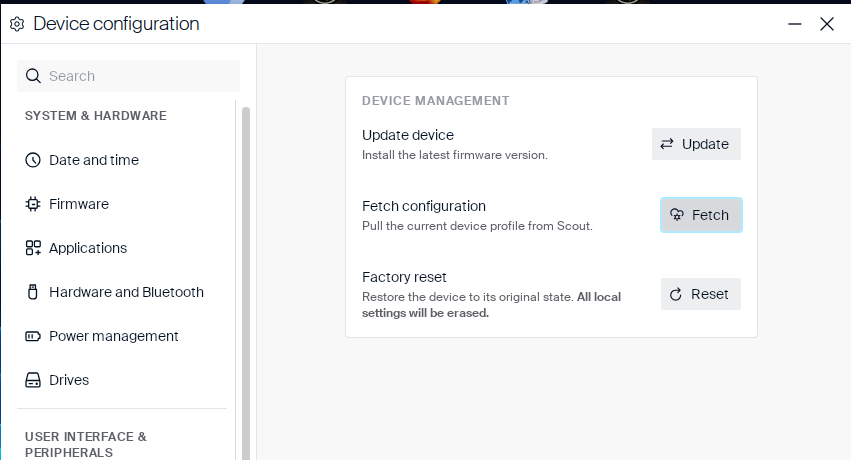
Each row is a single-click action:
| Action |
Button |
Description |
| Update device |
Update |
Checks for and installs the latest firmware version. Runs immediately (no confirmation prompt) — shows a Firmware update dialog with a progress indicator while it checks, then reports the result (for example No update required.). |
| Fetch configuration |
Fetch |
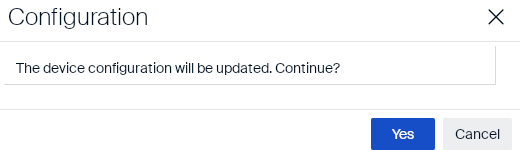
Pulls the current device profile from Scout. Shows a confirmation prompt first: The device configuration will be updated. Continue? with Yes/Cancel. |
| Change credentials |
Change |
Changes the device’s authentication credentials (AD or Imprivata devices only). |
| Factory reset |
Reset |
Restores the device to its original state. All local settings are erased.
|
Note:
Which actions are visible depends on the user rights an administrator has defined in Scout.
Change credentials appears only on AD or Imprivata devices — other devices show just Update device, Fetch configuration, and Factory reset.
Fetch configuration confirmation
Factory reset confirmation
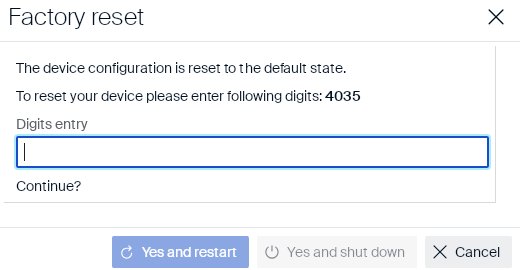
Clicking Reset opens a Factory reset dialog. As a safeguard against accidental resets, it displays a random 4-digit code that you must retype into Digits entry before continuing:
| Button |
Description |
| Yes and restart |
Resets the device, then restarts it. |
| Yes and shut down |
Resets the device, then shuts it down. |
| Cancel |
Closes the dialog without resetting anything. |
The official version of this product documentation is in English. Any non-English version is solely provided for your convenience and may include machine-translated content. For more information, please refer to the Machine Translation Disclaimer on Cloud Software Group home.
DIESER DIENST KANN ÜBERSETZUNGEN ENTHALTEN, DIE VON GOOGLE BEREITGESTELLT WERDEN. GOOGLE LEHNT JEDE AUSDRÜCKLICHE ODER STILLSCHWEIGENDE GEWÄHRLEISTUNG IN BEZUG AUF DIE ÜBERSETZUNGEN AB, EINSCHLIESSLICH JEGLICHER GEWÄHRLEISTUNG DER GENAUIGKEIT, ZUVERLÄSSIGKEIT UND JEGLICHER STILLSCHWEIGENDEN GEWÄHRLEISTUNG DER MARKTGÄNGIGKEIT, DER EIGNUNG FÜR EINEN BESTIMMTEN ZWECK UND DER NICHTVERLETZUNG VON RECHTEN DRITTER.
CE SERVICE PEUT CONTENIR DES TRADUCTIONS FOURNIES PAR GOOGLE. GOOGLE EXCLUT TOUTE GARANTIE RELATIVE AUX TRADUCTIONS, EXPRESSE OU IMPLICITE, Y COMPRIS TOUTE GARANTIE D'EXACTITUDE, DE FIABILITÉ ET TOUTE GARANTIE IMPLICITE DE QUALITÉ MARCHANDE, D'ADÉQUATION À UN USAGE PARTICULIER ET D'ABSENCE DE CONTREFAÇON.
ESTE SERVICIO PUEDE CONTENER TRADUCCIONES CON TECNOLOGÍA DE GOOGLE. GOOGLE RENUNCIA A TODAS LAS GARANTÍAS RELACIONADAS CON LAS TRADUCCIONES, TANTO IMPLÍCITAS COMO EXPLÍCITAS, INCLUIDAS LAS GARANTÍAS DE EXACTITUD, FIABILIDAD Y OTRAS GARANTÍAS IMPLÍCITAS DE COMERCIABILIDAD, IDONEIDAD PARA UN FIN EN PARTICULAR Y AUSENCIA DE INFRACCIÓN DE DERECHOS.
本服务可能包含由 Google 提供技术支持的翻译。Google 对这些翻译内容不做任何明示或暗示的保证,包括对准确性、可靠性的任何保证以及对适销性、特定用途的适用性和非侵权性的任何暗示保证。
このサービスには、Google が提供する翻訳が含まれている可能性があります。Google は翻訳について、明示的か黙示的かを問わず、精度と信頼性に関するあらゆる保証、および商品性、特定目的への適合性、第三者の権利を侵害しないことに関するあらゆる黙示的保証を含め、一切保証しません。
ESTE SERVIÇO PODE CONTER TRADUÇÕES FORNECIDAS PELO GOOGLE. O GOOGLE SE EXIME DE TODAS AS GARANTIAS RELACIONADAS COM AS TRADUÇÕES, EXPRESSAS OU IMPLÍCITAS, INCLUINDO QUALQUER GARANTIA DE PRECISÃO, CONFIABILIDADE E QUALQUER GARANTIA IMPLÍCITA DE COMERCIALIZAÇÃO, ADEQUAÇÃO A UM PROPÓSITO ESPECÍFICO E NÃO INFRAÇÃO.