Interface
Logging in
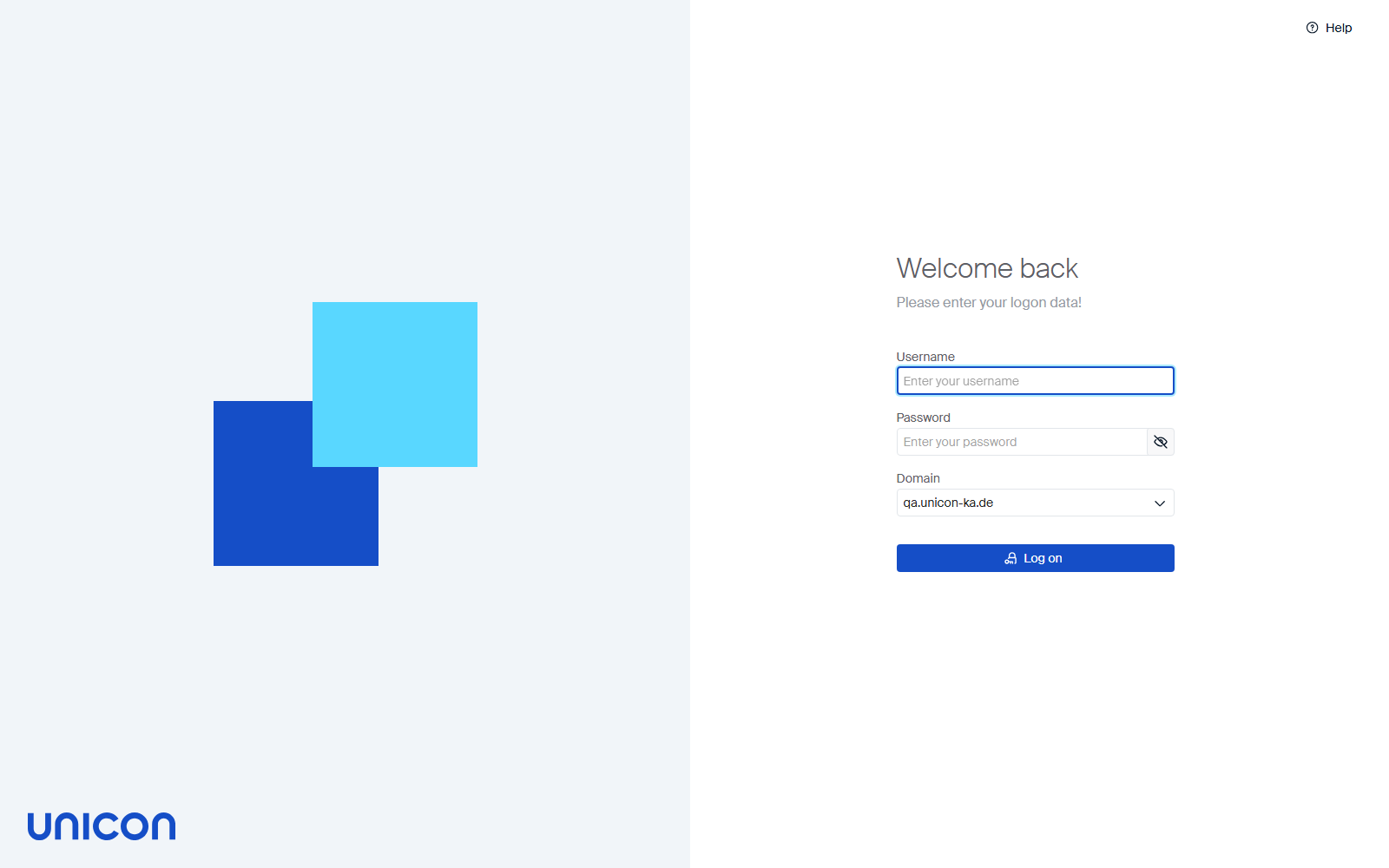
Open the Scout Board URL in your browser to reach the logon screen.
-
Enter your Username and Password.
-
If more than one domain is configured for this Scout Server, select the correct Domain from the list. If only one domain is configured, it is selected automatically.
-
Click Log on.
Note:
Logon via Active Directory is supported. Click the eye icon next to the password field to show or hide the characters you typed.
Main window
The Scout Board main window after logon shows the Dashboard with status information and an overview on different aspects of the managed devices.
Scout Board display languages: English, German and Japanese. Scout Board uses the browser’s preferred language — the language at the top of the browser’s language list — and reads it again each time Scout Board loads; it has no language menu of its own. If that preferred language is anything other than English, German or Japanese, Scout Board is shown in English, even if German or Japanese appears lower in the browser’s list. With some browser languages, some common buttons, field labels and table controls appear in the browser’s own language instead.
Some text stays in English in the Japanese interface, for example some server-side error messages and a few built-in list and table controls. Scout Board does not translate names and values that administrators enter, such as OU, device, application and command names. Device states, such as Online, are translated. The legacy Scout Console and the Scout installation program are not affected: both remain available in English and German only.

| Information | |
|---|---|
| 1 | Navigation Panel |
| 2 | The section selected on the Navigation Panel is displayed. |
| 3 | Global search for data and navigation elements |
| 4 | Help, system status, notifications, and user profile. See Help, notifications, and profile below. |
| 5 | The Devices section provides three alternative views. |
| 6 | For the selected OU, the contained devices are displayed on the right. |
| 7 | For the selected device, the details are displayed on the right. |
| Use the Navigation Panel on the left to choose the section you want to work with. Next to Dashboard and Devices, the Navigation Panel offers access to additional functions such as reports, advanced configuration and administrator management. |
Note:
Close the Navigation Panel with
to save space. Then only the section icons will be displayed.
Help, notifications, and profile
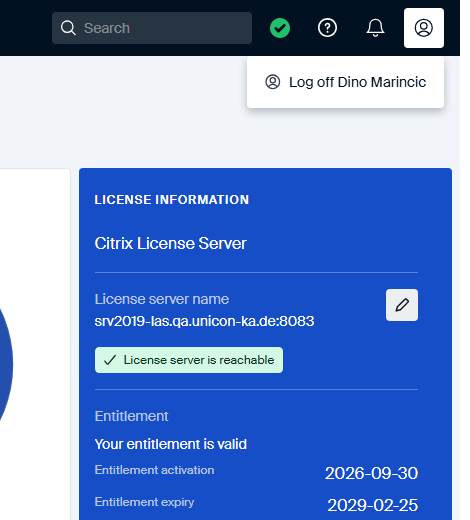
On the right of the title bar, four icons give you quick access to help, system status, notifications, and your own account:
-
 Help
opens About (version information), Online help, License information, and
Download log files.
Help
opens About (version information), Online help, License information, and
Download log files.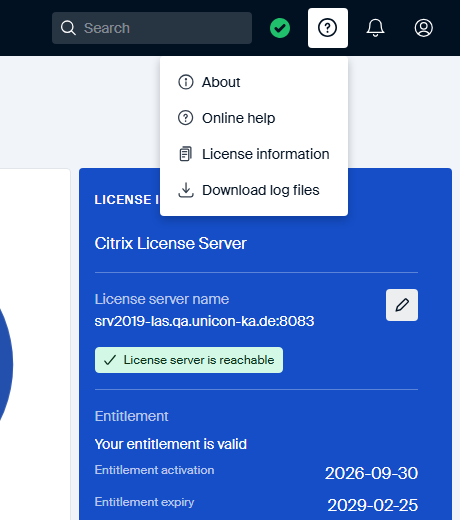
-
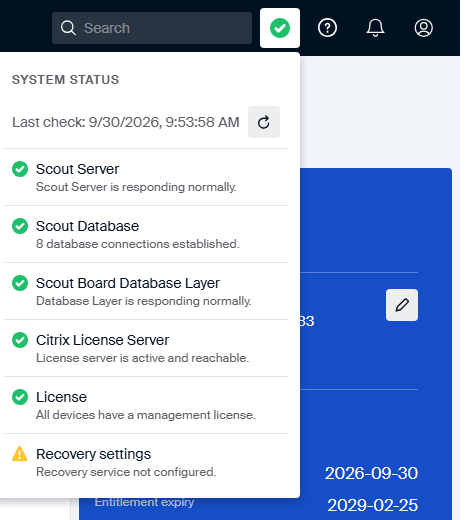
The colored checkmark icon opens System status, a live health check of the Scout Server, the Scout database, the Scout Board database layer, the Citrix License Server, device licensing, and recovery settings. Each check shows a green checkmark when healthy, or a warning triangle with a short explanation when it needs attention. Click the refresh icon to run the checks again.
-
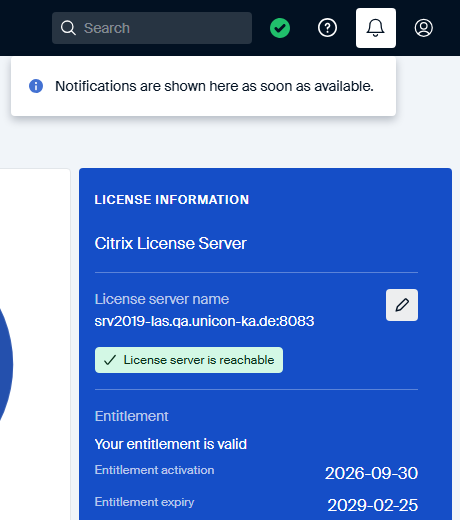
The bell icon opens Notifications. If nothing needs your attention, it tells you that notifications are shown here as soon as they become available.
-
The profile icon lets you log off the current user.
Devices
The Devices section offers three different views to show your devices:
-
All devices: All devices are displayed in a list regardless of their organizational unit. The list can be sorted and filtered as desired.
-
OU structure: The hierarchical OU structure is displayed as a tree view. All organizational units (in the following OUs) can be expanded and displayed.
-
Dynamic Device Groups: Defined Dynamic Device Groups are displayed with the devices currently matching.
For a selected OU or Dynamic Device Group, on the right under Devices, the assigned devices and schedules are shown. To the right, the details of an OU, a Dynamic Device Group or a device may be displayed.