This content has been machine translated dynamically.
Dieser Inhalt ist eine maschinelle Übersetzung, die dynamisch erstellt wurde. (Haftungsausschluss)
Cet article a été traduit automatiquement de manière dynamique. (Clause de non responsabilité)
Este artículo lo ha traducido una máquina de forma dinámica. (Aviso legal)
此内容已经过机器动态翻译。 放弃
このコンテンツは動的に機械翻訳されています。免責事項
이 콘텐츠는 동적으로 기계 번역되었습니다. 책임 부인
Este texto foi traduzido automaticamente. (Aviso legal)
Questo contenuto è stato tradotto dinamicamente con traduzione automatica.(Esclusione di responsabilità))
This article has been machine translated.
Dieser Artikel wurde maschinell übersetzt. (Haftungsausschluss)
Ce article a été traduit automatiquement. (Clause de non responsabilité)
Este artículo ha sido traducido automáticamente. (Aviso legal)
この記事は機械翻訳されています.免責事項
이 기사는 기계 번역되었습니다.책임 부인
Este artigo foi traduzido automaticamente.(Aviso legal)
这篇文章已经过机器翻译.放弃
Questo articolo è stato tradotto automaticamente.(Esclusione di responsabilità))
Translation failed!
Administration console
Install the administration console
Note:
If you intend to assign resources published in Citrix StoreFront stores as application shortcuts in Workspace Environment Management from the administration console, ensure that Citrix Workspace app for Windows is installed on the administration console machine and on the agent host machine. For more information see System requirements.
Run Citrix Workspace Environment Management Console.exe on your administrator console environment.
You can choose a silent installation or upgrade of the infrastructure services. For example:
-
.\Citrix Workspace Environment Management Console.exe
/quiet ConsoleLocation="C:\test\Administration Console" /log "C:\test\test.log" -
/quiet ConsoleLocation="C:\test\Administration Console" /log "C:\test\test.log"-
/quiet. Indicates silent mode. -
/log. Indicates logging file location. -
ConsoleLocation. Indicates the installation path for the administration console.
-
Create an infrastructure server connection
In the Start menu select Citrix®>Workspace Environment Management™>WEM Administration Console. By default, the administration console launches in a disconnected state.
In the ribbon, click Connect to open the New Infrastructure Server Connection window.
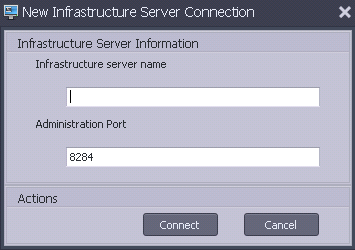
Enter the following values and click Connect:
Infrastructure server name. The name of the Workspace Environment Management infrastructure server. It must resolve from the administration console environment exactly as you type it.
Administration port. The port on which the administration console connects to the infrastructure service.
The first time you connect to a new database, you see the following message because a Citrix License Server with valid licenses is not yet configured:

Configure the database with a license server
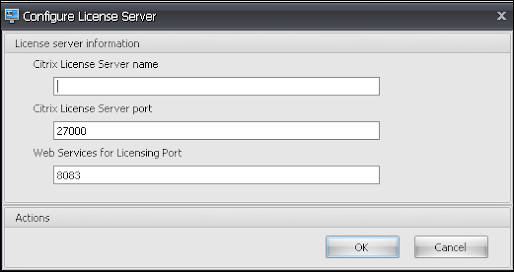
To configure the database with a license server, in the administration console ribbon, click About, then click Configure License Server and enter your Citrix License Server details:
- Citrix License Server name: Enter the server FQDN.
- Citrix License Server port: Enter the server port.
- Web Services for Licensing Port: Enter the License Activation Service port.
The Citrix License Server address must resolve from the administration console environment exactly as entered.
Note:
To activate Workspace Environment Management (WEM) using the License Activation Service (LAS), accept its security certificate by clicking Accept in the dialog box that appears after you click OK to save changes.
Import quickstart settings
Workspace Environment Management includes XML files which you can use to pre-configure your Workspace Environment Management database so that it is proof-of-concept-ready out of the box. The XML files are provided in the folder “Configuration Templates” in the Workspace Environment Management installer package.
To import the quickstart setting files, in the Home ribbon click Restore:

In the Restore Wizard, select Settings and click Next.
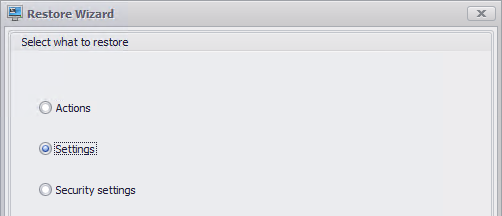
In the Restore Wizard, select the folder “Configuration Templates” containing the quickstart setting files, and then select all Setting Types.
Enforce LDAPS to encrypt Active Directory connections
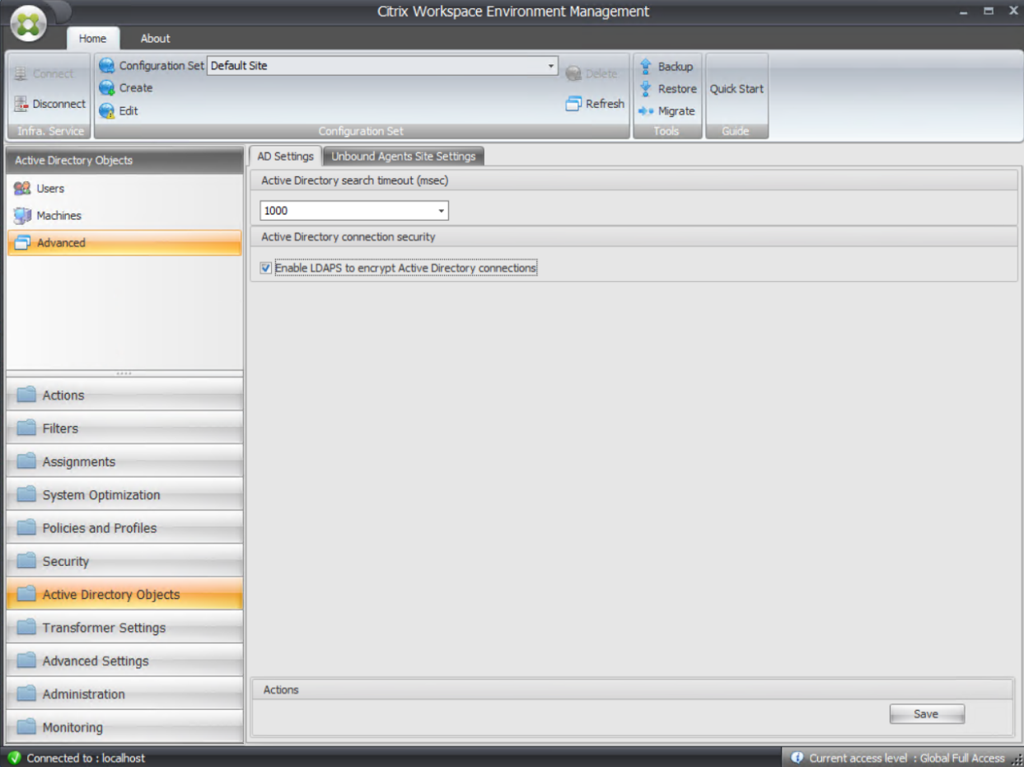
By default, WEM uses LDAP for Active Directory queries. To enforce secure communication over LDAPS, select Enable LDAPS to encrypt Active Directory connections under Advanced > Active Directory Objects.
Share
Share
This Preview product documentation is Citrix Confidential.
You agree to hold this documentation confidential pursuant to the terms of your Citrix Beta/Tech Preview Agreement.
The development, release and timing of any features or functionality described in the Preview documentation remains at our sole discretion and are subject to change without notice or consultation.
The documentation is for informational purposes only and is not a commitment, promise or legal obligation to deliver any material, code or functionality and should not be relied upon in making Citrix product purchase decisions.
If you do not agree, select I DO NOT AGREE to exit.