
Configure Citrix DaaS Profiles Flex
Citrix DaaS Profiles Flex hosts and persists user profiles through a centralized user profile store. Create a user profile store and associate it with the required catalogs. User profiles from those catalogs are then saved to the store and restored in subsequent sessions.
The workflow consists of two main stages:
-
Create the user profile store.
-
Bind the user profile store to the catalogs.
Create the user profile store
The user profile store is the core component of Citrix DaaS Profiles Flex. It centrally manages and persists user profile data across sessions. Each store has its own storage capacity, network connection, region, domain credentials, and access scope, and you can assign it to one or more catalogs.
To create a store, open Citrix Studio, navigate to Quick Deploy > Microsoft Azure, click User profiles on the right, and select Add new user profile store to launch the wizard.
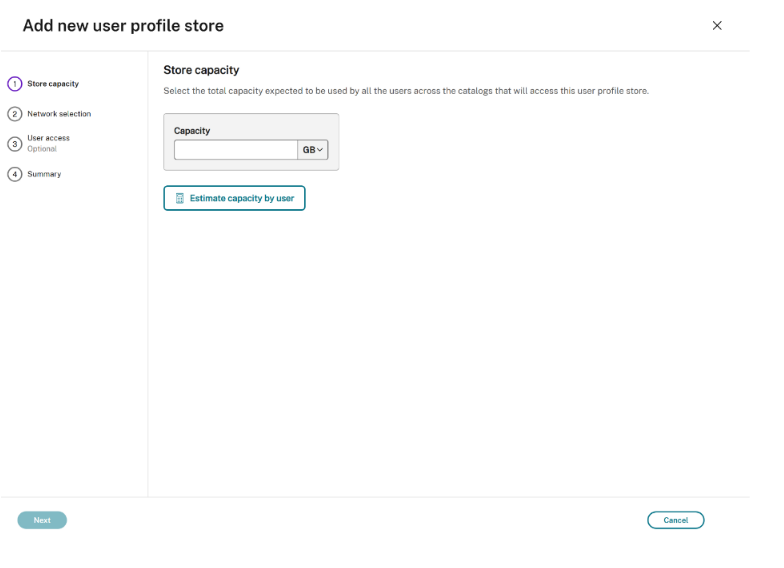
Configure store capacity
Store capacity defines the total storage allocated to all associated users within a user profile store. It serves as the baseline for ongoing capacity planning, quota management, and storage governance.
-
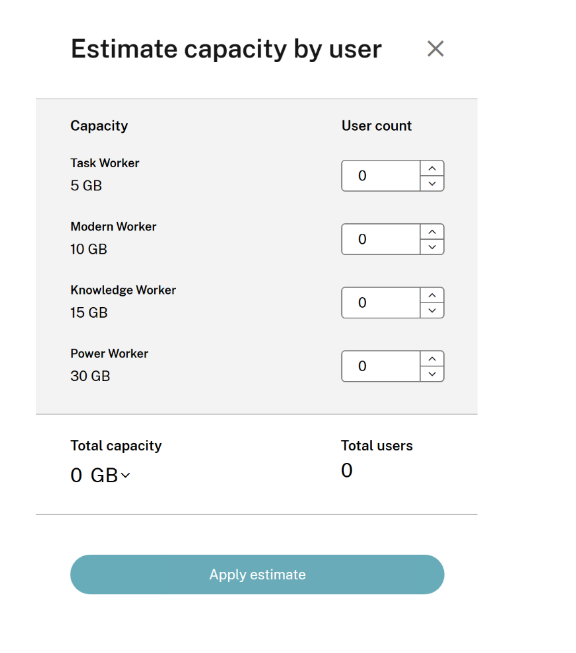
Capacity: Defines the total capacity of the user profile store. Proper capacity configuration is essential. If you are unsure of your storage needs, click Estimate capacity by user to calculate the required space based on your user count and the recommended baselines. The capacity estimator is a persona-based sizing tool that calculates required storage based on typical workload configurations for each user persona.
Configure network selection
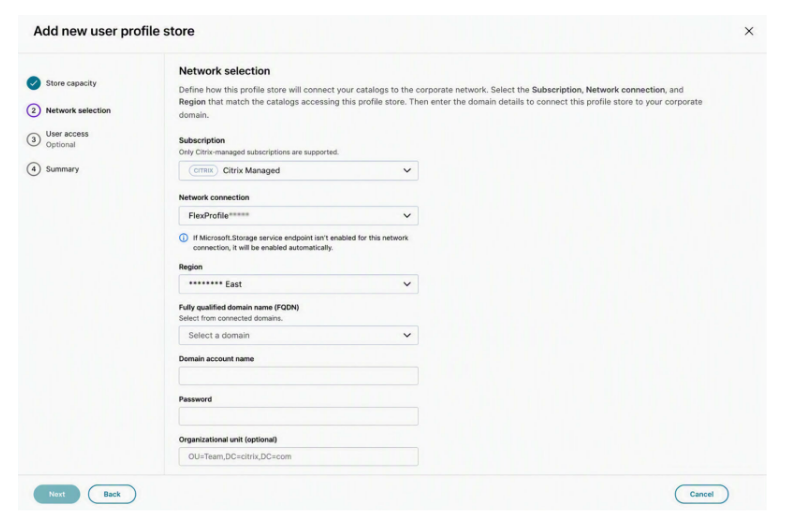
Network selection allows administrators to specify the network, region, and domain credentials used by the user profile store. This configuration determines:
-
Network connectivity for the user profile store
-
The deployment region where the store is hosted
-
Active Directory domain association and authentication details
Note:
These settings directly impact whether the catalog can successfully access and use the user profile store.
Configuration fields:
-
Subscription: Select the Azure subscription for the profile store. Currently, only the Citrix Managed subscription is supported.
-
Network connection: Select the network connection for the profile store.
-
Region: Displays the Azure region hosting the user profile store. This field is automatically set based on the selected network connection and cannot be manually modified.
-
Fully qualified domain name (FQDN): Select a domain from the connected domains for profile access. The selected domain is associated with the user profile store and is used to establish access between the user profile store and the Active Directory environment.
-
Domain account name: Enter a domain account with appropriate permissions to establish access between the user profile store and the Active Directory domain.The domain account must have permissions to create and manage a computer account in the default computer container (
CN=Computers) or the target organizational unit, including:- Create Computer Objects
- Read all properties
- Reset password
- Write `userAccountControl`
- Write `servicePrincipalName`
- Write `userPrincipalName`
- Write `description`
- Write `msDS-SupportedEncryptionTypes` -
Password: Enter the password for the domain administrative account.
-
Organizational unit (optional): The organizational unit where the storage account's computer account is created.
Note:
Password expiration must be disabled for the computer account associated with the Azure storage account.
Configure user access
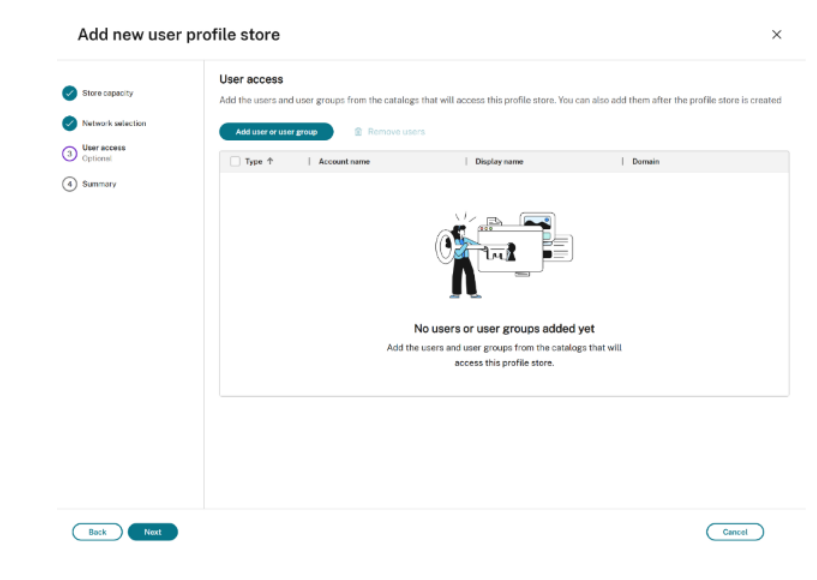
User access defines the users or user groups in the customer's Active Directory that have access to the configured user profile store.
Note:
Access permissions can be configured later.
Add users or groups
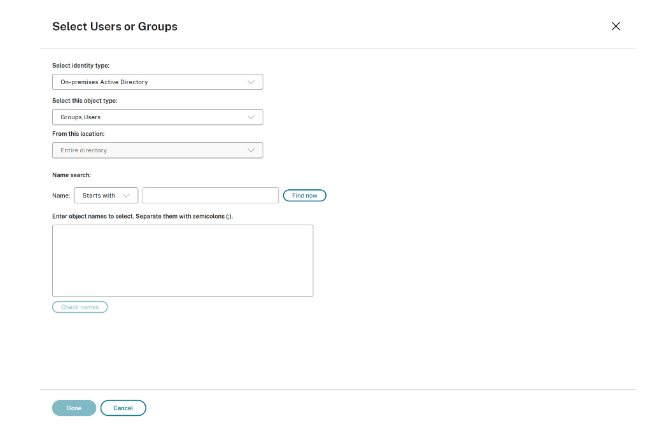
Select Add user or user group to grant profile store access to specific Active Directory entities.
Note:
Administrators can only select users or groups that are already included in the Flex catalog's Authorized Users list.
Remove users or user groups
To revoke access, select the user or user group from the list and click Remove users to delete them from the access list.
Review and create the user profile store
In User profile store name, enter a unique identifier for the store to simplify administration.
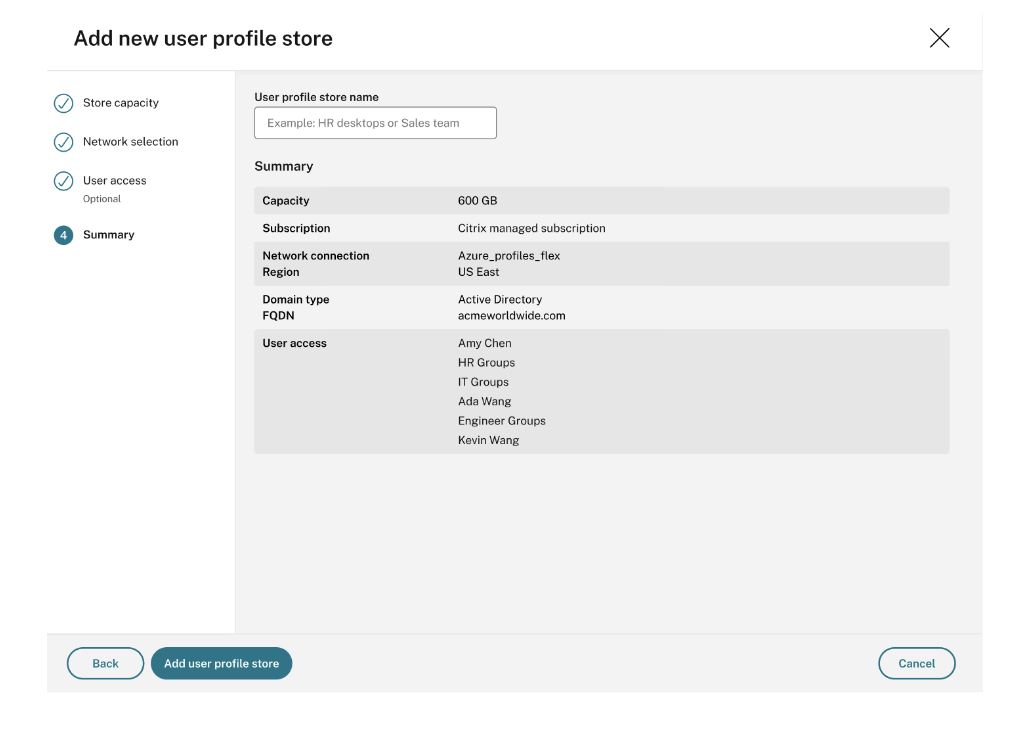
Review the summarized settings to confirm they match your requirements before you proceed:
-
Capacity: Total allocated storage size.
-
Subscription: The target Azure subscription.
-
Network connection: The associated network configuration.
-
Region: The deployment region for the user profile store.
-
Domain type / FQDN: Domain authentication settings.
-
User access: Assigned access scope (left blank if unconfigured).
After you verify the settings, select Add user profile store to start deployment. After the store is created, you can:
-
View and manage the user profile store on the User profiles page.
-
Enable and assign the user profile store to one or more catalogs.
Monitor the user profile store
Administrators can monitor the status of user profile stores in the list view on the User profiles page.
Store status definitions:
-
Creating: The system is provisioning and initializing the store in the background.
-
Ready: The store is fully operational and available for catalog associations.
-
Failed: Creation was unsuccessful. Review deployment logs or configuration settings to resolve the issue.
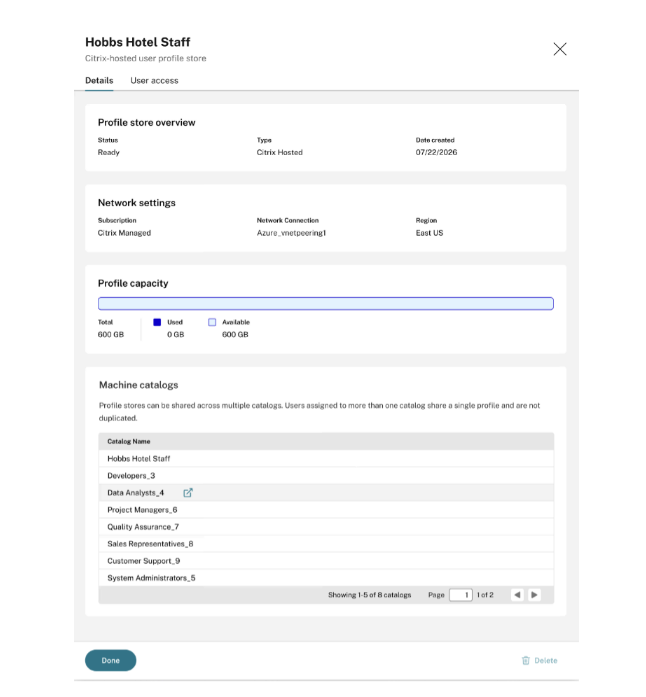
Once the store is created, select it on the User profiles page to view detailed information, including its current status, network configuration, and capacity usage.
Delete the user profile store
To remove a user profile store, open its details page on the User profiles tab and select Delete.
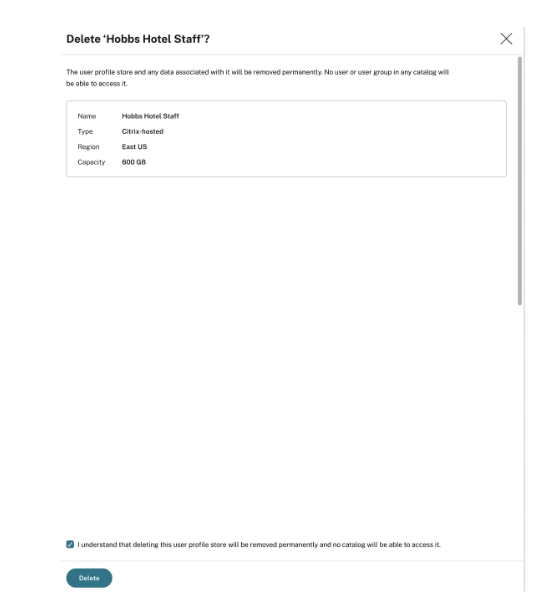
When you delete a user profile store, the following actions occur:
-
The store configuration is permanently deleted, removing access for all assigned catalogs.
-
All user profile data, personalized settings, and application configurations stored in this location are permanently deleted.
Before deleting a user profile store, complete the following checks:
-
Confirm that no active catalogs rely on this store for user profile storage.
-
Ensure user profile data is no longer required.
-
Perform a full backup or migrate active user profiles to another store prior to deletion.
Bind the user profile store to a catalog
Enable user profile management during catalog creation
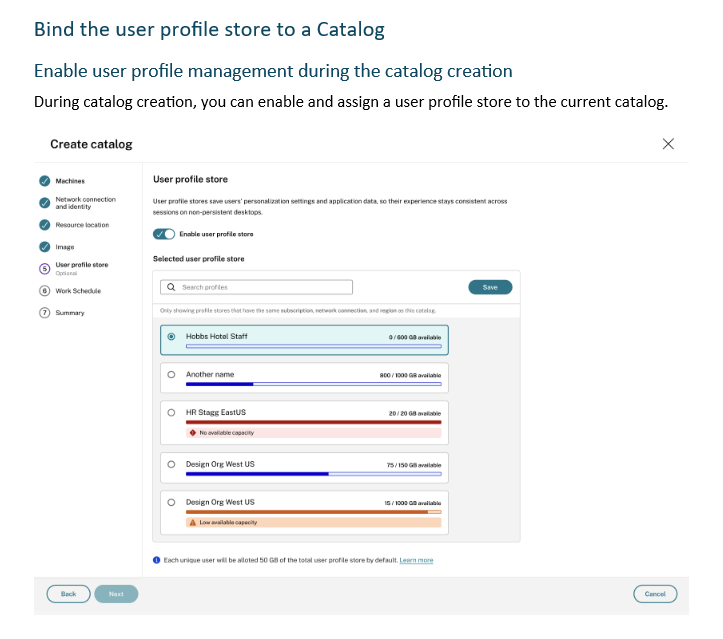
During catalog creation, you can enable and assign a user profile store to the current catalog.
-
Enable user profile store: Toggle the Enable user profile store switch to enable profile management for the catalog.
-
Select a user profile store: Choose an available user profile store from the list. To ensure compatibility, the system only displays stores that match the catalog's subscription, network connection, and region.Each user profile store listing provides key metrics to help you assess:
-
Store name: Unique identifier of the store.
-
Capacity: Total capacity versus available capacity.
-
Usage bar: Visual summary of capacity consumption.
Tip:Before selecting a store, ensure its available capacity can support your current user count, account for projected user growth, and avoid performance degradation near storage limits. -
-
Save configuration: Select Save to apply the chosen user profile store to the current catalog.
Enable user profile management after catalog creation
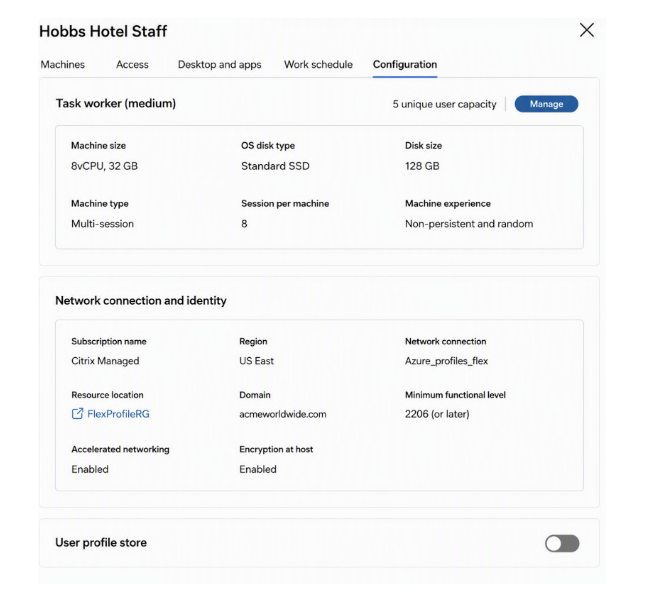
Enabling user profile management lets you associate an existing catalog with a user profile store after the catalog is created.
To enable it, navigate to the catalog configuration page, locate the User profile store setting, toggle the switch to On, and select the appropriate user profile store for the catalog.
Configure Citrix Profile Management policies
Administrators can use Citrix Profile Management policies to apply advanced configurations. For Citrix DaaS Profiles Flex, configure the policies applicable to container-based solutions. For more information, see Citrix Profile Management policy settings.