Upgrade databases with SQL Schema Upgrade tools (preview)
Reduce downtime during an upgrade by upgrading your databases before your binaries. The SQL Schema Upgrade tools provide an alternative to the standard path in Upgrade the database and site.
The standard path upgrades the binaries first and the databases during the site upgrade. This alternative path reverses the order:
-
Upgrade the databases with the SQL Schema Upgrade tools.
-
Upgrade the binaries.
-
Complete the site configuration in Site Manager.
The reversed order shortens the service interruption.
Note:
The SQL Schema Upgrade tools ship with Citrix Virtual Apps and Desktops 2607 LTSR and later versions. Earlier releases do not include the tools.
Upgrade workflow
Follow these steps to upgrade using the SQL Schema Upgrade tools:
-
Back up your databases. Complete the backup before you run any tool. See Back up the databases.
-
Obtain the new installation ISO and save it to the Delivery Controller that runs the version you want to upgrade.
-
On the ISO, go to
Support\SqlSchemaUpgrade. -
Run
RunSqlUpgradeSelector.cmdto start the Upgrade Selector. The selector finds the correct upgrade for your installed version. -
In the selector, click Unpack upgrade to extract the selected upgrade and start the Upgrade Utility.
-
In the Upgrade Utility, either prepare the SQL scripts for your database administrator or upgrade the databases yourself.
-
Install the new binaries from the ISO on the Delivery Controller where you run the utility.
-
Run Site Manager on the same Delivery Controller to complete the upgrade. Use the new Site Manager binaries.
-
Install the binaries on all remaining Delivery Controllers.
About the Upgrade Selector
Run the Upgrade Selector on the Delivery Controller that runs the version you want to upgrade.
The selector queries your version number and looks it up in the cross-reference dictionary. When the selector finds a package for your version, it completes the following actions:
-
Unzips the SQL upgrade file, which holds the unprepared SQL scripts and related files.
-
Unzips the Upgrade Utility.
-
Optionally creates a desktop shortcut to the Upgrade Utility.
-
Optionally launches the Upgrade Utility.
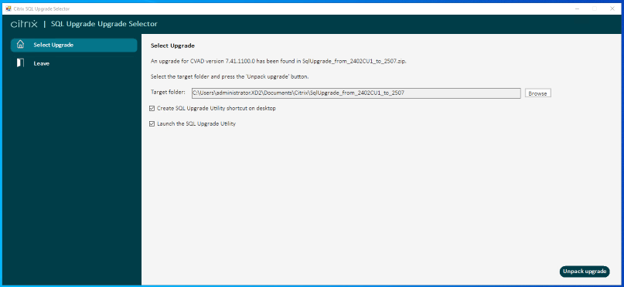
The selector reports an error in either of these cases:
-
You do not run the selector on a Delivery Controller.
-
No upgrade exists for your installed version.
About the Upgrade Utility
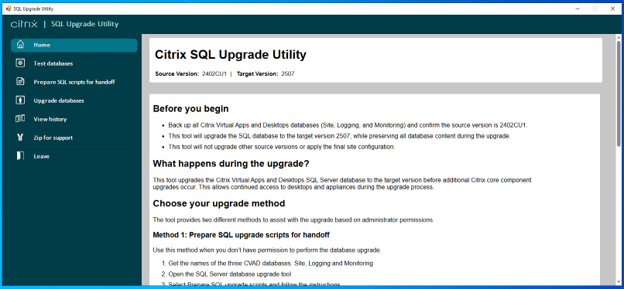
The Upgrade Utility provides the functions that upgrade your databases. Run the utility on the Delivery Controller you want to upgrade.
Important:
Back up your databases before you run any Upgrade Utility function.
The utility provides these functions:
-
Home: Describes the utility and lists any known restrictions or issues.
-
Test databases: Verifies access to the three CVAD databases and checks their versions.
-
Prepare SQL scripts for handoff: Prepares the SQL scripts for your database administrator. Use the function when only the administrator can upgrade the databases.
-
Upgrade databases: Upgrades the databases directly. Use the function when you have permission to upgrade the databases.
-
View history: Shows your recorded test, prepare, and upgrade actions.
-
Zip for support: Zips the SQL scripts and logs for Citrix Support.
Test databases
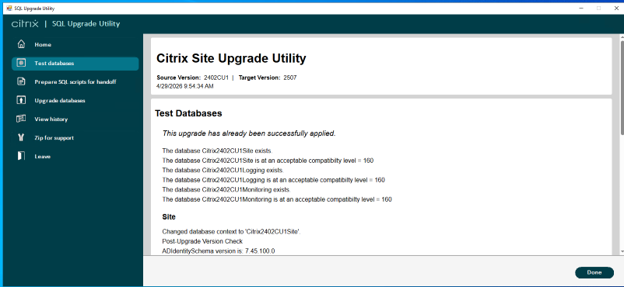
Test databases queries the connection strings and runs several database tests. The function reports whether your databases are in a pre-upgrade state or already upgraded.
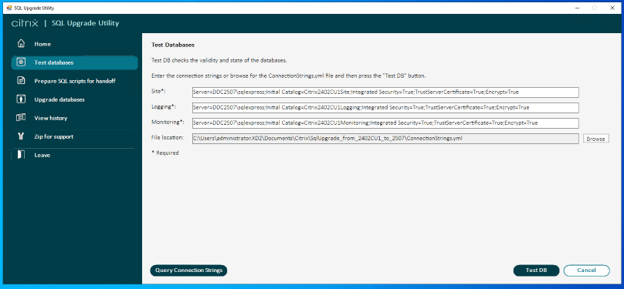
Review the results to confirm the database state:
Prepare SQL scripts for handoff
Use Prepare SQL scripts for handoff when only your database administrator can upgrade the databases.
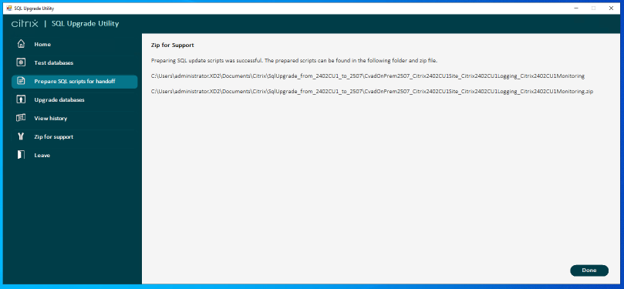
The function updates the unprepared SQL scripts with your CVAD database names. The utility derives the names from the connection strings and shows them in the prepare dialog.
To change where the utility saves the prepared scripts, set a different target folder. The utility copies the prepared scripts to the target folder and also adds them to a zip file in the same folder.
Upgrade databases
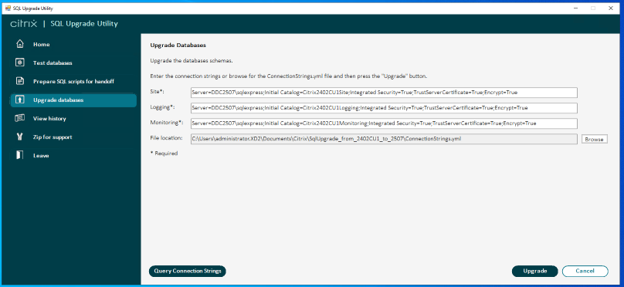
Use Upgrade databases when you have permission to upgrade the databases.
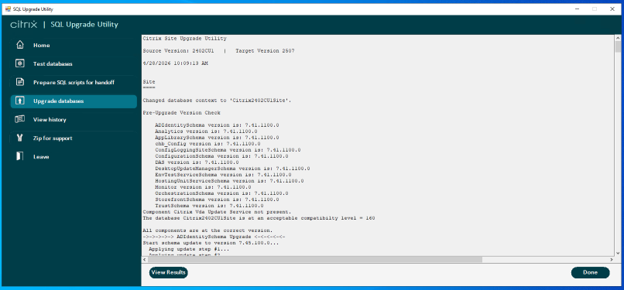
The function updates the unprepared SQL scripts with your CVAD database names and then upgrades the databases. The utility derives the names from the connection strings. The function records the update steps, results, and SQL script execution logs.
Important:
You cannot stop the upgrade after it starts.
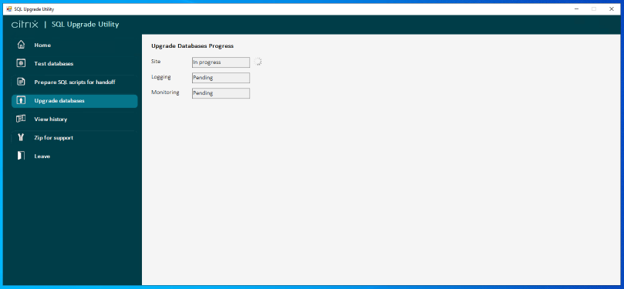
The utility shows the upgrade progress for each database:
When the upgrade finishes, the utility confirms the result:
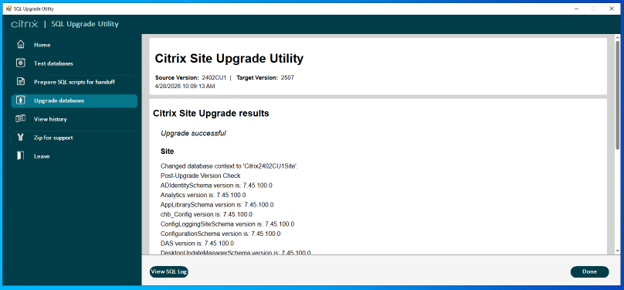
To review the SQL that ran, open the details log:
View history
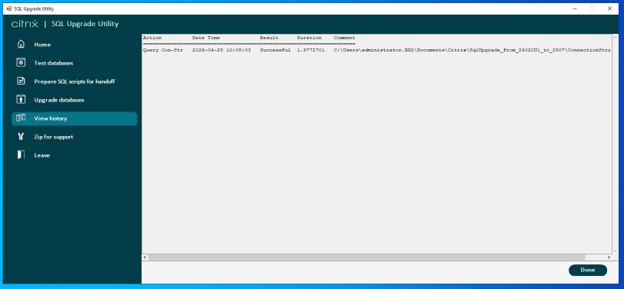
View history records each completed function and shows the following details:
-
Action
-
Date and time
-
Result
-
Duration
-
Comment
Zip for support
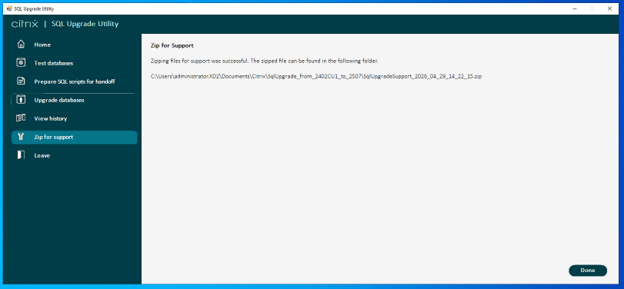
Zip for support combines the prepared SQL scripts, logs, and history into a single zip file. Send the zip file to Citrix Support to resolve issues.
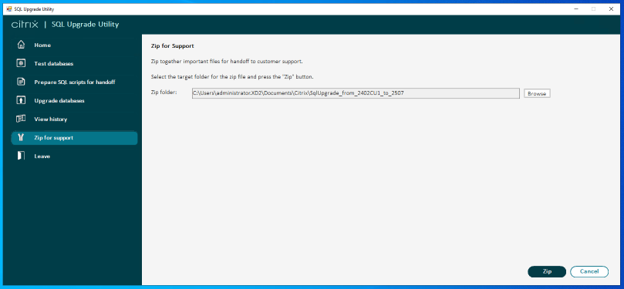
The utility confirms when the zip file is ready: