
Log collection
-
To collect logs for Citrix Workspace app for Windows, see Log collection for Windows.
-
To collect logs for Citrix Workspace app for Mac, see Log collection for Mac.
-
To collect logs for Citrix Workspace app for Android, see How to collect logs.
-
To collect logs for Citrix Workspace app for Linux, do the following steps:
-
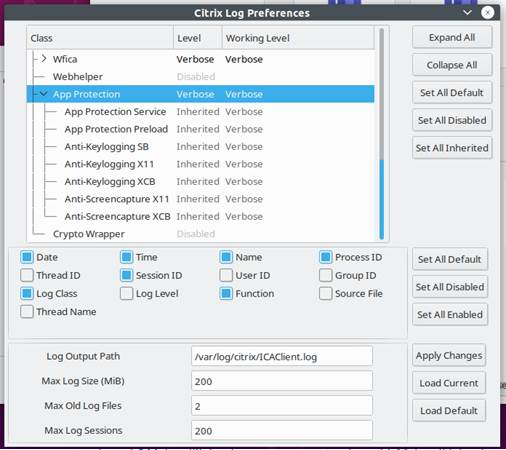
Run the set log executable found in the util directory of the installation. For example, /opt/Citrix/ICAClient/util/setlog.
-
(Optional) Click Set All Disabled and make sure that only the required logs are collected.
-
Go to App Protection logging.
-
Set the App Protection log level to Verbose by right-clicking and selecting Verbose (only warnings and errors are logged).
-
Expand the App Protection class and right-click its child element. Select Group > Inherited.
-
Use the linux logging utility (from install dir, launch util/setlog) and change the logging level for the virtual channel to Verbose.
-
Click wfica and change the logging level for winstation driver to Verbose.
-
When you launch the session, the logs are recorded in the file that is mentioned in the log output Path of the set log.
-
-
To collect logs for the Virtual Delivery Agent, do the following steps:
-
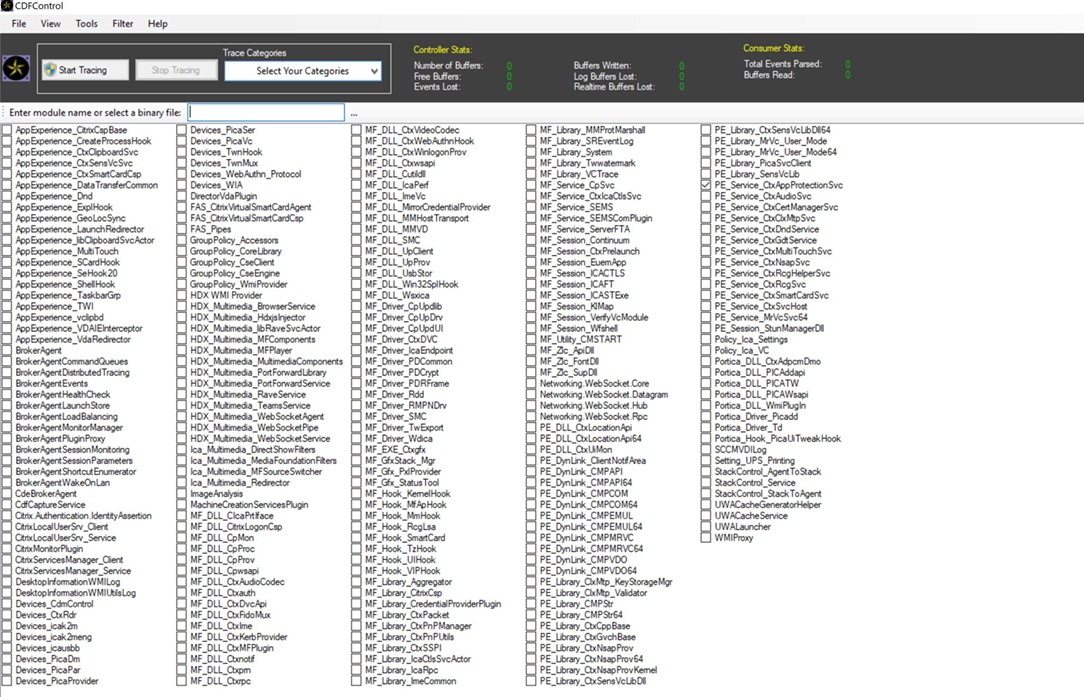
To get traces from the App Protection service through CDF control, select all the modules.
-
In certain cases, we might have to capture cdf traces from a different machine. To collect cdf traces, see CTX237216.
-