
Policies and actions
Note
Attention: Citrix Content Collaboration™ and ShareFile has reached its end of life and is no longer available to users.
You can create policies on Citrix Analytics to help you perform actions on user accounts when unusual or suspicious activities occur. Policies let you automate the process of applying actions such as disabling a user and adding users to a watchlist. When you enable policies, a corresponding action is applied immediately after an anomalous event occurs and the policy condition is met. You can also manually apply actions on user accounts with anomalous activities.
What are the policies?
A policy is a set of conditions that must be met to apply an action. A policy contains one or more conditions and a single action. You can create a policy with multiple conditions and one action that can be applied to a user's account.
Risk score is a global condition. Global conditions can be applied to a specific user for a specific data source. You can keep a watch on user accounts that show any unusual activities. Other conditions are specific to data sources and their risk indicators. The conditions contain combinations of risk scores, default risk indicators, and custom risk indicators. You can add up to 4 conditions when creating a policy.
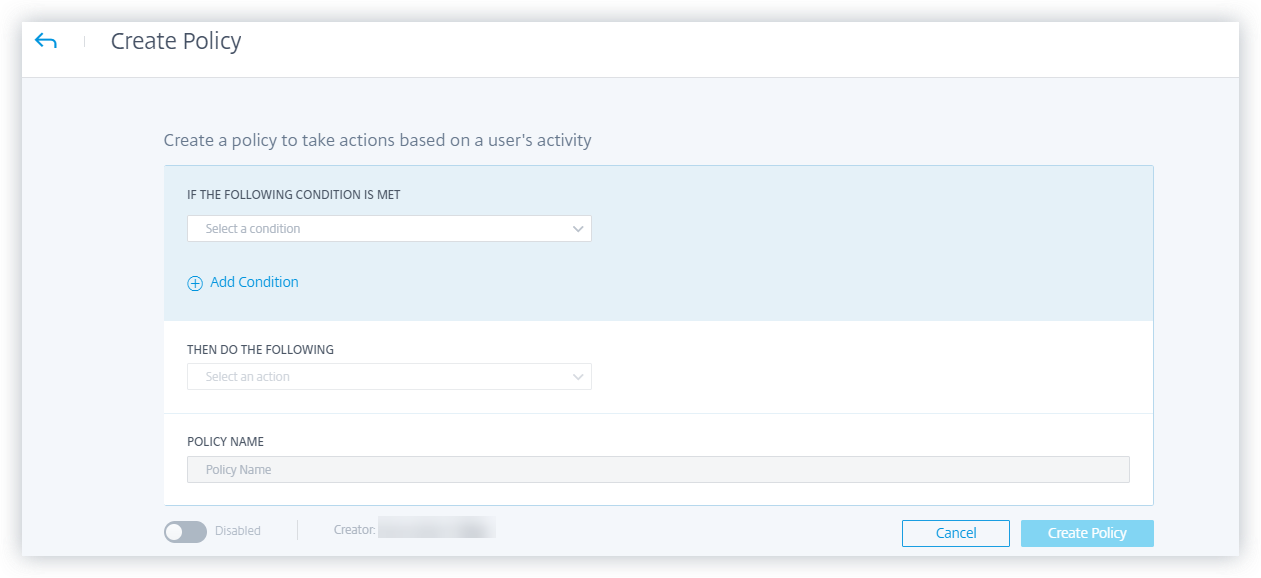
For example, if your organization uses sensitive data, you might want to restrict the amount of data shared or accessed by users internally. But if you have a large organization, it wouldn't be feasible for a single administrator to manage and monitor many users. You can create a policy wherein, anyone who shares sensitive data excessively can be added to a watchlist or have their account disabled immediately.
Default policies
Default policies are predefined and enabled on the Policies dashboard. They are created based on pre-defined conditions and a corresponding action is assigned to every default policy. You can either use a default policy or modify it based on your requirements.
Citrix Analytics supports the following default policies:
-
Successful credentials exploit
-
Potential data exfiltration
-
Unusual access from a suspicious IP
-
First time access from device
-
Virtual Apps and Desktops and Citrix DaaS- Impossible travel on access
-
Gateway - Impossible travel on authentication
For information about the preset conditions and actions regarding the preceding default policies, see Continuous risk assessment.
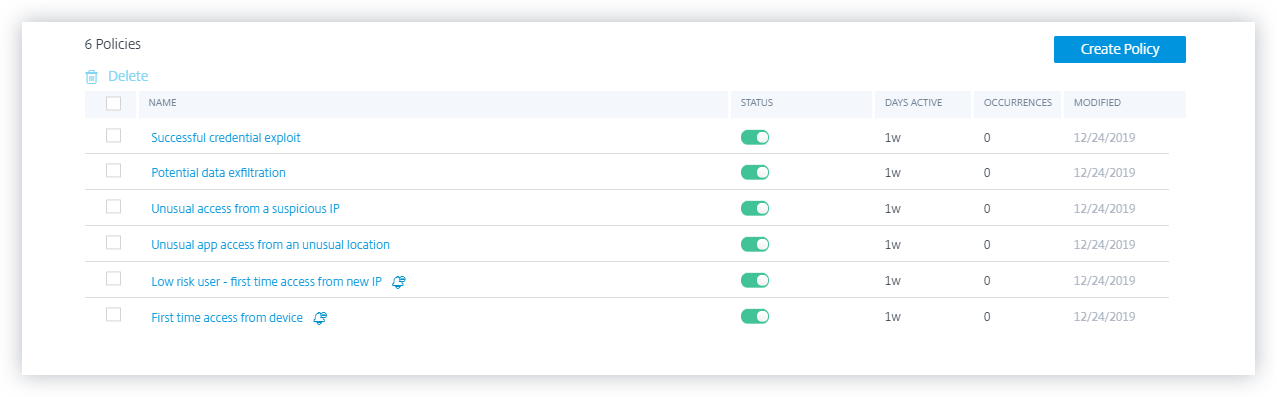
For information about the pre-defined policy for the geofencing use case, see Preconfigured policy.
How to add or remove conditions?
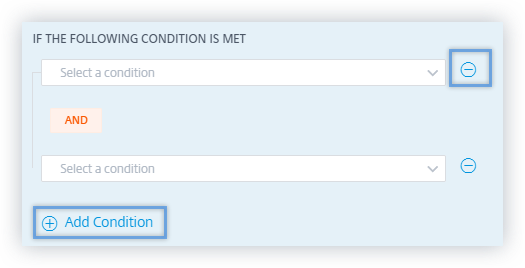
To add more conditions, select Add condition in the IF THE FOLLOWING CONDITION IS MET section of the Create Policy page. To remove a condition, select the - icon that is displayed next to the condition.
Default and custom risk indicators
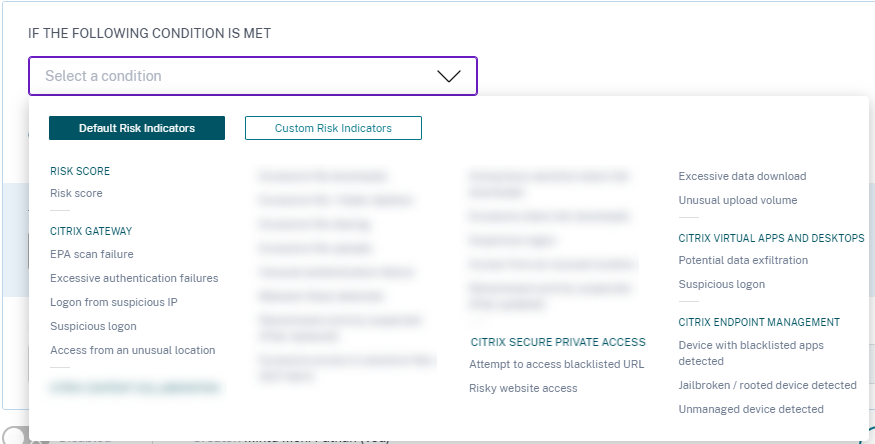
The conditions menu is segregated based on Default Risk Indicators and Custom Risk Indicators tabs on the Create Policy page. Using these tabs, you can easily identify the type of risk indicator that you want to choose when selecting a condition for policy configuration.
What are the actions?
Actions are responses to suspicious events that prevent future anomalous events from occurring. You can apply actions on user accounts that display unusual or suspicious behavior. You can either configure policies to apply action on the user's account automatically or apply a specific action manually from the user's risk timeline.
You can view global actions or actions for each Citrix data source. You can also disable previously applied actions for a user at any time.
Note
Irrespective of the data source that triggers a risk indicator, actions pertaining to other data sources can be applied.
The following table describes the actions that you can take.
| Action name | Description | Applicable data sources |
|---|---|---|
| Global actions | ||
| Add to watchlist | When you want to monitor a user for future potential threats, you can add them to a watchlist. | All data sources |
| The Users in Watchlist pane displays all the users that you want to monitor for potential threats based on the unusual activity on their account. Based on your organization's policy, you can add a user to the watchlist using the Add to watchlist action. | ||
| To add a user to the watchlist, navigate to the user's profile, from the Actions menu, select Add to watchlist. Click Apply to enforce the action. | ||
| Notify administrator(s) | When a risk indicator is triggered for a user, you can manually notify to the administrators or create a policy for automatic notification. You can select the administrators from the Citrix Cloud domain and other non-Citrix Cloud domains in your organization. If you are a Citrix Cloud administrator with full access permissions, by default, the email notifications are disabled for your Citrix Cloud account. To receive email notifications, enable it on your Citrix Cloud account. For more information, see Receive emailed notifications. If you are a Citrix Cloud administrator with custom access permissions (read-only and full access) to manage Security Analytics, the email notifications are enabled for your Citrix Cloud account. To stop receiving email notifications from Citrix Analytics, request your Citrix Cloud full access administrator to remove your name from the notify administrators distribution list. For information about, see Email distribution list. | |
| Request end user response | When there is any unusual or suspicious activity on the user's account, you can notify the user to confirm if the user identifies the activity. Based on the activity, you can determine the next course of action to be taken on the user's account. For more information, see Request end user response. | |
| Notify End User | When any unusual or suspicious activity occurs on the user’s account, you can notify the end user via an email notification. For more information, see Notify End User. | |
| Citrix Gateway actions | ||
| Log off active sessions | When the action is applied, it logs off the user session that is currently active. It does not block any future user sessions. | Citrix Gateway on-premises and Citrix Application Delivery Management |
| Lock user account | When a user's account is locked due to anomalous behavior, they cannot access any resource through Citrix Gateway until the Gateway administrator unlocks the account. | Citrix Gateway on-premises |
| Unlock user account | When a user's account is accidentally locked although anomalous behavior was not detected, you can apply this action to unlock it and restore access to the account. | Citrix Gateway on-premises |
| Citrix Virtual Apps and Desktops™ and Citrix DaaS actions | ||
| Log off active sessions | When the action is applied, it logs off the user session that is currently active. It does not block any future user sessions. | Citrix DaaS (formerly Citrix Virtual Apps and Desktops service) |
| Start session recording | If there is an unusual event on the user’s Virtual Desktops account, the administrator can begin recording the user’s current active sessions. If the user is on Citrix Virtual Apps and Desktops 7.18 or a later version, and logged in to the virtual session, an administrator can dynamically trigger start session recording action from Citrix Analytics for Security that starts the recording of the user’s current active session. | Citrix DaaS (formerly Citrix Virtual Apps and Desktops service) |