
Accelerate logon performance using Citrix Environment Tool Hub and WEM
To accelerate slow Windows logon times, you can migrate those time-consuming Group Policy Preferences (GPP) settings to Citrix Workspace Environment Management (WEM). This article guides you through using the Citrix Environment Tool Hub to export these configurations and import them to WEM for optimized performance.
For more information about identifying specific Group Policy settings that cause slow logons, see Troubleshoot Login Time Issues Using Citrix Environment Tool Hub and WEM.
Prerequisites
Before you begin, make sure that you have:
-
Administrator privileges on the target Windows machine
-
Domain administrator privileges on the Domain Controller (DC)
-
Administrator privileges on the WEM Web Console
Migrate time-consuming Group Policy Preferences
To improve logon performance, migrate time-consuming GPP settings from Group Policy to WEM. Complete the following steps in sequence.
Step 1: Export GPP settings from the target Windows machine
-
Log on to the target Windows machine with administrator privileges.
-
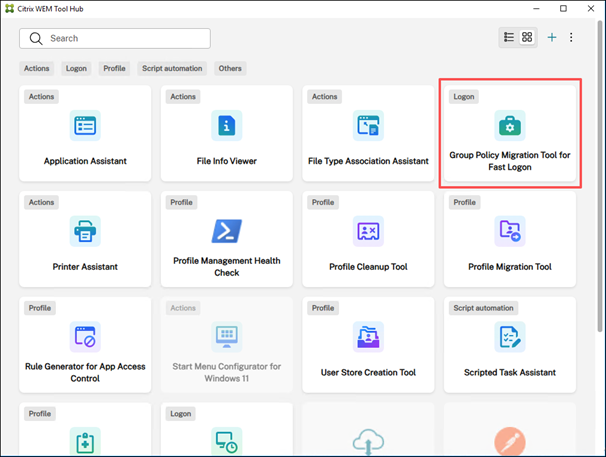
Open Citrix Environment Tool Hub > Group Policy Migration Tool for Fast Logon.
-
Click Scan for Group Policy Objects.
-
Select the Group Policy Objects you want to migrate, and then click Migrate.
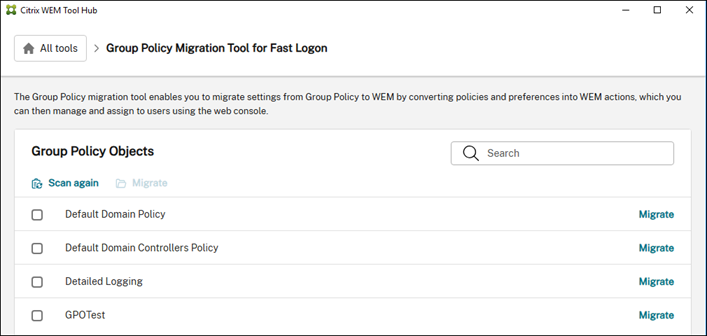 The Migration settings wizard appears.
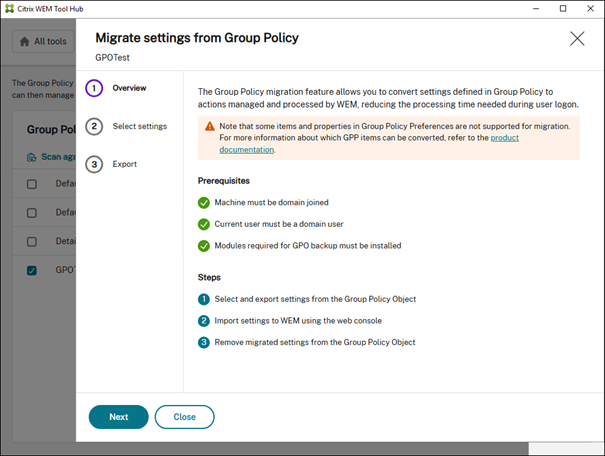 Note:If prompted, install the required modules for GPO backup.
 -
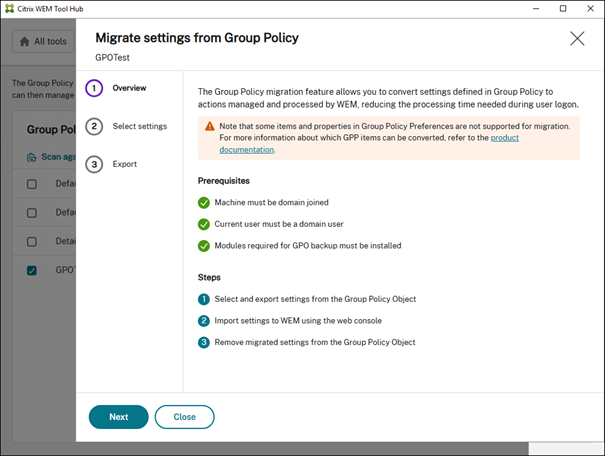
Select the settings that you want to migrate, and then click Next.
-
Click Export to back up the selected settings to a local
.zipfile.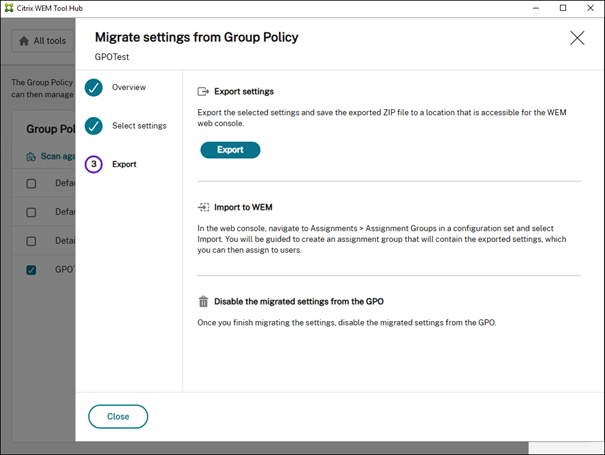 Export result:
Step 2: Import GPP settings to the WEM Web Console
-
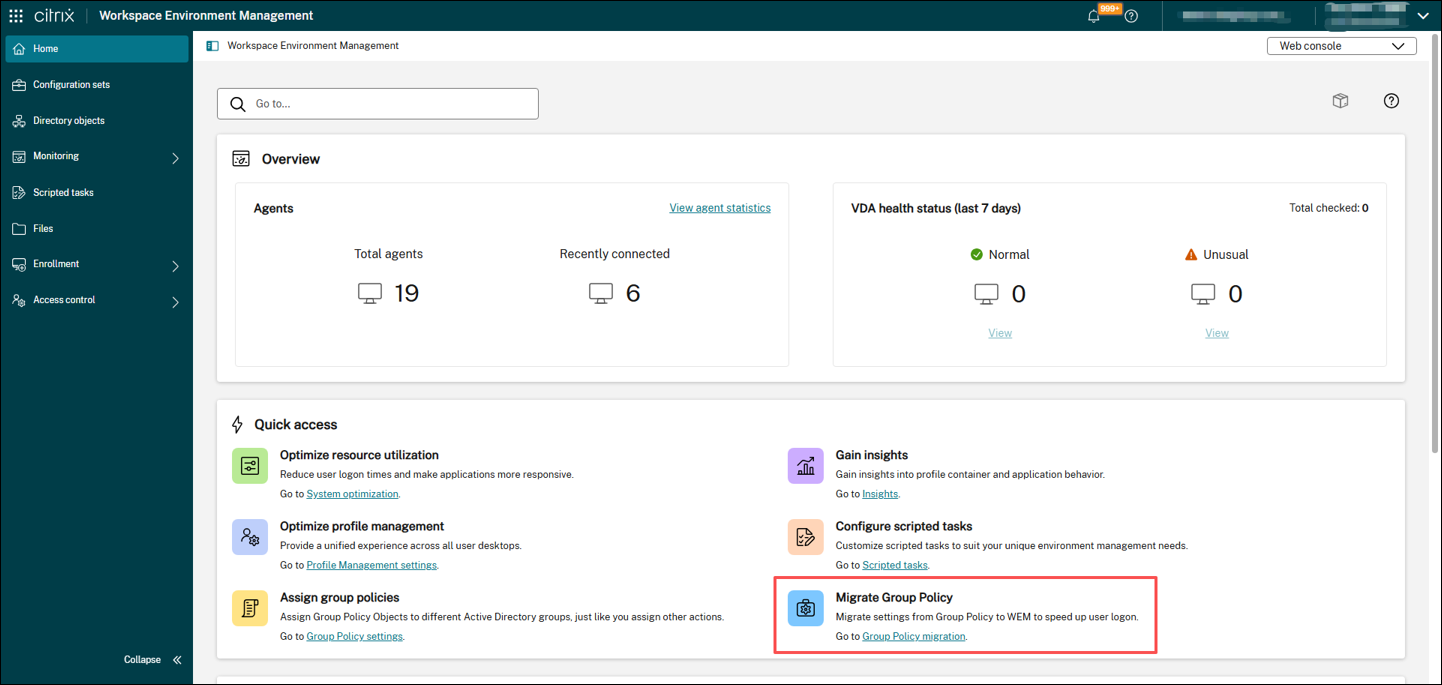
Launch the WEM Web Console with the WEM Full Administrator role. In the Quick access area, click Migrate Group Policy, and then select the appropriate configuration set.
-
Click Upload file to upload the exported
.zipfile.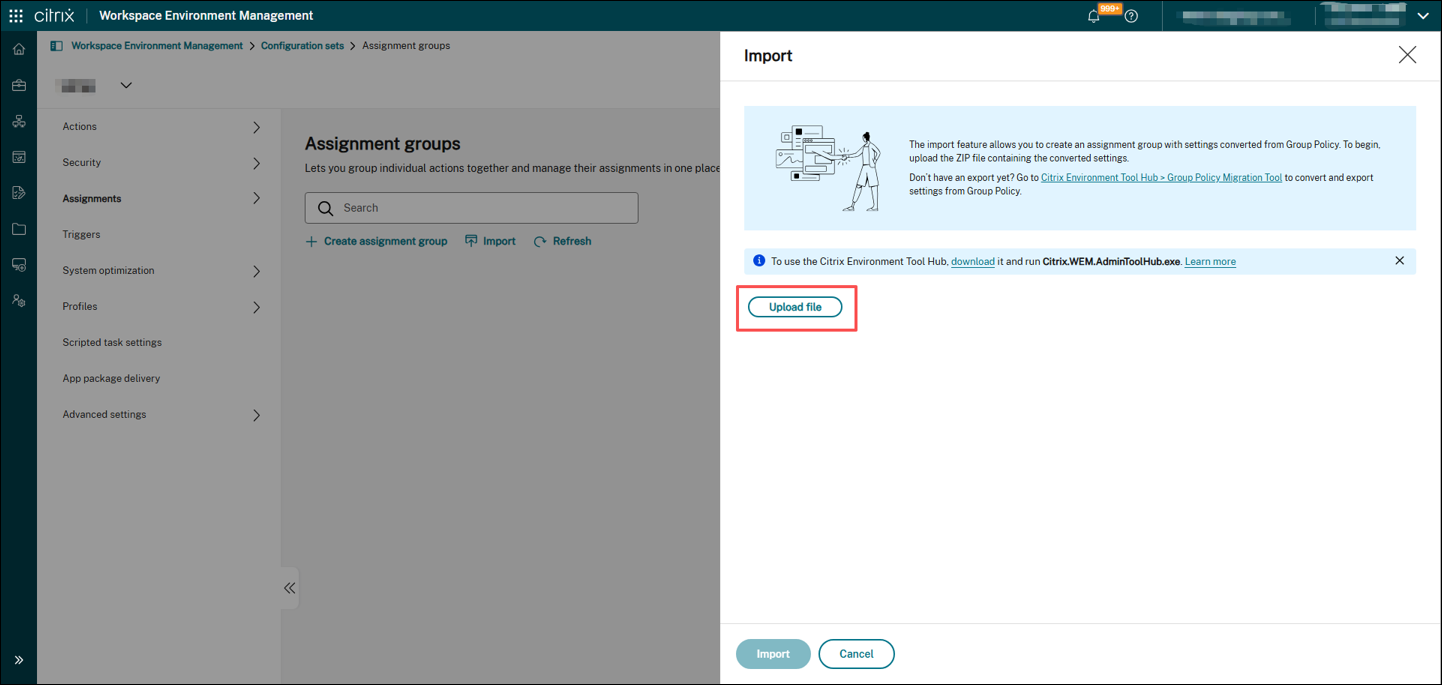
-
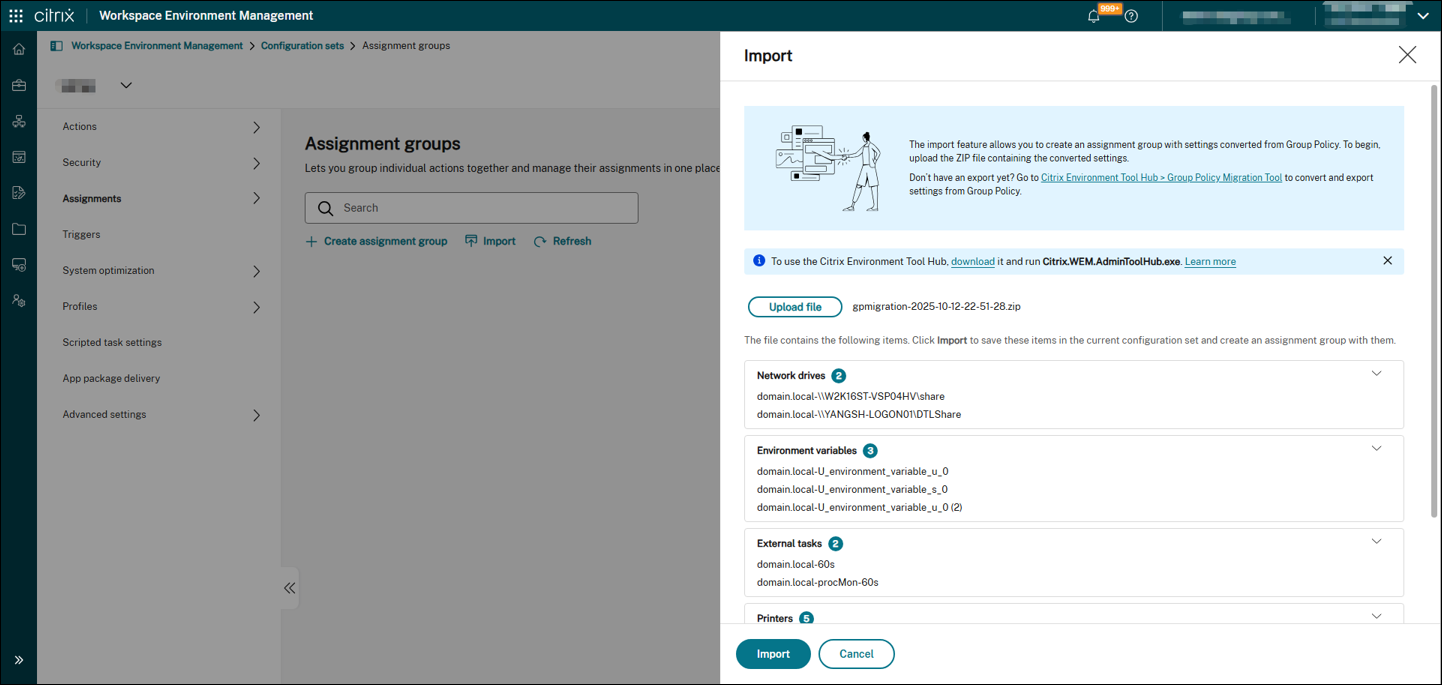
Review the settings, and then click Import.
-
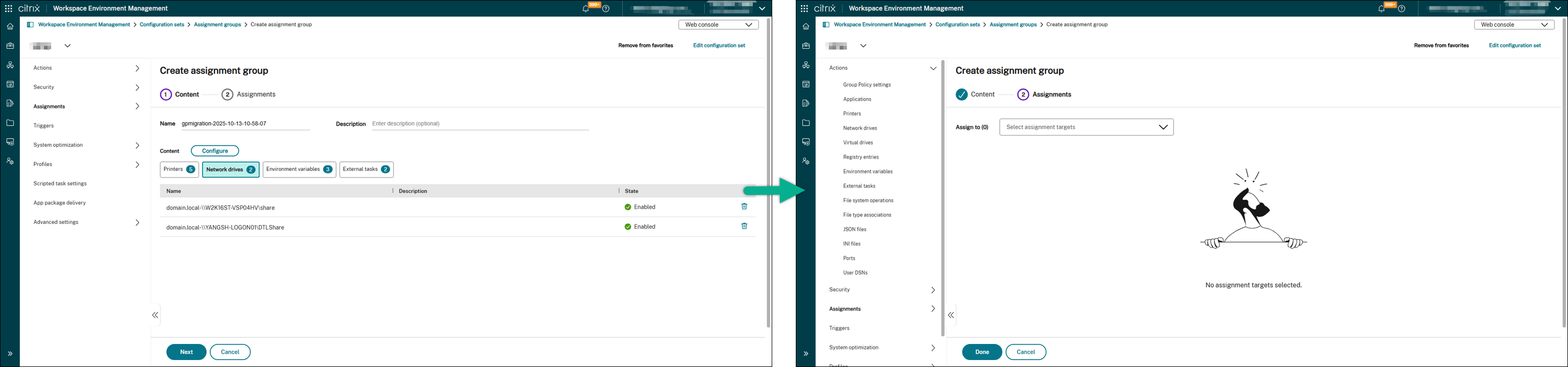
Click Next to configure the assignment targets.
-
Click Done to complete the import process.
Step 3: Disable migrated GPP settings in the Domain Controller
-
Log on to the Domain Controller with administrator privileges.
-
Disable all configurations that correspond to the migrated settings.
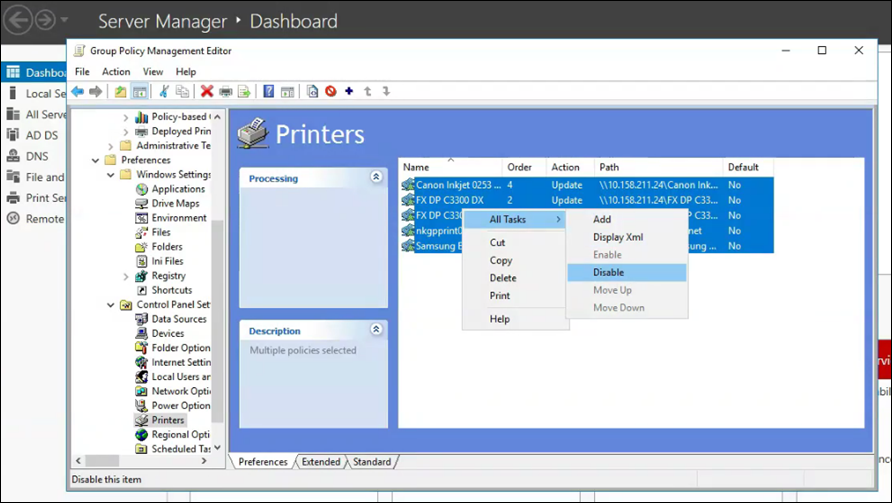 Important:Disable only the settings that were successfully migrated to WEM to prevent disrupting user functionality.
Step 4: Re-log on and verify results
-
Log off and then log on again.
-
Use the Windows Logon Analysis tool to collect logon times for each session.
-
Compare logon times before and after migration to confirm performance improvements.
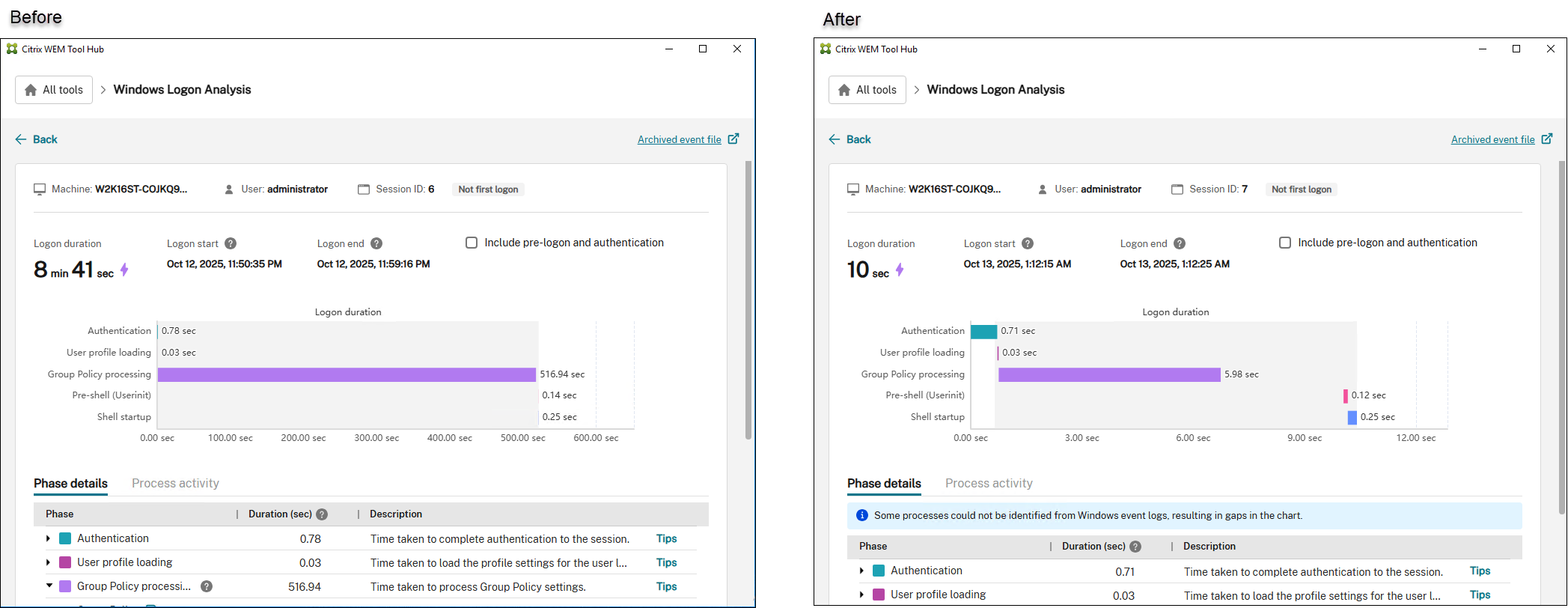 Note:The comparison results shown above are environment-specific and provided for reference only.
For more information about identifying specific Group Policy settings that cause slow logons, see Troubleshoot Login Time Issues Using Citrix Environment Tool Hub and WEM.