
Administration
The Administration pane consists of the following:
-
Users. Lets you view user statistics.
-
Agents. Lets you view agent statistics and perform administrative tasks such as refreshing cache, resetting settings, and uploading statistics.
-
Logging. Lets you view administrative activities in Workspace Environment Management™ (WEM). You can use the logs to:
-
Diagnose and troubleshoot problems after configuration changes are made.
-
Assist change management and track configurations.
-
Report administrative activities.
-
Users
This page displays statistics about your WEM deployment.
Statistics
This page displays a summary of users whose agent hosts have connected to the database.
Users Summary. Displays a count of total users who have reserved a WEM license, for both the current site (configuration set) and all sites (configuration sets). Also displays a count of new users in the last 24 hours and in the last month.
Users History. This displays connection information for all the users associated with the current site (configuration set), including the last connection time (in Coordinated Universal Time, UTC), the name of the machine from which they last connected and the session agent type (UI or CMD) and version. You can use Find to filter the list by name or ID against a text string.
Agents
This page displays statistics about the agents in your WEM deployment.
Statistics
This page displays a summary of the WEM agents recorded in the WEM database.
Agents Summary. Displays a count of total agents that have reserved a WEM license, for both the current configuration set and all configuration sets. It also reports agents added in the last 24 hours and in the last month.
Agents History. Displays connection information for all agents registered with the configuration set, including the last connection time, the name of the device from which they last connected, and the agent version. You can use Find to filter the list by name or ID.
In the Synchronization State column, the following icons indicate the result of the last synchronization of the agent cache with the WEM service.
-
Successful (check mark icon). Indicates that the last synchronization was successful, with the synchronization result reported to the administration console.
-
Unknown (question mark icon). Indicates that synchronization is in progress, synchronization has not started yet, or the synchronization result is not reported to the administration console.
-
Failed (X icon). Indicates that the last synchronization failed.
In the Profile Management Health Status column, you can view the health status of Profile Management on your deployment.
Profile Management health status performs automated status checks on your agent hosts to determine whether Profile Management is configured optimally. You can view the results of these checks to identify specific issues from the output file on each agent host (
%systemroot%\temp\UpmConfigCheckOutput.xml). The feature performs status checks every day or each time the WEM agent host service starts. To perform the status checks manually, right-click the selected agent in the administration console, and then select the Refresh Profile Management Configuration Check in the context menu. Each status check returns a status. To view the most recent status, click Refresh. The icon in the Profile Management Health Status column provides general information about the health status of Profile Management:
-
Good (check mark icon). Indicates that Profile Management is in good shape.
-
Warning (triangle exclamation point icon). Informs about a suboptimal state of Profile Management. The suboptimal settings might affect the user experience with Profile Management in your deployment. This status does not necessarily require action on your part.
-
Error (X icon). Indicates that Profile Management is configured incorrectly, causing Profile Management not to function properly.
-
Unavailable (question mark icon). This icon appears when Profile Management is not found or not enabled.
If the status checks do not reflect your experience or if they do not detect the issues you are having, contact Citrix Technical Support.
In the Recently Connected column, the following icon indicates that the agent uploaded statistics to the WEM service within a certain interval. The agent is online. A blank column field indicates that the agent is offline.
-
Online (check mark icon)
Clear Expired Records. Lets you delete the expired records from the WEM service database. If a user’s last logon time dates back more than 24 hours, the corresponding record expires.
Wake Up Agents. Lets you wake up the selected agents.
To refresh agents
When you refresh an agent it communicates with the infrastructure server. The infrastructure server validates the agent host identity with the WEM database.
-
Click Refresh to update the list of agents.
-
In the context menu select Refresh Workspace Agents.
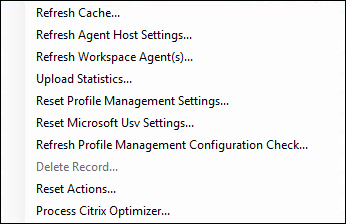
Options in the context menu
When applying the options to non-domain-joined and enrolled agents, consider the following:
-
The agent must be version 2207.1.0.1 or later.
-
The target agent is not immediately notified of performing those tasks. The notifications are sent when the target agent or another agent on the same subnet connects to Citrix Cloud™ to refresh settings. So, there might be a delay until the tasks run on the agent side. The more agents you have on the same subnet, the shorter the delay.
-
The maximum delay is 1.5 times the SQL Settings Refresh Delay value. By default, the SQL Settings Refresh Delay value is 15 minutes. See Service options. So, in that case, the maximum delay is 22.5 (1.5 x 15) minutes.
Currently, applying these options to non-domain-joined and enrolled agents is not supported.
Refresh Cache. Triggers a refresh of the agent local cache (an agent-side replica of the WEM configuration database). Refreshing the cache synchronizes the agent local cache with the infrastructure services.
Refresh Agent Host Settings. Applies the agent service settings. Those settings include advanced settings, optimization settings, transformer settings, and other non-user assigned settings.
Refresh Workspace Agents. Applies the user-assigned actions to the WEM agents. Those actions include network drives, printers, applications, and more.
Important:
-
The Refresh Workspace Agents option works only with the agents in UI mode that are automatically launched (not launched by end users or by using scripts). The option does not work with the agents in CMD mode.
-
Not all settings can be refreshed. Some settings (for example, environment settings and group policy settings) are applied only on startup or logon.
Upload Statistics. Uploads statistics to the infrastructure service.
Reset Profile Management Settings. Clears the registry cache and updates the associated configuration settings. If Profile Management Settings are not applied to your agent, click Reset Profile Management Settings. You might need to click Refresh for this option to become available.
Note:
If the settings are not applied to the agent after configuring Reset Profile Management Settings from the WEM administration console, see CTX219086 for a workaround.
Reset Microsoft USV Settings. Clears the registry cache and updates the associated configuration settings. If Microsoft USV Settings are not applied to your agent, click Reset Microsoft Usv Settings, and then click Refresh.
Refresh Profile Management Configuration Check. Performs status checks on your agent hosts to determine whether Profile Management is configured optimally.
Delete Record. Enables deletion of the agent record from the database. If the agent is still active, this option is grayed out.
Reset Actions. Lets you reset all actions you assigned by purging all action-related registry entries on the applicable machine.
Process Citrix Optimizer. Applies the settings to the agents so that changes to Citrix optimizer settings take effect immediately.
The refresh operations described earlier in this section can also be performed on the agent side. However, those operations behave differently depending on actual conditions. For more information, see Agent-side refresh operations.
Upgrade Agent to Latest Version. Lets you upgrade the agent to the last version. The time at which you perform an agent upgrade determines the latest version of the agent. To see the latest agent version, go to the WEM service Utilities tab.
Registrations
This page shows the registration status of the WEM agents recorded in the database.
Important:
WEM agents must register with the WEM service so that settings can be applied to them. An agent can be bound only to one configuration set.
The following information is reported:
Machine Name. Name of computer on which the agent is running.
State. Registration status of agent on the agent host computer, indicated by icons and the following description giving more information about registration success or failure:
Agent is not bound to any site. The infrastructure server cannot resolve any site (configuration set) for this agent because the agent is not bound to any site (configuration set).
Agent is bound to one site. The infrastructure server is sending the necessary machine-dependent settings to the agent for that site (configuration set).
Agent is bound to multiple sites. The infrastructure server cannot resolve a site (configuration set) for this agent because the agent is bound to more than one site (configuration set).
To resolve registration errors
Either
-
edit the Active Directory hierarchy (relations between computers, computer groups, and OUs)
OR
-
edit the WEM hierarchy (in the Active Directory Objects section of the administration console) so that a computer binds to only one site (configuration set).
After making these changes, refresh agents with the infrastructure server.
Logging
Administrative
This tab displays a list of all changes made to the WEM settings in the database. By default, the log is unpopulated until the log is refreshed manually.
Filtering Options. These options allow you to filter the log by site (configuration set), and date range.
Export Log. Exports the login XLS format.
Refresh Log. Refreshes the log.
Clear Log. Clears the log for all configuration sets. This cannot be undone. Clearing the log adds one event in the new log indicating this has been done. This option is only available to Global Full Access administrators.
Agent
This tab lists all changes made to your WEM agents. The log is unpopulated until you click Refresh.
Filtering Options. These options allow you to filter the log by site (configuration set), and date range.
Export Log. Exports the login XLS format.
Refresh Log. Refreshes the log.
Clear Log. Clears the log for all configuration sets. This cannot be undone. Clearing the log adds one event in the new log indicating this has been done. This option is only available to Global Full Access administrators.