Overview
HDX graphics super resolution is an intelligent, client assisted technology that reduces bandwidth consumption for graphics-intensive and multimedia-heavy workloads while preserving user-perceived visual quality.
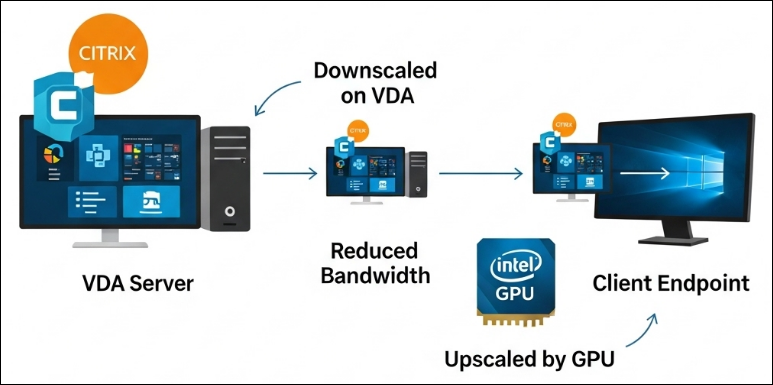
By selectively applying additional compression on video regions during encoding and reconstructing the original quality on the endpoint using the client’s Graphics Processing Unit (GPU), HDX graphics super resolution improves session efficiency without increasing server-side CPU or GPU utilization.
Starting with Citrix Virtual Apps and Desktops (CVAD) 2603, HDX graphics super resolution is generally available (GA) and enabled by default.
Key benefits
- Reduced bandwidth consumption for video and high-motion content
- Improved experience on bandwidth-constrained or variable networks
- No requirement for server-side GPUs
- Transparent operation with no user interaction required
- Safe-by-default activation in automatic mode with policy control
How HDX graphics super resolution works
With HDX graphics super resolution, Thinwire first identifies video or high-motion regions within the session (for example, video playback or animated content).
The Virtual Delivery Agent (VDA) intentionally applies additional compression to these regions and encodes these regions at a reduced effective resolution during encoding. The reduced-resolution regions are transmitted using significantly less bandwidth.
On the endpoint, the Citrix Workspace App uses the client-side GPU to upscale the affected regions back to their original resolution and visual quality. Text and static regions remain unaffected and continue to be delivered in the best possible quality.
This approach reduces bandwidth usage while maintaining a high-quality user experience.
Automatic operation (default behavior)
In CVAD 2603, HDX graphics super resolution is enabled by default and operates in Automatic mode. In Automatic mode, Thinwire monitors the available bandwidth in real-time to determine when to activate HDX graphics super resolution
The feature activates only when both of the following conditions are met:
- A compatible client-side GPU is detected
- Citrix determines that network conditions are suboptimal
When network conditions improve, HDX graphics super resolution automatically disengages, ensuring that lossless delivery is preferred whenever network quality allows.
This Automatic mode allows administrators to leave the feature enabled safely without manual tuning.
Policy configuration
HDX graphics super resolution is controlled using the “HDX graphics super resolution” policy.
Admins can change the default automatic behavior for HDX graphics super resolution by using the HDX Graphics super resolution Studio policy
HDX graphics super resolution mode
| Mode | Description | Recommended use |
|---|---|---|
| Automatic (default) | Dynamically activates super resolution based on client capabilities and network conditions | General enterprise environments |
| On | Super resolution will be used for all video regions | Bandwidth-constrained or multimedia-heavy environments |
| Off | Explicitly disables super resolution | Lossless, diagnostic, or regulatory workflows |
When to use Automatic mode (recommended)
- Varying or suboptimal network quality conditions
- User workloads are mixed
- Minimal administrative overhead is desired
No configuration is required for most environments
When to force On
- WAN bandwidth is consistently constrained
- Video or high-motion content dominates workloads
- Predictable bandwidth reduction is desired
When to disable super resolution
- Regulatory or diagnostic lossless imaging is required
- Pixel-perfect review workflows are mandatory
- Full-screen encoding is intentionally configured
Compatibility with other HDX graphics modes
HDX graphics super resolution works in conjunction with our default selective encoding mode.
Super resolution is not available when full screen encoding is used by setting the “Use a video codec for compression policy” to:
- For the Entire Screen
When the “Visual Quality” is set to:
- Always Lossless visual quality
Or when Visually lossless compression is used:
- Use visually lossless compression is enabled
These policy settings are incompatible with HDX graphics super resolution. Enabling them will disable super resolution, regardless of whether HDX gaphics super Resolution is set to Automatic or Enabled.
Automatic video codec selection
HDX Graphics super resolution works together with automatic video codec selection, enabling the VDA to choose the best codec based on compatibility between the server and client. If there’s no hardware encoding available, such as when the VDA doesn’t have a server-side GPU, super resolution will still function using the H.264 video codec. When a server-side GPU is present, HDX graphics super resolution will automatically take advantage of hardware encoding using H.265 or AV1 when possible.
System requirements
Virtual Delivery Agent (VDA)
- Windows VDA 2603 or later
- Server-side GPU not required
- No additional VDA configuration required
Client requirements
- Citrix Workspace app for Windows 2603 or later*
- A supported client-side GPU
*please note that a x64 Citrix Workspace Client is required for Nvidia client-side GPUs
Supported client GPUs
Intel GPU Support
HDX graphics super resolution is compatible with both integrated GPUs (iGPUs) and discrete client GPUs.
Integrated GPUs
Supported integrated GPU (iGPU) families:
- Intel Iris Xe (Gen 11+)
- Intel Iris Xe Max
- Intel Iris Plus Graphics
- Intel UHD Graphics (710, 730, 750, 770, P750)
- Intel UHD Graphics for 11th, 12th, and 13th Gen processors
Discrete GPUs
-
Intel Arc – Desktop
- Arc A-Series: A310, A380, A580, A750, A770
- Intel B-Series: B570, B580
-
Intel Arc – Mobile
- Arc A-Series Mobile: A350M, A370M, A530M, A550M, A570M, A730M, A77M
-
Intel Arc – Workstation (Arc Pro)
- Arc Pro Series: A30M, A40, A50, A60M, A60
- Arc Pro B series: B50, B60
Nvidia GPU support
Desktop GPUs
Supported families:
- GeForce 20-series (Turing)
- RTX 2050 – RTX 2080 desktop and mobile (Including Ti and Super variants)
- Titan RTX
- GeForce 30-series (Ampere)
- RTX 3050 – RTX 3090 desktop and mobile (Including Ti and Super variants)
- GeForce 40-series (Ada Lovelace)
- RTX 4050 – RTX 4090 desktop and mobile (Including Ti and Super variants)
- GeForce 50-series (Blackwell)
- RTX 5050–5090 desktop and mobile
Professional & Workstation GPUs
- NVIDIA Quadro (Legacy Branding)
- Quadro RTX Series: 3000, 4000, 5000, 6000, 8000 (Desktop and mobile)
- Quadro T-Series: T400, T500, T600, T1000, T1200 (Desktop and mobile)
- NVIDIA RTX (Formerly Quadro) – Ampere Workstation
- RTX A-Series: A1000–A6000 Desktop and mobile
- A800 Active
- NVIDIA RTX – Ada Generation Workstation
- RTX Ada Series: 2000, 4000, 4000 SFF, 4500, 5000, 5880, 6000
- RTX Ada Laptop Series: RTX 500–5000 Ada (mobile)
- RTX PRO 6000 Blackwell Workstation
This is a non-exhaustive list of client-side GPUs that should be compatible with HDX graphics super resolution. Please note that this list was compiled from vendor documentation, and not all GPUs on it have been verified by Citrix.
Citrix recommends using the latest available GPU drivers from the GPU vendor for best performance.
Multi-GPU configurations
In multi-GPU endpoints, only the primary GPU adapter will be used for HDX graphics super resolution. Multi-GPU configurations are commonly found in multimedia-focused laptop devices.
Transitioning from the HDX graphics super resolution Preview
This section explains what has changed and what administrators should expect when upgrading from the HDX graphics super resolution Preview.
| Area | Preview behaviour (CVAD 2507 and 2511) | CVAD 2603 and later |
|---|---|---|
| Enablement | Manual registry keys on VDA and client | Enabled automatically by default |
| Control model | Registry-based | Policy-based |
| Default state | Disabled | Enabled automatically by default |
| Activation logic | Always active when enabled | Conditionally based on networking conditions (default behaviour)* |
| Supported client GPUs | Select Intel GPUs and iGPUs only | Select Intel GPUs and select NVIDIA GPUs |
HDX graphics super resolution is now controlled using the HDX graphics super resolution policy. This policy replaces all registry-based enablement used during Preview.
Actions required
Administrators can safely remove the VDA and client registry keys that were needed to enable super resolution in the Public Tech Preview. No further action is required to enable HDX graphics super resolution after upgrading to CVAD 2603. Please ensure that clients are running Citrix Workspace App for Windows 2603 or later.
Administrators may optionally review or adjust the HDX graphics super resolution policy to align with bandwidth or compliance requirements.
Monitoring and Troubleshooting
HDX graphics super resolution relies on client-side GPU processing to reconstruct video regions that are transmitted at a reduced resolution. As a result, increased client-side GPU utilization is expected behavior when super resolution is active.
Note:
Please note that enabling super resolution may adversely affect battery life when laptops are operating on battery power.
The level of GPU utilization depends on:
- Size of the video region
- Frame rate of the content
- Number and resolution of connected displays
- Capability of the client GPU
This section explains how administrators and end users can monitor, validate, and troubleshoot client-side activity when using HDX graphics super resolution.
Monitoring client GPU utilization (Windows)
Administrators and end users can monitor client-side GPU usage using Windows Task Manager.
- Open Task Manager
- Select the Performance tab
- Choose GPU from the left-hand menu
- Observe:
- GPU utilization percentage during video or high-motion content
An increase in GPU activity during video playback or high-motion workloads is expected when HDX graphics super resolution is active.
Verifying that super resolution is active
Administrators can confirm HDX graphics super resolution is active by combination of:
- Increased client-side GPU utilization
- Reduced session bandwidth usage compared to when the policy is set to Off
- Visible upscaling indicator (if enabled)
If GPU utilization does not increase during video playback:
- Verify that the client GPU is supported
- Confirm the HDX graphics super resolution policy is not set to Off
- Ensure conflicting graphics modes are not enabled
Common troubleshooting scenarios
No increase in client GPU usage
Possible causes:
- HDX graphics super resolution policy is set to Off
- Network conditions are good (Automatic mode does not activate)
- Unsupported or incompatible client GPU
- GPU drivers are outdated
GPU utilization on the client largely depends on both the size of video regions and the GPU’s capabilities; a more powerful GPU will experience less impact on utilization.
Video stuttering or lower than expected framerates
Possible causes:
- GPU drivers are outdated
- Underperforming GPU
- Size of the video regions is too large
Please monitor the client’s GPU usage. If the GPU utilization is significantly higher than expected, the client’s GPU might not be capable of super resolution upscaling for the used resolutions.
Client performance concerns
If users experience reduced responsiveness or reduced performance:
- Monitor total GPU utilization on the endpoint
- Reduce video playback resolution or frame rate where possible
- Consider using policy mode Automatic instead of On
- Validate endpoint hardware meets recommended specifications for multi-monitor or high-resolution workloads
Support data collection recommendations
When troubleshooting client-side behavior with super resolution, Citrix recommends collecting and reviewing the following information:
- Citrix Workspace app version
- Client GPU model and driver version
- Number and resolution of connected monitors
- HDX graphics super resolution policy setting
- Client GPU utilization during reproduction
This information helps determine whether observed behavior is expected or hardware-related.
In this article
- Key benefits
- How HDX graphics super resolution works
- Policy configuration
- Compatibility with other HDX graphics modes
- Automatic video codec selection
- System requirements
- Supported client GPUs
- Nvidia GPU support
- Multi-GPU configurations
- Transitioning from the HDX graphics super resolution Preview
- Monitoring and Troubleshooting
- Common troubleshooting scenarios
- Support data collection recommendations