About this release
Learn about new features, enhancements, fixed issues, and known issues.
Notes:
- We would love to hear your valuable feedback on the latest version, which you can provide by navigating to Settings > Report Issue. Both verbose logs and screenshots can be shared with us from here.
- Looking for features in Technical Preview? We have curated a list so that you can find them in one place. Explore our Features in Technical Preview page and share your feedback using the attached Google form link.
What’s new in 26.3.10
This release addresses areas that improve overall performance and stability.
Fixed issues in 26.3.10
-
During Auto Client Reconnect (ACR), the underlying session window becomes transparent, exposing the app activity to the user. [RFANDROID-14607]
-
When you connect your device to an external monitor in mirror mode, the Inspect & Connect dialog doesn’t dismiss after you interact with it. [RFANDROID-14561]
-
When you add a store for the first time and internal beacons are configured, the app might show a loading screen. You might see this screen for up to two minutes before apps become accessible. [CVADHELP-31772]
-
The soft keyboard launched from the session might still leave the Inspect & Connect dialog visible underneath. [HDX-100585]
-
In Samsung DeX mode, launching a session for the second published app still leaves the Inspect & Connect dialog visible. [HDX-100586]
-
When MDM sets settings_manual_reconnect to true, Citrix Workspace app for Android might not apply the value. [RFANDROID-14590]
-
After logging out of a launched published resource from a cloud store, the resource icon shows a persistent spinner, and subsequent relaunch attempts fail. [RFANDROID-15608]
-
In a modern launch-enabled store, logging out of a published resource keeps the icon spinning and prevents relaunch. [RFANDROID-15529]
-
On One UI 8 external DeX displays, system shortcut passthrough requires two Alt+Tab presses because the first key combination is ignored by the system. [HDX-105796]
Known issues in 26.3.10
There are no new known issues in this release.
Note:
For a complete list of issues in the earlier releases, see the Known issues section.
Earlier releases
This section provides information on the new features and fixed issues in the previous releases that we support as per the Lifecycle Milestones for Citrix Workspace app.
26.3.0
What’s new
The following are the features:
- Always On Tracing (AOT)
- Smarter control of reconnection alert using Mobile Device Management (MDM) and Global App Configuration Service (GACS)
- Mobile Device Management (MDM) nested JSON configuration support
- Enhanced automatic keyboard show-hide with Windows VDA
- Improved support for EDT Lossy connections with Secure HDX
- Anti-keylogging support for Web Interface
- Real-time keyboard settings in Citrix Workspace app for Android
- IdP chained logout on inactivity timeout
- Session toolbar configuration through Global App Configuration service and Mobile Device Management
- Deprecation announcement of Android 13
- Deprecation notification of legacy features
Always On Tracing (AOT)
Citrix Workspace app for Android now supports Always On Tracing (AOT), continuously capturing readable diagnostic logs for user sessions and system events to simplify troubleshooting and reduce reliance on Citrix Support.
For more information, see Uploading the AOT logs from Citrix Virtual Apps and Desktops core components in Citrix Virtual Apps and Desktops™ documentation.
Smarter control of reconnection alert using Mobile Device Management (MDM) and Global App Configuration Service (GACS)
With this feature, you can do smarter control of reconnection alert dialog after SR/ACR expiry using Mobile Device Management (MDM) and Global App Configuration Service (GACS).
When the internet connection is lost and the app attempts to reconnect, the app triggers Session Reliability (SR) and Auto Client Reconnect (ACR). If the session does not resume before SR/ACR expiry, the app displays a Reconnection Alert dialog prompting the user to reconnect.
Mobile Device Management (MDM) and Global App Configuration Service (GACS) can now control this reconnection alert dialog. MDM and GACS policies determine whether the system shows the Reconnection Alert dialog after SR and ACR have both expired.
For more information, see Smarter control of reconnection alert using Mobile Device Management (MDM) and Global App Configuration Service (GACS) in the configure Citrix Workspace app using Unified Endpoint Management solutions article.
Mobile Device Management (MDM) nested JSON configuration support
Citrix Workspace app for Android supports nested JSON structures for Mobile Device Management (MDM) configuration and complies with the AppConfig (appconfig.org) guidelines. Organizations can define structured, hierarchical configuration values for advanced use cases, following industry standards for managed app configuration on both platforms.
For more information, see Mobile Device Management (MDM) nested JSON configuration support in the configure Citrix Workspace app using Unified Endpoint Management solutions article.
Enhanced automatic keyboard show-hide with Windows VDA
Citrix Workspace app for Android version 26.3.0 improves the automatic keyboard show-hide behavior when connecting to Windows Virtual Delivery Agent (VDA). This enhancement provides more intelligent keyboard management that responds to user interaction patterns, reducing unintended keyboard dismissals during active input sessions.
In earlier versions, Citrix Workspace app for Android immediately hid the on-screen keyboard whenever the Windows VDA sent a hide keyboard request, regardless of the user’s current interaction context. This approach sometimes caused the keyboard to disappear unexpectedly during active typing sessions, interrupting user workflows and requiring manual keyboard reactivation.
For more information, see Enhanced automatic keyboard show-hide with Windows VDA.
Improved support for EDT Lossy connections with Secure HDX
Citrix Workspace app for Android now includes enhanced logic for EDT (Enlightened Data Transport) lossy connections in direct communication scenarios between the client and the Virtual Delivery Agent (VDA). Previously, enabling EDT lossy for audio and graphics transmission required DTLS. Now, this requirement has been removed, simplifying configuration and improving flexibility.
With this update, Secure HDX 2.0 is now recognized as a valid encryption method for lossy packets, eliminating the dependency on DTLS when Secure HDX is in use. This improvement delivers a more secure and flexible connection experience. It is beneficial for environments using HDX Direct or Secure HDX configurations, while encryption standards are maintained without relying solely on DTLS.
Anti-keylogging support for Web Interface
Citrix Workspace app for Android now provides anti-keylogging support for Web Interface (Custom Portal) environments. This feature protects sensitive information by preventing malware keyboards and custom keyboards from capturing keystrokes on the sign-in screen, resource enumeration screen, and during Citrix Virtual Apps and Desktops sessions. Anti-keylogging support was previously available only for cloud store and on-premises store configurations, and now extends to Web Interface deployments for enhanced security across all Workspace app environments.
Real-time keyboard settings in Citrix Workspace app for Android
Citrix Workspace app for Android now applies keyboard setting changes immediately during active sessions without requiring a session reconnection. This enhancement eliminates the previous workflow where users needed to disconnect and reconnect their sessions for keyboard configuration changes to take effect.
Previously, users who modified keyboard-related settings in Citrix Workspace app for Android such as Keyboard Layout Sync, External Keyboard Input Mode (Scancode/Unicode), or other keyboard preferences experienced workflow interruptions. These changes required ending the current session and establishing a new connection before the updated settings became active. This process disrupted productivity and created friction in the user experience, particularly for users who frequently adjust their keyboard configurations to match different work contexts or VDA environments.
Feature limitations
- Changes apply to the current active session; multiple concurrent sessions require individual configuration.
- Some advanced keyboard features might have brief synchronization delays depending on network conditions.
- External keyboard detection occurs at connection time; hot-swapping keyboards might require a brief configuration refresh.
For more information, see Real-time keyboard settings in Citrix Workspace app for Android.
IdP chained logout on inactivity timeout
Citrix Workspace app for Android now supports Identity Provider (IdP) chained logout when Workspace sessions time out due to inactivity. This enhancement ensures that both the Workspace session and the associated IdP session terminate when an inactivity timeout occurs, requiring users to re-authenticate with the IdP for subsequent login attempts.
For more information, see IdP chained logout on inactivity timeout.
Session toolbar configuration through Global App Configuration service and Mobile Device Management
Citrix Workspace app for Android supports centralized session toolbar configuration through both Global App Configuration service (GACS) and Mobile Device Management (MDM) solutions. This enhancement allows administrators to control which toolbar options users see during their sessions, standardizing user experiences across the organization while maintaining security and compliance requirements.
For more information, see Session toolbar configuration through Global App Configuration service and Mobile Device Management.
Deprecation announcement of Android 13
Starting with version 26.3.0, Citrix Workspace app for Android doesn’t support Android 13.
Citrix recommends updating devices to the latest available Android version to ensure optimal performance, security, and compatibility. For more information, see Deprecation.
Deprecation notification of legacy features
Starting with version 26.3.0, Citrix Workspace app for Android doesn’t support the legacy features like Metro Apps and Citrix Casting. For more information, see Deprecation.
Fixed issues
-
When users launch Workspace on the native device screen and then move the session to an external monitor, UI elements display at an incorrect size that appears too large. The app fails to properly adjust font scaling and icon sizing when transitioning between displays with different DPI settings. [RFANDROID-13836]
-
When users launch a desktop session on the Samsung DeX screen and click the Extend toolbar button after the session completes loading, the extended screen resizing progress indicator continues displaying indefinitely. The app fails to automatically dismiss the progress indicator when screen resizing finishes. [HDX-100587]
-
When you enable the policy setting Use video codec for compression and set the value to For the entire screen, the multi-display support on Samsung DeX feature might not work. The app becomes unresponsive when you click the Extend button with this policy enabled. [HDX-94055]
-
When users access the toolbar, the External Camera option always displays even when no USB camera is attached to the device. The app fails to dynamically check for USB camera presence before showing the toolbar option, causing users to see an unavailable feature. [HDX-96589]
25.11.0
What’s new
Seamless single sign-on for Entra ID joined VDAs
Starting with version 2511, Citrix Workspace app for Android supports seamless single sign-on (SSO) support with Microsoft Entra ID joined VDAs on cloud deployments. Previously, users were prompted for credentials when launching HDX sessions with Microsoft Entra ID joined VDAs because SSO was not available for this scenario. This change provides admins the option to configure SSO - the need to enter credentials at session launch can be omitted, streamlining authentication for organizations using Entra ID as their primary identity provider.
With this feature, users migrating from Active Directory to Entra ID can launch sessions without manual credential entry, delivering an improved and simplified authentication experience.
For system compatibility and end-to-end configuration steps, see Seamless single sign-on for Entra ID joined VDAs.
Loss tolerant mode for audio
Mobile users experience audio issues such as choppy sound, echoes, and disruptions during virtual sessions when connecting through networks with high latency and packet loss. These issues impact communication and productivity. Citrix Workspace app for Android version 25.11.0 supports audio over EDT lossy for Android to provide consistent, high-quality audio comparable to desktop platforms.
This feature uses EDT (Enlightened Data Transport), a Citrix UDP-based protocol that performs effectively on challenging network conditions. Audio over EDT Lossy optimizes real-time audio streaming and delivers improved audio quality with minimal stuttering or dropouts.
The feature enhances real-time streaming and improves audio quality over EDT for users connecting through networks with latency and packet loss.
For more information about loss tolerant mode and EDT, see Additional information in the Citrix Virtual Apps and Desktops documentation.
Loss tolerant mode for audio is enabled by default. To disable or re-enable this feature, complete the following steps:
-
Enable HDX adaptive transport (EDT).
-
Enable loss tolerant mode for audio.
Seamless integration of deviceTRUST® with Citrix Workspace™ app for Android
Citrix Workspace app for Android version 25.11.0 includes deviceTRUST integration, which enhances security through continuous device posture checks within sessions. deviceTRUST integrates with Citrix Workspace app for unified deployment. For more information, see deviceTRUST.
Key features
The key features are:
-
Integrated functionality: Version 25.11.0 and later installs the deviceTRUST Client Extension by default as part of Citrix Workspace app for Android, simplifying deployment and management.
-
Continuous posture checks: This feature enhances security by performing continuous checks on the endpoint device’s context and security posture within sessions, supporting Zero Trust security models.
-
Administration: Administrators use the deviceTRUST console to configure policies and manage device trust settings.
-
Enhanced visibility: Provides comprehensive device information for security administrators.
-
Seamless user experience: Performs transparent security checks without user intervention.
For Device Trust configuration with Citrix Virtual Apps and Desktops, see Getting Started for Remote in deviceTRUST® 2507 LTSR.
Persistent client names for Android devices
In previous versions, Citrix Workspace app for Android dynamically regenerated the Terminal Service (TS) client name—for example, roid-XXXXXX—each time the device underwent a factory reset and the app was reinstalled. This process created issues for organizations that depend on client names for resource access, such as printer assignments. Users lost their printer configurations and had to request access again, creating additional work for users and IT administrators.
Version 25.11.0 maintains the same TS client name or generates it predictably using stable device identifiers (such as serial numbers) or user information. This enhancement reduces administrative overhead significantly.
Benefits
- Consistent resource access: Users retain their assigned printer access and other configurations after the device resets.
- Reduced administrative overhead: IT teams no longer reconfigure printer access or other settings after device re-enrollments.
- Improved user experience: Users experience smoother operations without losing settings.
- Enhanced scalability: Organizations can scale their Citrix deployments on mobile devices more efficiently.
Administrators can configure or override client names through MDM or UEM solutions (for example, Intune, CEM) or GACS for flexibility and control.
For more information, see Persistent client names for Android devices.
Enhanced on-screen keyboard experience
Citrix Workspace app for Android 25.11.0 improves the automatic keyboard display behavior when you connect to Windows Virtual Desktop Agent (VDA) 2511 desktops.
These enhancements improve usability when you interact with input fields and taskbar elements near the bottom of the desktop session while using the on-screen touch keyboard.
For more information, see Enhanced on-screen keyboard experience.
Enhanced USB diagnostic tool for VDA
Citrix Workspace app for Android 25.11.0 enhances the USB diagnostic tool that’s deployed with the VDA. This enhancement enables customers to diagnose configuration and runtime issues related to USB redirection.
For more information, see USB diagnostics tool article in Citrix Virtual Apps and Desktops documentation.
Synchronized audio volume control with audio device auto sync
Citrix Workspace app for Android 25.11.0 supports audio volume control and synchronizes playback volume and mute status in real time between the client device and the server system.
When you start a session, the app sends the client’s playback volume to the server and sets the recording volume to 50. You can adjust playback volume from either the client or the server. Platform limitations restrict recording volume control to the server only.
Technical Preview feature
Fixed issues
- When using Samsung DeX dual mode, the session automatically enters presentation mode, causing the mouse cursor to freeze at the top left corner of the screen and preventing the session window from receiving mouse and keyboard input. [HDX-94055]
- When a session disconnect occurs, subsequent session launches fail because the CGP socket connection doesn’t close cleanly, leaving the VDA in the first session state. [HDX-93987]
25.9.0
What’s new
Visibility in to real-time progress during resource launches
Starting with version 25.9.0, Citrix Workspace app for Android provides granular progress status during the launch of apps and desktop. This feature provides real-time feedback during the launch of the virtual desktop or application with a progress tracking system. This functionality allows users to monitor the status of the launch in real-time, helping to manage expectations and reduce uncertainty.
For more information, see Visibility in to real-time progress during resource launches.
Multimonitor experience improvements
Starting with version 25.9.0, Citrix Workspace app for Android enhances the external display experience on Android tablets. The app now provides seamless support for presenting sessions on an external display in both mirror mode and screen-extension mode. The app honors the whole screen of the external display only, instead of mirroring the graphics as the OS does. This functionality ensures smooth transitions when plugging in or unplugging an external monitor without visual glitches.
For Samsung DeX dual mode on One UI 7 and earlier, the DeX display is ignored if the session is launched on the device screen.
Enhanced troubleshooting with Citrix Troubleshoot Connection
Previously, resolving virtual app or desktop launch issues typically required assistance from IT support. With the enhanced Citrix Troubleshoot Connection feature for Cloud stores and an improved UI, the Citrix Workspace app now enables users to self-diagnose and fix launch issues through clear error messages and guided recommendations. Users will see detailed error information along with a Fix Issue button. Common problems such as network connectivity issues or unavailable resources can now be resolved using one-click recovery actions. This reduces reliance on IT support and helps users get back to work faster. For more information, see Citrix Troubleshoot Connection.
Deprecation announcement of Android 13
Starting with version 25.9.0, Citrix Workspace app for Android no longer supports Android 13.
Citrix recommends updating devices to the latest available Android version to ensure optimal performance, security, and compatibility. Support for Android 13 will be fully deprecated in the 26.3.0 release.
For more information, see Deprecation.
Deprecation notification of legacy features
This is a notification for deprecation of legacy feature support for Metro Apps and Citrix Casting in the near future. The support for these features will be deprecated in the upcoming releases. If there are any concerns, reach out to your account contact.
For more information, see Deprecation.
Fixed issues
-
When users click the keyboard button in the toolbar during a VDA desktop session with full H.264 mode, the session images turn dark.
The issue occurs when the DDC policy Use Video Codec for compression is set to For the entire screen, causing the screen to display incorrectly instead of maintaining normal session visibility. [HDX-90490] [HDX-96499]
-
CSI 2.0 displays an incorrect Windows VDA version (7.xx.xx) instead of the current version (250x.xx).
The issue occurs when the system fails to retrieve the VDA version from CQI. Citrix Workspace app now retrieves the VDA version from CQI when available, ensuring the correct version displays. [HDX-90318]
-
Gray edges appear on both sides of sessions when using OneUI 7 tablet DeX screens with physical keyboards after restoring the session window from full screen to normal window state.
The issue occurs because session graphics fail to fill the entire window properly on Samsung Galaxy devices running OneUI 7.0. Citrix Workspace app now properly renders session graphics to fill the entire window, eliminating the gray edges. [HDX-91789]
-
The user name field auto-populates with the user’s full name instead of remaining empty when switching from external network Microsoft Entra ID authentication to internal network native authentication.
The issue occurs because the app retains user profile data from the previous Microsoft Entra ID login session and stores the full name as user name in SharedPreferences. Citrix Workspace app now properly clears cached user profile data when switching authentication methods, ensuring the user name field remains empty on the native login screen. [CVADHELP-28521]
25.7.0
What’s new
Auto-launch desktops and apps
Starting with version 2507, Citrix Workspace app for Android automatically launches designated desktop or applications upon user login based on administrator preferences.
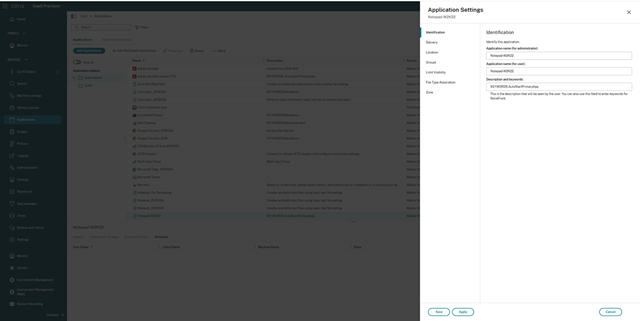
For more information, see Auto-launch desktops and apps.
Optimizing in-session audio with echo cancellation for Android
Starting with version 2507, Citrix Workspace app for Android introduces enhanced audio and video quality for Citrix Virtual Apps and Desktops sessions through intelligent echo cancellation technology. This feature automatically reduces feedback and background echo during audio and video calls, providing a clearer communication experience on supported devices with the required hardware.
Note:
This feature might not work as expected on certain devices due to hardware limitations, software inconsistencies, or conflicts with existing audio processing features.
Optimal performance
Our testing shows that this feature works well on Google Pixel devices, which provide consistent audio processing capabilities and optimal hardware support for echo cancellation.
Support for App Protection Anti-Keylogging
Starting from the 25.7.0 version, Citrix Workspace app for Android supports the App Protection Anti-Keylogging feature.
Anti-Keylogging is a security feature that prevents malicious software (malware) from capturing user input made. The input that is made into the Citrix Workspace app and this feature prevents exfiltration of confidential information such as user credentials and other sensitive information.
Session Launch Experience Improvement
Previously, the launch progress dialog box wasn’t intuitive to the users. The notification message was static. A gray screen appeared prior to the desktop image rendering, which resulted in a flicker and glitch-like effect.
Starting with version 25.7.0, Citrix Workspace app for Android ensures an enhanced desktop launch experience. Now, you experience a seamless, flicker-free transition to your desktop without intermediate screens. Users can view meaningful notifications about the launch progress. This feature is enabled by default.
The improved app and desktop launch experience is more informative, modern, and provides a user-friendly experience on Citrix Workspace app for Android. This new improved launch experience helps to keep the users engaged with timely and relevant information about the launch status.
Enhanced Connection Strength Indicator
Starting with 25.7.0 version, Citrix Workspace app for Android supports more features to the existing feature Connection Strength Indicator (CSI) on the new in-session toolbar.
For more information, see Enhanced Connection Strength Indicator.
Fixed issues in 2507
- When you start a session, the Android devices display incorrect endpoint names in Citrix Director. It shows default names in the format “roid-XXXXXX” (based on device ID) instead of the actual device name. [CVADHELP-28490]
2505.10
This release addresses areas that improve overall performance and stability.
Fixed issues
There are no fixed issues in the release.
25.5.0
What’s new
Enhanced mouse pointer mode
Starting with the version 25.5.0, Citrix Workspace app for Android introduces enhancements to mouse pointer mode, providing a smoother and more consistent experience. The mouse pointer now moves more naturally by responding to swipe velocity.
Default display settings
Previously, the default display setting was Fit screen.
Starting with version 25.5.0, Citrix Workspace app for Android unifies session resolution settings across mobile platforms. By default, sessions use Match client DPI mode, which matches the client’s DPI for a sharper, more consistent experience across devices.
For more information, see Default display settings.
Support for floating window mode
Starting with the 25.5.0 version, Citrix Workspace app for Android introduces support for the floating window mode. Previously, when users switched to other mobile apps, the session window was minimized and moved to the background.
This enhancement enables users to switch the session to a floating window, providing greater flexibility and multitasking capabilities. With this feature, Users can seamlessly transition their virtual desktop or application session into a resizable, movable floating window.
Prerequisites
To enable this feature, go to Settings > Advanced and turn on Floating window.
Benefits
The floating window feature improves multitasking by allowing users to keep their virtual desktop or application session in a resizable, movable window while using other mobile apps. This feature is helpful for referencing documents or switching between the virtual session and other apps.
For more information, see Support for floating window mode.
Enhanced virtual desktop screen resizing experience
Starting with the 25.5.0 version, Citrix Workspace app for Android ensures a smooth transition and prevents gray screens and flickers when resizing or stretching your virtual desktop screen. This feature is enabled by default.
Support for App Protection Anti-Keylogging [Technical Preview]
Starting from the 25.5.0 version, Citrix Workspace app for Android supports the App Protection Anti-Keylogging feature.
Anti-Keylogging is a security feature that prevents malicious software (malware) from capturing user input made into the Citrix Workspace™ app. This feature prevents exfiltration of confidential information such as user credentials and other sensitive information.
For more information about the feature, see App Protection documentation.
Fixed issues
There are no fixed issues in the release.
25.3.0
This release addresses areas that improve overall performance and stability.
Minimum support version
Citrix Workspace app for Android 25.3.0 requires Android 13 as the minimum supported version to maintain compatibility and to ensure continuous support for devices that are updated to Android 13. For more information, see System requirements and compatibility.
Fixed issues
In a few instances, the Android Client name appeared as null in Citrix Director and Citrix Studio. [RFANDROID-13441]
25.1.2
What’s new
This release addresses areas that improve overall performance and stability.
Note:
The release version 25.1.2 includes fixes and the new features from version 25.1.0.
Fixed issues
When you start an app, it opens in a tiny window that can’t be used. The issue occurs as the resolution setting isn’t correctly applied during active sessions. [CVADHELP-27498]
25.1.1
What’s new
This release addresses areas that improve overall performance and stability.
Important:
The version 25.1.0 has been rolled back due to stability issues. The new version available is 25.1.1. This means that the latest build 25.1.1 doesn’t include the features of version 25.1.0. We are working on a new stable build, which will include all the features of version 25.1.0 along with the necessary fixes.
Fixed issues
Similar to the previous stable build.
25.1.0
What’s new
Support for DPI Matching on Samsung DeX in multi-display mode
This enhancement improves the user experience for Samsung DeX devices connected to external monitors or docks, particularly in enterprise environments.
Previously, when using a DeX device with an external monitor, DPI matching was not available for the built-in display or tablet screen, making it ineffective as a secondary monitor. Without DPI matching, it wasn’t easy to recognize and read the characters on the screen. In addition, selecting or clicking the UI elements was hard.
Starting with the 25.1.0 version, there is a uniform experience between the Citrix Workspace app on a DeX device with an external monitor and its use on a standard desktop or laptop. This enhancement resolves the inconsistencies in scaling and DPI management encountered in multi-screen mode with Samsung DeX. As part of this initiative, we are aligning the HDX experience on Samsung DeX with external monitor support to that of a standard desktop or laptop computer.
Connection strength indicator
Starting with 25.1.0 version, Citrix Workspace app for Android supports the Connection Strength Indicator (CSI) on the new in-session toolbar. This feature displays a network strength icon that alerts you of network issues. By clicking the icon, you can view real-time connection statistics for the client, gateway, and VDA, and copy diagnostic information to share with IT for advanced troubleshooting.
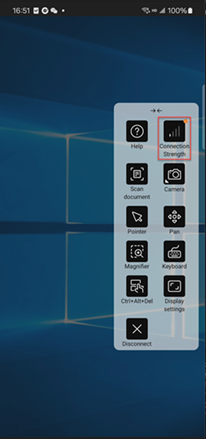
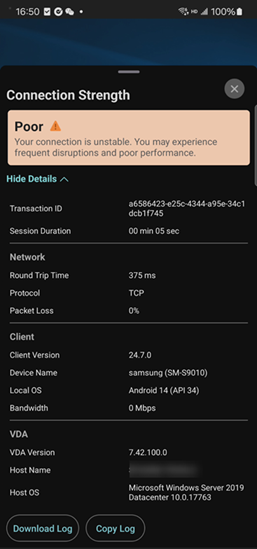
Note:
This feature is enabled by default. You can see the Connection Strength icon on the new toolbar when you open the session. You can disable the feature through the Global App Configuration service as follows:
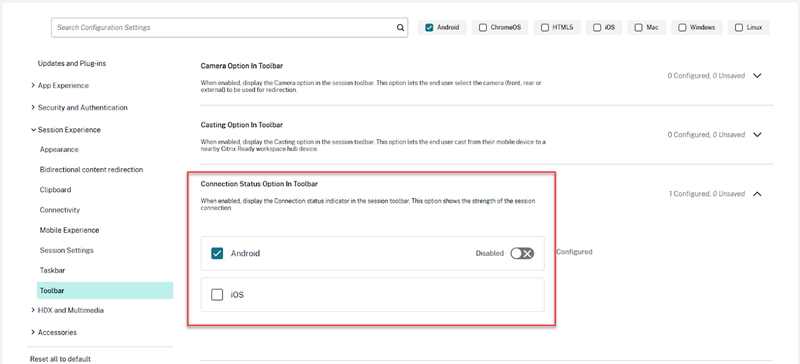
Prerequisites
To use this feature, you must enable the Improved in-session toolbar feature. By default, the new toolbar feature is disabled. Administrators must enable the new toolbar feature through the Global App Configuration service. This feature is available only in the VDA version 2407 or later.
For more information, see the Improved in-session toolbar feature.
Fixed issues
There are no fixed issues in the release.
Known issues
Known issues in 25.11.0
- When you enable the policy setting Use video codec for compression and set the value to For the entire screen, the multi-display support on Samsung DeX feature might not work. The app becomes unresponsive when you click the Extend button with this policy enabled. [HDX-94055]
- On OneUI 8 DeX screen, the multi-display support on Samsung DeX feature and enhancement to support desktop-like experience in a single session on Samsung DeX might not work. [CVADHELP-30153]
Known issues in 25.9.0
-
Extended keys might not render correctly in full-screen H264 mode. [HDX-95685]
-
When connecting to an external monitor through the Samsung DeX interface on the device with One UI 8.0, the mouse and keyboard might not function as expected. Citrix Workspace app for Android can’t distinguish the mirror mode and the DeX dual mode of One UI 8.0 and always enter presentation mode.
As a workaround, tap the Esc key to exit the presentation mode. [CVADHELP-30153]
-
Citrix Workspace app for Android version 25.9.0 can’t start App Protection-enabled resources from on-premises stores.
When this issue occurs, the app displays a toast notification that says: “Session ended because of an outdated Workspace version. Contact your administrator”. [RFANDROID-13898]
Known issues in 22.6.5
- When you open a Web app or a SaaS app, the taskbar buttons and ellipsis do not work as expected. The issue occurs after you toggle on Web Interface in the Add Account screen. [RFANDROID-10263]
Known issues in 21.4.0
No new known issues have been observed in this release.
Note:
When you’re enrolled in the Work profile in Citrix Workspace app, launching your sessions using the Chrome browser from an ICA file in the Personal profile no longer works. However, the issue isn’t present with Citrix Secure Web on adding the ICA file URL in the exclusion list.
Known issues in 20.3.0
On a Samsung DeX device, you might not be able to cancel USB device redirection if you dismiss the permission prompt without tapping the Cancel button. [RFANDROID-5397]
Known issues in 20.2.0
Attempts to reconnect fail when you tap Connect in the Auto Client Reconnect dialog. The issue occurs in sessions connected to Citrix XenApp and XenDesktop Version 7.6 CU 8. [RFANDROID-5151]
Limitations
-
While starting Web and SaaS apps from within the Citrix Workspace app, if the app uses Google IdP and requires the end user to sign in then the authentication fails with the error message “Access Denied”.
-
Fast smart card does not currently support Elliptic Curve Cryptography (ECC) smart cards.
Technical preview
Technical previews are available for customers to use in their non-production or limited production environments, and to give customers an opportunity to share feedback. Citrix does not accept support cases for feature previews but welcomes feedback for improving them. Citrix might or might not act on feedback based on its severity, criticality, and importance.
Third-party notices
Citrix® products often include third-party code licensed to Citrix for use and redistribution under an open source license. To better inform its customers, Citrix publicizes open source code included within Citrix products in an open source licensed code list.
For information about Open Source Licensed Code, see Open Source Licensed Code.
Citrix Workspace app might include third-party software licensed under the terms defined in the following document:
Citrix Workspace app for Android Third-Party Notices
Deprecation
For information about deprecated items, see the Deprecation page.
Legacy documentation
For product releases that have reached End of Life (EOL), see Legacy documentation.