End-user triggered session recording
Previously, session recording started strictly based on the recording policies configured by administrators. Starting with the current release, Session Recording introduces the end-user triggered session recording feature. With this feature, end users can start or stop recording their own sessions at any time, providing greater flexibility for on-demand recording needs.
Enable end-user triggered recording
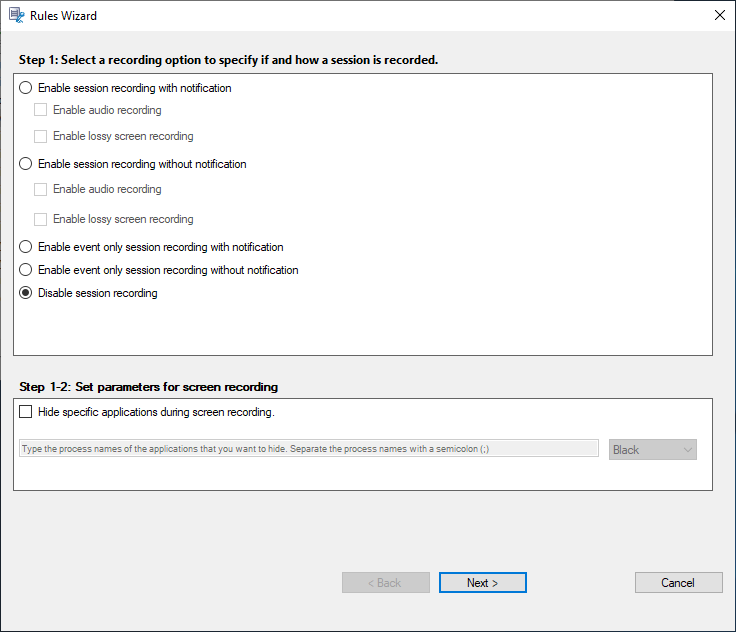
By default, end-user triggered recording is disabled. To enable this feature, you must configure a recording policy in the Session Recording Policy Console. For more information about how to configure the customized policy, see Create a custom recording policy.
Start or stop recording by using Citrix Virtual Desktop Assistant
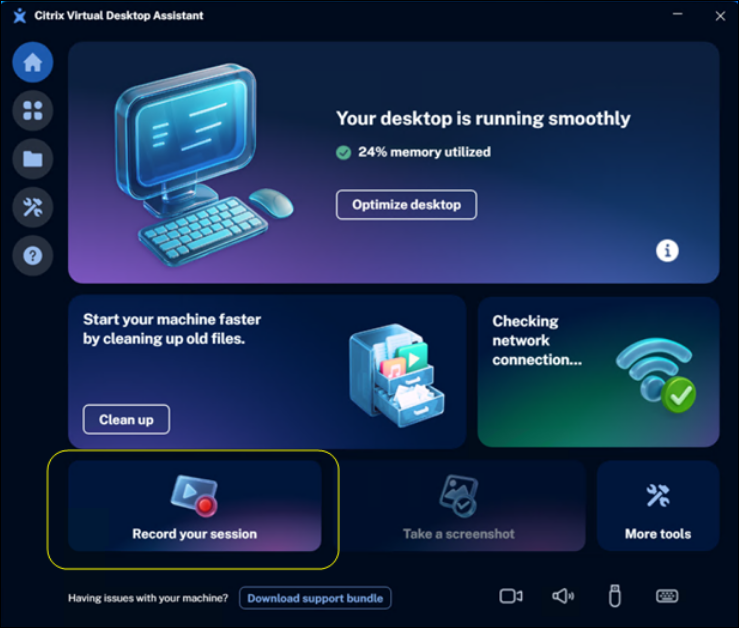
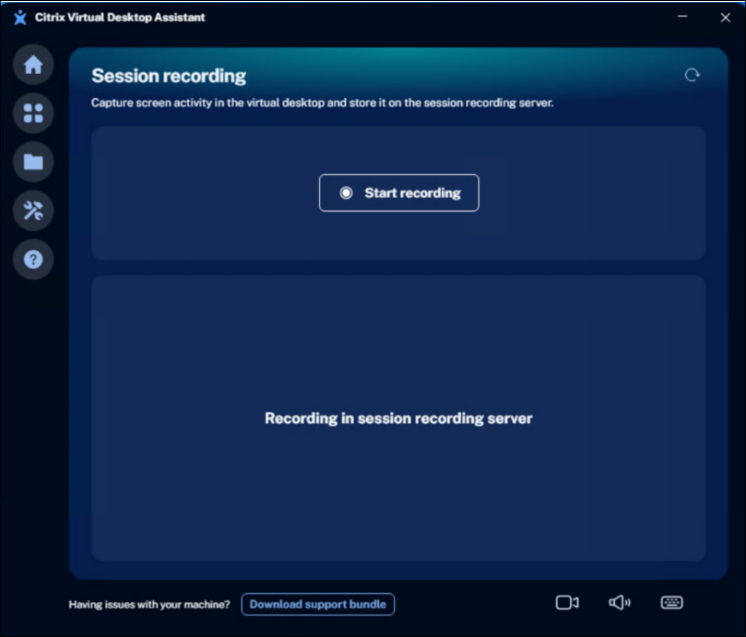
The Citrix Virtual Desktop Assistant, installed by default in CVAD, provides a built-in Session Recording page that enables users to manually record their active virtual desktop sessions.
Start recording
Starts capturing the current session. A recording indicator is displayed to confirm that recording is in progress.
Stop recording
Stops the recording and automatically saves the recorded session to the Session Recording server.
Start or stop recording by using PowerShell commands
End users can trigger recording through PowerShell commands after importing the required model.
Import the Session Recording Module
Before running the recording commands, you must import the necessary module into the PowerShell session. Open PowerShell and Import the module by running:
Import-Module -DisableNameChecking 'C:\Program Files\Citrix\SessionRecording\Agent\Bin\EndUserInitiatedSRSnapin.dll'
Available Commands
The following table lists three PowerShell commands that provide for end user triggered session recording.
| Command | Description |
|---|---|
| Start-SessionRecording | Starts recording the active session in which the command is executed. To record a specific active session, use the -SessionId <ID> parameter (requires local administrator privileges). For more information, run Get-Help Start-SessionRecording to see the command online help. |
| Stop-SessionRecording | Stops recording the active session in which the command is executed. To stop recording a specific active session, use the -SessionId <ID> parameter (requires local administrator privileges). Note: Users can only stop recordings they initiated. They cannot stop recordings triggered by dynamic or policy-based recording. For more information, run Get-Help Stop-SessionRecording to see the command online help. |
| Get-SessionRecordingStatus | Retrieves the recording status of the active session in which the command is executed. To get the status of a specific active session, use the -SessionId <ID> parameter. For more information, run Get-Help Get-SessionRecording Status to see the command online help. |
Scenario 1: End-user triggered recording
End users can trigger recordings for their current active session to capture operations dynamically (for example, for troubleshooting purposes).
The user can perform the following steps inside the session:
- Launch PowerShell from the session desktop.
- Import the module as described in the previous section.
- Use the
Get-SessionRecordingStatuscommand to check the recording status, ensure the session is not already being recorded. - Use the
Start-SessionRecordingcommand to start recording the session. - Use the
Get-SessionRecordingStatuscommand to check the recording status, ensure the session is being recorded. The status is supposed to be Recording. - Reproduce the issue or perform the operations that need to be documented.
- Use the
Stop-SessionRecordingcommand to stop recording once the operations are complete. - Inform the administrator to playback the Live or Complete recordings and proceed with the follow-up troubleshooting.
Scenario 2: Administrator-triggered recording
Administrators can trigger recordings for specific active sessions on the machine (for example, to assist a user with troubleshooting).
The administrator can perform the following steps on the machine hosting the session:
- Launch PowerShell as an administrator.
- Import the module as described in the previous section.
- Get the
SessionIDof the target user session by using : query session | find “Active”. - Use the
Get-SessionRecordingStatus -SessionId <SessionID>command to check the recording status, ensure the session is not already recorded. - Use the
Start-SessionRecording -SessionId <SessionID>command to start recording the session. - Use the
Get-SessionRecordingStatus -SessionId <SessionID>command to check the recording status, ensure the session is being recorded. The status is supposed to be Recording. - Instruct the user to reproduce the issue or perform the operations that need to be documented.
- Use the
Stop-SessionRecording -SessionId <SessionID>to stop recording once the operations are complete. - Playback the Live or Complete recordings and proceed with the follow-up troubleshooting.
Start or stop recording by using Hotkeys
End users can also control recording using shortcut keys (Hotkeys). By default, this feature is disabled.
Enable Hotkeys
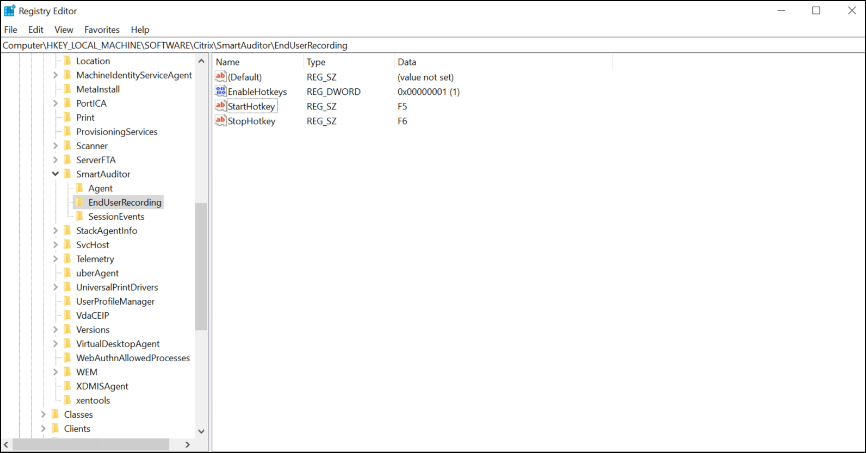
To enable the hotkey functionality, add a DWORD value named EnableHotKeys under the registry path: HKEY_LOCAL_MACHINE\SOFTWARE\Citrix\SmartAuditor\EndUserRecording
Set the value to 1 on the VDA machine.
This setting is applied per machine and will take effect for all subsequent active sessions.
Default Hotkeys
Once enabled, the default hotkeys are:
- Start recording: CTRL + SHIFT + F8
- Stop recording: CTRL + SHIFT + F9
Customize Hotkeys
If the default hotkeys conflict with other applications, add or modify the following REG_SZ values under:
HKEY_LOCAL_MACHINE\SOFTWARE\Citrix\SmartAuditor\EndUserRecording
- StartHotkey – specify the new hotkey for starting to record
- StopHotkey – specify the new hotkey for stopping to record
Hotkey rules
- Only F1–F12 or capital letters (A–Z) can be used as the last key.
- You only define the last key in the combination. The CTRL + SHIFT prefix is mandatory and automatically applied.
Example: To set the start hotkey to CTRL + SHIFT + F5, set the value of StartHotkey to F5.