Session Recording Data Loss
Event Description
Session Recording – Event 2005 in Event Viewer
Administrators may notice Event 2005 from Citrix Session Recording Storage Manager in the Event Viewer on the Session Recording server. The event message typically appears as:
“Data lost while recording file: VDA = XXX, CtxSessionId = YYY, path = ZZZ, NNN bytes missing.”
If the administrator attempts to play the recording file located at the path specified in the event, the playback will indicate that the recording is incomplete.
Why did this occur?
There are several possible causes for this issue:
- Two or more VDAs are configured with the same QMID for MSMQ, which can occur on both persistent and non-persistent VDAs.
- The QMID on non-persistent VDAs remained unchanged after reboot, which can lead to conflicts.
- The Session Recording Server is under heavy load and cannot efficiently process a large number of concurrent sessions.
How to identify the issue?
- Verify the QMID configuration on the VDAs.
- For persistent VDAs
- check the registry on each machine to verify the QMID configuration.
HKEY_LOCAL_MACHINE\SOFTWARE\Microsoft\MSMQ\Parameters\MachineCache\QMId - Each VDA should have a unique QMID value to avoid conflicts.
- check the registry on each machine to verify the QMID configuration.
- For Non-persistent VDAs
- Check the registry on the VDA to verify the QMID.
- After rebooting the same VDA, check the registry again.
- The QMID should be different after the reboot.
- For persistent VDAs
- Verify whether the server is under heavy load.
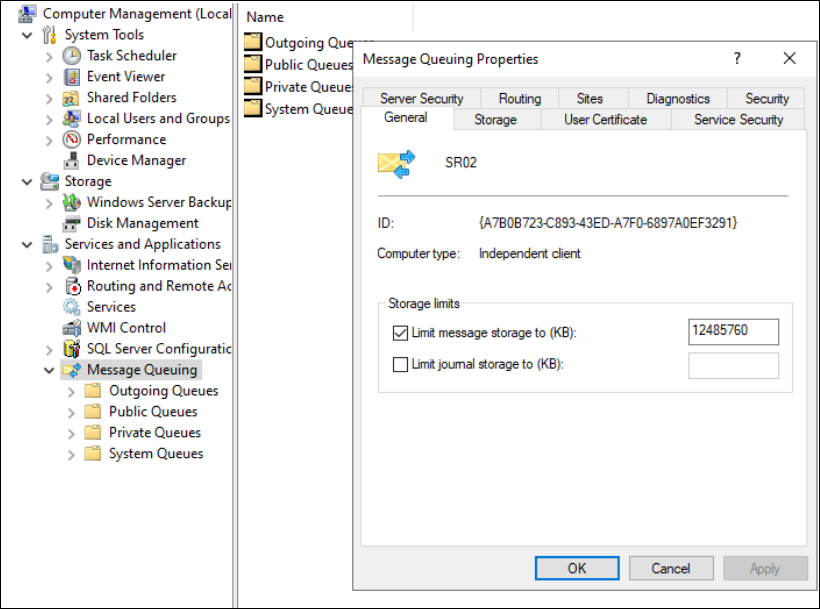
- Check the storage limits configured in the MSMQ properties on the Session Recording Server.
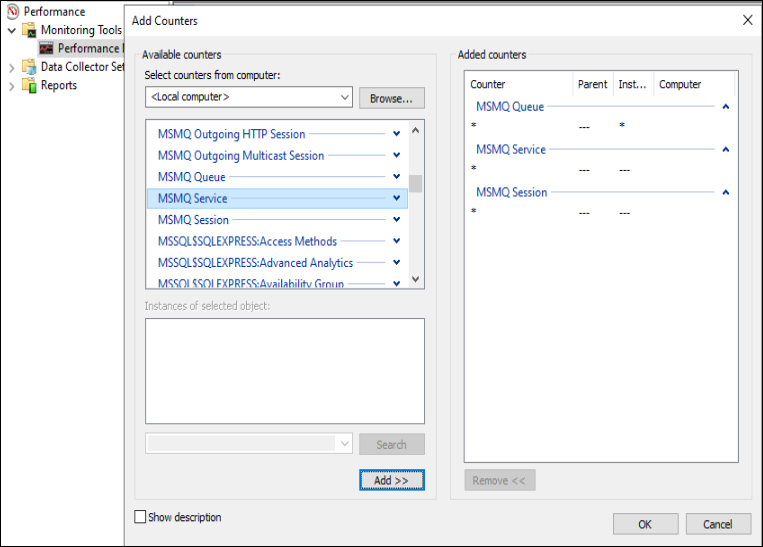
- Monitor MSMQ resource usage using Performance Monitor.
- Add the MSMQ counters in the Performance Monitor to track resource usage.
- Verify the current data usage within MSMQ.
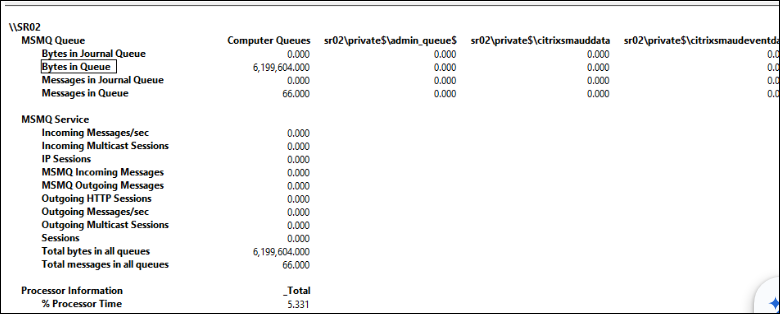
- Check whether the MSMQ data size is approaching the configured quota limit. If it is, the server may be overloaded.
- Add the MSMQ counters in the Performance Monitor to track resource usage.
- Check the storage limits configured in the MSMQ properties on the Session Recording Server.
How to solve it?
The following items outline how to resolve the issue.
- All VDAs using the Session Recording Agent must be assigned distinct QMIDs for MSMQ.
- For persistent VDAs, the QMID for MSMQ only needs to be set once.
- For non-persistent VDAs, the QMID for MSMQ needs to be set during Windows startup
- How to modify the QMID on a VDA
- Manually modify the QMID: Install, upgrade, and uninstall
- The latest Citrix Provisioning Services automatically update the QMID for MSMQ on each VDA startup since CVAD 2511. Create machine catalogs
- Image optimization tools or custom-defined scripts can be used to generate a new QMID for MSMQ during Windows startup.
- Additionally, for non-persistent VDAs, set the startup type of both the Session Recording Agent Service and the Citrix Session Recording Monitor Service to Automatic (Delayed Start) in the Windows Services configuration.

-
The Session Recording Server is overloaded. The supported session capacity of the Session Recording Server can vary significantly depending on the hardware configuration. By default, it can handle up to 2,000 concurrent sessions. However, if the server is equipped with more than 16 GB of RAM and SSD storage, the capacity can be higher. To help resolve overload issues:
-
Increase the main memory quota on the machine, then raise the MSMQ storage limit.
Ensure that the total available main memory is at least 1.5 times the configured MSMQ storage limit.
Note:
The total MSMQ storage limit should always remain less than the total physical memory.
After making changes, MSMQ on the Session Recording Server must be restarted. The Session Recording Service will restart automatically as a result.
This process will not result in any loss of session data.
-
Adjust the message lifetime in the Session Recording Agent properties. Consider doubling the current value to allow more time for message processing and reduce data loss risks.
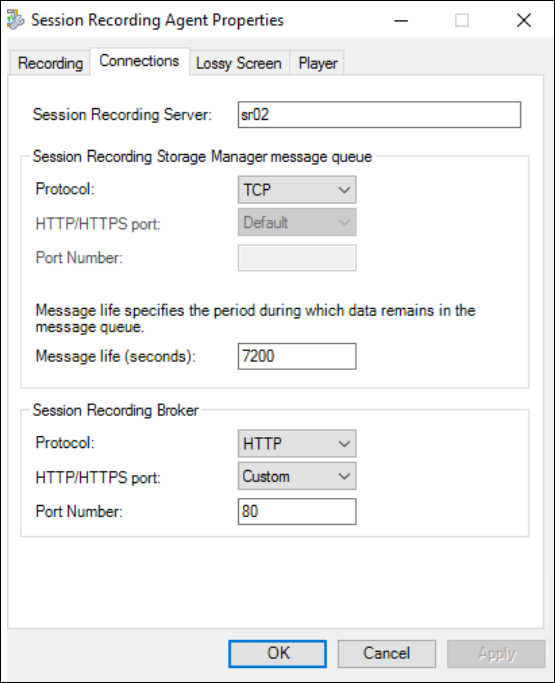
You can configure this setting via the following registry key on the VDA:
HKEY_LOCAL_MACHINE\SOFTWARE\Citrix\SmartAuditor\Agent\MsmqMessageLifeInSecondsSet the value (in seconds) based on your environment’s needs.
Note:
After making changes, the Session Recording Agent must be restarted.
This action will result in loss of session data for any live session.
Please ensure that this operation is scheduled during a maintenance window.
-
Change the Message folder to a different drive with a disk(SSD) IOPS capacity of more than 3000 for MSMQ on all Session Recording Server machines.
This will help speed up processing and can improve performance by up to 50%.
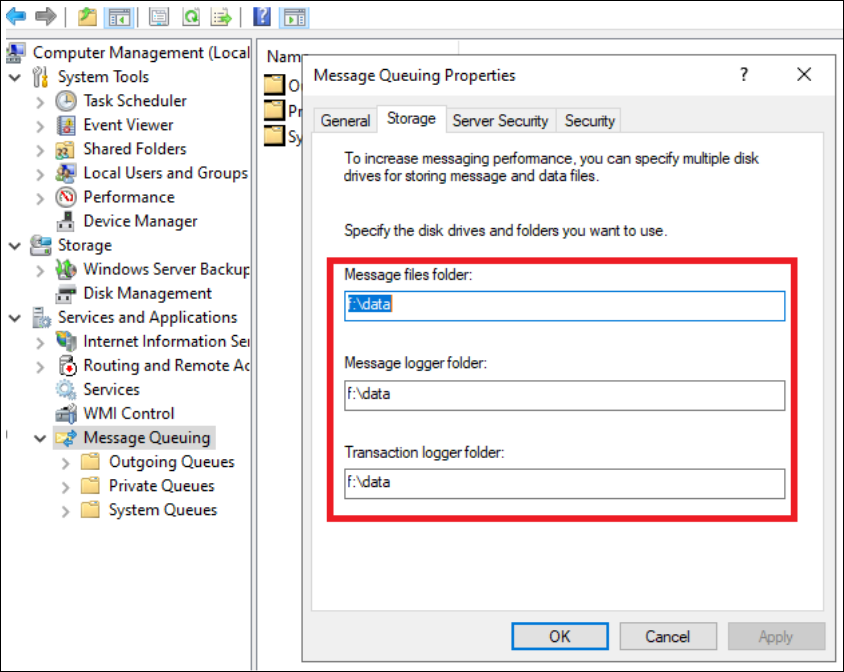
https://learn.microsoft.com/en-us/previous-versions/troubleshoot/msmq/optimize-message-queuing-performance
-
If the above steps do not resolve the issue, the recommended solution is to add an additional Session Recording Server to distribute the load.
For guidance, refer to the official documentation on configuring load balancing in an existing deployment: Citrix Documentation – Configure Load Balancing
-