Desktop
Desktop is a section of Device configuration where you can set the system language, configure keyboard shortcuts for common actions, and customize the desktop’s colors and system bar.
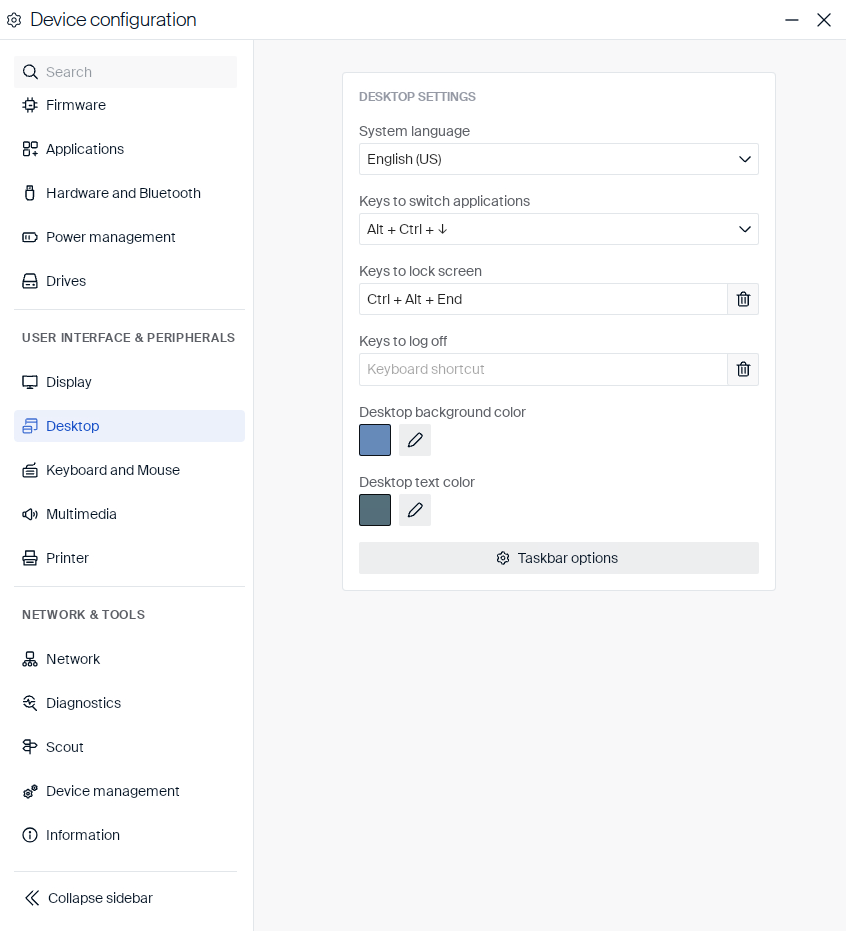
| Setting | Type | Description |
|---|---|---|
| System language | Dropdown | Sets the language of the user interface. |
| Keys to switch applications | Dropdown | Keyboard shortcut for switching between open applications: Alt + Ctrl + ↓ (default) or Alt + Tab. |
| Keys to lock screen | Shortcut field | Keyboard shortcut for locking the screen. Ctrl + Alt + End by default. |
| Keys to log off | Shortcut field | Keyboard shortcut for logging off. Empty by default. |
| Desktop background color | Color picker | The color of the desktop background. |
| Desktop text color | Color picker | The color of desktop text and icon labels. |
Note:
Click the trash icon next to a shortcut field to clear it. Click the pencil icon next to a color to open a color picker, where you can pick a color visually, drag the hue slider, or enter a HEX value.
Selecting Hebrew as the system language switches the interface to a right-to-left (RTL) layout. Menus, dialogs, and the taskbar are mirrored accordingly.
System bar
Click Taskbar options to configure the system bar:
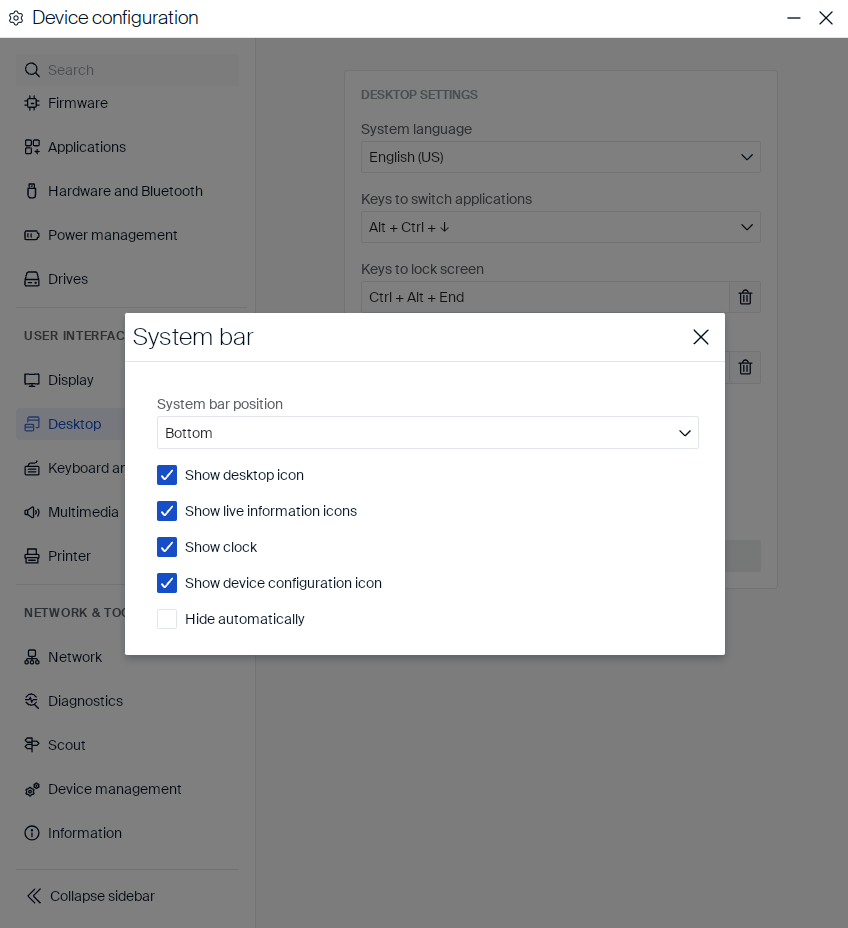
| Setting | Type | Description |
|---|---|---|
| System bar position | Dropdown | Top or bottom of the screen. |
| Show desktop icon | Checkbox | Shows the icon for minimizing all open windows. |
| Show live information icons | Checkbox | Shows live status icons, such as network and audio. |
| Show clock | Checkbox | Shows the current time. |
| Show device configuration icon | Checkbox | Shows the icon for opening Device configuration. |
| Hide automatically | Checkbox | Hides the system bar when not in use. To show it, move the mouse pointer to the screen edge where the system bar is placed. |
Using more than one monitor
With Hide automatically disabled, the system bar stays on the primary monitor.
With Hide automatically enabled, the system bar appears on the monitor you are currently using, so you do not have to move the mouse to the primary monitor to reach it:
- To show the system bar, move the mouse pointer to the top or bottom edge of any monitor, depending on the System bar position.
- The first time the system bar is shown, it appears on the monitor where the mouse pointer is.
- The Start menu, Device configuration, and anything else you open from the system bar appear on the same monitor as the system bar.
- To close an open menu or panel, click an empty part of the desktop on any monitor.
- The system bar keeps working when you connect or disconnect a monitor, dock or undock a laptop, or change the screen resolution.