Diagnostics
Diagnostics is where you set the log level and configure where diagnostic files are sent.
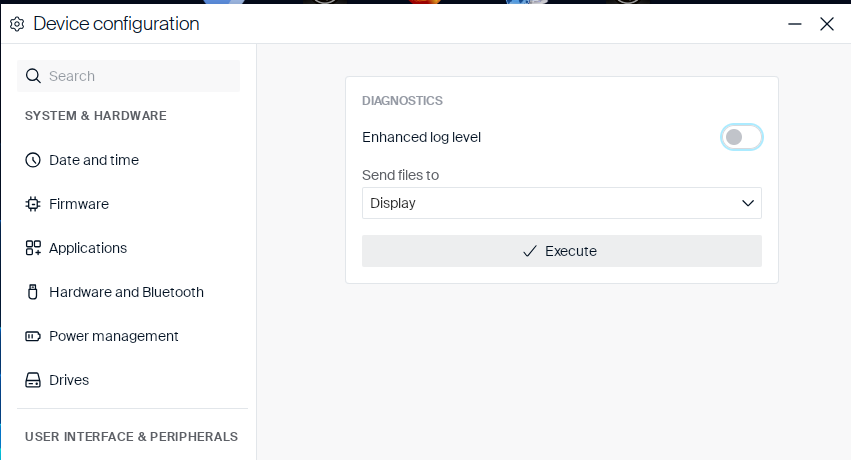
Use these settings to control how much detail the device’s logs capture, and where its diagnostic files go when they’re requested:
| Setting | Type | Description |
|---|---|---|
| Enhanced log level | Toggle | Increases the detail level of the device’s log files. |
| Send files to | Dropdown |
Display, FTP server, Scout Server, or File system. |
Note:
Turning Enhanced log level on or off shows a Configuration update prompt stating the change requires a system restart, with Restart and Cancel buttons. The new setting is saved either way — Cancel only defers the restart.
Selecting FTP server, Scout Server, or File system reveals two extra toggles and a destination field. Selecting Display reveals none of these — just an Execute button that shows the log directly on screen.
| Setting | Type | Description |
|---|---|---|
| Create screenshot with 5s delay | Toggle | Takes a screenshot 5 seconds after you start the send/execute action, and includes it with the sent files. |
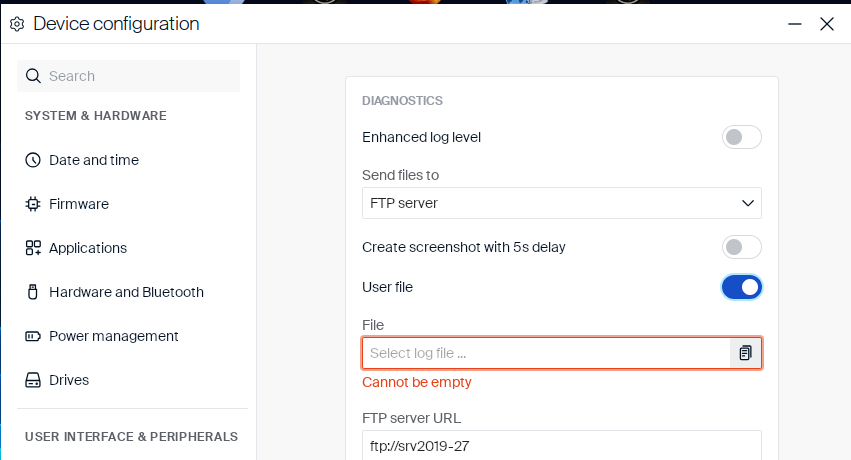
| User file | Toggle | Lets you attach a specific local file in addition to the log. Reveals a required File field (shown empty with a Cannot be empty message until you pick a file). |
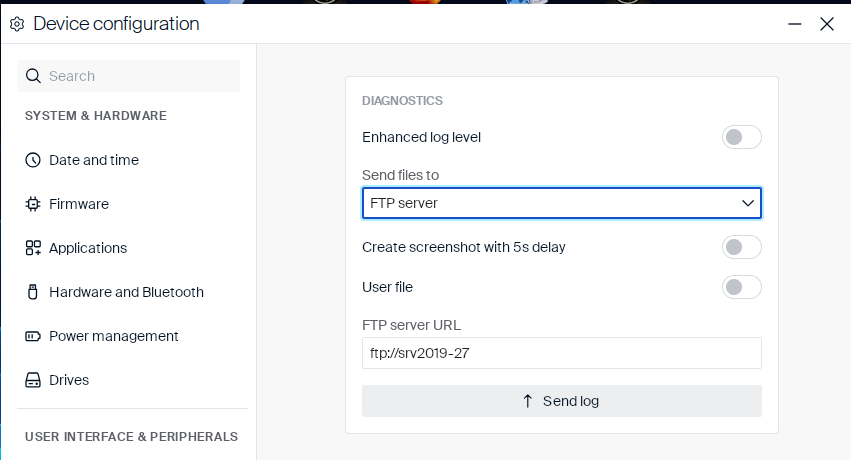
FTP server
| Setting | Type | Description |
|---|---|---|
| FTP server URL | Text field | The FTP server to upload the log to. Shown pre-filled with an existing value on this device (for example ftp://srv2019-27). |
The button at the bottom is labeled Send log.
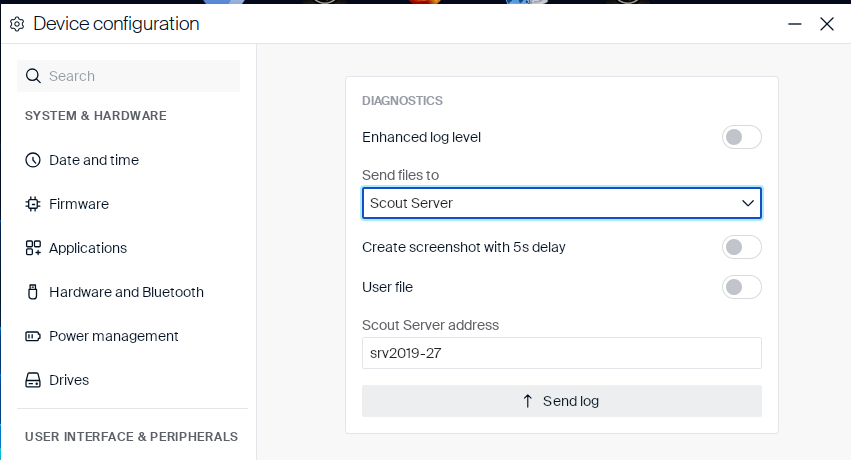
Scout Server
| Setting | Type | Description |
|---|---|---|
| Scout Server address | Text field | The Scout server the log is sent to. Shown pre-filled with an existing value on this device. |
The button at the bottom is labeled Send log.
File system
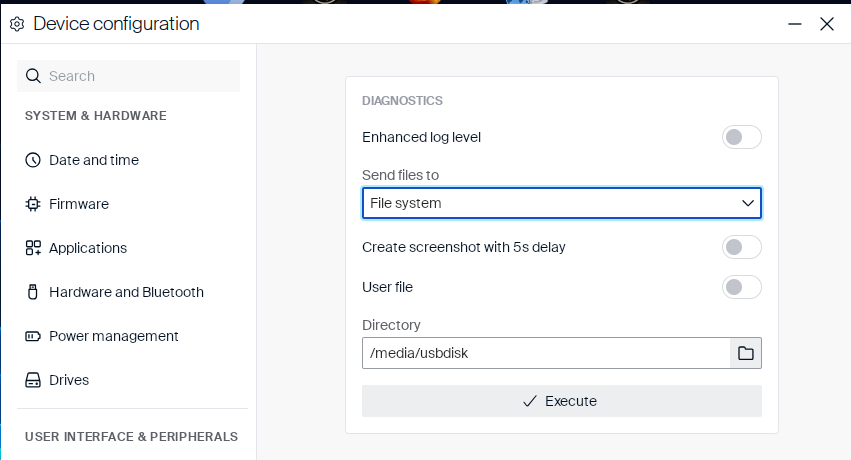
| Setting | Type | Description |
|---|---|---|
| Directory | Text field + Button | Local directory the log is written to, for example /media/usbdisk. Click the folder icon to browse for a directory. |
The button at the bottom is labeled Execute.
User file example
Turning on User file reveals a mandatory File field: