Multimedia
Multimedia is where you configure the device’s audio output and input, including volume, muting, and the system beep.
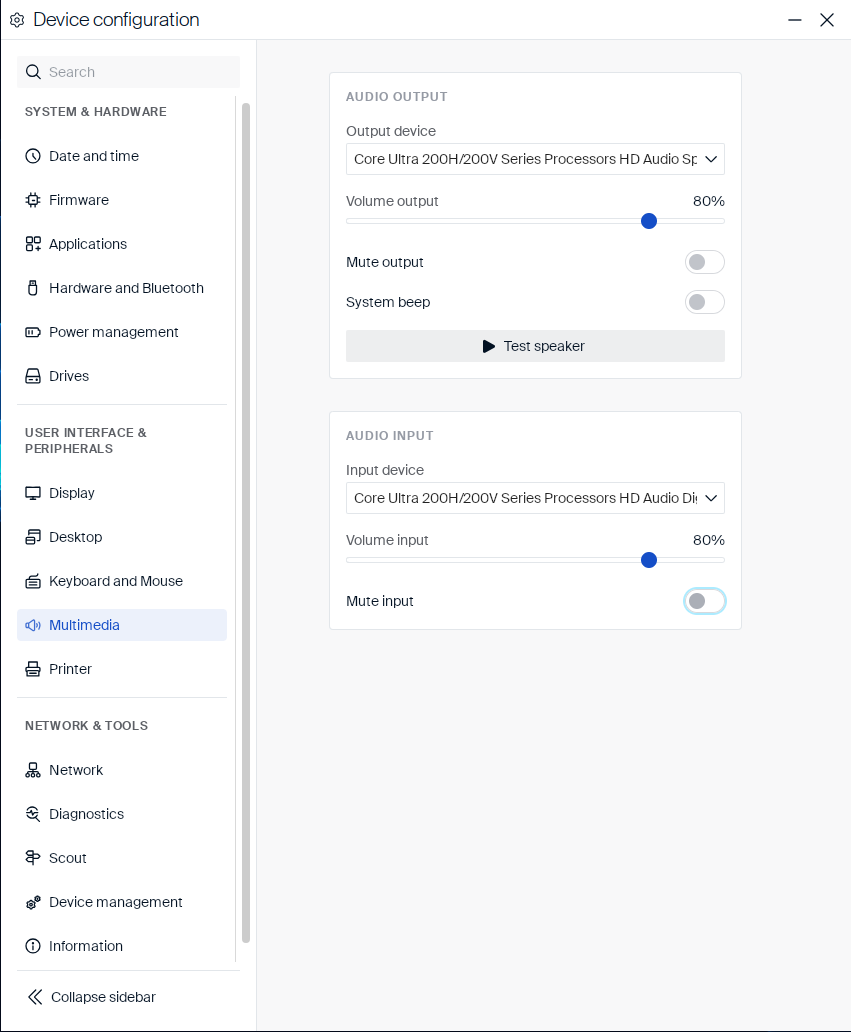
Audio output
Choose which device plays sound, and control its volume and the system beep:
| Setting | Type | Description |
|---|---|---|
| Output device | Dropdown | The audio device used for playback. Lists every audio output device eLux® detects, for example a sound card’s analog output or a monitor’s HDMI audio. |
| Volume output | Slider | The playback volume level. |
| Mute output | Toggle | Mutes audio playback. While muted, Volume output shows 0%. Turning Mute output off restores the actual volume level. |
| System beep | Toggle | Enables or disables the system beep sound. |
| Test speaker | Button | Plays a test sound through the selected output device. |
Audio input
Choose which device records sound, and control its volume:
| Setting | Type | Description |
|---|---|---|
| Input device | Dropdown | The audio device used for recording, for example a microphone jack or a headset’s built-in microphone. |
| Volume input | Slider | The recording volume level. |
| Mute input | Toggle | Mutes audio recording. While muted, Volume input shows 0%. Turning Mute input off restores the actual volume level. |
USB audio auto-accept
When you connect a USB audio device, eLux® shows a “New audio device detected” notification with two buttons:
- Use device — sets it as the default for this session only; you’re asked again next time.
- Remember device — sets it as the default now and on every reconnect, with no more prompts.
If you miss the notification, it stays in the Notification Center so you can respond to it later.
Remember device only sets the default audio device — other devices remain usable and selectable. It is offered for USB devices only.
Whether Remember device survives a reboot depends on the administrator (see the whitelist/blacklist keys below). If persistence across reboots isn’t enabled, remembering still applies for the current session.
A device blocked by the administrator (via IgnoreAsDefault, below) can never be remembered — the administrator’s policy always takes precedence.
An administrator can also control this per device, group, or OU with two keys in /setup/terminal.ini, section [Multimedia], set via Scout → Advanced Configuration → File Entries:
| Key | Effect |
|---|---|
AudioAutoAcceptList |
Whitelist — listed devices become default automatically, no notification. |
IgnoreAsDefault |
Blacklist — listed devices never become default, no notification. |
Devices in neither list still show the notification. If a device is in both, the blacklist wins.
Both keys are empty by default, so every new device shows the notification until you add one.
Both take comma-separated vendorId:productId pairs (4-digit hex, case-insensitive) — find a device’s ID with lsusb (for example, ID 046d:0a4d → use 046d:0a4d):
[Multimedia]
AudioAutoAcceptList=all              # every device, like eLux RP6 (whitelist only)
AudioAutoAcceptList=0d8c:0014,046d:* # only these: one exact device, and all from vendor 046d
IgnoreAsDefault=8087:0aaa            # never default this device (e.g. a dock/monitor speaker)
<!--NeedCopy-->
Note:
To persist a remembered device across reboots (when not covered by the whitelist above), add
audio(orALL) toGlobal.PersistentHomeApplicationsin Scout.This only controls which device becomes the default — non-default devices remain usable and can still be selected manually. Applies to both audio output and input.