Network
Network is where you configure the device’s network interfaces and view information about the active connection. Available interfaces depend on the device’s hardware and installed software packages.
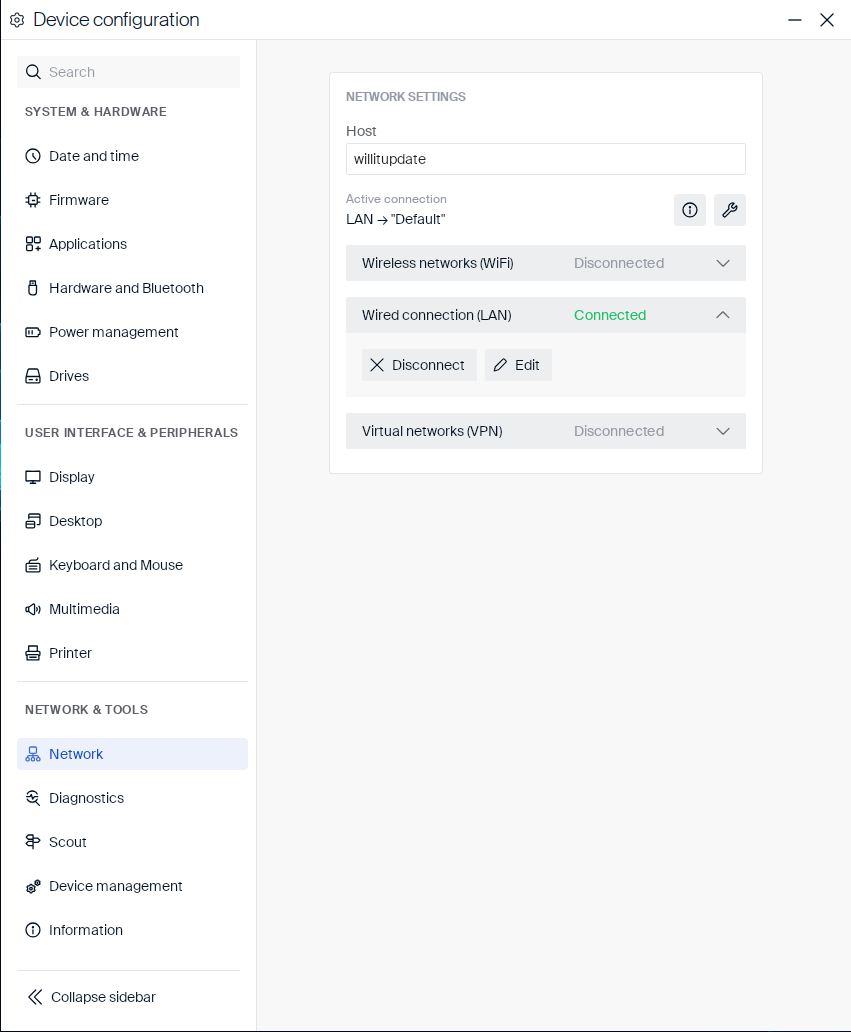
The host name and the currently active connection are shown at the top of the page:
| Setting | Type | Description |
|---|---|---|
| Host | Text field | The device’s host name. |
| Active connection | Info | The interface and profile currently in use, for example LAN → "Default". Click the info icon for connection details, or the wrench icon for advanced settings. |
Below the active connection, each available interface type is listed:
- Wireless networks (WiFi) — shows available wireless networks to connect to.
- Wired connection (LAN) — the device’s Ethernet connection.
- Virtual networks (VPN) — VPN connections.
Click an interface to expand it. For a connected interface, click Disconnect to disconnect it, or Edit to change its connection settings.
Viewing connection details
Click the info icon next to Active connection to open the Details dialog. It shows the profile name and connection status, followed by three collapsible sections: General, Advanced, and Statistics. Click a section’s header to expand or collapse it.
General
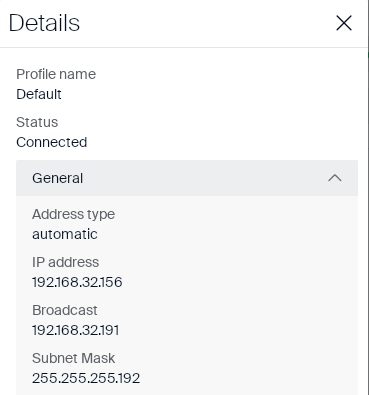
General shows the interface’s current addressing information:
| Field | Description |
|---|---|
| Address type | How the IP address was obtained, for example automatic. |
| IP address | The interface’s current IP address. |
| Broadcast | The interface’s broadcast address. |
| Subnet Mask | The interface’s subnet mask. |
Advanced
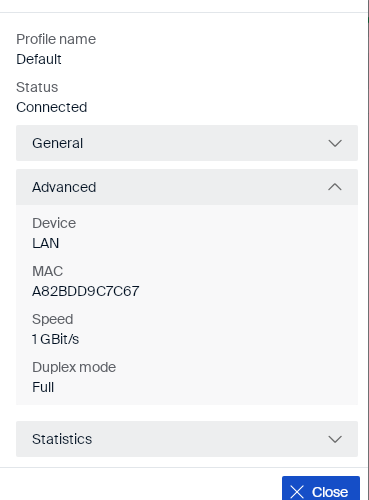
Advanced shows the interface’s hardware and link information:
| Field | Description |
|---|---|
| Device | The interface type, for example LAN. |
| MAC | The interface’s MAC address. |
| Speed | The interface’s negotiated link speed, for example 1 GBit/s. |
| Duplex mode | The interface’s duplex mode, for example Full. |
Statistics
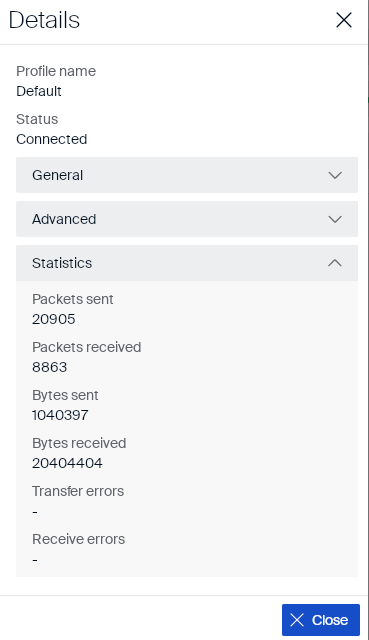
Statistics shows traffic counters for the interface:
| Field | Description |
|---|---|
| Packets sent | Number of packets sent over the interface. |
| Packets received | Number of packets received over the interface. |
| Bytes sent | Number of bytes sent over the interface. |
| Bytes received | Number of bytes received over the interface. |
| Transfer errors | Number of errors while sending. Shows - if none occurred. |
| Receive errors | Number of errors while receiving. Shows - if none occurred. |
Click Close to close the dialog.
Editing an interface’s connection settings
Click the wrench icon next to Active connection, or click an interface and then Edit, to open the Network configuration dialog:
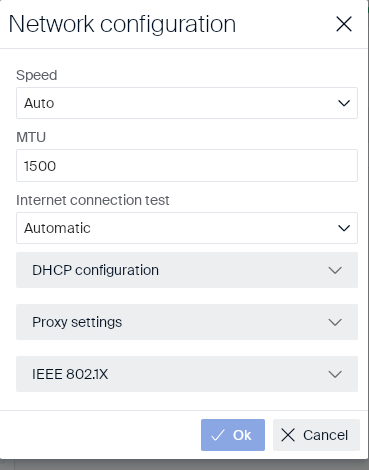
| Setting | Type | Description |
|---|---|---|
| Speed | Dropdown | The interface’s link speed, for example Auto. |
| MTU | Number field | The interface’s maximum transmission unit, in bytes. |
| Internet connection test | Dropdown | How the device tests for internet connectivity, for example Automatic. |
Below these settings, three collapsible sections group further options: DHCP configuration, Proxy settings, and IEEE 802.1X. Click a section’s header to expand or collapse it.
DHCP configuration
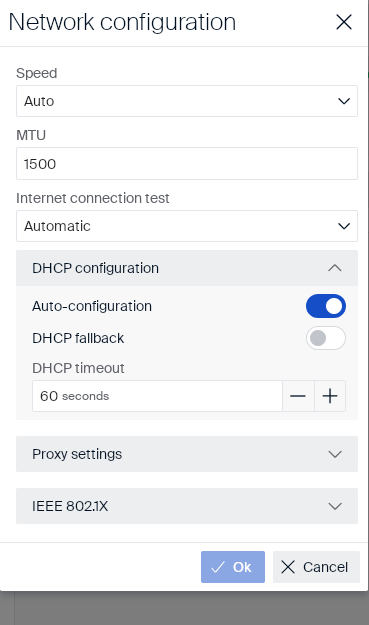
| Setting | Type | Description |
|---|---|---|
| Auto-configuration | Toggle | Obtains the IP address and network settings automatically over DHCP. Disabling it shows the IP address, Domain, Subnet Mask, Gateway, and DNS servers fields to set a static configuration instead. |
| DHCP fallback | Toggle | If DHCP fails on startup, uses the last known settings as long as they’re still valid within their lease. Only shown when Auto-configuration is enabled. |
| DHCP timeout | Number field | How long, in seconds, the device waits for a DHCP response. Only shown when Auto-configuration is enabled. |
Proxy settings
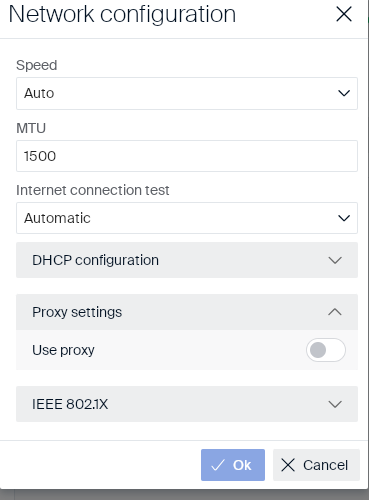
| Setting | Type | Description |
|---|---|---|
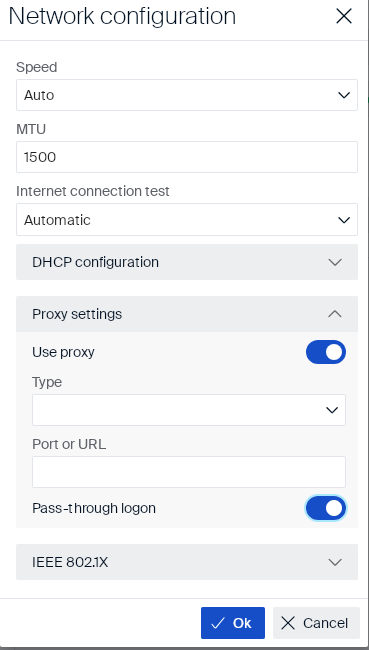
| Use proxy | Toggle | Enables an HTTP proxy for this interface. Enabling it shows the Type, Port or URL, and Pass-through logon fields described below. |
Enabling Use proxy shows the following fields:
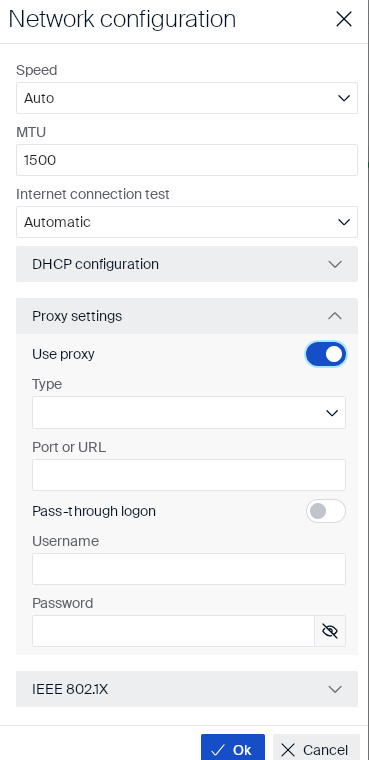
| Setting | Type | Description |
|---|---|---|
| Type | Dropdown | The proxy’s type. |
| Port or URL | Text field | The proxy’s port or URL. |
| Pass-through logon | Toggle | Disabling it shows the Username and Password fields below, used to authenticate with the proxy. |
Disabling Pass-through logon shows the following fields:
| Setting | Type | Description |
|---|---|---|
| Username | Text field | The username to authenticate with the proxy. |
| Password | Text field | The password to authenticate with the proxy. Click the eye icon to show or hide it. |
IEEE 802.1X
| Setting | Type | Description |
|---|---|---|
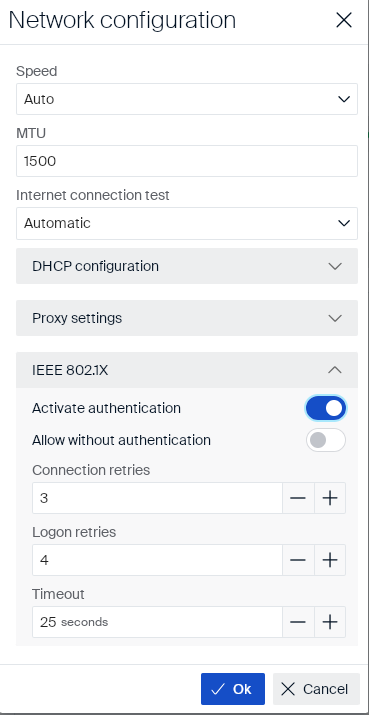
| Activate authentication | Toggle | Enables 802.1X network authentication for this interface. Enabling it shows the fields described below. |
Enabling Activate authentication shows the following fields:
| Setting | Type | Description |
|---|---|---|
| Allow without authentication | Toggle | Allows the connection without 802.1X authentication. |
| Connection retries | Number field | How many times the device retries the connection. |
| Logon retries | Number field | How many times the device retries the logon. |
| Timeout | Number field | How long, in seconds, the device waits for authentication to complete. |
Click Ok to apply the changes, or Cancel to discard them.