Power management
Power management is where you configure energy-saving settings, including battery alerts and standby behavior on devices that have a battery.
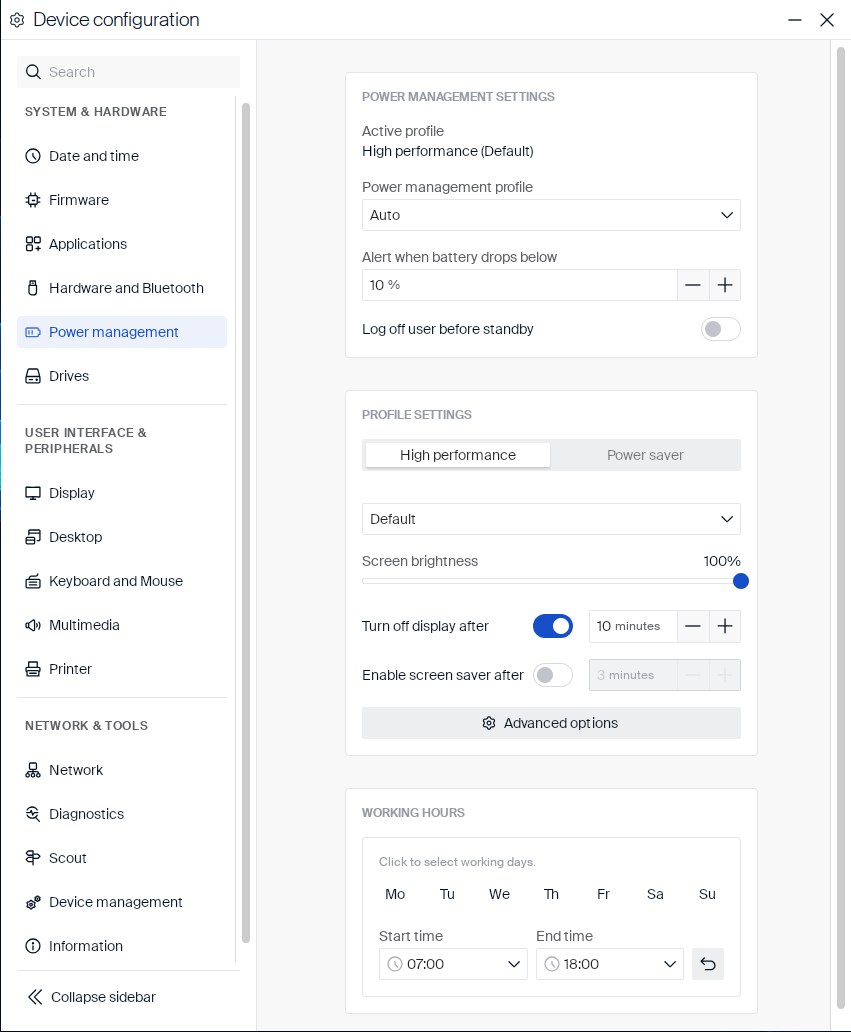
Power management settings
These settings apply regardless of which profile is active — they control the overall power mode and what happens on low battery:
| Setting | Type | Description |
|---|---|---|
| Active profile | Info | The profile currently in effect, followed by its active preset in parentheses, for example High performance (Default). Read-only. |
| Power management profile | Dropdown |
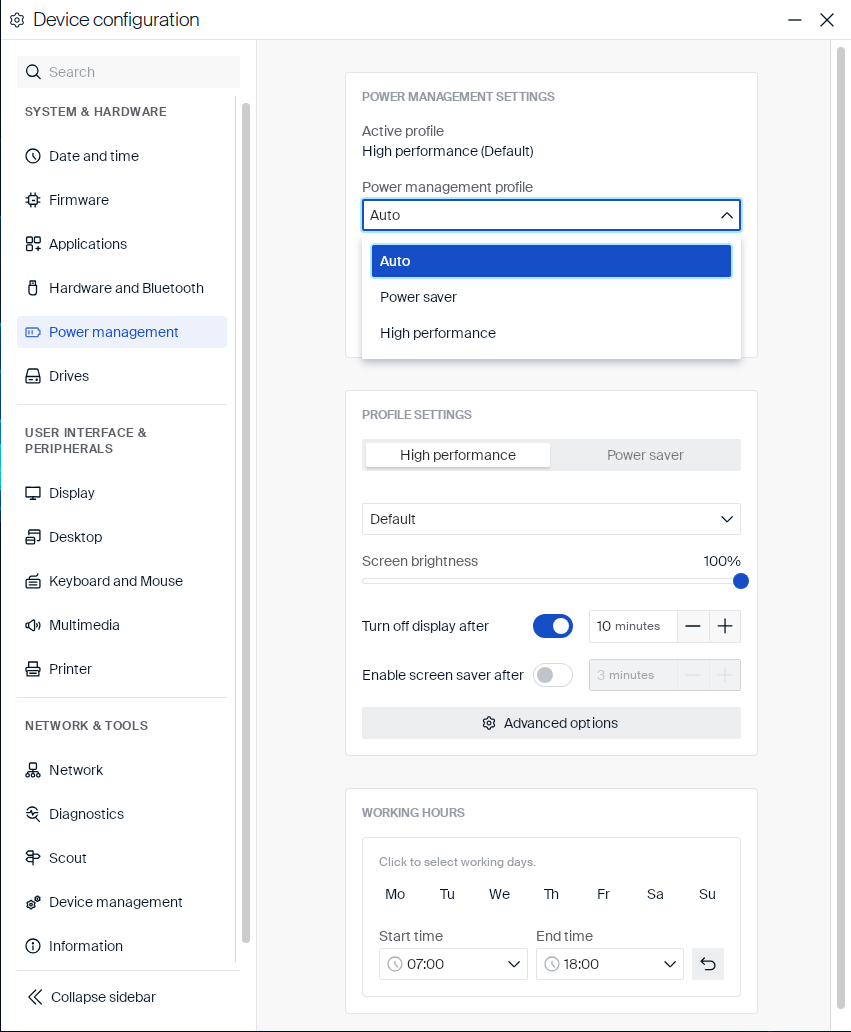
Auto, Power saver, or High performance. Auto switches to Power saver while the device runs on battery power, and to High performance while it’s connected to AC power. |
| Alert when battery drops below | Number field | Battery percentage at which the device shows a low-battery alert. Adjust it with the -/+ buttons, in steps of 5%. |
| Log off user before standby | Toggle | Logs off the current user before the device enters standby. |
Click Power management profile to see its options:
Profile settings
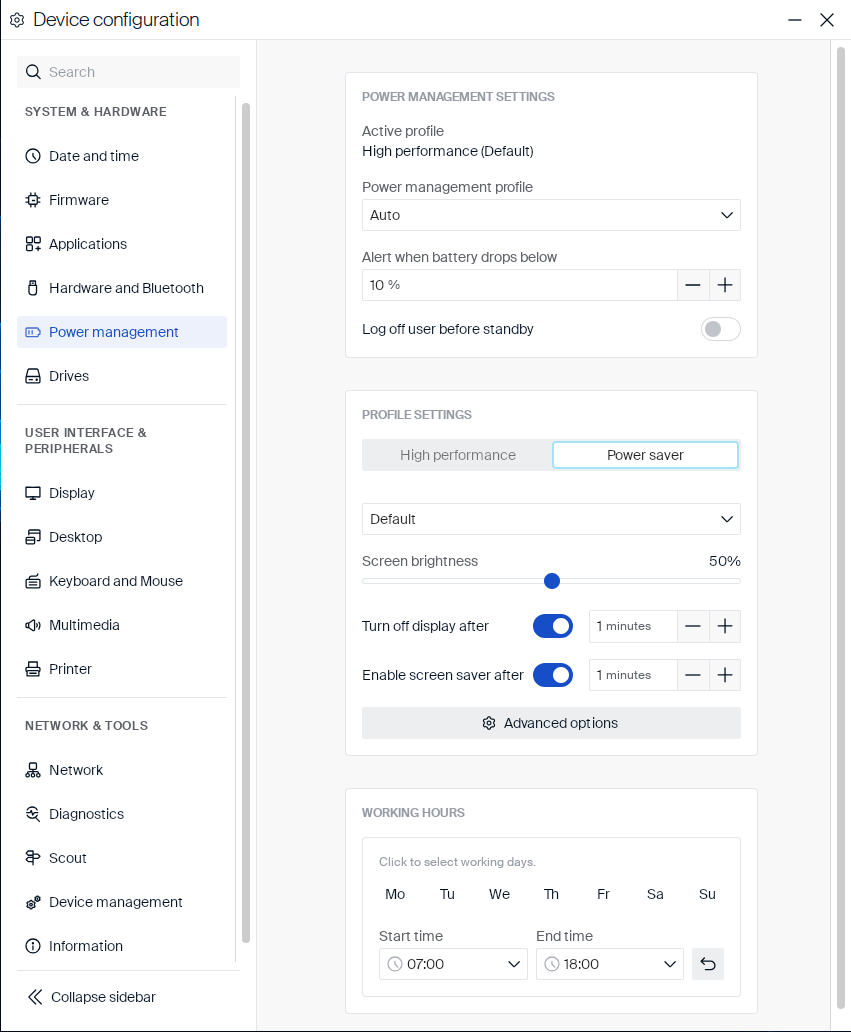
Each profile (High performance and Power saver) has its own display and screen saver settings. Select the tab for the profile you want to configure:
| Setting | Type | Description |
|---|---|---|
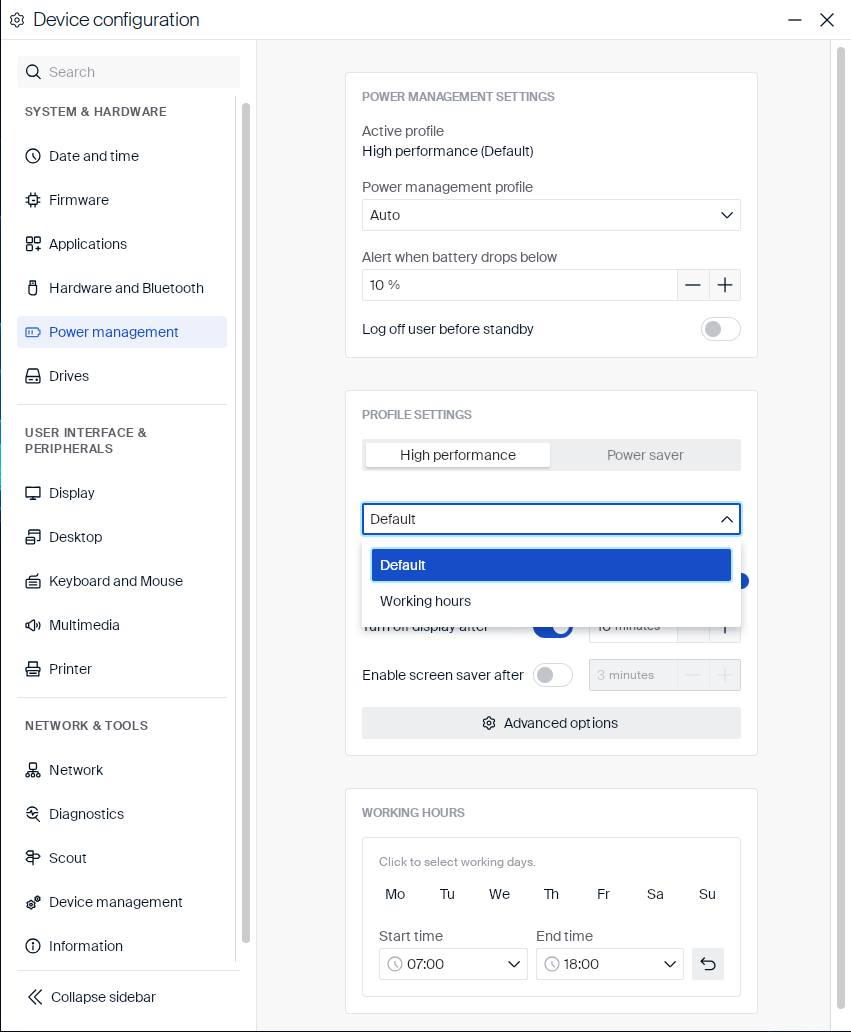
| Preset | Dropdown |
Default or Working hours. The device uses the Working hours preset during the days and times set under Working hours below, and the Default preset at all other times. If no working days are selected, Default always applies. |
| Screen brightness | Slider | Sets the display brightness while this profile and preset are active. |
| Turn off display after | Toggle + number field | Turns off the display after the device is idle for the given number of minutes. |
| Enable screen saver after | Toggle + number field | Starts the screen saver after the device is idle for the given number of minutes. |
Click Preset to see its options:
For example, the Power saver tab with its Default preset selected:
Click Advanced options for further settings, specific to the selected profile and preset:
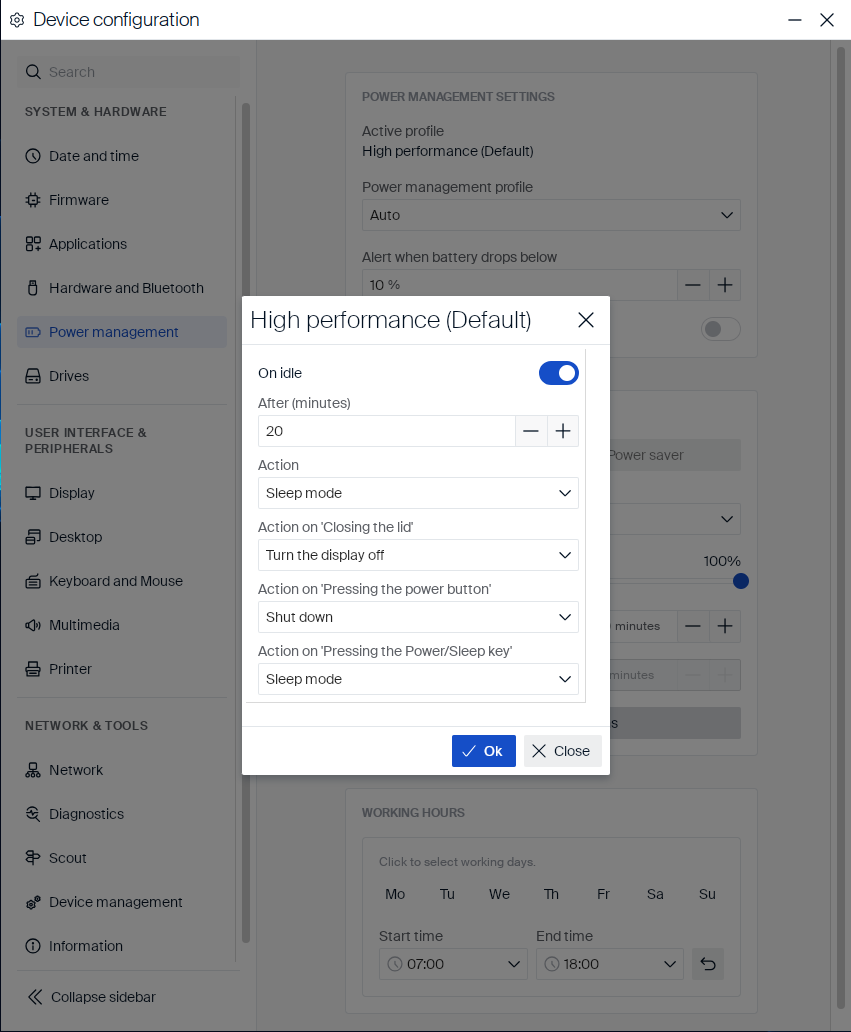
The dialog title names the profile and preset it configures, for example High performance (Default):
| Setting | Type | Description |
|---|---|---|
| On idle | Toggle | Enables an automatic action after the device is idle for a set time. Disabling it grays out After (minutes) and Action below, but the actions for the lid, power button, and Power/Sleep key still apply regardless. |
| After (minutes) | Number field | How many minutes of inactivity trigger Action. |
| Action | Dropdown | The action to take on idle: Shut down, Sleep mode, Restart, or Log off. |
| Action on ‘Closing the lid’ | Dropdown | The action to take when the lid is closed: No action, Turn the display off, Shut down, or Sleep mode. |
| Action on ‘Pressing the power button’ | Dropdown | The action to take when the power button is pressed: No action, Turn the display off, Shut down, or Sleep mode. |
| Action on ‘Pressing the Power/Sleep key’ | Dropdown | The action to take when the Power/Sleep key is pressed: No action, Shut down, or Sleep mode. |
Click Ok to apply the changes, or Close to discard them.
Working hours
Working hours applies to both profiles. During the days and times you set here, each profile uses its Working hours preset instead of its Default preset:
-
Click the days of the week the device is normally in use.
-
Set Start time and End time for those working hours. Type a time directly, or select one from the dropdown list. Times are listed in 30-minute increments, in 24-hour
HH:MMformat.
Click the reset button next to the time fields to clear the selected working days and reset Start time and End time to 07:00 and 18:00.