-
Solucionar problemas de accesibilidad de aplicaciones (dispositivo conector a aplicación de backend)
-
Activación de la política de seguridad del punto final e informes de detección de amenazas
This content has been machine translated dynamically.
Dieser Inhalt ist eine maschinelle Übersetzung, die dynamisch erstellt wurde. (Haftungsausschluss)
Cet article a été traduit automatiquement de manière dynamique. (Clause de non responsabilité)
Este artículo lo ha traducido una máquina de forma dinámica. (Aviso legal)
此内容已经过机器动态翻译。 放弃
このコンテンツは動的に機械翻訳されています。免責事項
이 콘텐츠는 동적으로 기계 번역되었습니다. 책임 부인
Este texto foi traduzido automaticamente. (Aviso legal)
Questo contenuto è stato tradotto dinamicamente con traduzione automatica.(Esclusione di responsabilità))
This article has been machine translated.
Dieser Artikel wurde maschinell übersetzt. (Haftungsausschluss)
Ce article a été traduit automatiquement. (Clause de non responsabilité)
Este artículo ha sido traducido automáticamente. (Aviso legal)
この記事は機械翻訳されています.免責事項
이 기사는 기계 번역되었습니다.책임 부인
Este artigo foi traduzido automaticamente.(Aviso legal)
这篇文章已经过机器翻译.放弃
Questo articolo è stato tradotto automaticamente.(Esclusione di responsabilità))
Translation failed!
Configurar el SDK de PowerShell remoto
Requisitos previos
- Asegúrate de que Citrix Infrastructure Monitor esté instalado en la máquina de StoreFront™ o Provisioning Service.
- Primero debes instalar el SDK de PowerShell remoto en cualquier máquina unida a un dominio dentro de la misma ubicación de recursos. Para obtener más información, consulta la documentación de SDK y API.
Configuración del SDK de PowerShell remoto
Realiza los siguientes pasos y ejecuta los comandos de PowerShell en el dispositivo donde instalaste el SDK de PowerShell remoto:
- Inicia sesión en la consola de Citrix Cloud™ con tus credenciales de Citrix Cloud.
- Ve a Identity and Access Management.
-
Dirígete a la ficha API access > Secure Clients > Name your Secure Client y haz clic en Create Client.
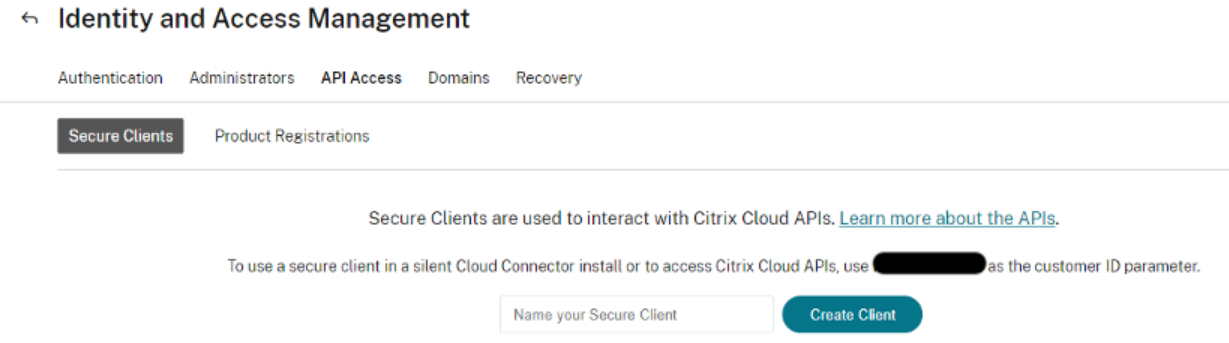
- Una vez que hayas creado el cliente, el ID y el secreto se pueden descargar en un archivo CSV para uso futuro.
-
Para configurar la conexión con el entorno de Citrix Cloud, usa el secreto de cliente creado en el paso anterior. El comando de ejemplo para usar en PowerShell es el siguiente:
Set-XDCredentials -CustomerId “<customerid>” -SecureClientFile “c:\temp\secureclient.csv” -ProfileType CloudAPI –StoreAs “default” <!--NeedCopy--> -
Enumera los perfiles de Citrix Cloud de PowerShell almacenados localmente en el equipo usando los siguientes comandos de PowerShell:
Get-XDCredentials -ListProfiles

<!--NeedCopy-->
La siguiente imagen muestra los comandos anteriores tal como se introdujeron en PowerShell:

Para obtener más información, consulta SDK de PowerShell remoto de Citrix DaaS.
Compartir
Compartir
En este artículo
This Preview product documentation is Citrix Confidential.
You agree to hold this documentation confidential pursuant to the terms of your Citrix Beta/Tech Preview Agreement.
The development, release and timing of any features or functionality described in the Preview documentation remains at our sole discretion and are subject to change without notice or consultation.
The documentation is for informational purposes only and is not a commitment, promise or legal obligation to deliver any material, code or functionality and should not be relied upon in making Citrix product purchase decisions.
If you do not agree, select I DO NOT AGREE to exit.