Microsoft Sentinel integration
Kafka Data Exports in Citrix® Monitor can stream Secure Private Access (SPA) and Device Posture Service (DPS) events into Microsoft Sentinel through Logstash. The Citrix SPA Sentinel App in the Microsoft Sentinel Content hub supplies the data connector and the connection information Logstash needs to forward the events.
To integrate with Microsoft Sentinel, install the Citrix SPA Sentinel App solution from the Content hub and configure Logstash, as described in the following sections.
Prerequisites
- A Microsoft Sentinel workspace and permission to install a solution from the Content hub.
- A Logstash host running a Logstash version supported by the Microsoft Sentinel output plugin. For the supported versions, see Logstash plugin prerequisites.
-
Ensure that the Kafka Data Exports broker endpoints for your region are in the allow list in your network:
Endpoint United States region European Union region Asia Pacific South region Kafka brokers casnb-0.citrix.com:9094casnb-eu-0.citrix.com:9094casnb-aps-0.citrix.com:9094casnb-1.citrix.com:9094casnb-eu-1.citrix.com:9094casnb-aps-1.citrix.com:9094casnb-2.citrix.com:9094casnb-eu-2.citrix.com:9094casnb-aps-2.citrix.com:9094casnb-3.citrix.com:9094To validate network connectivity to a Kafka broker, run the following commands in your environment and confirm that they succeed. Replace the endpoint with a broker for your region.
 telnet casnb-0.citrix.com 9094
 openssl s_client -tls1_3 -connect casnb-0.citrix.com:9094 -showcerts < /dev/null
 <!--NeedCopy-->
Install the Citrix SPA Sentinel App
- In the Azure portal, open Microsoft Sentinel and select your workspace.
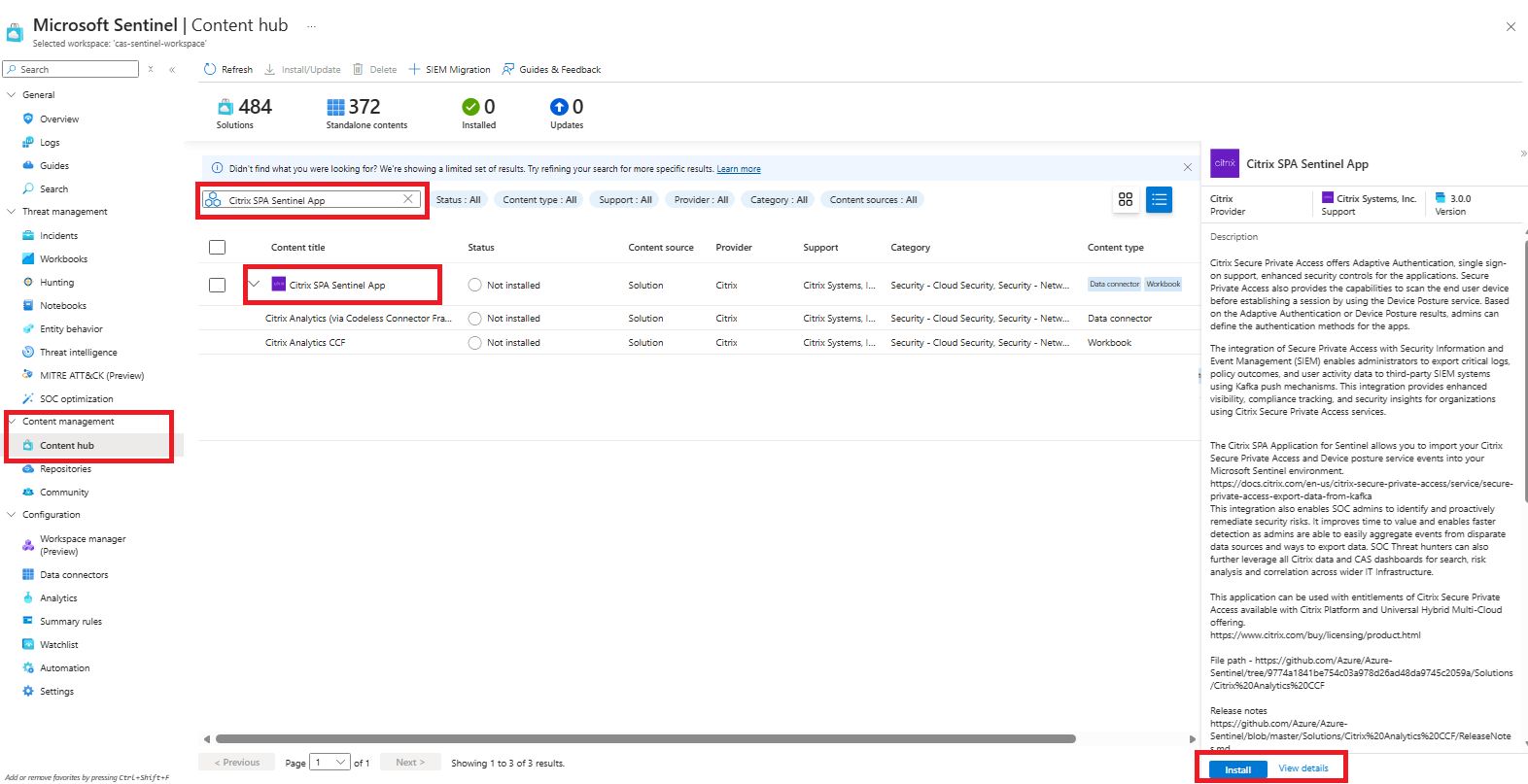
- Under Content management, click Content hub.
-
Search for Citrix SPA Sentinel App and click Install.
-
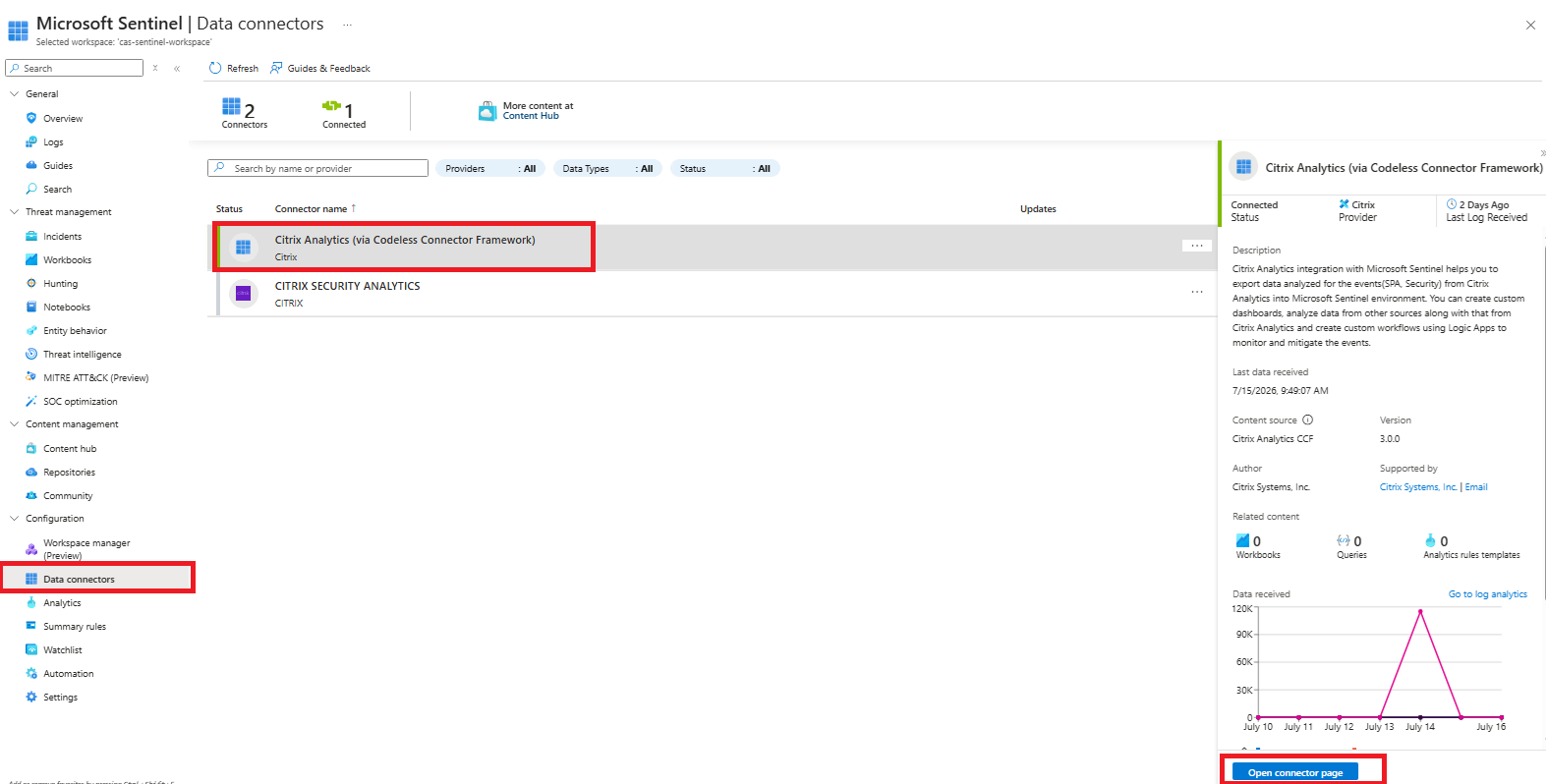
Go to Configuration > Data connectors and open the data connector shipped with the solution. Click Open connector page.
-
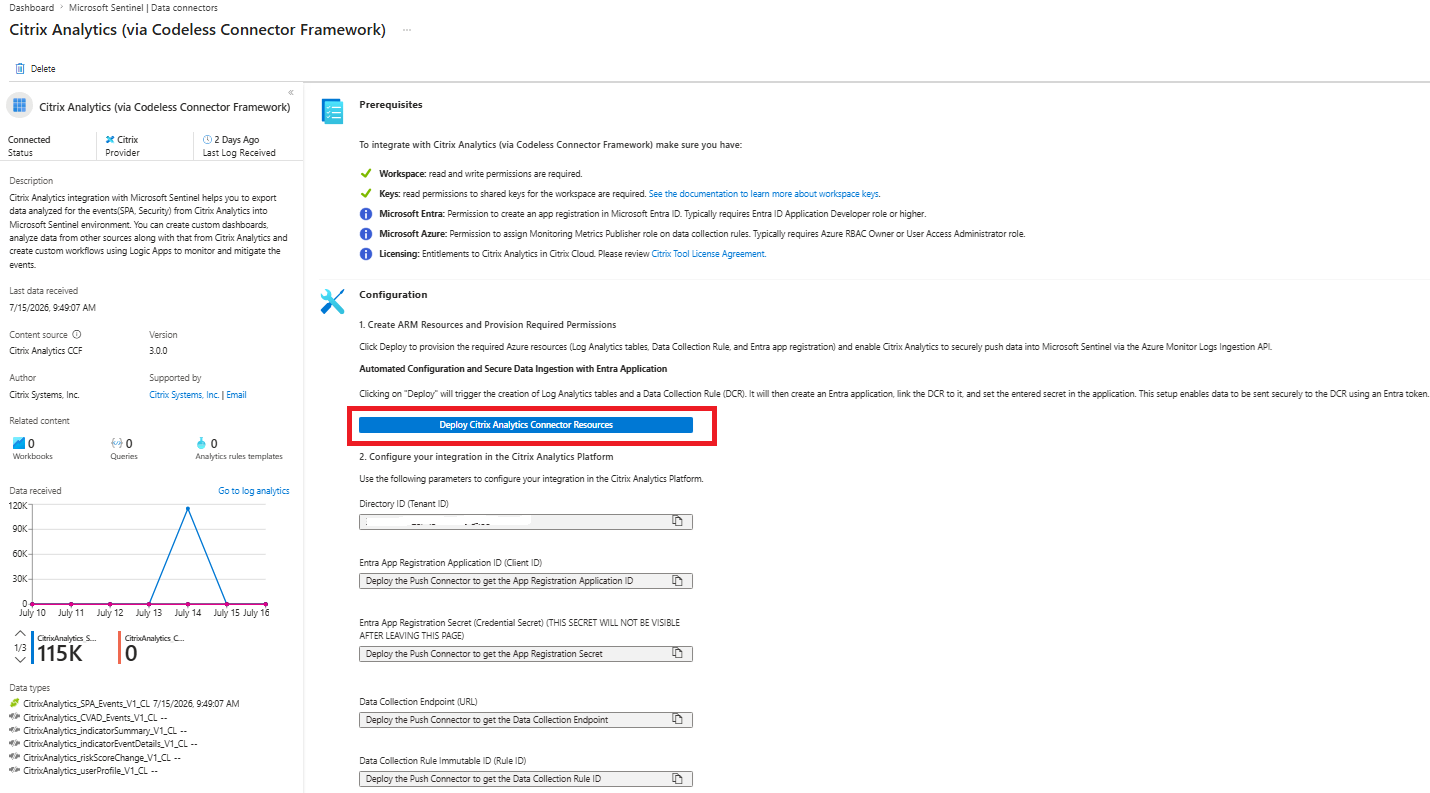
Deploy the connector resources, including the data collection rule (DCR) and the Microsoft Entra application used for authentication. When the deployment finishes, keep the connection information shown on the data connector page open — you paste it into the Logstash configuration in the next step.
Note:
For security reasons, the Entra App Registration Secret is shown only once. It is no longer visible after you leave or refresh the data connector page. While the resources are deploying, copy and save the secret as soon as it appears. If the Entra App Registration Secret disappears before you copy it, click Revoke access to delete the Entra application and remove the data connector, and then deploy the connector resources again to generate a new secret.
Configure Logstash
-
In Citrix Monitor, open Integrations and data exports > Developer tools > Kafka to display the Kafka Configuration page, then create the account and download the configuration files:
- Complete the Account setup section to create the Kafka account credentials. For the detailed steps, see Account setup.
- Expand the Observability platform setup section and select the Azure Sentinel tab.
- Download the Logstash configuration file and JKS truststore generated for your account.
- On the Logstash host, install Logstash and the Microsoft Sentinel output plugin.
-
On the host machine where you have installed Logstash, place the downloaded files in the specified directory:
Host machine type File name Directory path Linux DIRECTOR_AzureSentinel_LogStash_Config.conf For Debian and RPM packages: /etc/logstash/conf.d/For .zip and .tar.gz archives: {extract.path}/configkafka.client.truststore.jks For Debian and RPM packages: /etc/logstash/ssl/For .zip and .tar.gz archives: {extract.path}/sslWindows DIRECTOR_AzureSentinel_LogStash_Config.conf C:\logstash-x.xx.x\configkafka.client.truststore.jks -
Open the Logstash configuration file and do the following:
-
In the input section of the file, enter the following:
- Password: The password of the account that you created during Account setup in Citrix Monitor (Integrations and data exports > Developer tools > Kafka).
- SSL truststore location: The location of your SSL client certificate. This is the location of the kafka.client.truststore.jks file on your host machine.

-
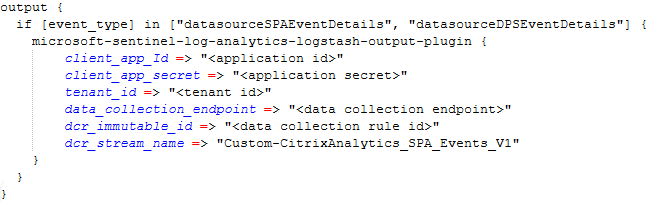
In the output (Microsoft Sentinel) section, paste the connection information from step 5 of Install the Citrix SPA Sentinel App — the data collection endpoint (DCE), the data collection rule (DCR) immutable ID, and the Entra application credentials (tenant ID, client ID, and the Entra App Registration Secret).
-
- Restart Logstash to apply the configuration.
Select SPA and DPS event types
Choose the event types that Kafka Data Exports streams to Sentinel from Data events for export on the Kafka Data Exports page:
- Secure Private Access — App Launch, App End, Clipboard, File Print, URL, File Download, and related event types.
- Device Posture Service — Device Posture Evaluation events.
For background on the upstream Kafka export, see Export data from Kafka for Secure Private Access.
Verify data ingestion
After Logstash starts forwarding, events appear in your Microsoft Sentinel workspace within a few minutes. Check the Data received indicator on the data connector page to confirm that ingestion has started.
To confirm that events are landing in the table, open Microsoft Sentinel > Logs and run the following query:
CitrixAnalytics_SPA_Events_V1_CL
| where TimeGenerated > ago(24h)
| summarize count() by event_type, event_category
| order by count_ desc
<!--NeedCopy-->
The query returns the event count for the last 24 hours, grouped by event type and category. If it returns results, data is being ingested successfully.
View workbook
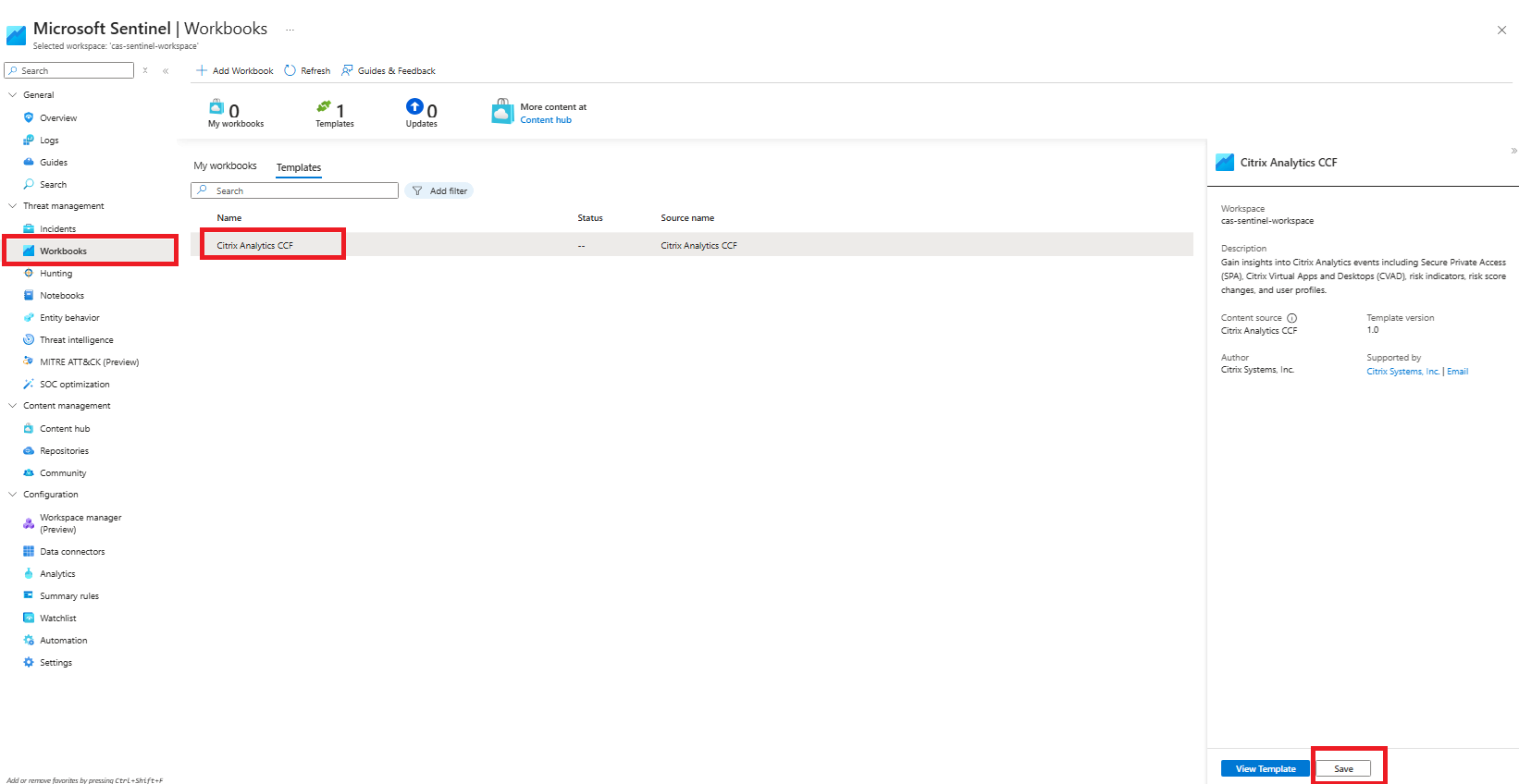
The Citrix SPA Sentinel App ships a workbook template. To use it, open Microsoft Sentinel > Threat management > Workbooks > Templates, select Citrix Analytics CCF workbook, and click Save. Then, select View saved workbook to open it.
The workbook provides a Secure Private Access tab that visualizes SPA and DPS activity.
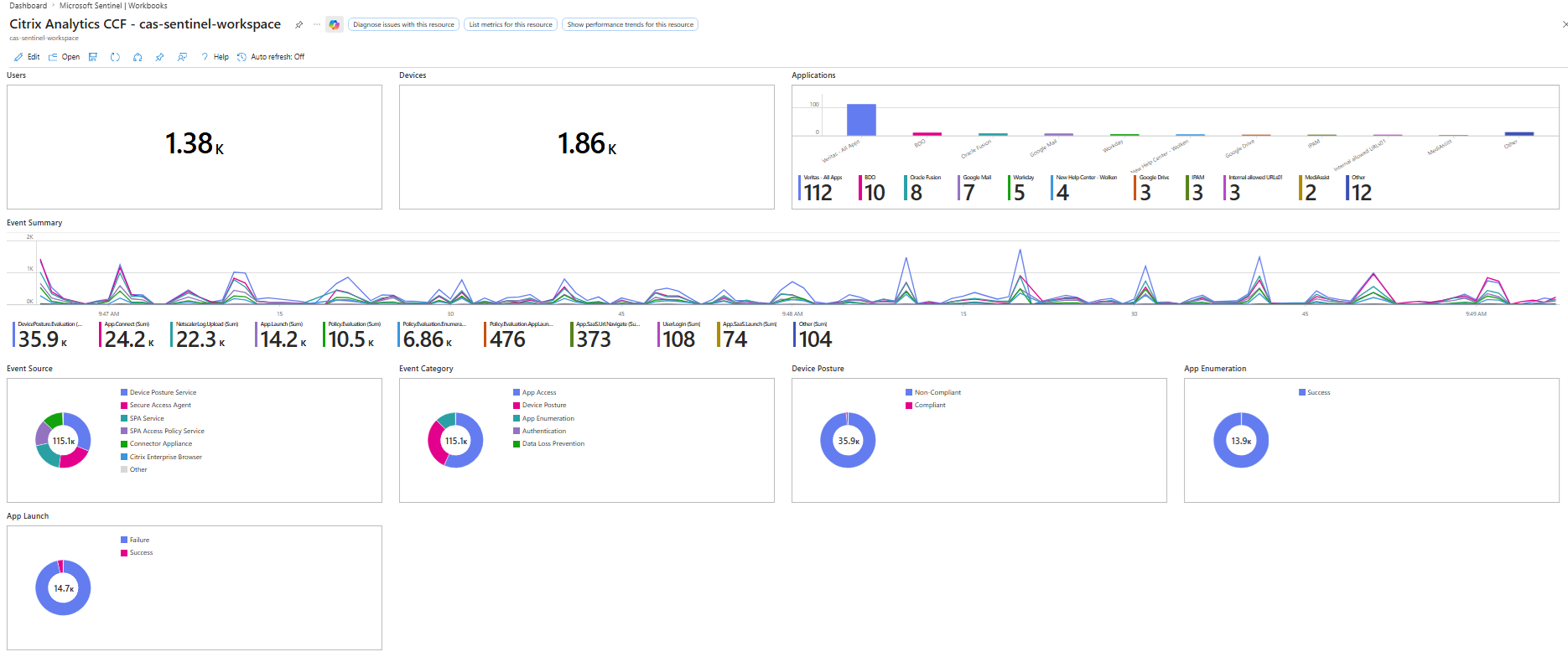
The workbook template is a starting point. Because all events are stored in the CitrixAnalytics_SPA_Events_V1_CL table, you can also create your own visualizations tailored to your needs — write custom Kusto queries and build workbooks or dashboards that highlight the metrics and insights most relevant to your organization.