
Manage a Nutanix catalog
Manage machine catalogs describes the wizards that manage a machine catalog. The following information covers details specific to Nutanix AHV Prism Central environments.
Note:
Before managing a machine catalog on Nutanix AHV Prism Central, you need to finish creating a machine catalog on Nutanix AHV Prism Central. See Create a Nutanix catalog.
You can manage a machine catalog on Nutanix AHV Prism Central using:
Use Studio
Following are the options to manage a machine catalog on Nutanix AHV Prism Central using Studio:
| Option | Description |
|---|---|
| Add Machines | Create and add VMs to the machine catalog. |
| Delete Machine Catalog | Delete a machine catalog. You can choose to delete VMs at the same time or leave persistent VMs intact. |
| Change Master Image | Change the master image used as a template for all VMs in the catalog. |
| Manage Configuration Set | Bind a catalog to a Workspace Environment Management™ configuration set or switch to a different configuration. |
| Edit Machine Catalog | Modify configurations for the catalog, such as NICs and Virtual Machines. |
| View Machines | Jump to the Search node to see all VMs that belong to the catalog. |
| Rename Machine Catalog | Change the catalog name. |
| Upgrade VDAs | Upgrade VDAs on a per-catalog basis. This feature only applies to static persistent machines. |
| Change Functional Level | Select the minimum functional level for the catalog. Setting a functional level makes all features available. |
| Test Machine Catalog | Test whether the catalog has errors or warnings. |
| Manage Tags | Create, edit, and delete tags. Select tags to apply to the catalog. |
| Move Machine Catalog | Move the catalog to another folder. |
Note:
Currently, the Clone option is not available.
Change master image
To change the master image for a catalog, follow these steps:
-
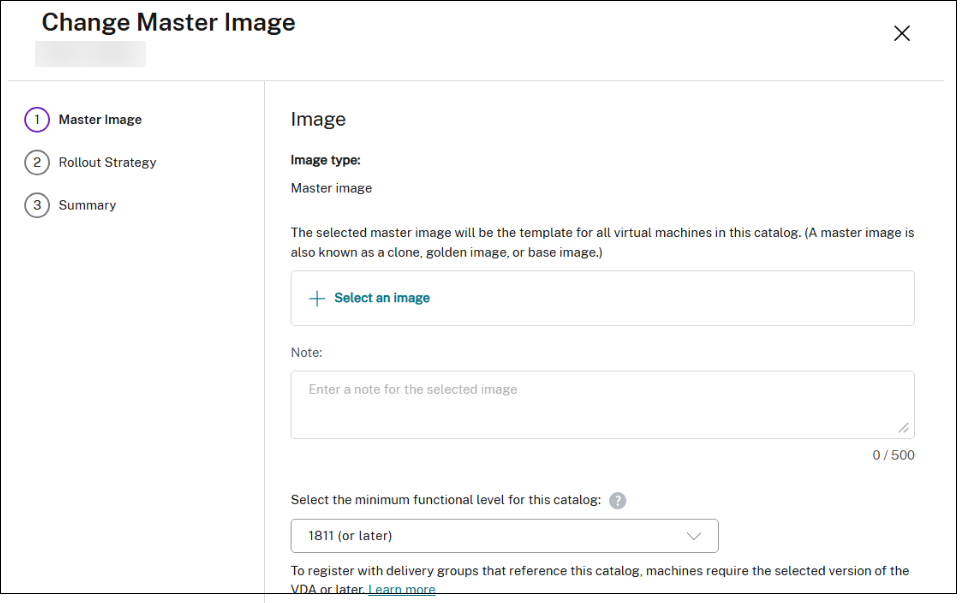
On the Machine Catalogs page, right-click the machine catalog you want to update, and select Change Master Image.
-
On the Change Master Image page, click Select an image.
-
On the Select an image page, expand a template and select a template version to use as the master image. You can filter machine templates by name.
-
On the Rollout Strategy page, choose when you want the update to be applied.
Note:
For an MCS provisioned non-persistent catalog with the Nutanix AHV Prism Central host connection plug-in, updating the master image to switch the boot configuration between Legacy and UEFI, prevents existing VMs from starting at their next boot.
Change NICs
To change NICs for a catalog, follow these steps:
-
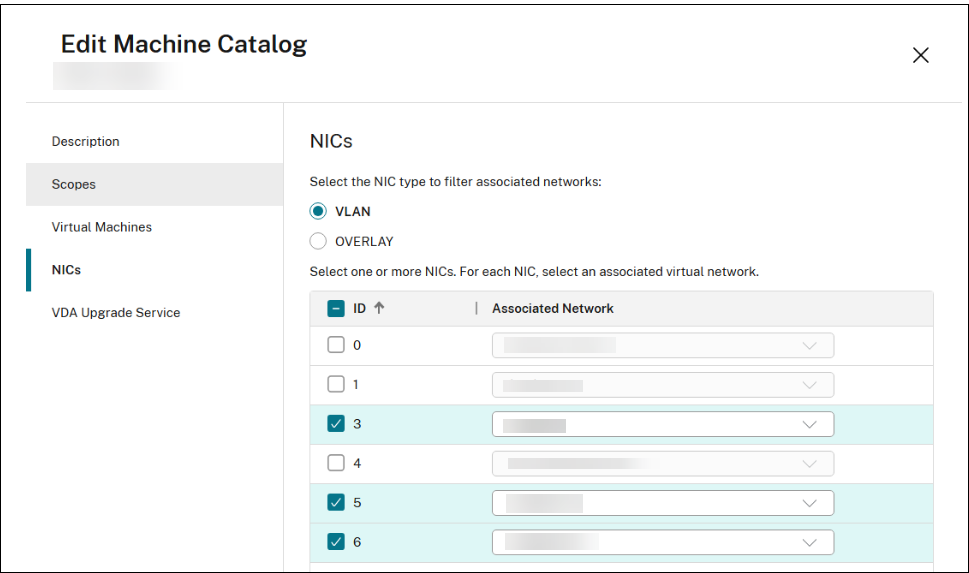
On the Machine Catalogs page, right-click the machine catalog you want to modify, and select Edit Machine Catalog.
-
On the NICs page:
-
Select an NIC type
-
Select or clear the boxes to select NICs, and choose an associated virtual network for each NIC.
-
Change VMs configuration
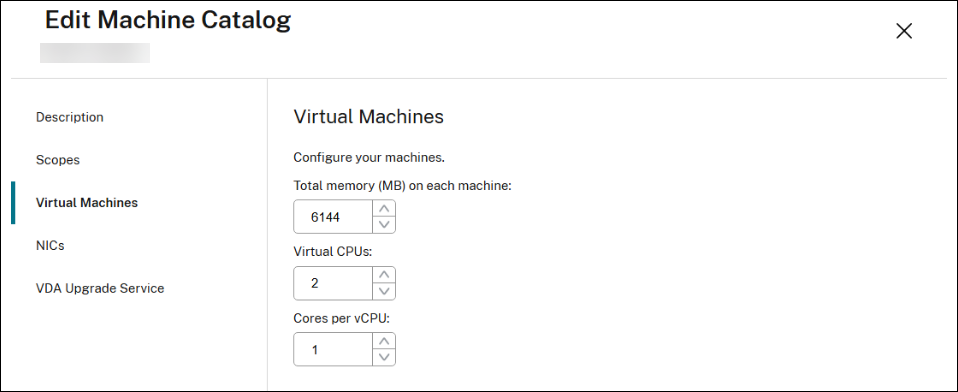
To change the configuration of VMs, including Memory, CPU count, and Cores per vCPU, follow these steps:
-
On the Machine Catalogs page, right-click the machine catalog you want to modify, and select Edit Machine Catalog.
-
On the Virtual Machines page, use the up or down arrow, or enter values directly to adjust the Memory, CPU count, and Cores per vCPU for the VMs.
Use PowerShell
Change master image
The required parameters are:
-
ProvisioningSchemeName: Name of the provisioning scheme to edit. -
MasterImage: Literal path to the new master image.
Run the following command. For example:
Set-ProvSchemeMetadata  -Name "ImageManagementPrep_DoImagePreparation" -ProvisioningSchemeName "<ProvisioningSchemeName>" -Value "True"

 Publish-ProvMasterVMImage  -MasterImageVM "<Literal path to the new master image- template version> -ProvisioningSchemeName "<ProvisioningSchemeName>" -RunAsynchronously
Change NIC and VM's configuration
The required parameters are:
-
ProvisioningSchemeName: Name of the provisioning scheme to edit. -
NetworkMapping: Updated network mapping.
Run the following command. For example:
Set-ProvScheme -CustomProperties "<CustomProperties xmlns=`"http://schemas.citrix.com/2014/xd/machinecreation`" xmlns:xsi=`"http://www.w3.org/2001/XMLSchema-instance`"><Property xsi:type=`"StringProperty`" Name=`"ClusterId`" Value=`"000xxxx-1fb0-xxxxx-4fc8-5c257335xxxx`" /><Property xsi:type=`"StringProperty`" Name=`"CPUCores`" Value=`"1`" /></CustomProperties>" -NetworkMapping @{"6"="XDHyp:\HostingUnits\<Hosting Unit Name>\Clusters.folder\<Cluster Name>\<Network name>.network"} -ProvisioningSchemeName "<ProvisioningSchemeName>" -VMCpuCount 4