
Browser Content Redirection
Browser Content Redirection (BCR) enhances the user experience of web browsing within Citrix Virtual Apps and Desktops™ environments. By offloading the rendering of webpages to the user's local machine, BCR reduces server load and improves performance, for complex or resource-intensive websites.
For more information, see Citrix Virtual Apps and Desktops.
How it works
BCR uses the Citrix Workspace™ app to create a secure browsing environment on the user's device. When a user accesses an allowed webpage, the viewport of the browser window is redirected to the client. The client side browser engine then uses the local machine's resources to render the page, resulting in faster loading times and smoother interaction.
Note:
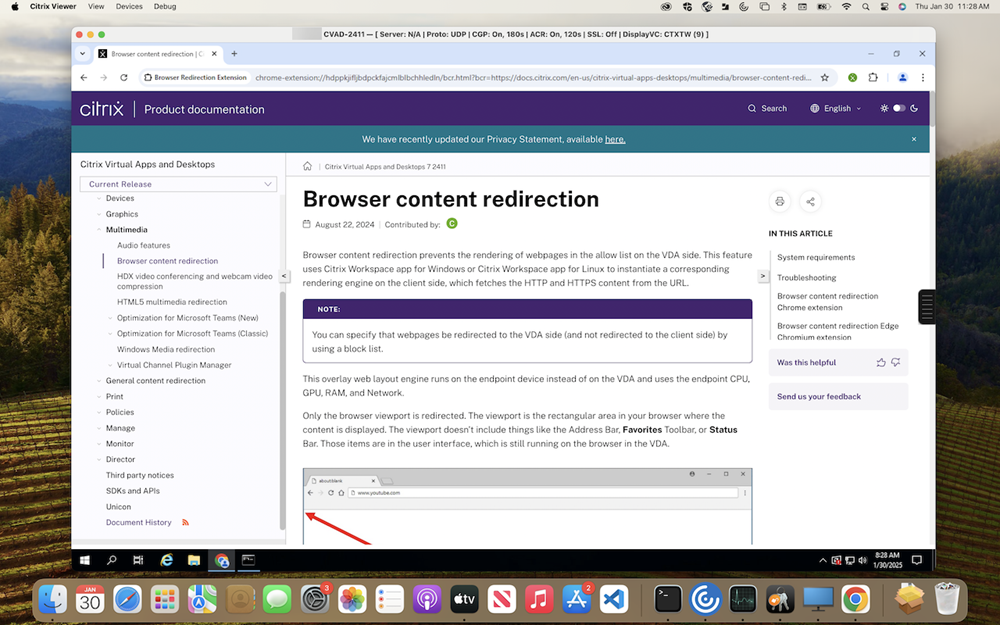
Only the browser viewport is redirected. The viewport is the rectangular area in your browser where the content is displayed. The viewport doesn’t include the Address Bar, Favorites Toolbar, or Status Bar. Those items are in the user interface, which is still running on the browser in the Virtual Delivery Agent.
Key benefits
Browser content redirection manages the web traffic, delivering a superior experience for your users while reducing strain on your infrastructure. Your organization can benefit in the following ways:
-
Resource optimization: Offloading resource-intensive webpages to user devices helps free up server capacity and reduce bandwidth consumption. This leads to improved efficiency and lower hardware and network demands.
-
Enhanced user experience: Delivers a smoother, more responsive browsing experience, even for graphics-intensive websites. Ensures native-like performance, eliminating lag and boosting productivity.
-
Improved security: Maintains a secure environment while enabling access to both internal and external resources.
-
Increased flexibility: Supports diverse use cases, from basic web browsing to complex web applications requiring proxy traversal or SSO authentication. Manages redirection settings effortlessly with granular policy controls in Citrix Web Studio.
System requirements
Server side components
Citrix Virtual Apps and Desktops:
-
Long Term Service Release
-
Minimum requirements: Any non end-of-life LTSR Citrix Virtual Apps and Desktops release.
-
Recommended: Citrix Virtual Apps and Desktops 2402 or higher.
-
-
Current Release
-
Minimum requirement: Any non end-of-life CR Citrix Virtual Apps and Desktops release.
-
Recommended: Latest Citrix Virtual Apps and Desktops release.
-
Browser components:
-
Browsers
-
Microsoft Edge
-
Google Chrome
-
-
Browser redirection extension: Published in both Chrome and Edge web stores.
-
It is recommended to use the latest version of the browsers for best experience.
Client side components
Citrix Workspace app:
Minimum requirement: Version 2411 or higher.
Note:
-
For macOS, Browser content redirection package is independent of Citrix Workspace app and is always the latest version. Hence, the package is compatible with multiple Citrix Workspace app versions above the specified minimum version.
-
Since Browser Content Redirection is independent of Citrix Workspace app for Mac, its version numbering no longer aligns with Citrix Workspace app for Mac.
-
Seamless downgrades of BCROverlay while downgrading Citrix Workspace app are not supported. To downgrade BCROverlay, uninstall it first using Uninstall Citrix BCR Overlay.app in /Library/Application Support/Citrix Receiver, and then downgrade Citrix Workspace app.
-
Client side browser engine is not packaged with Citrix Workspace app Mac. Download and install the client side for Mac on Citrix Downloads.
-
Intel and ARM packages are separate. Hence, you must install the appropriate version that suits the macOS endpoint.
Configuration
To configure Browser content redirection, follow these steps:
-
Install the client side and server side components according to the system requirements. For information on extension deployment, see Extension deployment.
-
Configure the studio policies.
-
Web studio policies offer a granular way to configure Browser content redirection to suit various use cases.
-
The basic policies allow the administrator to configure URLs that must be allowed or not allowed with Browser content redirection.
-
The URLs can be configured with wild cards.
-
-
Open a supported web browser and navigate to an allowed URL.
-
If the match is found in the allow list, the website is redirected to the client.
-
Citrix Workspace app blends the viewport onto the VDA side browser for a seamless experience.
-
The color of the extension logo specifies the status of the content redirection. It is one of these three colors:
-
Green: Active and connected
-
Gray: Not active or idle on the current tab
-
Red: Broken or Not Working
For more information, see Browser content redirection policy settings.
Note:
-
HTML5 video redirection and browser content redirection are independent features. The HTML5 video redirection policies aren’t needed for this feature to work. However, the Citrix HDX™ HTML5 Video Redirection Service is used for browser content redirection.
-
It is recommended to configure all settings through Web Studio rather than using registry keys.
Modular Browser Content Redirection
Starting with the Citrix Workspace app 2511.1 for Mac, the Modular BCR component is installed by default but not packaged with Citrix Workspace App. The modular and evergreen model allows the Browser Content Redirection component to be updated independently and uninstalled independently. This feature provides the following key benefits:
-
Enhanced security: The BCR NW.js component can receive security patches and updates when they are available, without waiting for a full Citrix Workspace app for Mac release.
-
Simplified management: Customers no longer must update entire Citrix Workspace app to receive the latest Browser content redirection features.
-
Accelerated innovation: Faster deployment of new BCR features, enhancements, and bug fixes is now possible, delivering continuous value to customers.
The BCR component is downloaded from Citrix CDN and installed post Citrix Workspace app Mac installation.
Installation and management
When you install or upgrade to Citrix Workspace app 2511.1 or later, the installer triggers BCR component and installs it by default. No additional action is needed to install the BCR component.
For environments that do not use Browser Content Redirection, you can prevent its installation using the below MDM setting:
<key>BCRInstallationEnabled</key>
 <false/>
-
If you exclude the BCR component during initial setup, you can install it anytime by downloading the standalone installer from the Citrix Downloads page.
-
The BCR component can be uninstalled separately from Citrix Workspace app anytime by uninstalling the Citrix Browser Content Redirection Plug-in.
Automatic updates
Once the modular and evergreen BCR component is installed, it keeps itself up-to-date automatically. The component periodically checks for new versions and silently installs them in the background. This automatic update ensures that you always have the latest features and security updates without manual upgrades.