IDE versions
The VSCode Versions resource page manages the IDE versions available to workspaces. IDE versions are distributed independently from Citrix SecurSpaces™ platform updates, so you can adopt new versions of the browser-based IDE (Strong IDE) without waiting for a platform release.
This page is available at:
- Platform level: Platform > Resources > VSCode Versions
- Organization level: Organization > Resources > VSCode Versions
- Project level: Project > Resources > VSCode Versions
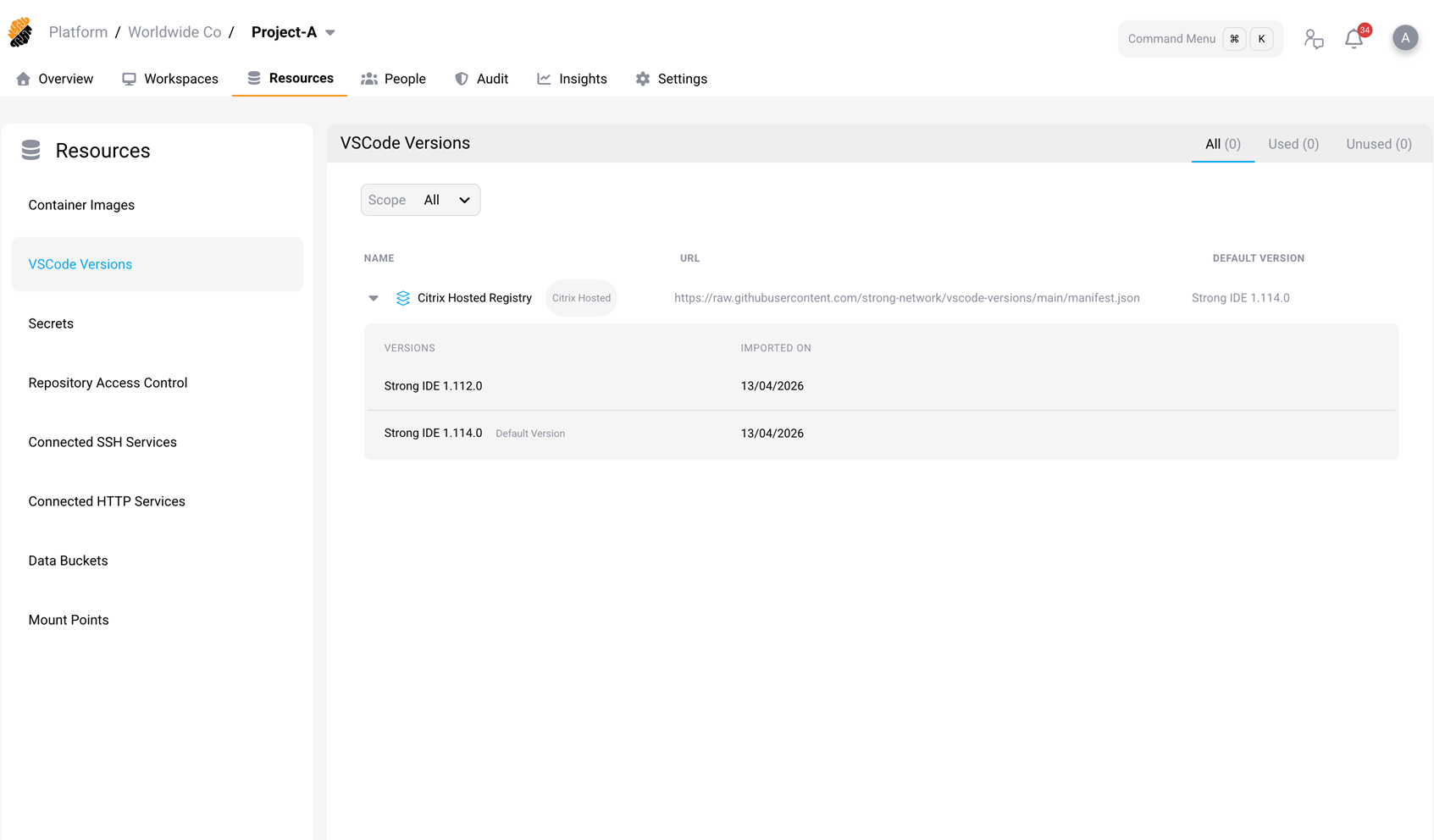
How IDE versions are distributed
By default, SecurSpaces uses the Citrix Hosted Registry to import IDE versions automatically. SecurSpaces checks for new versions once an hour. When a new version is published, it is imported and a notification is sent to security officers.
The VSCode Versions page displays:
| Column | Description |
|---|---|
| Name | The registry name. The default is “Citrix Hosted Registry”, marked with a Citrix Hosted tag. |
| URL | The source the registry uses. For the Citrix Hosted Registry, this is the version manifest published by Citrix. For a private registry, this is your container registry URL. |
| Default Version | The IDE version used by workspaces that follow the default. |
Expand a registry row to see the imported versions, the date each version was imported, and the version actions available for that registry.
Network requirements
To use the Citrix Hosted Registry, your deployment must be able to reach the following destinations over HTTPS:
| Destination | Used by | Purpose |
|---|---|---|
raw.githubusercontent.com |
SecurSpaces platform services | Retrieve the version manifest during the hourly check |
registry-1.docker.io, auth.docker.io, production.cloudflare.docker.com
|
Kubernetes nodes | Pull the IDE container images referenced by the manifest |
If outbound traffic passes through a corporate proxy, see External proxy configuration.
If you cannot allow these destinations, use a private registry instead. See Switch to a private registry.
How the IDE version is resolved
Each workspace stores two settings that determine its IDE version. SecurSpaces evaluates them in the following order when the workspace starts:
- Pinned version. The workspace is set to a specific IDE version. That version is used.
- Default version. The workspace uses Use latest platform default version. SecurSpaces resolves the default version for the workspace’s scope, searching project scope first, then organization scope, then platform scope.
- System default. Neither setting applies. The workspace uses the built-in IDE image that ships with the installed platform release.
If a pinned or default version cannot be resolved — for example, because it was deleted — the workspace falls back to the system default image.
For how to configure these settings on a workspace, see Create a Workspace.
Set the default version
The default version applies to every workspace in scope that uses Use latest platform default version.
- Go to Resources > VSCode Versions.
- Expand the registry row.
- Point to the version you want to use, and then select Set as Default.
The Default Version column updates to the version you selected.
You need permission to manage container images to change the default version.
If no default version has been set for a scope, SecurSpaces selects one automatically after an import:
- For the Citrix Hosted Registry, SecurSpaces selects the version with the highest upstream VSCode version.
- For a private registry, SecurSpaces selects the most recently imported version.
SecurSpaces never replaces a default version that an administrator has set.
Version lifecycle
Each hourly import reconciles the imported versions against the registry contents:
- New versions are imported and added to the list.
- Metadata for versions that are already imported is refreshed.
- Versions that are no longer published are deleted.
Before a version is deleted, SecurSpaces moves any workspace or workspace template that uses it to the current default version. The affected workspaces pick up the new version on their next start.
Note:
A workspace that is migrated this way becomes pinned to the version it was moved to. It no longer follows the default version. To restore automatic updates, select Use latest platform default version on the workspace again.
The current default version is never deleted automatically. To remove it, set another version as the default first.
Registry types
SecurSpaces supports two registry types, and the actions available on the VSCode Versions page depend on which one you use.
| Action | Citrix Hosted Registry | Private registry |
|---|---|---|
| Set a version as default | Yes | Yes |
| Add a version | No | Yes |
| Rename a version | No | Yes |
| Delete a version | No | Yes |
Versions in the Citrix Hosted Registry are managed by Citrix and cannot be edited.
Switch to a private registry
If your deployment is behind a corporate proxy or firewall and cannot reach the Citrix-hosted registry, a platform administrator can switch to a private registry that hosts your own IDE images.
- Go to Platform > Resources > VSCode Versions.
- Select Change to Private Registry.
- Enter a Registry Name and the Registry URL of your container registry, for example
myregistry.io/vscode. Both fields are required, and the name must be unique within the scope. - If the registry requires authentication, select Private Registry and then select a credential from the list. To create a credential without leaving the dialog, select Add Credential.
- Select Add.
Add stays unavailable until the registry name and URL are filled in, and — if Private Registry is selected — until a credential is chosen.
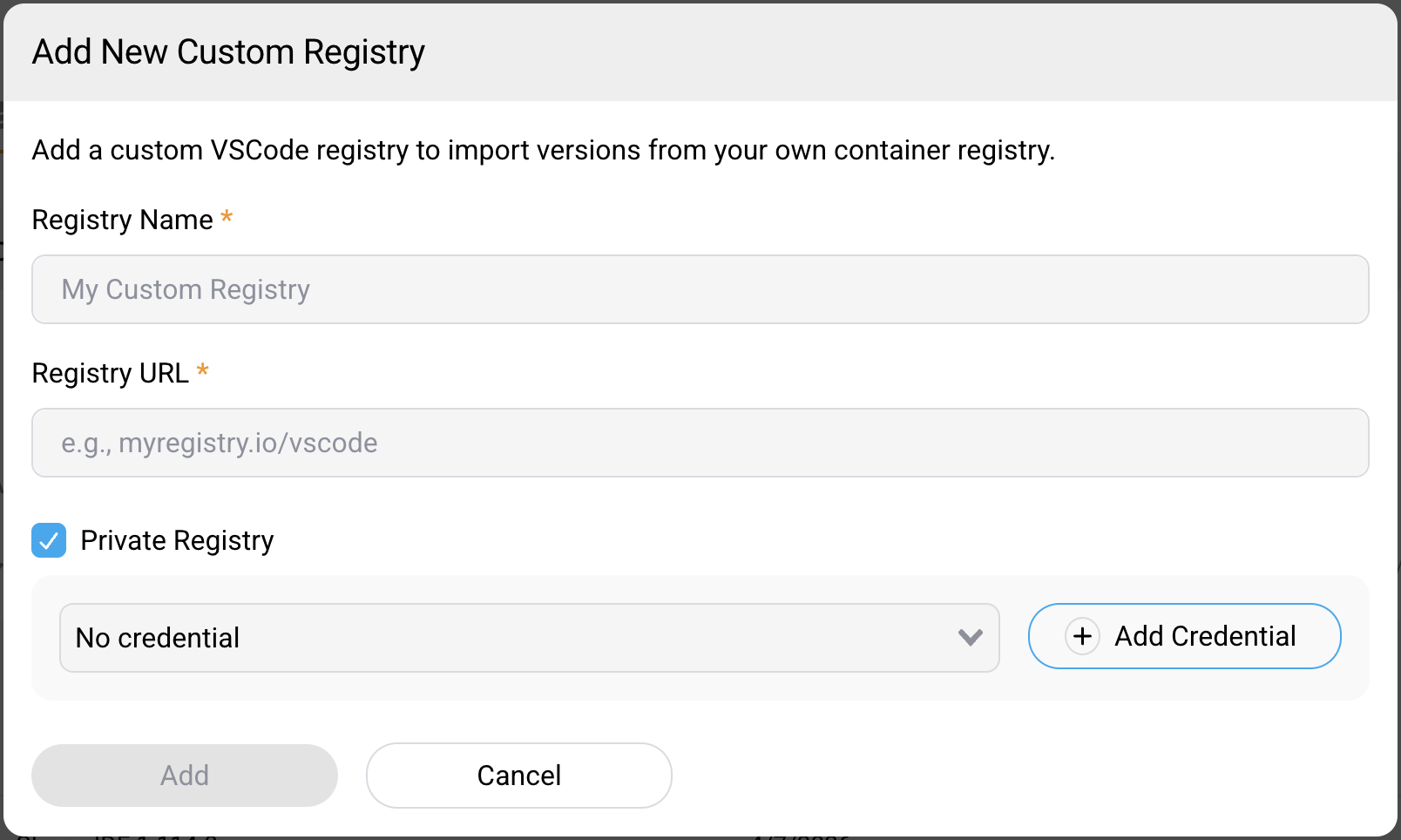
After you add a private registry, add the IDE versions you want to make available:
- Expand the private registry row.
- Select Add New Version.
- Enter a Version Name and the Image Tag, for example
1.95.2. SecurSpaces combines the tag with the registry URL to form the full image URL. - Optionally, select Set as default version.
Note:
A private registry replaces the Citrix Hosted Registry — it does not supplement it. While a private registry is configured at platform level, the Citrix Hosted Registry is hidden from the VSCode Versions page and SecurSpaces stops importing versions from it.
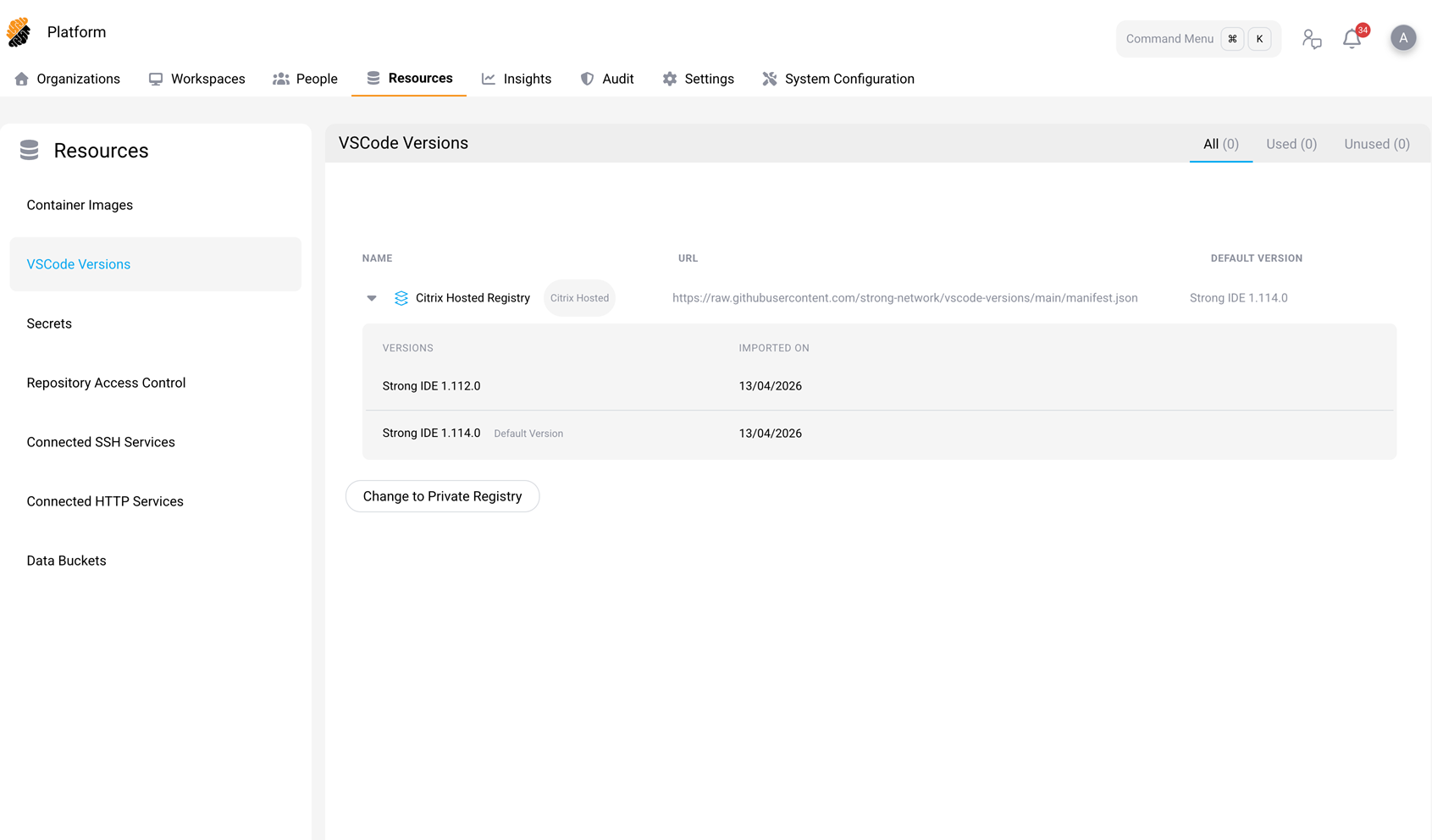
The Change to Private Registry button is available only on the platform-level VSCode Versions page.
Switch back to the Citrix-hosted registry
- Go to Platform > Resources > VSCode Versions.
- Select Change to Citrix-Hosted Registry.
- Review the list of affected workspaces.
- Select Migrate Workspaces & Switch.
All versions from the private registry are deleted and the affected workspaces are moved to the default version from the Citrix Hosted Registry. SecurSpaces resumes importing versions from the Citrix Hosted Registry.
Notifications
When a new IDE version is imported, SecurSpaces sends a notification to security officers:
A new VSCode version “Strong IDE X.X.X” is now available.
The notification appears in the notification bell in the top navigation bar.
View workspace VSCode versions through the API
Workspace API responses include two fields that describe the IDE version assigned to a workspace:
| Field | Description |
|---|---|
vscode_version_id |
The ID of the version the workspace is pinned to. 0 when the workspace is not pinned. |
vscode_version_auto_update |
true when the workspace follows the default version for its scope. |
The two fields combine as follows:
-
vscode_version_auto_updateistrueandvscode_version_idis0— the workspace follows the default version. -
vscode_version_auto_updateisfalseandvscode_version_idis set — the workspace is pinned to that version. -
vscode_version_auto_updateisfalseandvscode_version_idis0— the workspace uses the system default image.
Use these fields when you need to audit IDE versions, build integrations, or troubleshoot version-specific behavior.
For more information about available API endpoints, see REST API.
Audit VSCode version changes
Changes to VSCode versions and registries are recorded as events on the vscodeVersions resource type. For more
information, see SIEM Integration.
Related information
In this article
- How IDE versions are distributed
- How the IDE version is resolved
- Set the default version
- Version lifecycle
- Registry types
- Switch to a private registry
- Switch back to the Citrix-hosted registry
- Notifications
- View workspace VSCode versions through the API
- Audit VSCode version changes
- Related information