Build and manage custom workspace images for SecurSpaces
While standard images provide a quick start, using custom workspace images within Citrix SecurSpaces™ ensures your development environment is tailored to your organization’s needs while maintaining strict compliance.
Benefits of custom images
- Tailored developer experience: Pre-install project-specific runtimes (Node, Python, Go) and CLI utilities (kubectl, terraform). You can pre-configure internal network settings, CA certificates, IDE extensions, and shell aliases so the workspace is ready immediately upon launch.
- Standardized governance: Ensure every container follows internal standards, including approved, hardened OS distributions and software provenance from trusted repositories.
- Proactive security: Integrate images into your vulnerability management lifecycle. Trigger automated builds to rotate images when a CVE is detected and reduce the attack surface by removing unnecessary packages.
Architecture
Runtime architecture
In the SecurSpaces platform, a workspace runs inside a Kubernetes Pod. There is a one-to-one relationship between a workspace and a Pod to ensure container-level isolation.
The workspace runtime consists of three primary layers:
- The workspace container: The execution environment containing your compilers, debuggers, and tools.
-
Persistent storage: A persistent volume (PV) mounted in the user home directory (
/home/developer). This ensures that code, local configurations, and shell history persist if the Pod restarts. - Platform sidecars: Auxiliary containers managed by the SecurSpaces platform that provide features like startup scripts and Docker-in-Docker support.
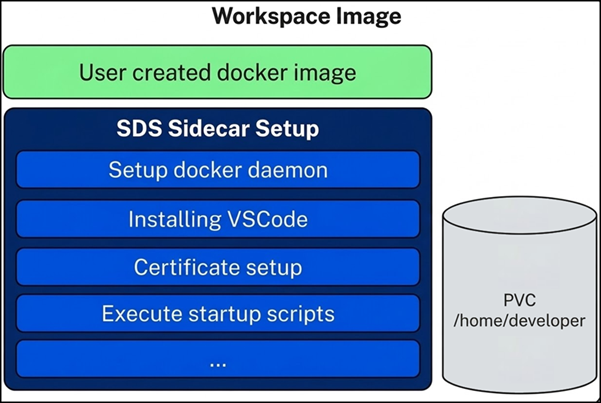
Layered image architecture
We recommend a multi-layered image architecture to balance centralized governance with developer autonomy:
- Base Image: A hardened OS provided by Corporate IT. Includes enterprise CA certificates and core security configurations.
- Organization Image: Owned by the SecurSpaces Platform team. Contains core SecurSpaces dependencies, common development tools, and global proxy settings.
- Project Image: Owned by application teams. Includes specific runtimes (e.g., JDK 17, Node 20) and project-specific dependencies.
Understanding persistence
In a SecurSpaces workspace, only the /home/developer directory is persistent. When a workspace restarts, any changes to the root filesystem (/etc, /usr, /var) are discarded.
Important:
The persistent volume is mounted at runtime. Any files placed in
/home/developerduring thedocker buildphase will be overwritten by the persistent volume once the workspace starts.
Persistence design patterns
- Binaries: Install binaries in system directories like
/usr/local/binduring the Docker build. - Local data and configuration: Configure tools to store logs, cache, and plugins in
/home/developer. - Global configuration: Use
/etc/for global tool settings to serve as a fallback.
Non-standard persistence
Tools that dynamically install binaries to the home directory (e.g., conda, nvs, gcloud CLI) must be treated as Local Data. Use startup scripts to ensure these configurations are restored or initialized after the persistent volume is mounted.
Automated configuration with startup scripts
Platform-managed scripts
Managed via the SecurSpaces UI, these scripts are executed every time a workspace starts.
- Pre-startup scripts: Run during the initial container initialization phase.
- Post-startup scripts: Run after the workspace services are active.
- Idempotency: Because these run on every start, ensure scripts check for existing configurations:
if [ ! -f "/home/developer/.my_tool_config" ]; then
    echo "Initializing configuration..."
fi
<!--NeedCopy-->
Image-embedded scripts
Best for strict DevOps practices, these scripts are stored in the Docker image and run only once during the initial workspace creation.
-
Target directory:
/usr/bin/strong_network_startup/ -
Permissions: The
developeruser must have execution permissions. -
Naming: Scripts run in alphabetical order. Use numeric prefixes (e.g.,
01_setup.sh).
Files without an execute bit are skipped silently, so set the mode when you copy the script in. A failing script logs an error and the remaining scripts still run.
Pre-install VS Code extensions
The base image example creates /usr/bin/strong_network_startup/vscode_extensions. That directory is not
part of the startup-script mechanism: it is where the platform looks for extensions to install into the
Cloud IDE.
Put .vsix files there and they are installed the first time a workspace starts from the image. This is how
you ship a standard extension set with a project image, rather than asking every developer to install the
same extensions by hand.
COPY --chown=developer:developer extensions/*.vsix /usr/bin/strong_network_startup/vscode_extensions/
<!--NeedCopy-->
To use a different directory, set the VSCODE_EXTENSION_INSTALL_DIR environment variable on the workspace.
When it is not set, the platform uses the path above.
Create an image on the platform
If your team only needs a few additions to an existing image, SecurSpaces can build the derived image for you, without a Dockerfile or a pipeline. See Create an image from an existing one.
Security best practices
Secret handling
Never embed credentials (SSH keys, API tokens) directly in a Docker image. SecurSpaces provides secure injection at runtime:
- Environment variables: Best for API keys and usernames.
-
File mounts: Secrets are mounted in the
/secrets/folder. Preferred for license files and cryptographic keys.
Third-party integrations
Always prefer native platform integrations (e.g., JFrog Artifactory, Git providers) over manual secret injection. SecurSpaces handles the authentication layer automatically, so you do not need to manually manage .npmrc, .gitconfig, or .docker/config.json files in your image.
System requirements
Custom images must meet the SecurSpaces container image requirements — core packages, per-distribution and
per-architecture packages, and the developer UID 1000 account. See
Container image requirements.
Build your first base image
Design philosophy
-
Completeness over minimality: Unlike production images, workspace images should prioritize developer experience by including all necessary compilers, headers, and
-devlibraries. - Skip multi-stage builds: Keep tools installed during the build process available for the developer.
-
Orchestration overrides: SecurSpaces overrides
ENTRYPOINTandCMDto launch platform services. Use startup scripts for initialization logic.
Ubuntu 24.04 example
FROM ubuntu:24.04

# 1. Install SecurSpaces core requirements

RUN apt-get update && apt-get install -y --no-install-recommends \
    curl bash tar git git-lfs openssh-client sudo \
    && apt-get clean && rm -rf /var/lib/apt/lists/*

# 2. Create developer user (Repurposing default 'ubuntu' user for 24.04)

RUN usermod -l developer -d /home/developer -m ubuntu && \
    groupmod -n developer ubuntu

# 3. Setup startup directory

RUN mkdir -p /usr/bin/strong_network_startup/vscode_extensions && \
    chown -R developer:developer /usr/bin/strong_network_startup && \
    chmod u+rwx /usr/bin/strong_network_startup

# 4. Run as the developer user, in the developer home directory

USER 1000
WORKDIR /home/developer
<!--NeedCopy-->
When the image is added, SecurSpaces tests it before anyone can use it. See How the platform checks an image.
Install a private CA certificate
If your organization runs its own certificate authority, add the root certificate to the system trust store
at build time. Without it, git, curl, and package managers inside the workspace fail to verify internal
hosts.
COPY internal-ca.crt /usr/local/share/ca-certificates/internal-ca.crt
RUN update-ca-certificates
<!--NeedCopy-->
On Red Hat and CentOS, copy to /etc/pki/ca-trust/source/anchors/ and run update-ca-trust instead.
This is separate from the certificate SecurSpaces injects when a network policy is attached to a workspace, which the platform handles for you. See Certificates when a network policy is attached.
Some tools ship their own CA bundle and ignore the system store. Those need pointing at your certificate separately, usually through an environment variable.
Enabling root access
To grant the developer user sudo privileges, add the following to your Dockerfile:
RUN apt-get update && apt-get install -y sudo && rm -rf /var/lib/apt/lists/*

# Grant passwordless sudo

RUN echo "developer ALL=(ALL) NOPASSWD:ALL" >> /etc/sudoers.d/developer && \
    chmod 0440 /etc/sudoers.d/developer
<!--NeedCopy-->
Note:
For increased security, you can allowlist specific tools instead of granting full access:
developer ALL=(ALL) NOPASSWD: /usr/bin/apt-get, /usr/bin/systemctl
Use Docker inside a workspace
Workspaces can build and run containers. A Docker daemon runs as a sidecar in the workspace Pod and its
socket is exposed to the workspace at /var/run/docker.sock, so you only need the Docker client in your
image, not the daemon.
# Install the Docker CLI, Buildx, and Compose from the official static builds.
# Pin the versions your organization has approved rather than tracking latest.
ARG DOCKER_VERSION=27.3.1
RUN curl -fsSL "https://download.docker.com/linux/static/stable/x86_64/docker-${DOCKER_VERSION}.tgz" \
      -o /tmp/docker.tgz && \
    tar -C /tmp -xzf /tmp/docker.tgz && \
    mv /tmp/docker/docker /usr/local/bin/ && \
    rm -rf /tmp/docker /tmp/docker.tgz
<!--NeedCopy-->
Install the CLI into a system directory such as /usr/local/bin, not into /home/developer, so it survives
a restart. See Understanding persistence.
What the workspace is allowed to do
In the default rootless configuration the socket does not lead straight to the daemon. It is a proxy that
inspects each request and rejects anything that would break workspace isolation. Ordinary builds and
docker run work normally; the following are refused:
| Rejected | Examples |
|---|---|
| Privileged containers | --privileged |
| Host namespaces |
--pid=host, --network=host, --ipc=host, --uts=host
|
| Added capabilities beyond Docker’s defaults |
--cap-add=SYS_ADMIN, --cap-add=ALL
|
| Relaxed security options |
--security-opt apparmor=unconfined, seccomp=unconfined, no-new-privileges=false
|
| Host device access | --device |
| Custom cgroup parent | --cgroup-parent |
| Bind mounts from outside the workspace | Only /home/developer, /tmp, and /var/run/docker.sock are permitted as sources |
A rejected request fails with a message naming the restriction, for example
privileged containers are not allowed. Named volumes are unaffected.
Note:
Root Docker in Docker is a platform feature flag. When a platform administrator turns it on, the socket reaches the daemon directly and these restrictions no longer apply. The flag can be set for everyone, or for selected users and groups, so it may be on for some developers and not others. See Turn features on or off.
Examples published by Citrix
Rather than starting from scratch, you can adapt an image Citrix already builds:
-
strong-network/images on GitHub — the Dockerfiles and build
scripts behind the supplied images, including base, generic, language-specific, and GUI variants. The
repository has a makefile, so
make base_imageormake allbuilds them locally. -
strongnetwork on Docker Hub — the same images, prebuilt, which
you can reference directly or use as a
FROMline.
Related information
- Container image requirements — what an image must provide, and the check it has to pass
- Run AI coding agents in workspaces — packaging agent tooling so it is present at workspace start
- Templates
- Image caching