This content has been machine translated dynamically.
Dieser Inhalt ist eine maschinelle Übersetzung, die dynamisch erstellt wurde. (Haftungsausschluss)
Cet article a été traduit automatiquement de manière dynamique. (Clause de non responsabilité)
Este artículo lo ha traducido una máquina de forma dinámica. (Aviso legal)
此内容已经过机器动态翻译。 放弃
このコンテンツは動的に機械翻訳されています。免責事項
이 콘텐츠는 동적으로 기계 번역되었습니다. 책임 부인
Este texto foi traduzido automaticamente. (Aviso legal)
Questo contenuto è stato tradotto dinamicamente con traduzione automatica.(Esclusione di responsabilità))
This article has been machine translated.
Dieser Artikel wurde maschinell übersetzt. (Haftungsausschluss)
Ce article a été traduit automatiquement. (Clause de non responsabilité)
Este artículo ha sido traducido automáticamente. (Aviso legal)
この記事は機械翻訳されています.免責事項
이 기사는 기계 번역되었습니다.책임 부인
Este artigo foi traduzido automaticamente.(Aviso legal)
这篇文章已经过机器翻译.放弃
Questo articolo è stato tradotto automaticamente.(Esclusione di responsabilità))
Translation failed!
Container images
Container images or also Cloud Development Environments (CDEs) are used to define the configuration of a development environment. Typically, CDEs define all the software dependencies necessary for building the intended application once implemented. Users create workspaces with such an image as “blueprint”, and begin contributing code to the project within this context.
CDE images are imported from a registry as part of the resources available to users on the platform. Registries are either public or private. For private registries, you need to provide credentials to authenticate properly before importing the image. Public registries, by definition, do not need credentials.
- View CDE Images
- Add a CDE Image
- View Registry Credentials
- Add a Registry Credential
- Update a Registry Credential
View CDE Images
The panel displays the available CDE images in the project. You may search for one or filter those used in workspaces.
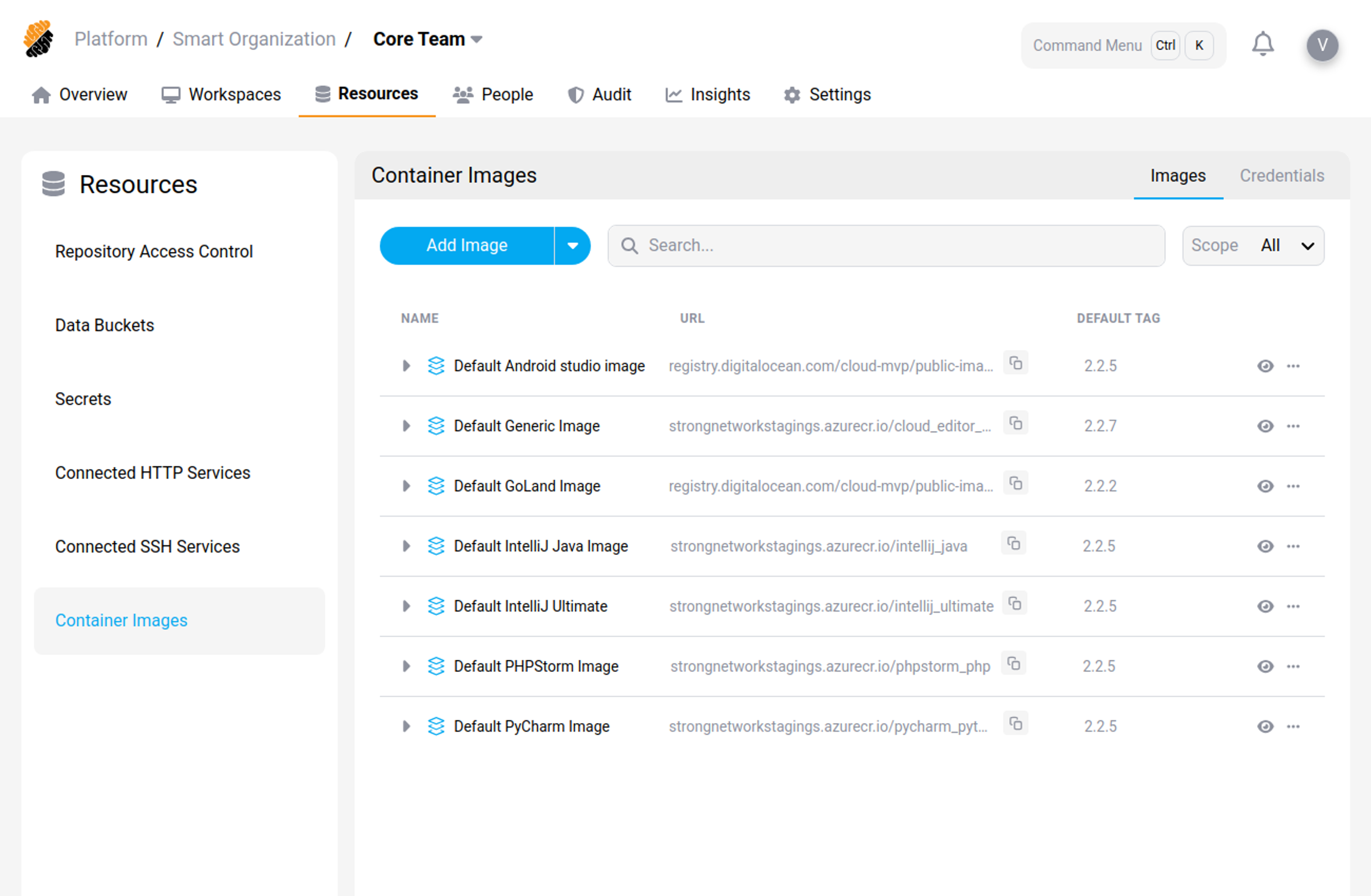
A CDE image is defined by the following characteristics:
- Basic information: Name, scope of use (platform, organization or project), URL and tag.
- Class Level: This option defines the visibility for the CDE image based on the user’s permissions.
- Asset Information: This option allows for providing a description of the CDE.
By clicking on a CDE image, you can see a list of the CDE’s versions followed by basic details such as imported date, status.
Add a CDE Image
Requires the Resources permission set to Import.
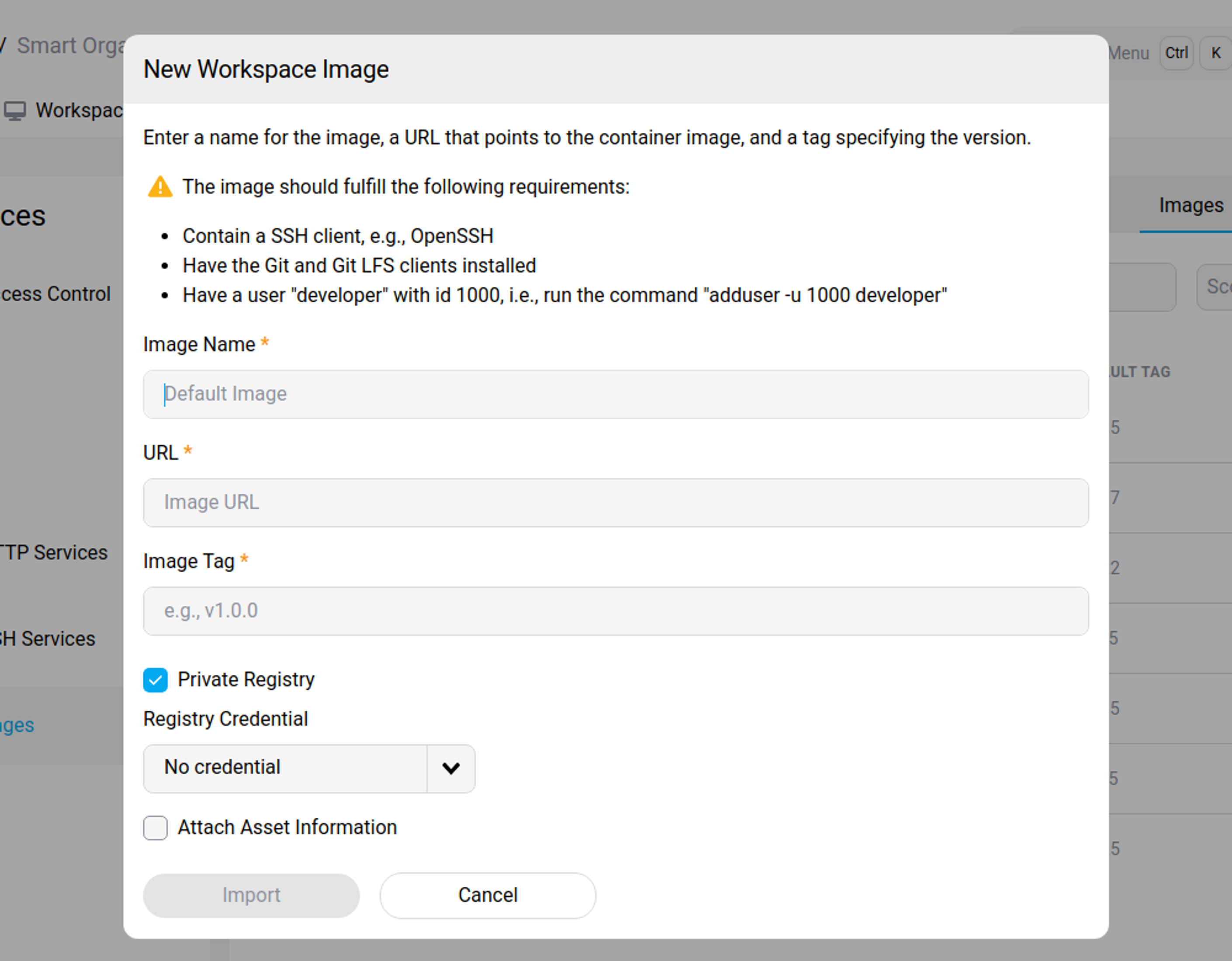
Select Add Image. The form opens as New Workspace Image and asks for:
-
URL, the full path to the image, in the form
<registry>/<namespace>/<repository>:<tag>. - Image Name, a name to identify the image.
-
Image Tag, for example
v1.0.0. - Private Registry (optional), the credential used to reach a private registry.
- Attach Asset Information (optional), a description of the image.
Warning
The image must meet the SecurSpaces container image requirements before it can be used for a workspace. At minimum it needs an SSH client, Git and Git LFS, and a user named
developerwith UID 1000. For the full list, see Container image requirements.
You can edit or delete a CDE image by clicking on the “…” icon next to its class level.
View Registry Credentials
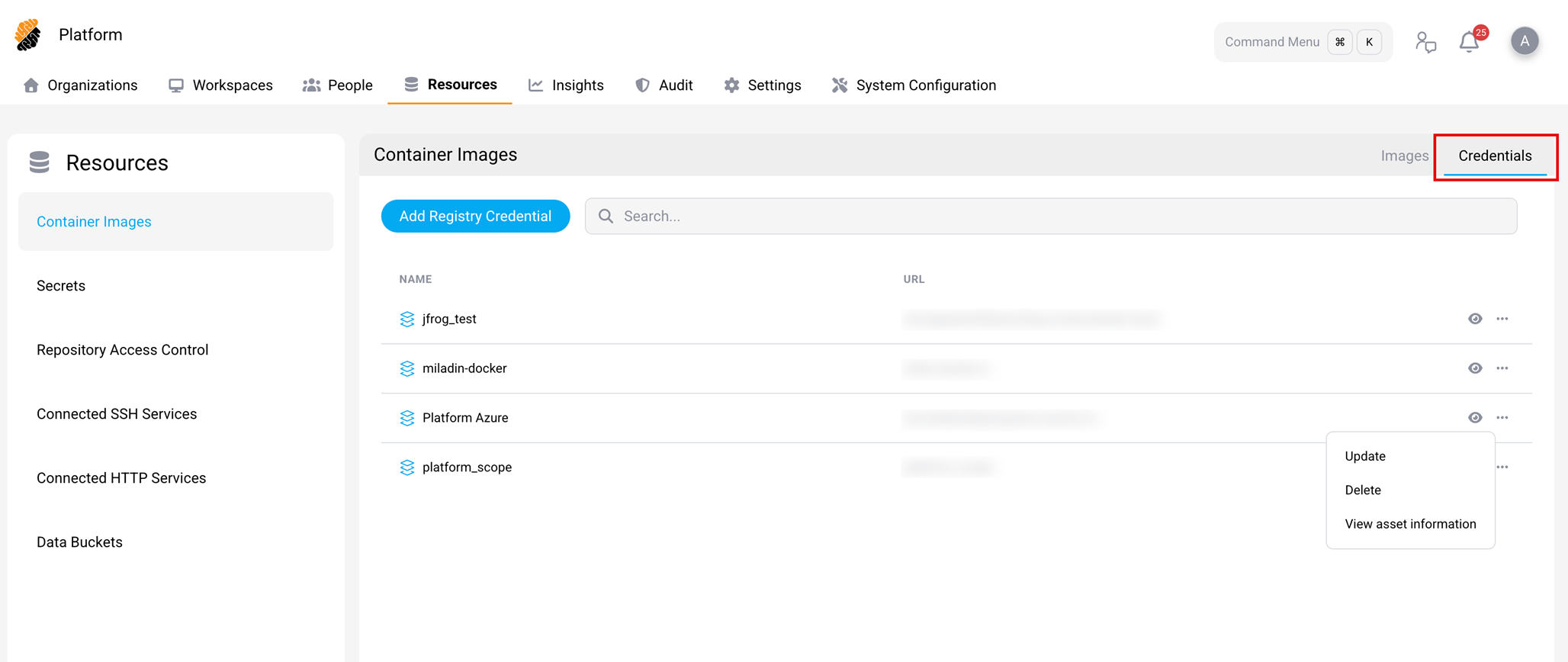
To display credentials used in the project click on the “Credentials” button on the top right of the panel. You may search for one or filter those used in workspaces.
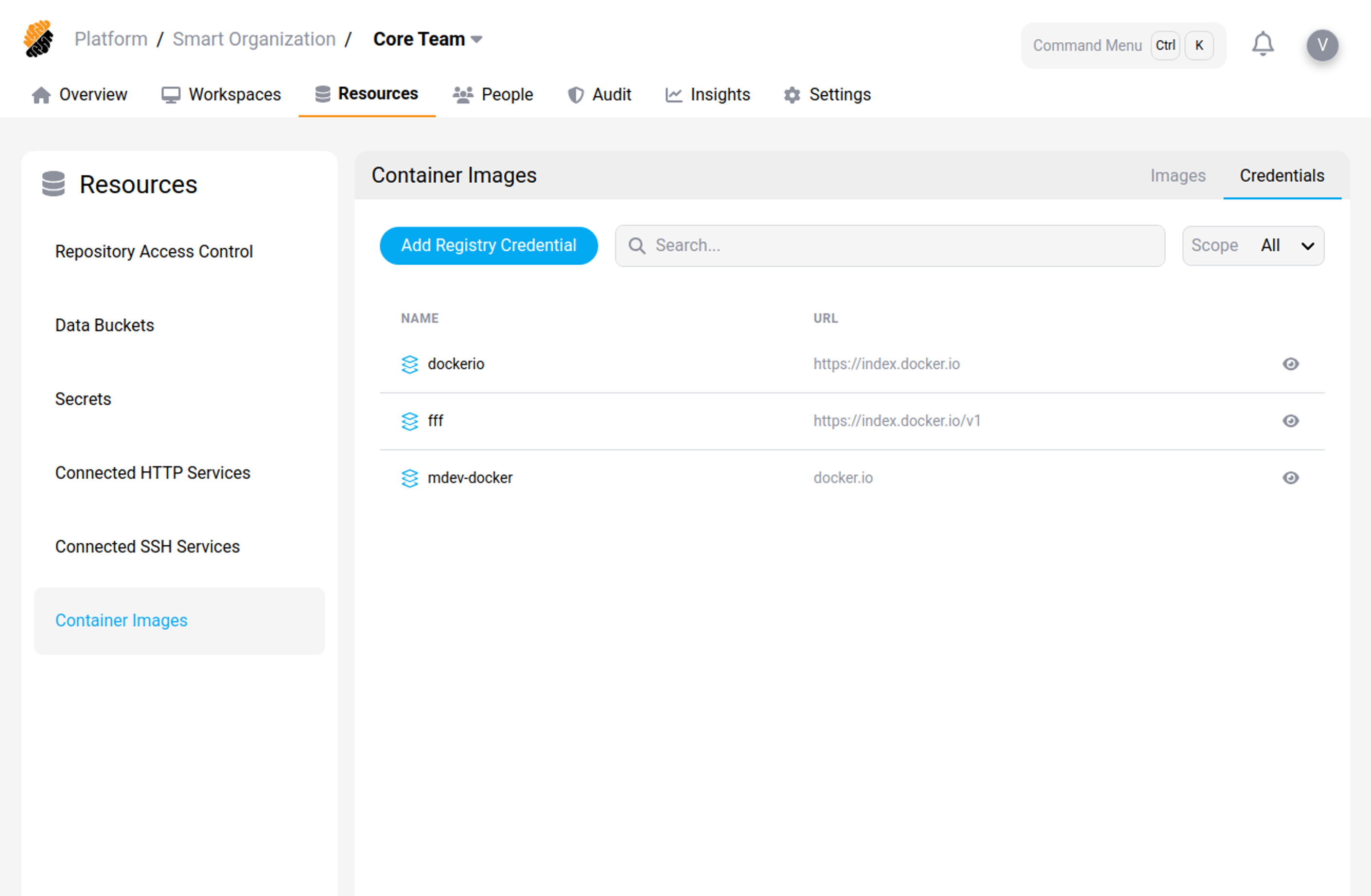
A Registry Credential is defined by the following characteristics:
- Name,
- Scope and
- a URL.
For security purpose, no credentials are directly exposed or available for consultation.
Add a Registry Credential
Requires the Security permission set to Manage.
You can add a Registry Credential by pressing the “Add Registry Credential” button.
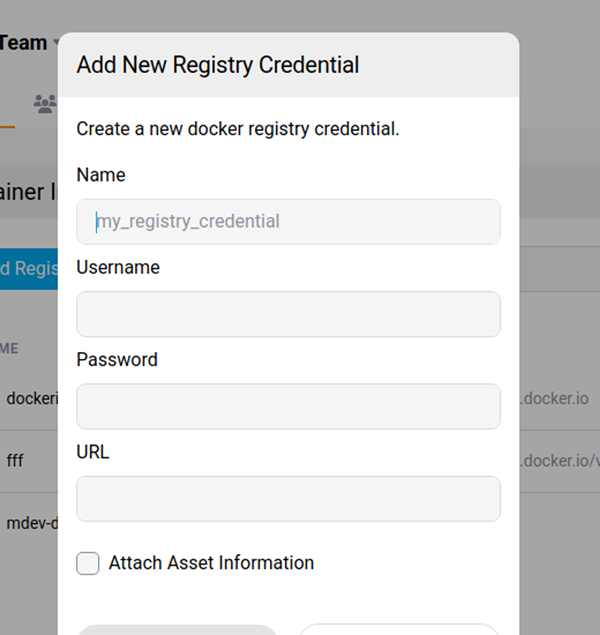
You will need to enter the following information:
- Name, to identify the credentials when needed during the registration of a CDE image,
- Username:, and
- Password:, as credential values, and an
- URL: where the authentication is performed.
- Asset information, a description of the registry credential.
Update a Registry Credential
When a registry credential becomes invalid, a red key icon will be displayed next to the related container image, as shown in the screenshot below.
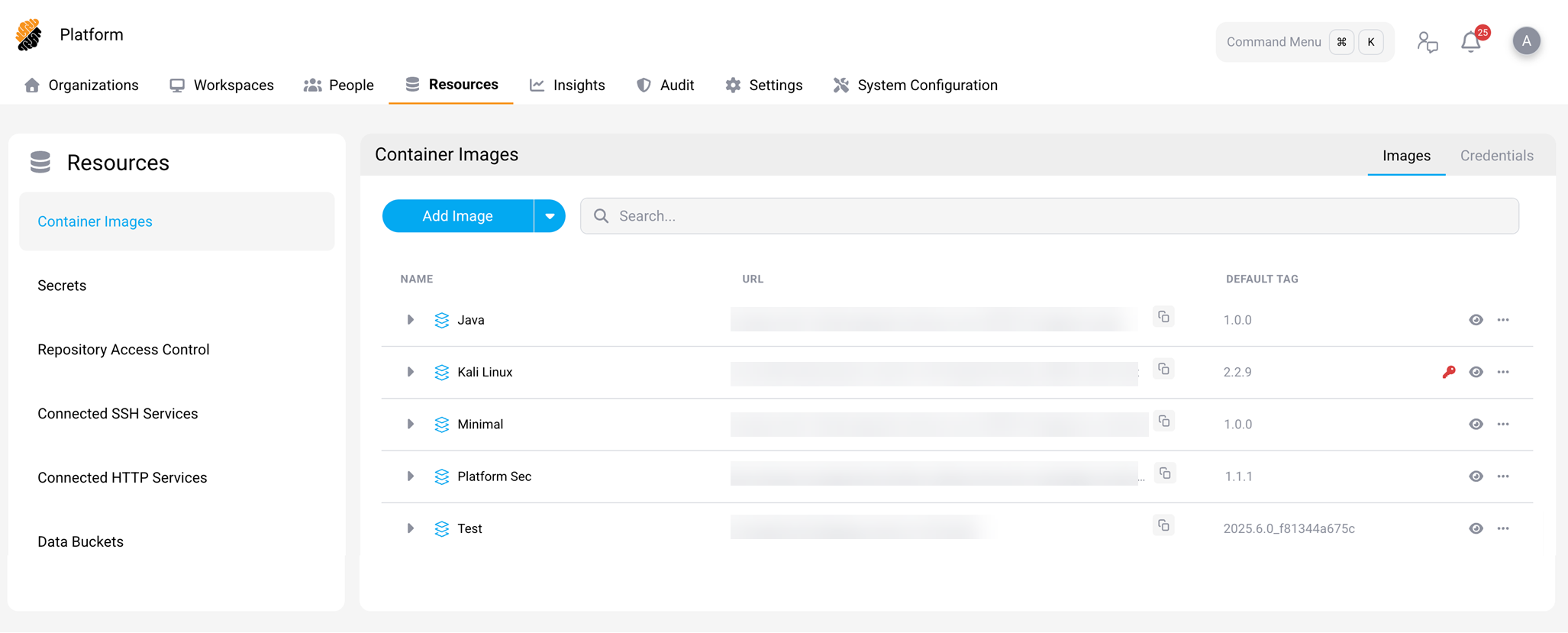
Hover over the icon to reveal the name of the credential, then switch to the Credentials view by clicking on the respective tab in the top right corner. Find the credential that was identified before in the list of stored credentials and click on the “…” button on the right. Select Update to update the credential information.
Related information
Share
Share
This Preview product documentation is Citrix Confidential.
You agree to hold this documentation confidential pursuant to the terms of your Citrix Beta/Tech Preview Agreement.
The development, release and timing of any features or functionality described in the Preview documentation remains at our sole discretion and are subject to change without notice or consultation.
The documentation is for informational purposes only and is not a commitment, promise or legal obligation to deliver any material, code or functionality and should not be relied upon in making Citrix product purchase decisions.
If you do not agree, select I DO NOT AGREE to exit.