-
-
-
-
-
Platform resources
-
Registry access
-
This content has been machine translated dynamically.
Dieser Inhalt ist eine maschinelle Übersetzung, die dynamisch erstellt wurde. (Haftungsausschluss)
Cet article a été traduit automatiquement de manière dynamique. (Clause de non responsabilité)
Este artículo lo ha traducido una máquina de forma dinámica. (Aviso legal)
此内容已经过机器动态翻译。 放弃
このコンテンツは動的に機械翻訳されています。免責事項
이 콘텐츠는 동적으로 기계 번역되었습니다. 책임 부인
Este texto foi traduzido automaticamente. (Aviso legal)
Questo contenuto è stato tradotto dinamicamente con traduzione automatica.(Esclusione di responsabilità))
This article has been machine translated.
Dieser Artikel wurde maschinell übersetzt. (Haftungsausschluss)
Ce article a été traduit automatiquement. (Clause de non responsabilité)
Este artículo ha sido traducido automáticamente. (Aviso legal)
この記事は機械翻訳されています.免責事項
이 기사는 기계 번역되었습니다.책임 부인
Este artigo foi traduzido automaticamente.(Aviso legal)
这篇文章已经过机器翻译.放弃
Questo articolo è stato tradotto automaticamente.(Esclusione di responsabilità))
Translation failed!
Registry access
Two separate settings control how Citrix SecurSpaces™ deals with container registries: one restricts where workspace images may come from, the other sets where images built on the platform are stored.
Both are platform-level and require the Security permission set to Manage. See Roles and permissions.
Image URL constraints
By default, a project owner can import a workspace image from any registry they can reach. Registry Access Management replaces that with an allowlist: when the feature is enabled, SecurSpaces blocks every registry except those you list.
This matters because a workspace image is arbitrary code that runs with access to your source. Restricting the registries is how you stop an image arriving from somewhere nobody has reviewed.
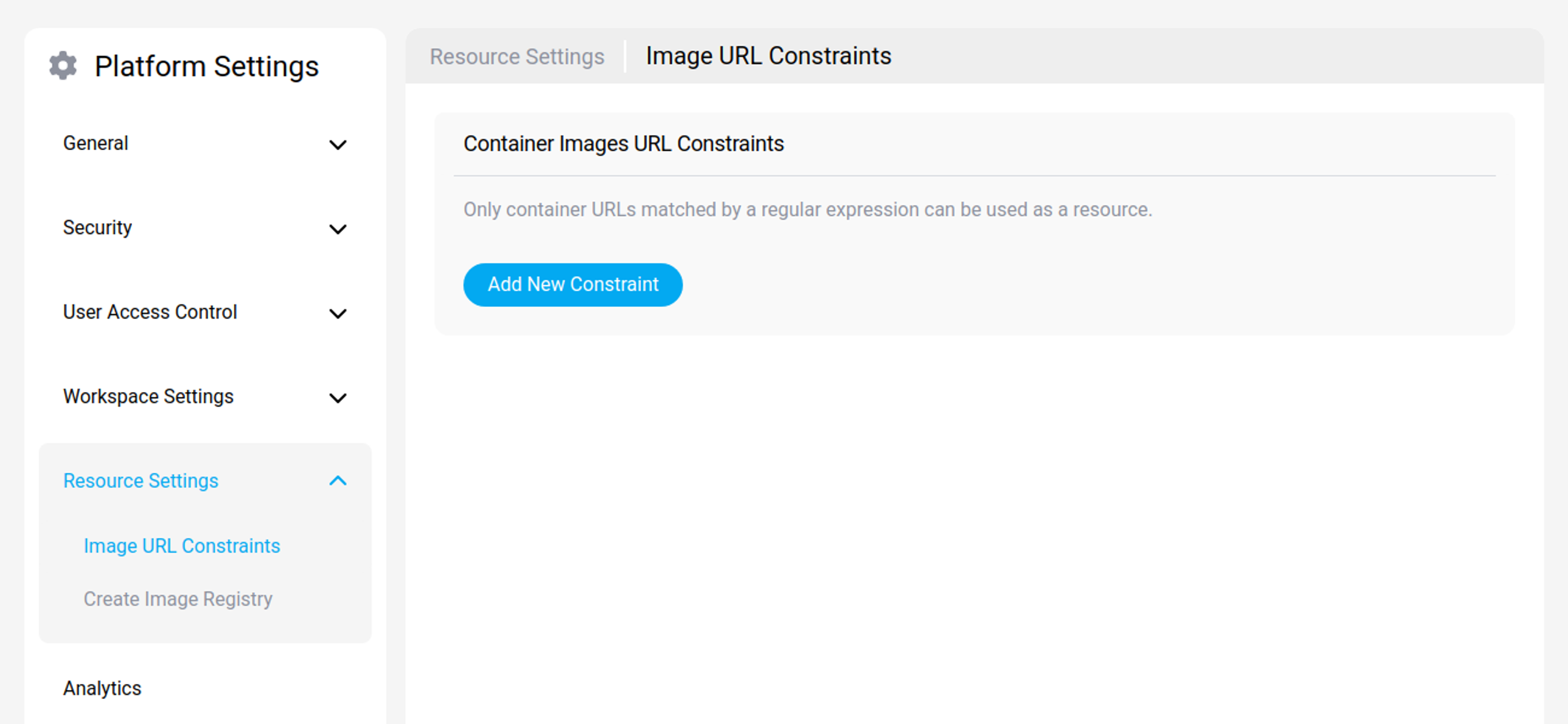
To restrict registries:
- Open System Configuration and select Registry Access.
- Enable the feature.
- Select Add Registry and enter the registry.
- Set each entry to Allowed or Denied.
An entry can be switched between allowed and denied without removing it, so you can withdraw a registry temporarily without losing the list.
Note:
Turning the feature on affects imports made from that point. Review the images already registered on the platform as well, since an image imported before the constraint was applied continues to be available. See Container images.
Create image registry
Create Image Registry specifies the Docker container registry used to store images created on the platform. It is the destination for images SecurSpaces builds, not a source of images to import.
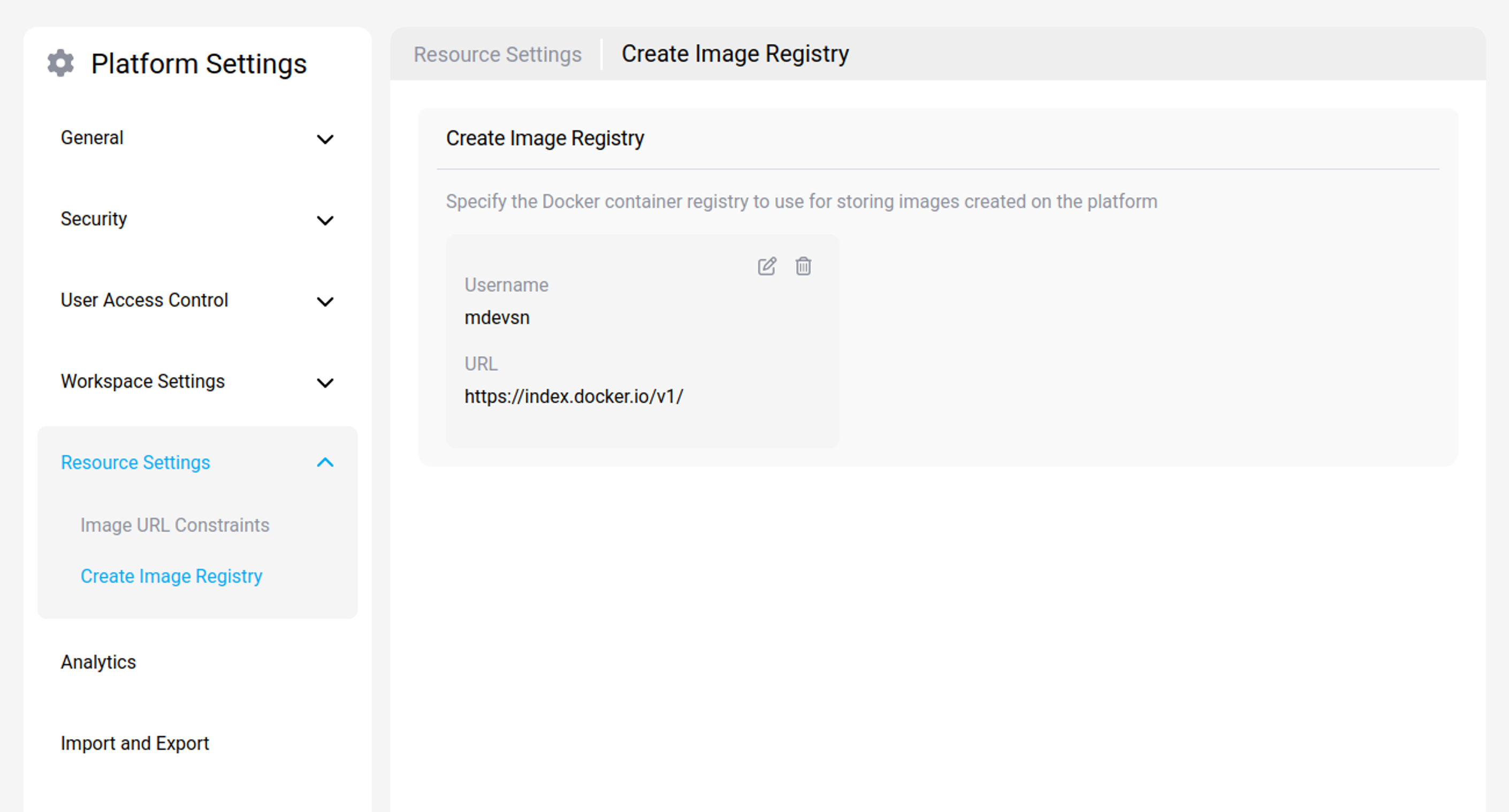
Provide the registry endpoint and the credentials SecurSpaces should use to push to it. Any OCI-compatible registry works — for example Amazon ECR, Azure Container Registry, Google Artifact Registry, or JFrog Artifactory.
Configuring this registry also switches on Create Image From Existing, which lets project members build a derived image from an existing one by supplying a bash script. Until a destination registry is set, that option does not appear. See Create an image from an existing one.
If you also use registry access constraints, make sure this destination registry appears in the allowlist. Otherwise the platform can push an image that workspaces are then blocked from pulling.
Related information
Share
Share
In this article
This Preview product documentation is Citrix Confidential.
You agree to hold this documentation confidential pursuant to the terms of your Citrix Beta/Tech Preview Agreement.
The development, release and timing of any features or functionality described in the Preview documentation remains at our sole discretion and are subject to change without notice or consultation.
The documentation is for informational purposes only and is not a commitment, promise or legal obligation to deliver any material, code or functionality and should not be relied upon in making Citrix product purchase decisions.
If you do not agree, select I DO NOT AGREE to exit.