Templates
Workspace Templates help streamline project onboarding by eliminating the need for manual workspace setup. Each template defines all required configuration parameters including Workspace settings, repositories, secrets, startup scripts, and security policies, ensuring consistency across all Workspaces within a project. Use the Quickstart feature to create a new Workspace with a single click from an external source, such as a code repository or engineering portal.
- View Templates
- Built-in template
- Create a Template
- Create a new version of a Template
- Track which template version a Workspace uses
- Update a Workspace to the default template version
- Archive a template
- Quickstart
- Duplicate a template
View Templates
Templates are displayed in the Templates section of the Workspaces Page. Each template can have multiple versions, which are visible when expanding the chevron on the left-hand side of the screen.
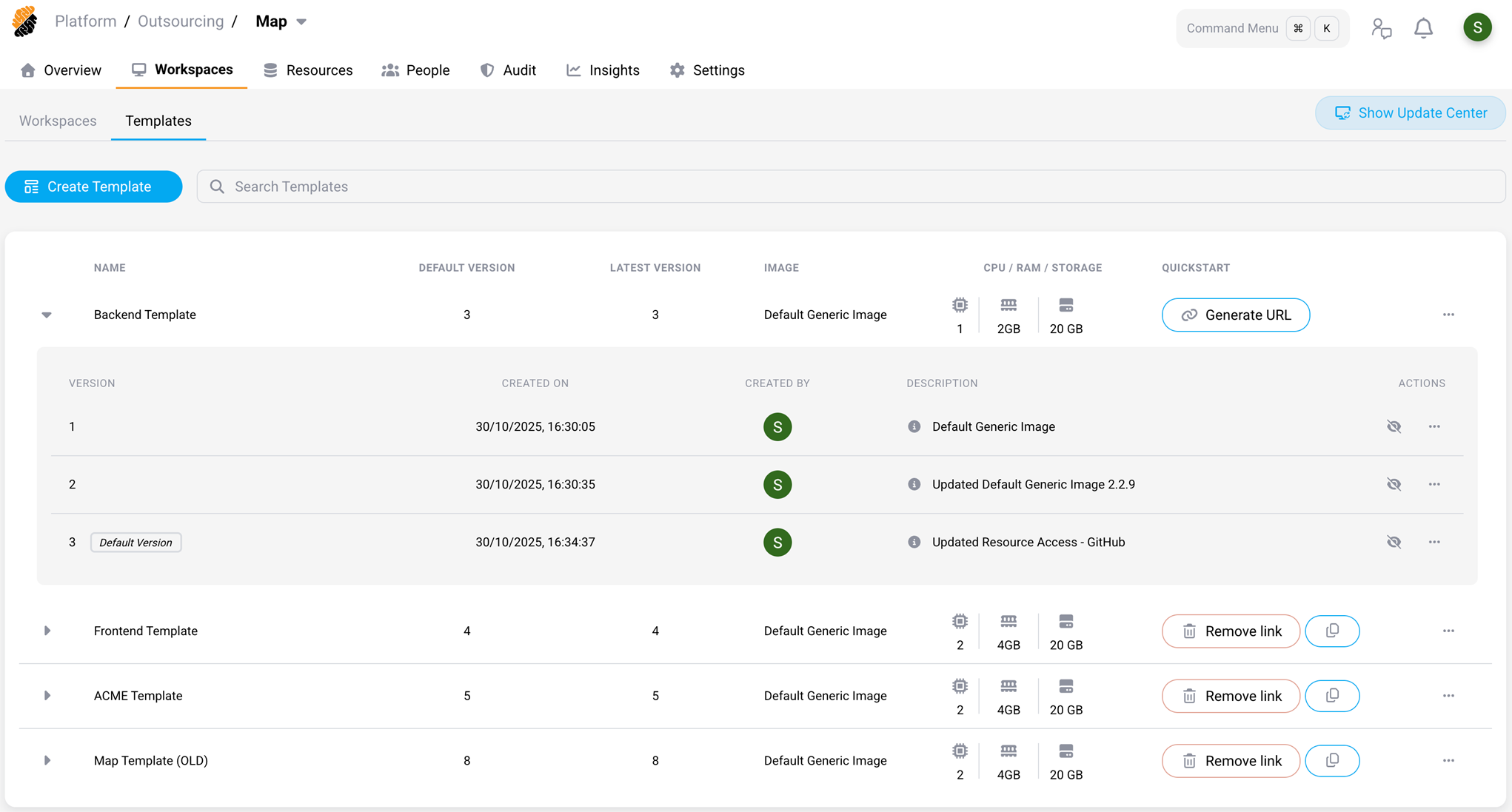
A template is defined by the following characteristics:
- Basic Information: Name, container image, CPU/RAM/Storage settings, and description.
- Class Level: Confidential or regulated.
- Workspace Configuration: All the other elements describing a workspace.
Built-in template
Every new project includes one built-in template. It is provided as a working starting point rather than a complete set, so most teams create their own templates from it or from a custom image.
| Name | Image | CPU / RAM / Storage | Description |
|---|---|---|---|
| Monitored VSCode Template | Default generic image | 2 CPU / 4 GB / 20 GB | Creates a fully updated Ubuntu container with monitored traffic and monitored clipboard. |
The template is created with the Monitor Traffic (default) network policy applied. For the other policies available to a project, see Network policies.
More images to build templates from
Citrix publishes example Dockerfiles and prebuilt images you can use or adapt:
- strong-network/images on GitHub — Dockerfiles and build scripts, including the generic base image and language-specific and desktop variants.
- strongnetwork on Docker Hub — prebuilt images you can reference directly.
To make one available to your project, see Container images.
Create a Template
Requires the Workspaces permission set to Manage Project.
On the Workspaces Page, in the Templates section, you can create a template by clicking on the Create Template button. You would follow the same steps as during the initial setup of a Workspace.
Note
Mount points are supported only in the primary region, but the template editor lets you attach one regardless of the region the project works in. A template that carries a mount point is therefore usable only in the primary region: Workspaces launched from it in any other region cannot use that storage. When a developer creates a Workspace from such a template in the project, the region selector is locked to the primary region. See Mount points in workspace templates.
Create a new version of a Template
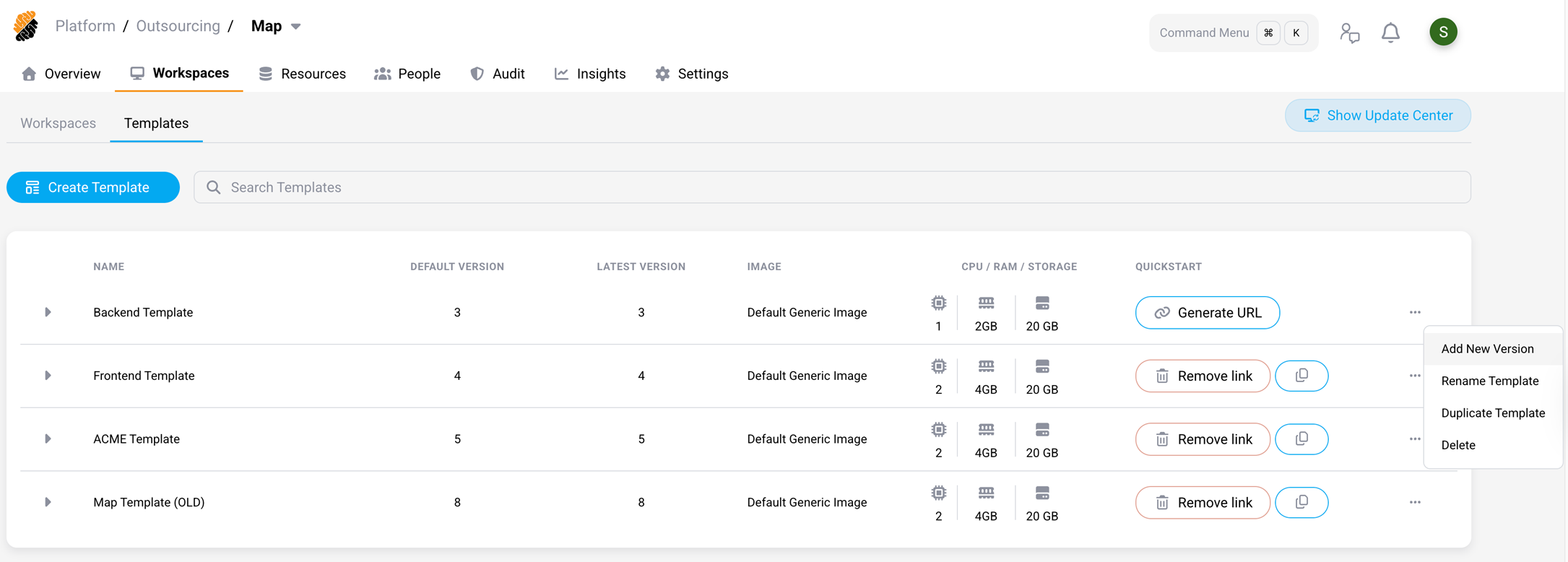
Template versions allow you to adjust the configuration of a template programmatically. A new version can be created by clicking on the “…” button on the right of a template and select Add new version.
This opens the same configuration UI as for creating a new Workspace or template, but with all current configurations, specified in the most recent version of the template, loaded.
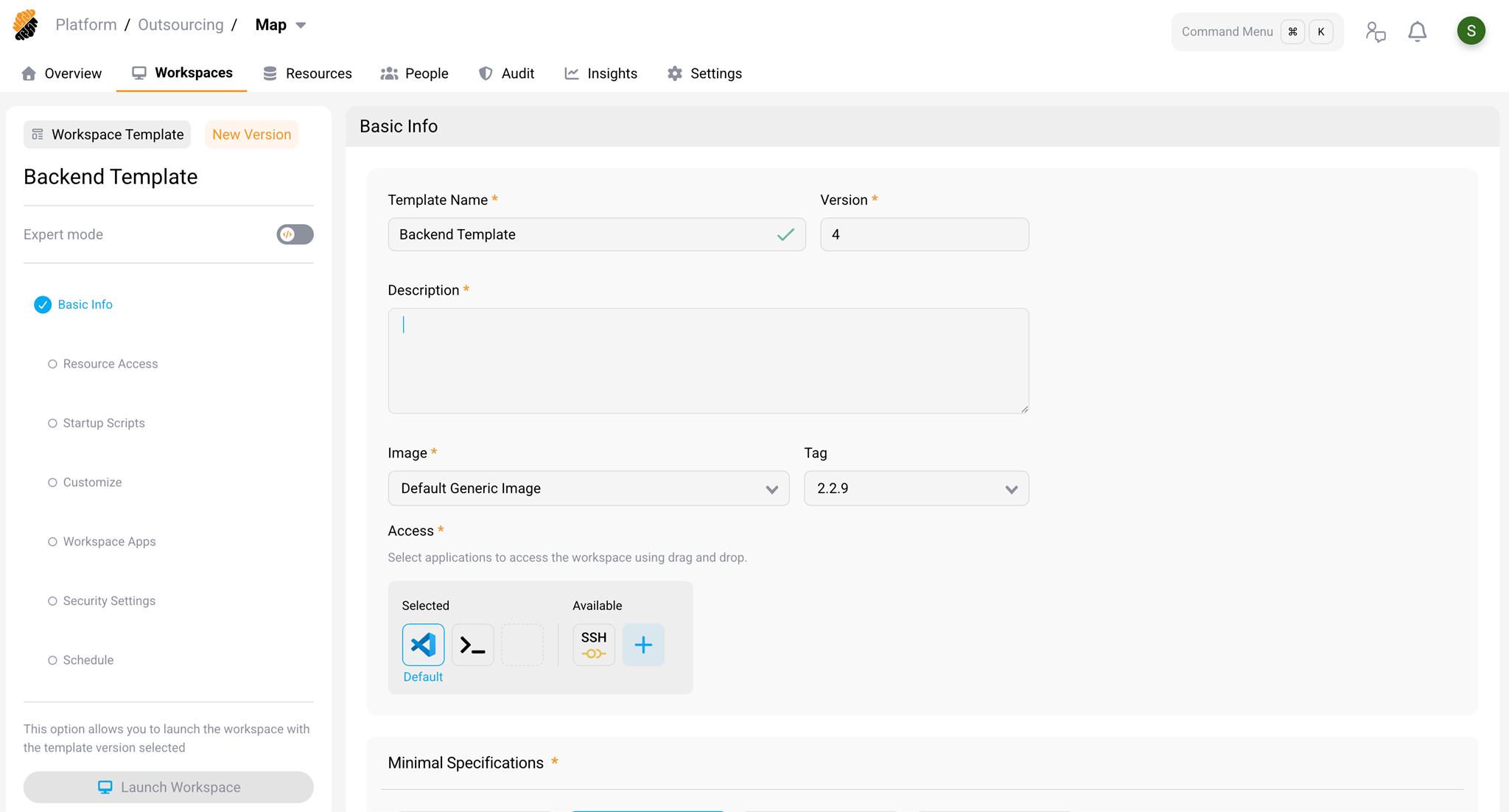
After making the necessary changes, you can either save the new version as a draft, which allows further modifications, or save it as a final template version right away, which cannot be changed afterwards.
A draft or new template version can be tested by either:
- Selecting Launch Workspace right within the template editor.
- Clicking on the “…” button on the right of a template and select Test.
- Manually selecting it from the list of version in the Create Workspace from Template wizard.
After finalizing a draft version, it can be published as a new template version by clicking on the “…” button on the right of a template and select Publish Version.
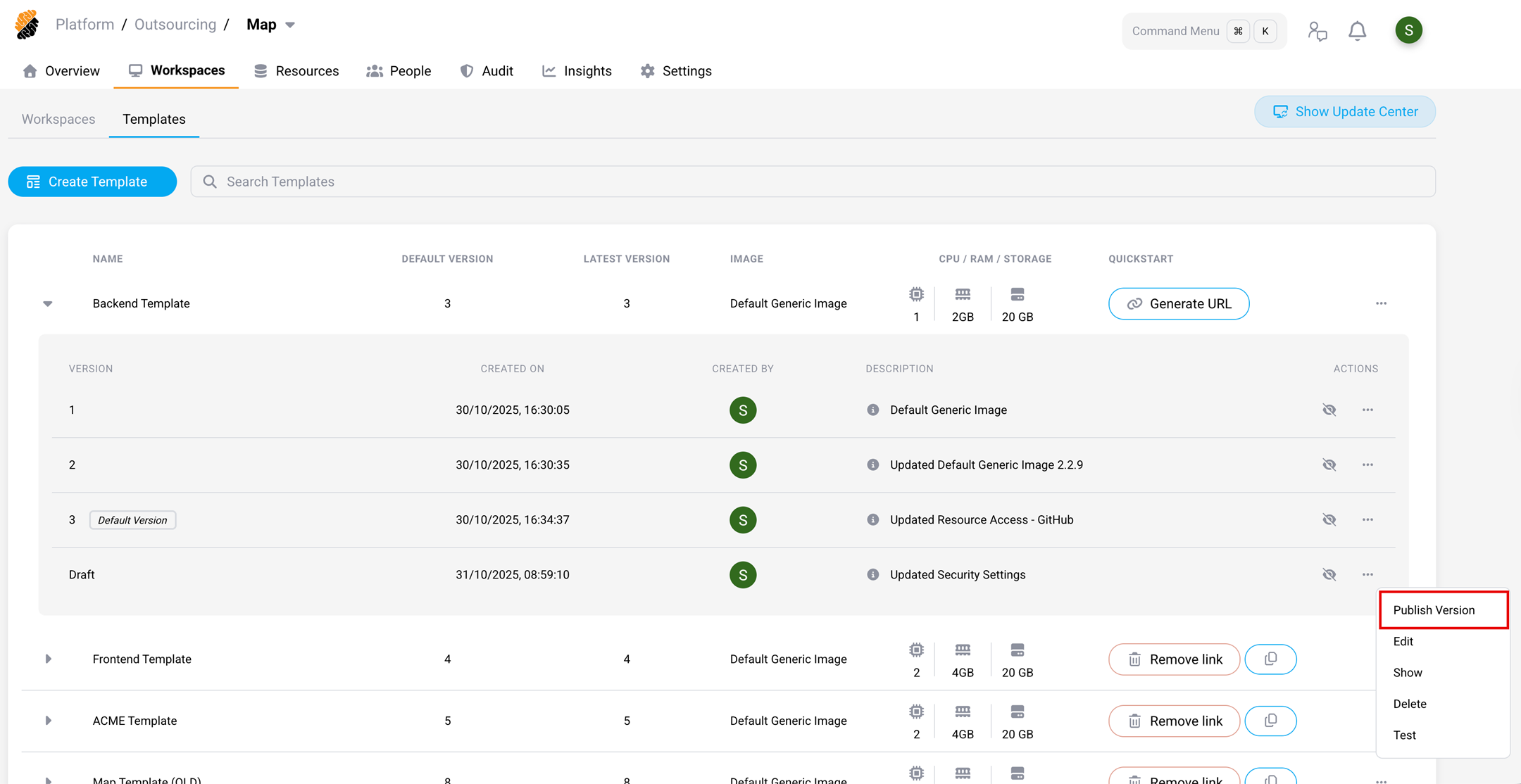
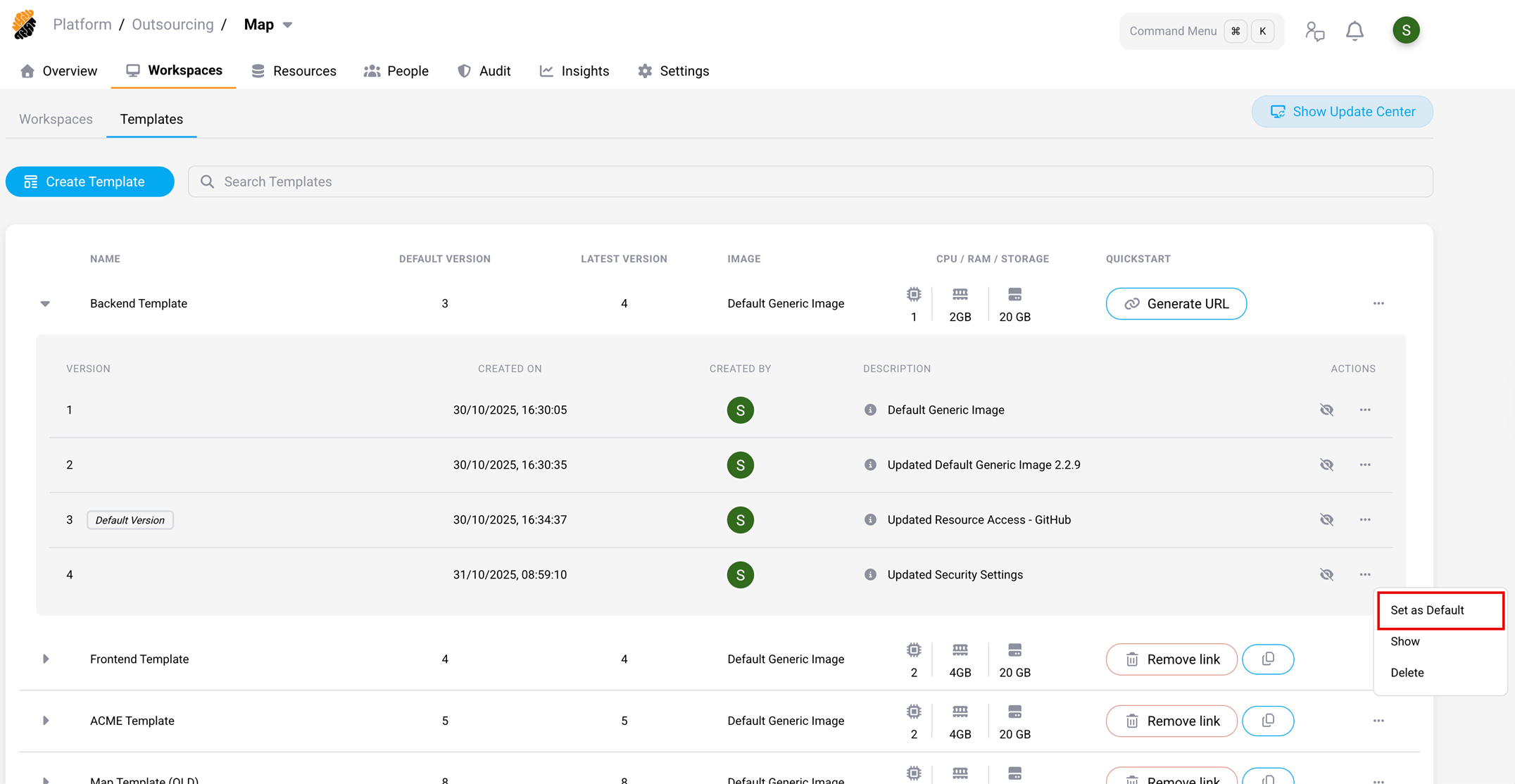
To ensure the new version of the template is automatically selected for newly created workspaces, click on the “…” button on the right of a template and select Set as Default.
Note
A template version cannot be deleted while any Workspace still uses it, and a template cannot be deleted while any of its versions are still in use. To retire a template that is still in use, see Archive a template.
Track which template version a Workspace uses
Every Workspace records the template and the template version it was created from. This lets you see which Workspaces still run an older configuration, so you can bring them back to your current standard.
Note
Version tracking applies to Workspaces created from a template. Workspaces created before this feature was introduced, and Workspaces created with the plain Create Workspace wizard rather than from a template, have no recorded version and are listed as unversioned.
Version status indicators
In the Templates section of the Workspaces Page, each template name shows a counter for each group of Workspaces that is not aligned with the default version:
- In testing — Workspaces created from a draft version.
- Outdated — Workspaces created from a published version that is no longer the default version.
- Unversioned — Workspaces that have no recorded template version.
Workspaces that already use the default version are compliant and are not counted.
Select any counter to expand the template and open the Associated Workspaces window.
Review and export associated Workspaces
The Associated Workspaces window lists every Workspace that uses the template, grouped by the template version it was created from. Open it by selecting a status counter, by selecting Associated Workspaces in the expanded template, or by selecting the associated count on a version row.
- Expand a version row to list the individual Workspaces and their owners.
- Select individual Workspaces, or use the version-level checkbox to select every Workspace on that version.
- Select Export as CSV.
Expected result: A CSV file downloads with the columns Workspace Name, Owner,
Owner Email, and Template Version. Draft versions are exported as Draft and Workspaces with
no recorded version are exported as Unversioned.
Note
Reviewing and exporting associated Workspaces requires permission to manage Workspace templates. Developers can create Workspaces from a template, but cannot open this window.
Update a Workspace to the default template version
When you set a new default version, existing Workspaces continue to run the version they were created from. Each affected Workspace shows an update indicator in the platform, and the update is applied to one Workspace at a time. The workspace owner chooses when to apply it.
An update can be applied by the workspace owner, or on their behalf by a project owner, platform administrator, organization owner, or security officer.
Warning
Applying an update restarts the Workspace and replaces the Workspace configuration with the configuration defined in the default template version. Persistent data, such as the home directory and source code, is preserved. Configuration changes made in the Workspace after it was created, such as an added repository or secret, are lost. This action cannot be undone.
An update never shrinks a Workspace’s disk. If the Workspace disk is larger than the new template version asks for — because it was expanded after the Workspace was created — the Workspace keeps its current size. A larger disk in the new version is applied as usual.
Apply an update
- On the Workspace card, select the update icon in the card header, or select Update in the “…” menu.
- Review the update details. When the Workspace was created from a published version, the window shows the current and new version together with a Configuration Change(s) list of the repositories, secrets, data buckets, mount points, connected services, images, network policy, and startup script that are added or removed.
- Select Update.
Expected result: The Workspace restarts on the new version and the update indicator clears.
Note
For a Workspace with no recorded template version, the window confirms which version the Workspace is aligned to but does not list the individual configuration changes.
Update before editing
A Workspace that is behind the default template version must be updated before its configuration can be edited. When you edit such a Workspace, a Please Update Your Workspace window opens instead of the edit page. This applies when editing from the Workspace card, from the Workspaces tab of your profile, from the project Workspaces list, and when importing an IDE configuration.
Select Update to apply the update and continue to the edit page.
Archive a template
Archive a template when it must no longer be used for new Workspaces but still has Workspaces associated with it. Archiving is the alternative to deleting a template that is still in use.
To archive a template, select the “…” button on the right of a template and select Archive.
Expected result: The template is marked with an Archived badge and can no longer be selected when creating a Workspace, including through a Quickstart link. Existing Workspaces created from the template are unaffected and can still be updated to a version of the template.
Archived templates are hidden by default. Use the archived filter on the Templates section to show or hide them. To make an archived template available again, select the “…” button and select Restore.
Quickstart
The Quickstart functionality allows developers to create a new workspace with a single click from a code repo, engineering portal or any other location outside of Citrix SecurSpaces™.
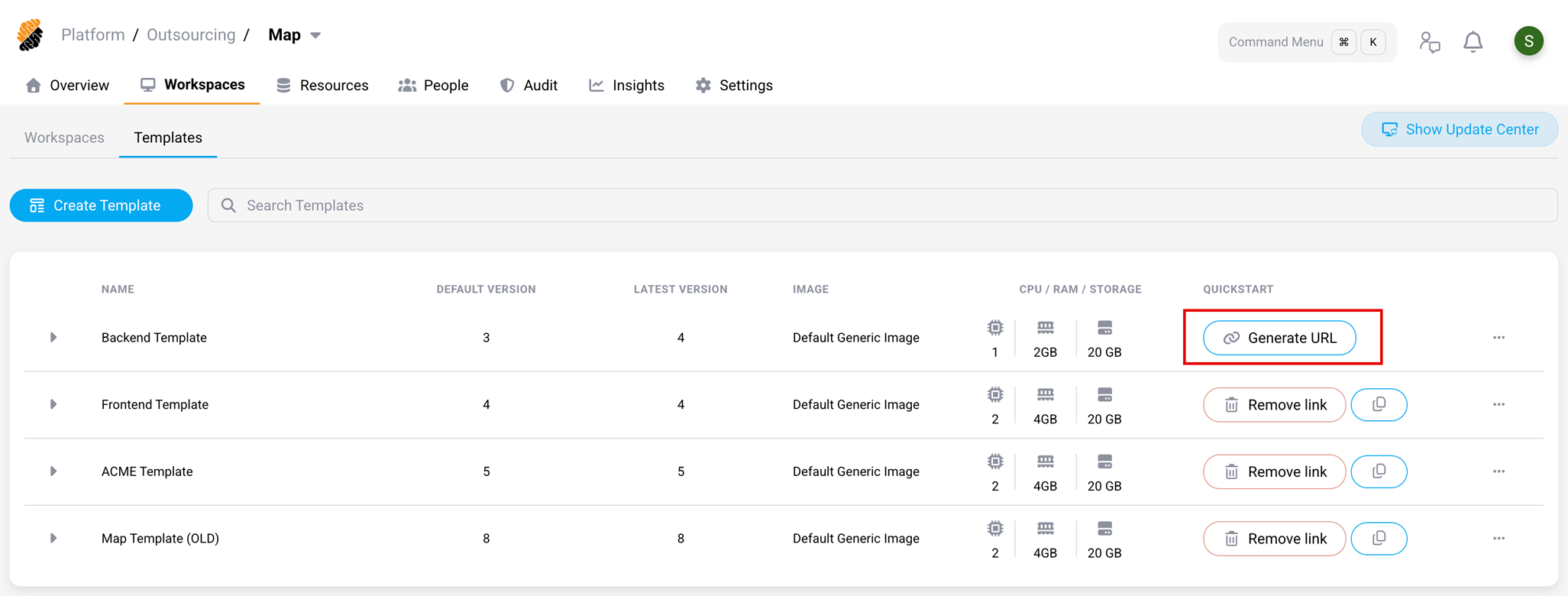
Create a Quickstart link by clicking the Generate URL button on the right of a template.
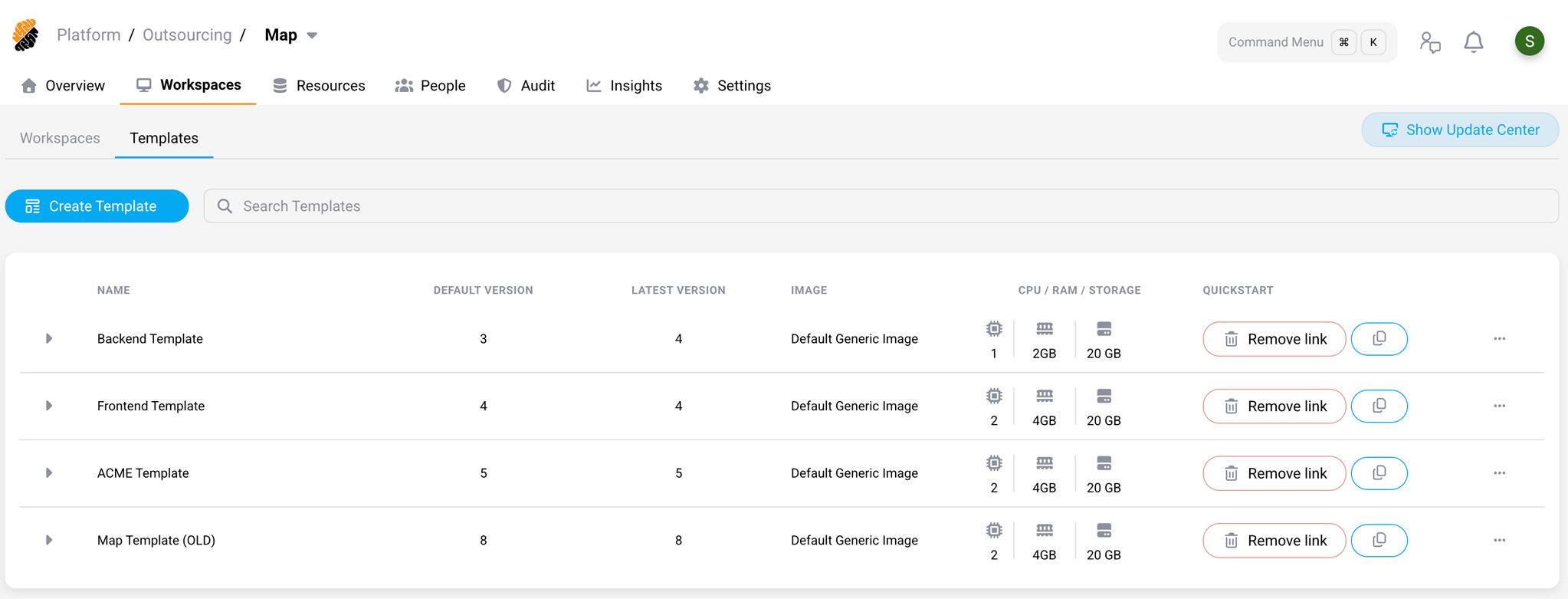
Then click the Copy icon.
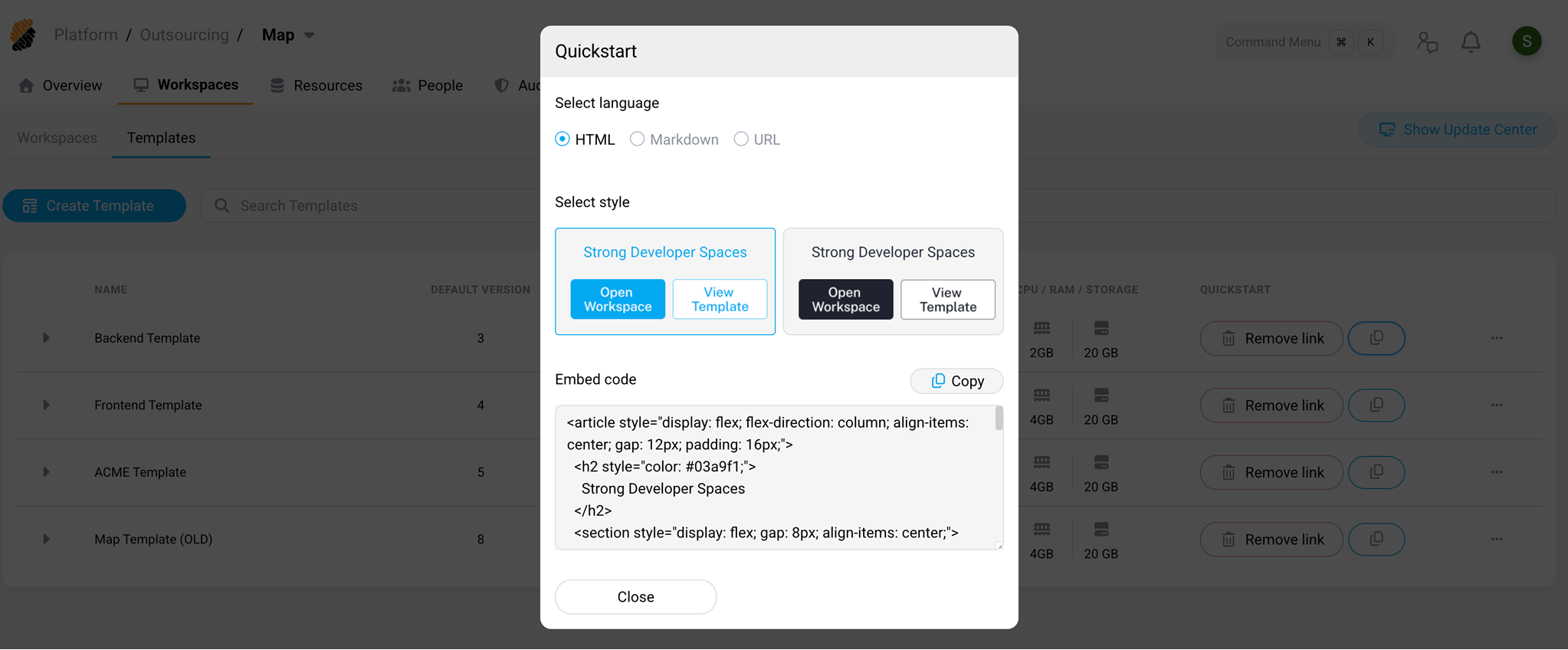
Select any of the available options.
When a user accesses the Quickstart URL SecurSpaces initiates the creation of a new Workspace, unless the user already has a Workspace based on this particular template. In this case, the user will be forwarded to the respective Workspace automatically.
When a new Workspace needs to be created the user can configure the name of the Workspace and finalize the creation flow, by selecting Create and Open.
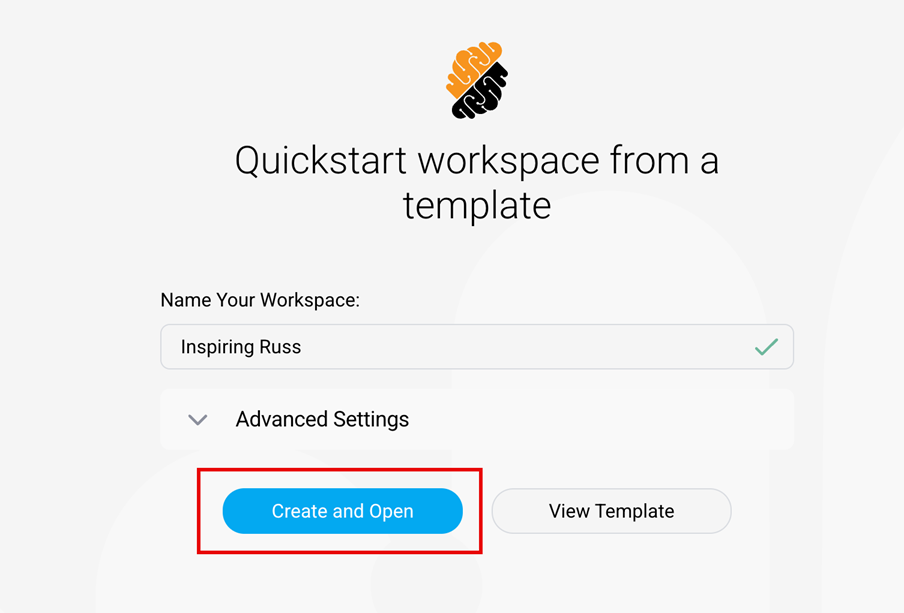
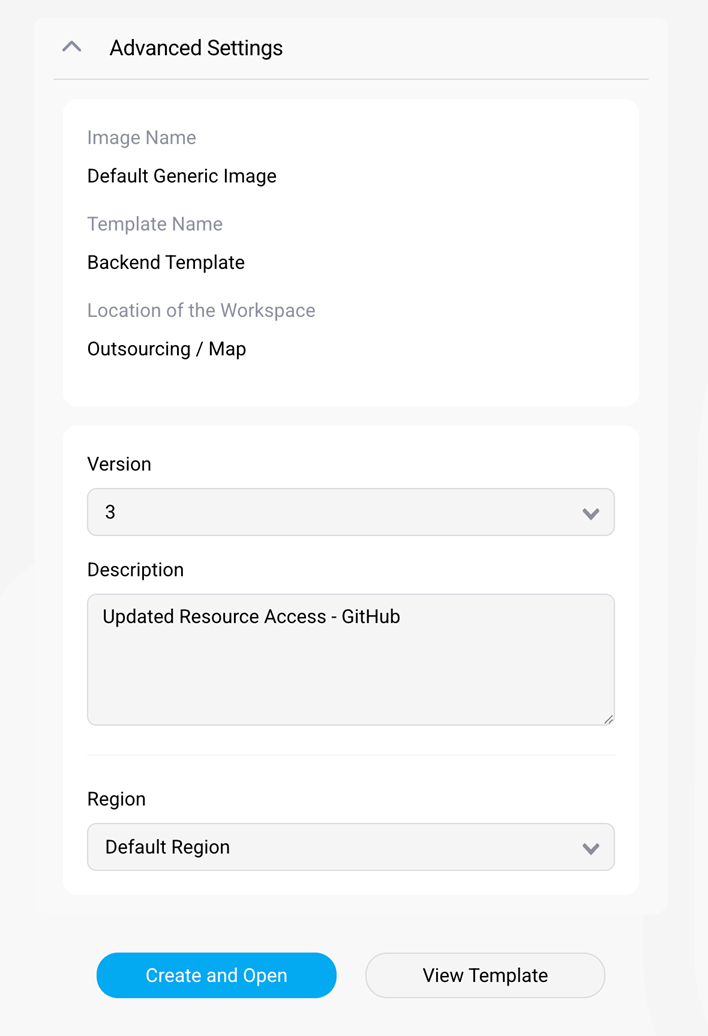
Via the Advanced Settings menu, configuration details, such as base template or related SecurSpaces project, can be verified and template version as well as deployment region can be configured.
Warning
The deployment region offered here is not checked against the template’s mount points. If the template carries a mount point and you select a region other than the primary one, the Workspace is created in that region with the mount point attached, but it cannot use that storage. Leave the region set to the primary region when the template carries a mount point.
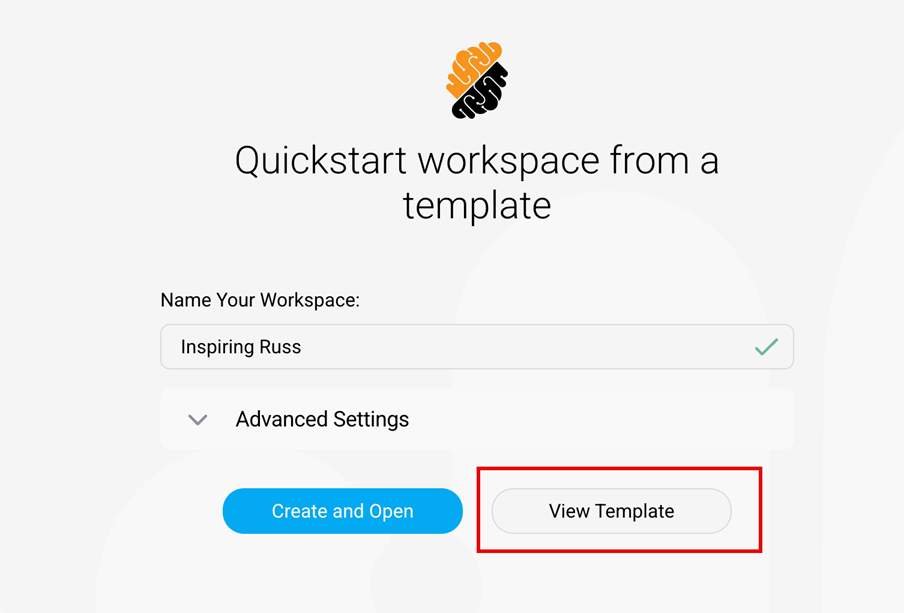
The View Template button opens the Workspace Template editor for the selected version, to verify further configuration details.
Automate Quickstart links with the REST API
You can also manage Quickstart links through the REST API. Use the API when you need to publish template launch links in a developer portal, repository README file, or internal onboarding workflow.
The Quickstart link API can:
- Enable a Quickstart link for a workspace template.
- Return the raw URL, view-template URL, and generated Markdown or HTML embed snippets.
- Generate light or dark embed snippets.
- Revoke a Quickstart link when it must no longer be used.
For endpoint details, see REST API.
Include Custom Access Items in templates
Workspace templates can include Custom Access Items. Use Custom Access Items to provide one-click access to tools or services that run inside workspaces created from the template.
Custom Access Items can be managed in the workspace template configuration or through the REST API. Each item defines a display name, port, command, and optional health check settings.
For endpoint details, see REST API.
Duplicate a template
A Workspace Template can be duplicated by clicking on the “…” button on the right of a template and select Duplicate. This allows quickly creating new templatized configurations based on existing templates.
Related information
- Run AI coding agents in workspaces — what a template needs when agents run in it
- Workspace images