
Workspace policy
Workspace policy governs the workspaces created on the platform: what they may copy, how many a user may have, whether they can be reached over SSH, and what network traffic they may generate.
The same settings appear at three scopes — platform, organization, and project — and are resolved from the broadest to the narrowest. This page covers all three.
Where each setting can be configured
| Setting | Platform | Organization | Project |
|---|---|---|---|
| Clipboard security | yes | yes | yes |
| Default project limits | yes | yes | yes |
| Remote development over SSH | — | yes | yes |
| Network policy | yes | yes | yes |
| SSH access to workspaces | yes | — | — |
| Schedule settings | yes | — | — |
| Workspace apps settings | yes | — | — |
| Workspace specification | yes | — | — |
| Registry access | yes | — | — |
| Deleted workspaces | yes | — | — |
Platform settings are at System Configuration. Organization and project settings are on the settings page for that organization or project.
How settings are resolved
Settings are read in order — defaults, then platform, then organization, then project — but two different rules apply, and the difference matters.
Most settings: the narrowest scope wins, unless enforced
Clipboard security, default project limits, and network policy follow this rule. If a project sets a value it overrides the organization, which overrides the platform.
A scope can also enforce its value. Enforcement stops the chain: the setting is locked at that scope and no narrower scope can change it. The enforce control appears at platform and organization scope, since project is the narrowest level.
Remote development over SSH: every scope must allow it
SSH does not work that way. It is permitted only when every scope above allows it, and any scope that disallows it turns it off for everything beneath. This is the default behavior, not an enforcement setting.
A project owner therefore cannot enable SSH when the platform has it switched off. The control is hidden rather than shown as disabled, so if you cannot find it, check the scope above.
Security settings
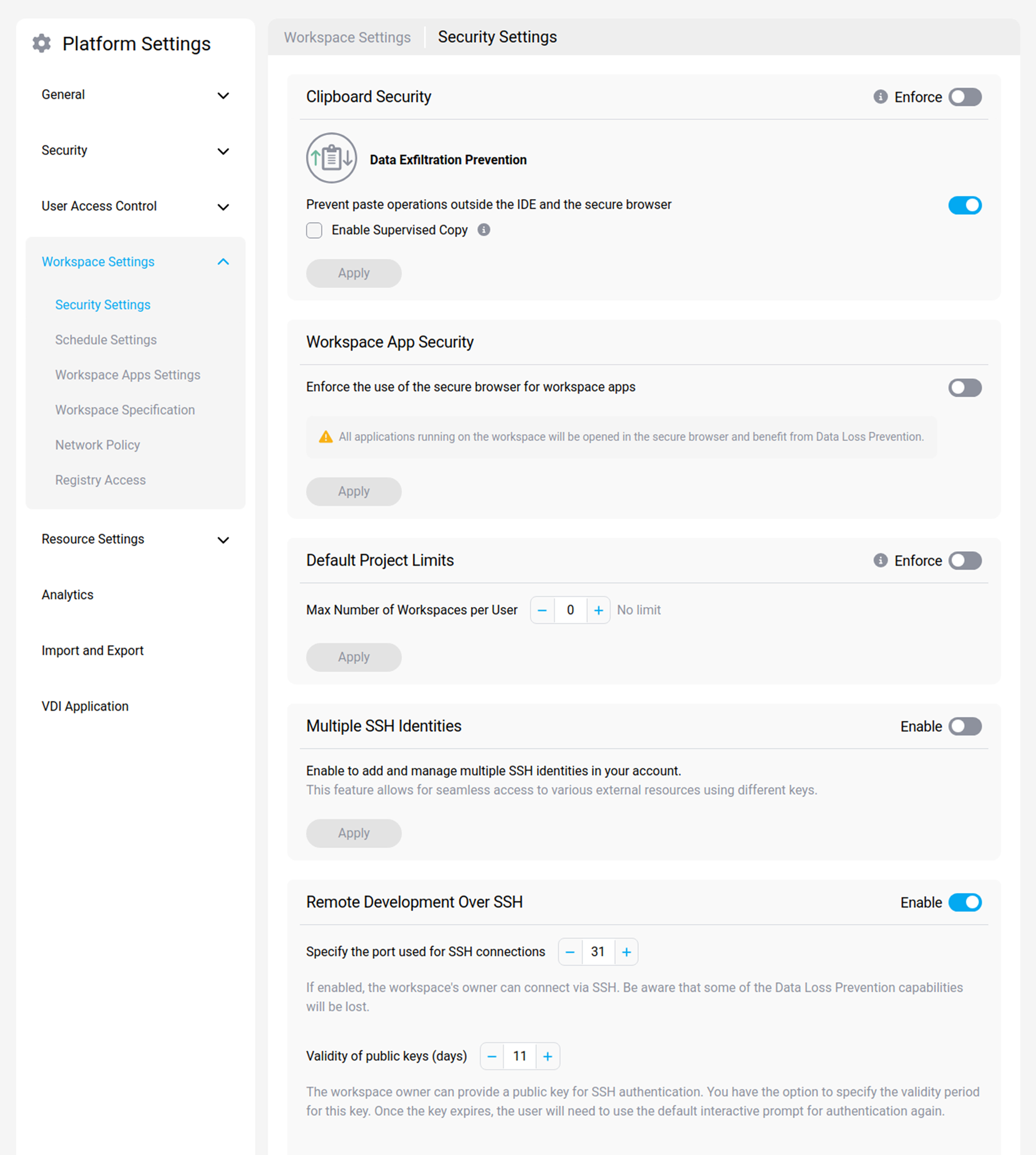
Clipboard security
Prevents users from pasting content out of the IDE and the secure browser into other applications, as a data loss prevention measure. You can restrict copying, restrict pasting, cap the number of characters, and enable supervised copy.
Default project limits
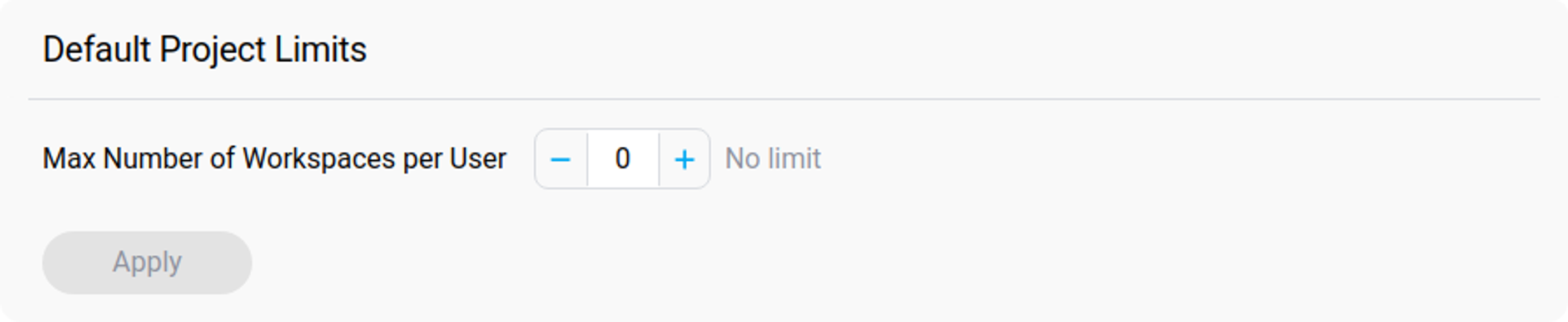
Caps the number of workspaces a user may create, which limits resource sprawl and cost. A limit of zero means no limit.
Remote development over SSH
Allows developers to connect to their workspaces from a local IDE over SSH. Convenient, but it reduces the effectiveness of local data loss prevention, so enable it deliberately.
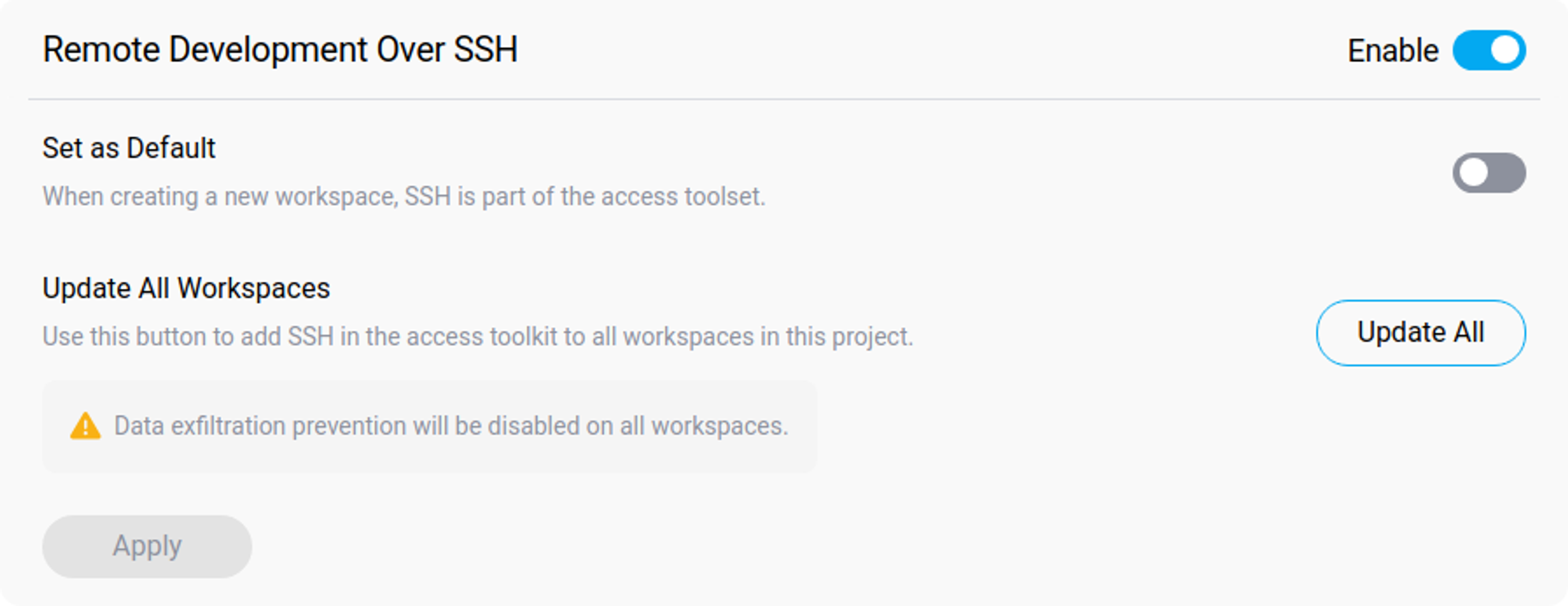
For what developers do once it is enabled, see Connect over SSH.
Network policy
Network policies control the outbound traffic a workspace may generate, matched on domain and IP address. Once a policy is attached, the workspace user cannot circumvent it.
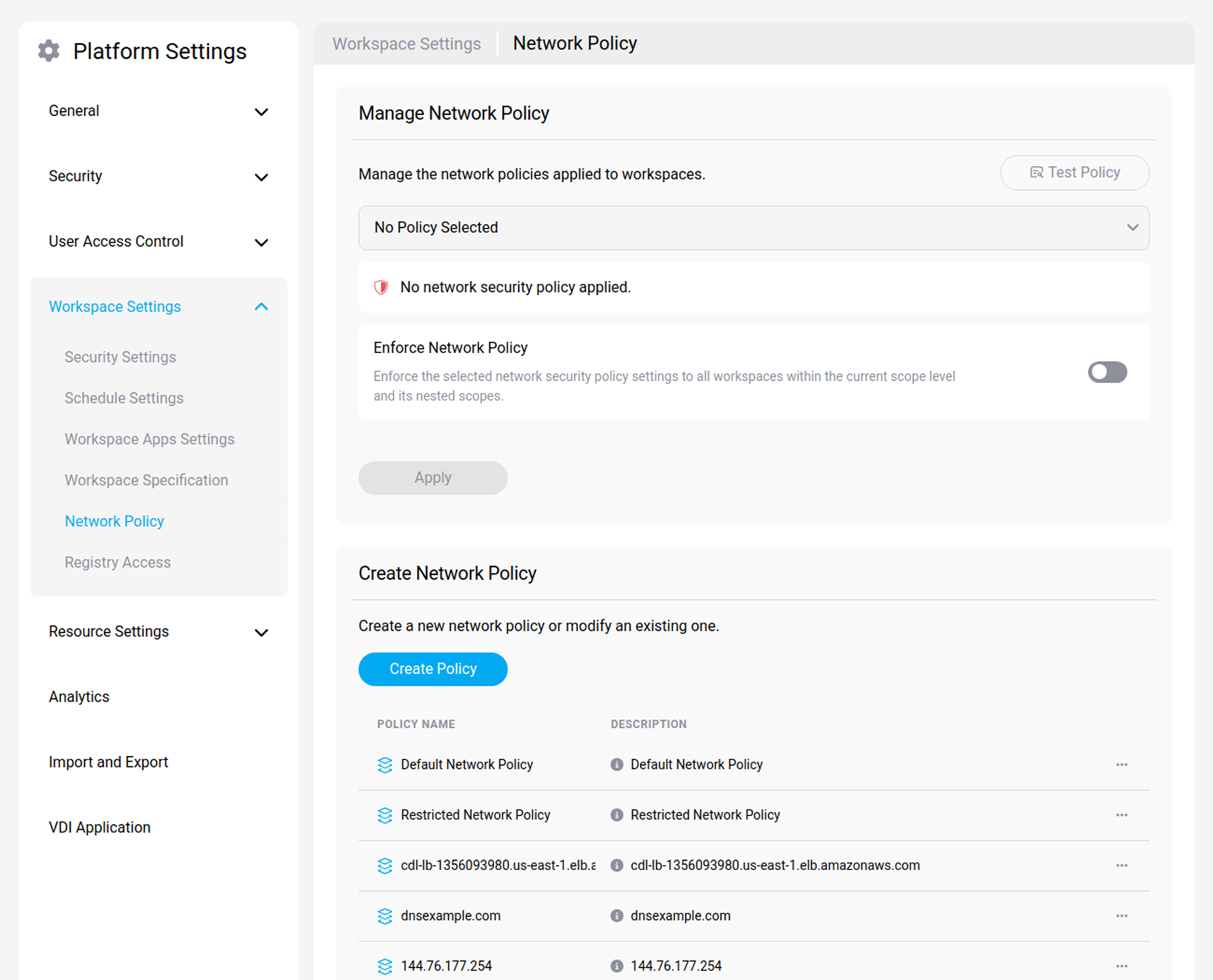
Three default policies are created with every project:
| Policy | Behavior |
|---|---|
| Monitor Traffic (default) | Logs outgoing TCP traffic and raises audit events, without restricting it |
| Restrict Traffic (default, expert) | Blocks outbound traffic except attached resources and an allow list |
| Inspect Traffic (default, expert) | Inspects TCP content and reports it to the audit log |
Network policies have their own section, covering the policy model, creating and assigning policies, the expert-mode fields, and troubleshooting:
Platform-only settings
These exist at platform scope only.
SSH access to workspaces
Enables SSH access for the deployment, and sets the public key expiry and the port. Because SSH follows the restrictive rule above, this switch gates every organization and project beneath it.
Validity of public keys (days) defaults to 7. When a registered key reaches that age the platform stops accepting it. The SecurSpaces IDE integrations renew keys automatically, so developers using them are unaffected; developers who connect with any other SSH client must re-register their key each time it expires. Setting a short period therefore falls entirely on the second group. See Key expiry and renewal.
Infrastructure configuration is separate; see Enable SSH access to workspaces.
Schedule settings
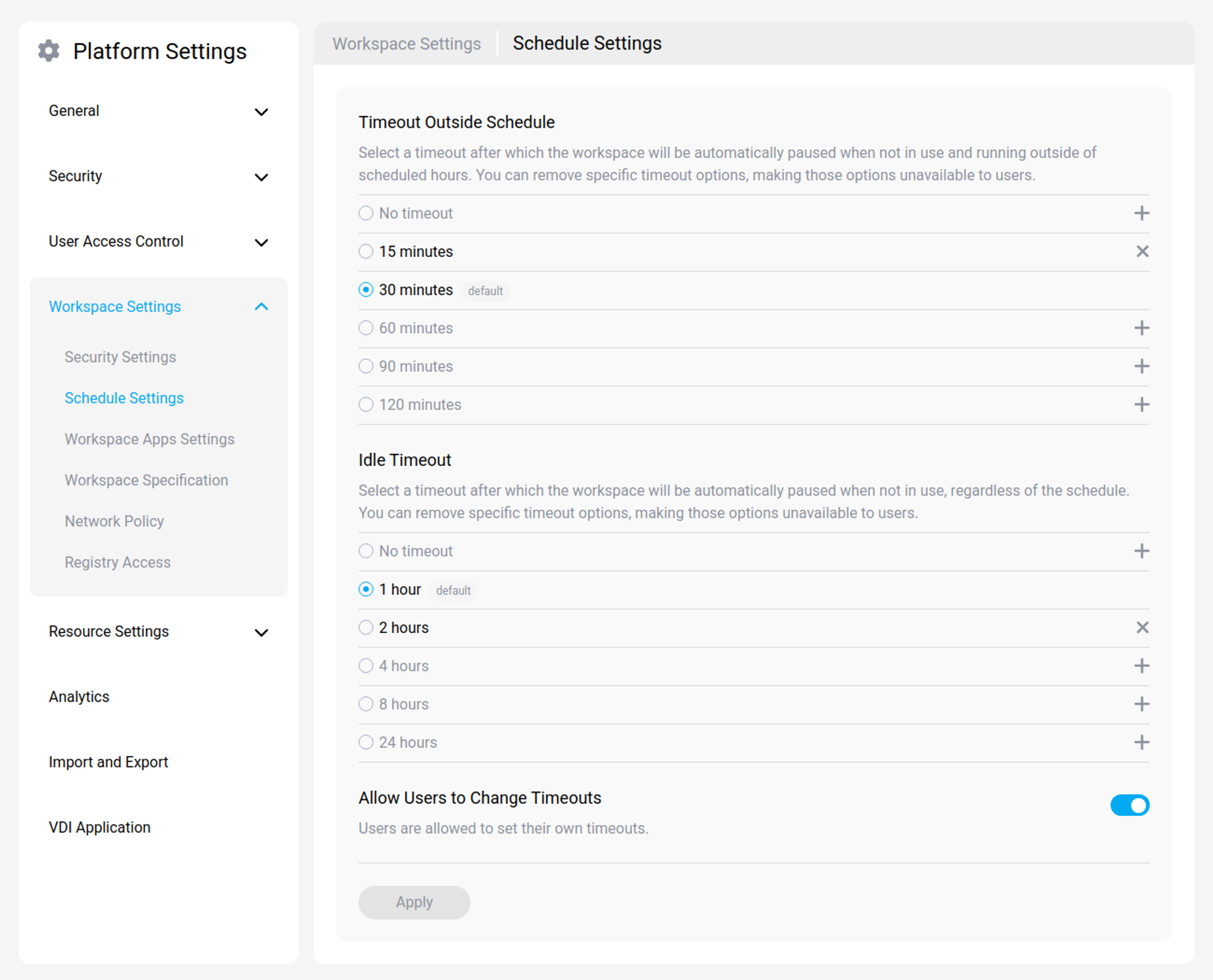
Sets operating hours and automatic shutdown, so workspaces run only when needed.
Workspace apps settings
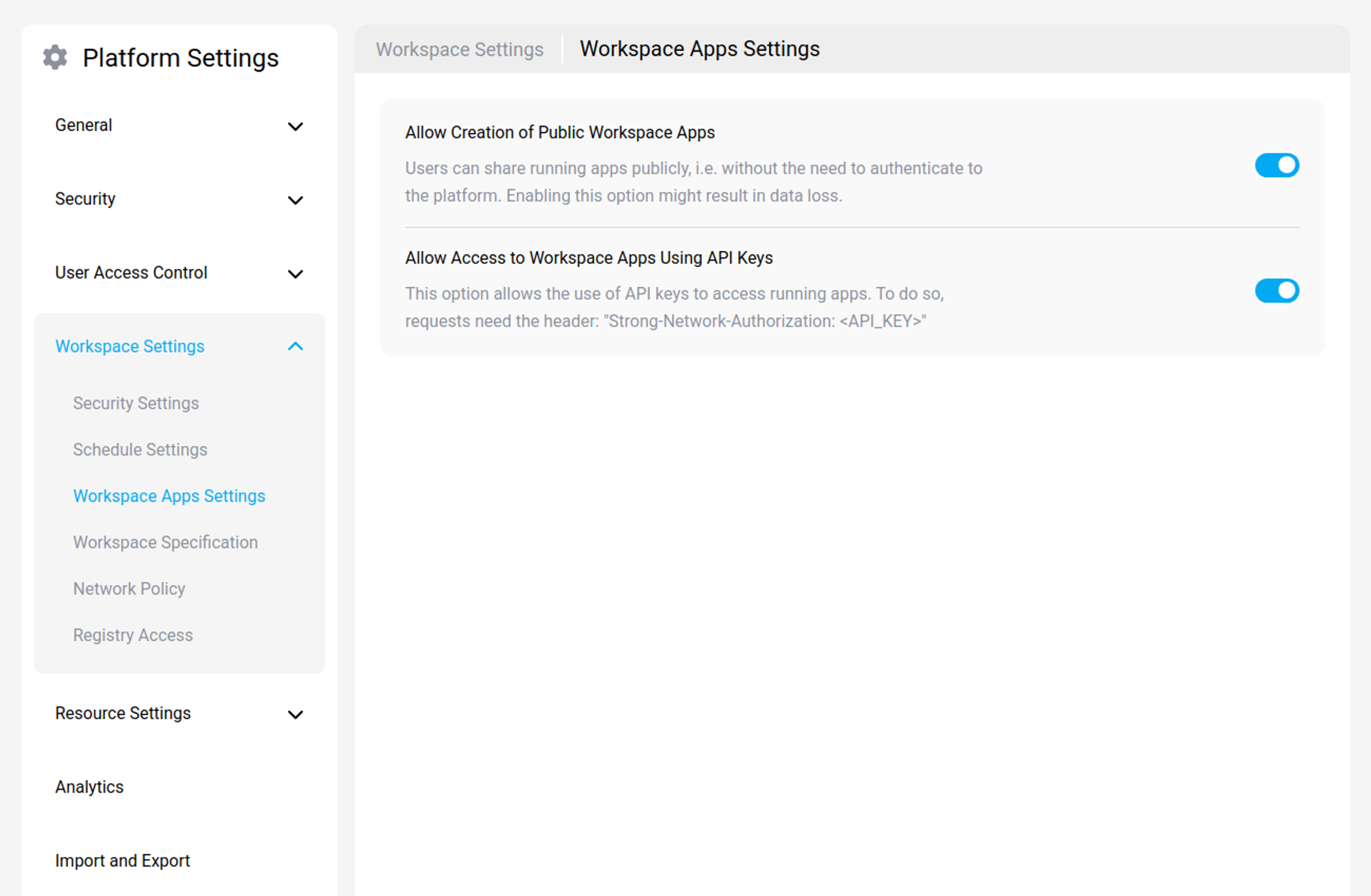
Governs how workspace applications may be shared.
-
Allow creation of public workspace apps — lets users share a running app without platform authentication. This can lead to data loss.
-
Allow access to workspace apps using API keys — lets users reach a running app with an API key, sent as the header
Strong-Network-Authorization: <API_KEY>.
For what developers do with these, see Workspace apps.
Workspace specification
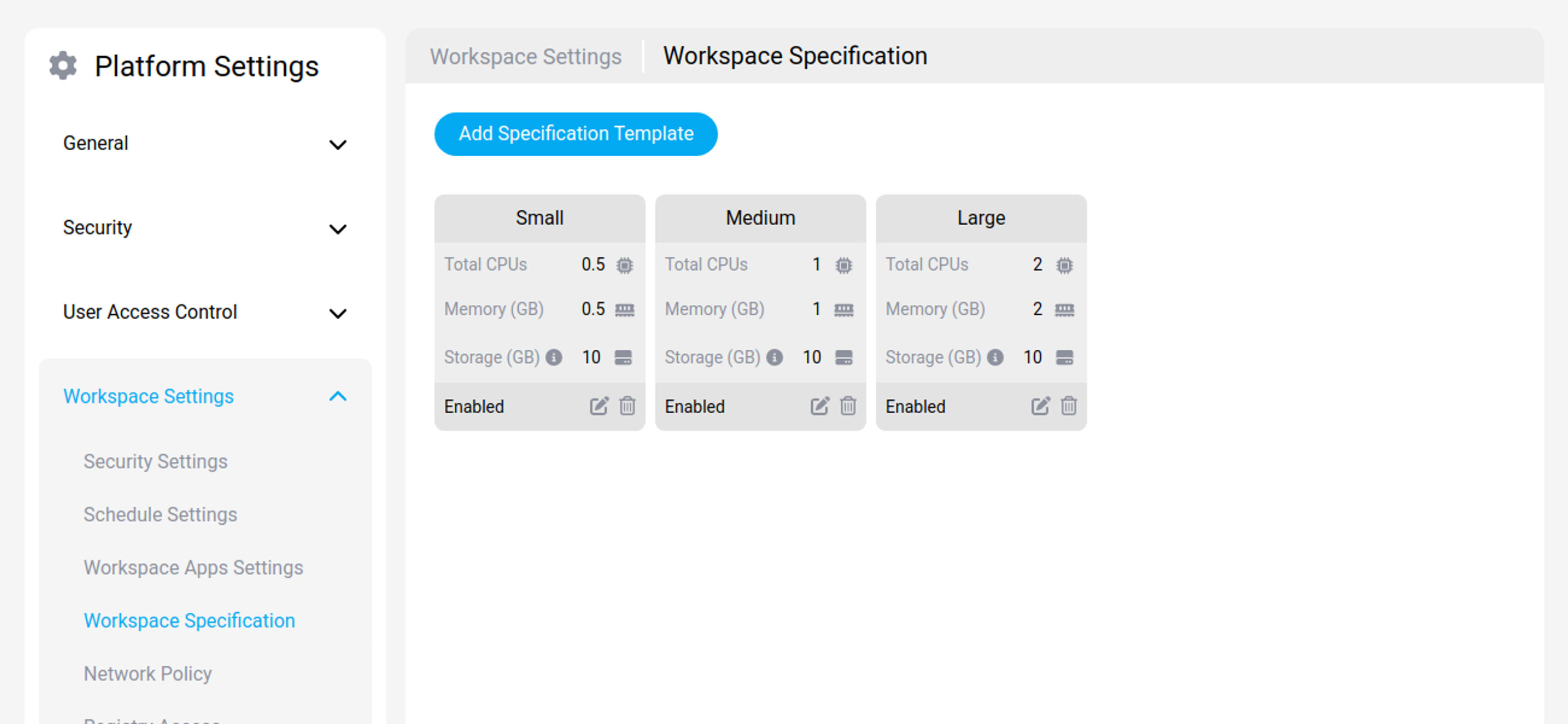
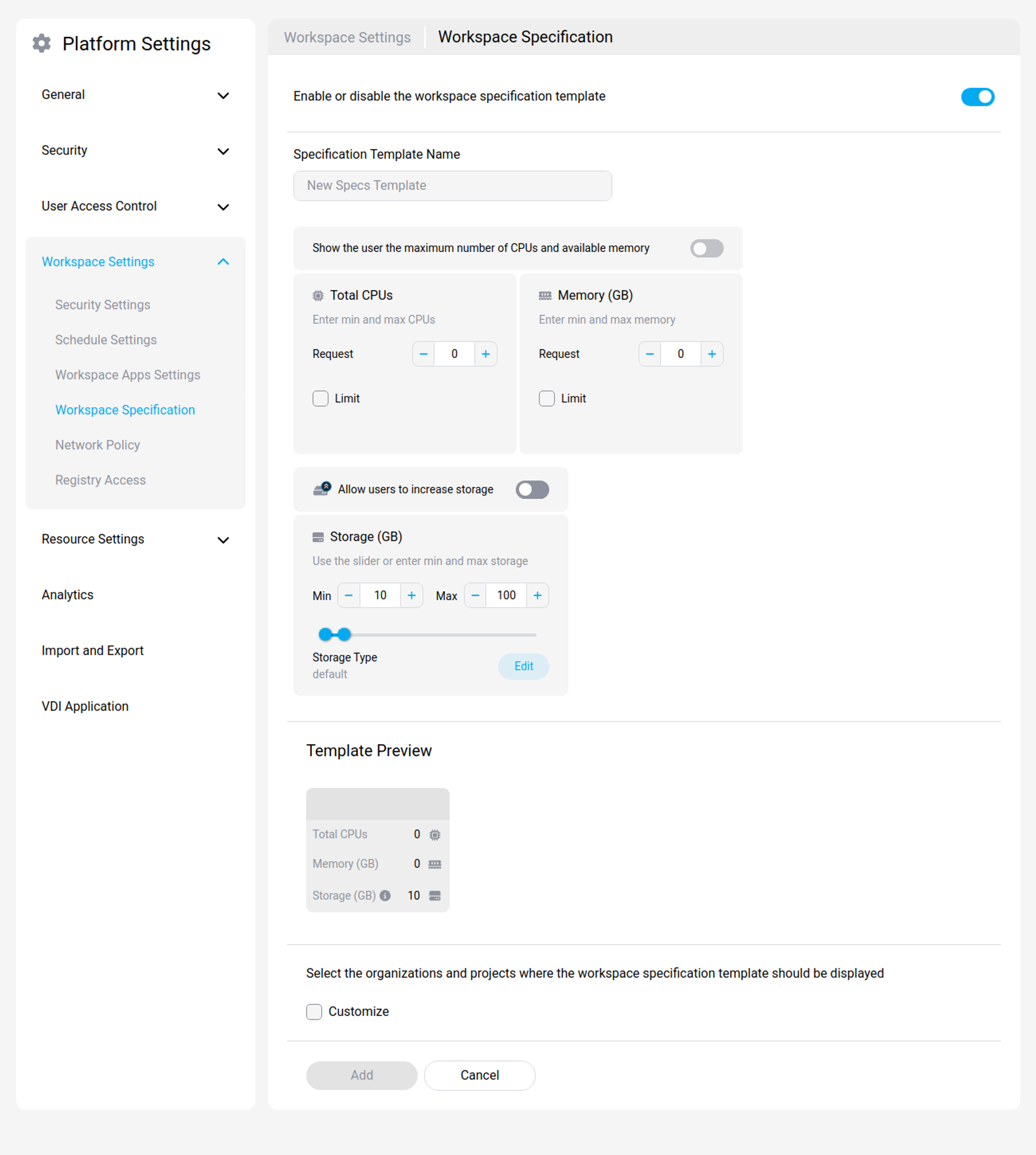
Defines the resource templates a workspace can be created from, with request and limit values for CPU, RAM, and storage. A template can be restricted to particular organizations or projects, and users see only the templates that apply to them.
When you create a template, set the initial request values and the maximum limit values for CPU, RAM, and storage.
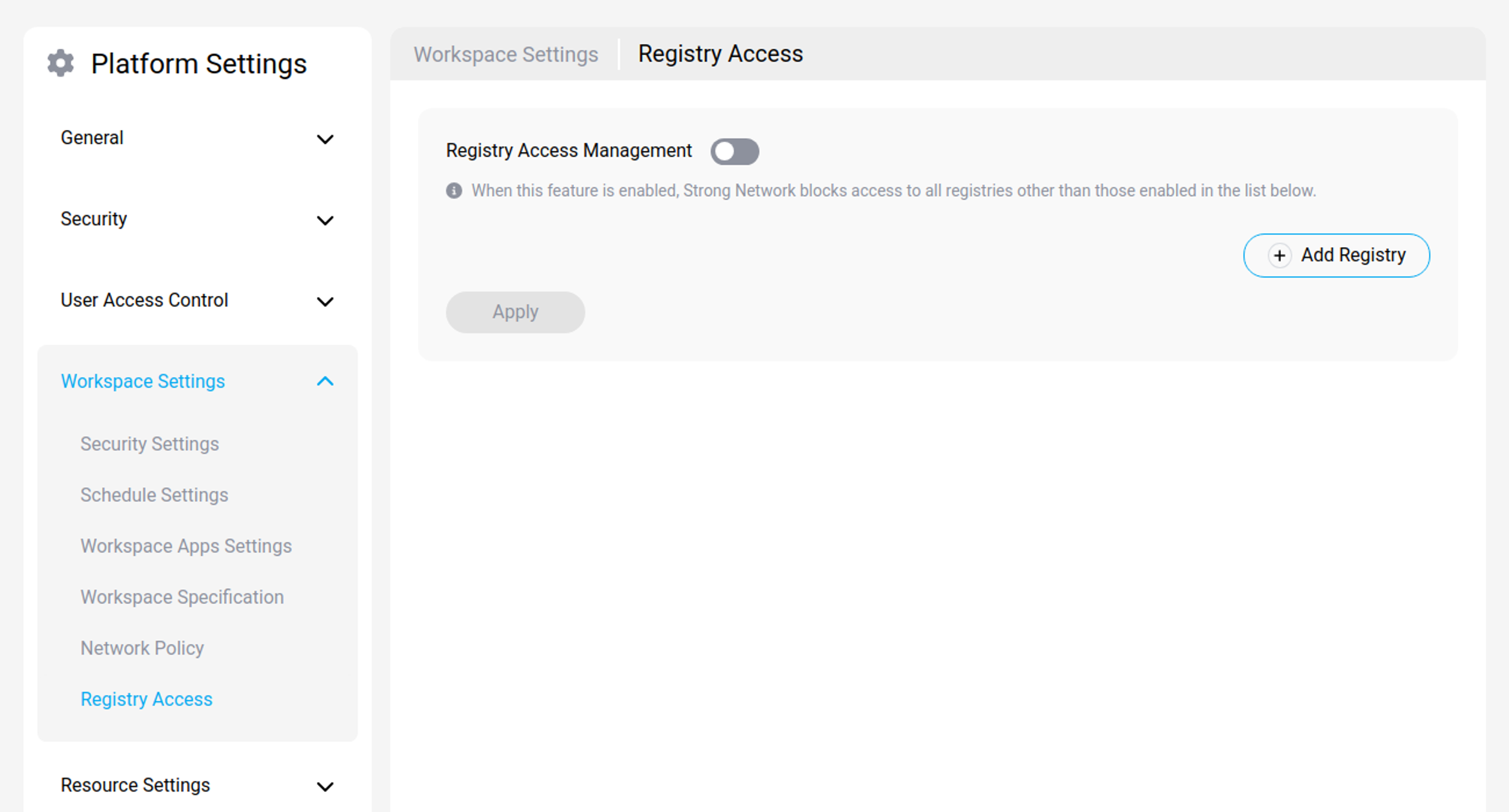
Registry access
Controls which container image registries workspaces may pull from, so only approved sources are used.
Workspaces pending deletion
Deleting a workspace does not destroy it immediately. It moves to a recycling bin, where it stays recoverable until an expiry period elapses. Workspaces Pending Deletion lists every workspace across the platform that is currently in that state, with its owner, its organization and project, and the date it was deleted.
From the list you can Restore a workspace, Delete one permanently, or use Delete All Workspaces to empty the bin.
To set how long deleted workspaces stay recoverable:
-
Go to Platform > Workspaces > Workspaces Pending Deletion.
-
Set Expiry in days, from 1 to 99. The default is 7.
-
Select Save.
Important:
The expiry period is applied to workspaces already in the bin, not only to ones deleted afterwards. The deadline for each workspace is recalculated from the date it was deleted whenever the setting changes. Shortening the period can therefore bring forward the deletion of workspaces already waiting, and may purge some of them at the next cleanup. Lengthening it gives them all more time.
Workspace owners see their own pending deletions, and the emails sent about them, on their profile page. See Workspaces pending deletion.
Deleted projects and organizations
Projects and organizations have their own recycling bins, and their retention is fixed at 7 days and cannot be configured. Changing Expiry in days does not affect them.
| Item | Retention | Where to restore it |
|---|---|---|
| Workspace | 1–99 days, default 7 | Platform > Workspaces > Workspaces Pending Deletion |
| Project | 7 days, fixed | Platform or organization Settings > Deleted Projects |
| Organization | 7 days, fixed | Platform Settings > Deleted Organizations |
Deleting a project or an organization also deletes the workspaces and resources inside it, so restore the parent first if you need something from within it. See Project and organization settings.