Hardware and Bluetooth
Hardware and Bluetooth is where you configure the use of USB mass storage devices and smart cards, pair Bluetooth devices, and view detected hardware.
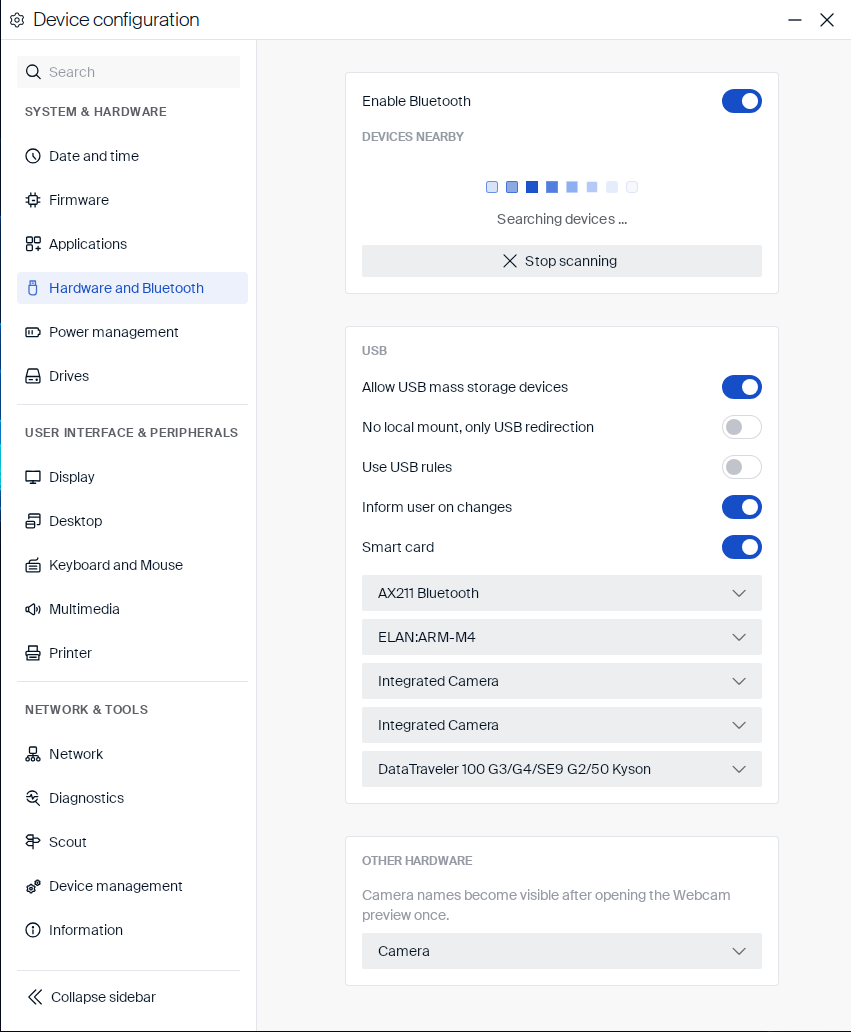
Bluetooth
-
Select Enable Bluetooth.
A DEVICES NEARBY area appears, showing a Start scanning button.
-
Click Start scanning to search for nearby Bluetooth devices.
The button changes to Stop scanning, and a loading animation with the text Searching devices … appears while the scan runs. Devices found nearby are listed here so you can pair them.
-
Click Stop scanning to end the search.
Turning off Enable Bluetooth hides the DEVICES NEARBY area completely.
USB and smart card
These toggles control whether USB storage devices and smart card readers can be used on the device, and how:
| Setting | Type | Description |
|---|---|---|
| Allow USB mass storage devices | Toggle | Allows USB storage devices (for example USB flash drives) to be used on the device. |
| No local mount, only USB redirection | Toggle | Prevents USB storage devices from being mounted locally; they’re only available through USB redirection into a session. Only shown when Allow USB mass storage devices is on. |
| Use USB rules | Toggle | Applies administrator-defined USB rules instead of the default behavior. |
| Inform user on changes | Toggle | Shows a notification when a USB device is connected or disconnected. |
| Smart card | Toggle | Allows smart card readers to be used for certificate-based logon. |
Detected hardware is listed below these toggles, in the same area. This can include the built-in Bluetooth adapter, touchpad, and camera, as well as any USB storage device currently connected. Click a row to expand it and view its details: Product name, Vendor name, Product ID, Vendor ID, and Type (for example Video or Generic). Some rows, such as a camera, also show a Serial number.
A physical device that exposes more than one USB interface can appear as more than one row. For example, an integrated webcam can be listed up to three times. These rows share the same Product ID, Vendor ID, and serial number, but their Type can differ.
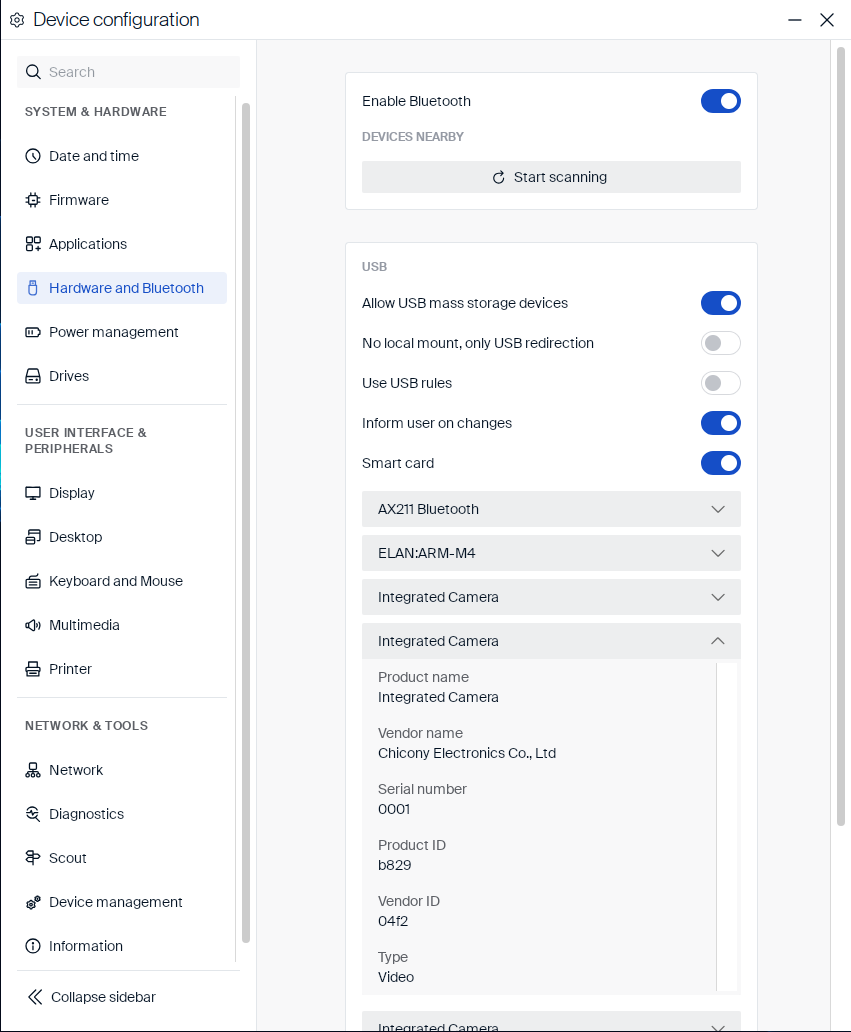
Other hardware
Note:
Camera names become visible only after opening the webcam preview once.
Below this note, a Camera row represents the device’s webcam preview. It keeps the generic name Camera until the webcam preview has been opened once elsewhere on the device. Expanding this row only shows Type: Webcam preview, since it isn’t a physical detected-hardware entry like the rows listed under USB and smart card.