Troubleshoot WEM LAS issues
This article helps you diagnose and resolve issues with the Citrix® Licensing Activation Service (LAS) in Workspace Environment Management™ (WEM). For more information about setting up licensing, see Set up licensing.
If you encounter LAS licensing issues, first check the license server status in Citrix Cloud™. If the status is not green, review activation details to help identify the cause.
-
Sign in to Citrix Cloud with your account.
-
Go to Licensing > Licensed Deployments > License Servers.
-
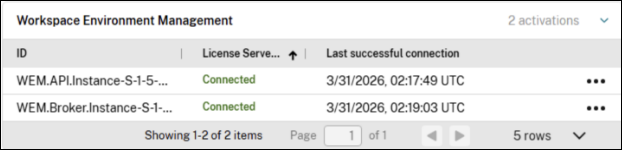
Expand Workspace Environment Management to view the list of activations:
- ID: Machine SID
- License Server connectivity: Connected or Lost connection
-
Last successful connection: Time of the most recent successful connection
-
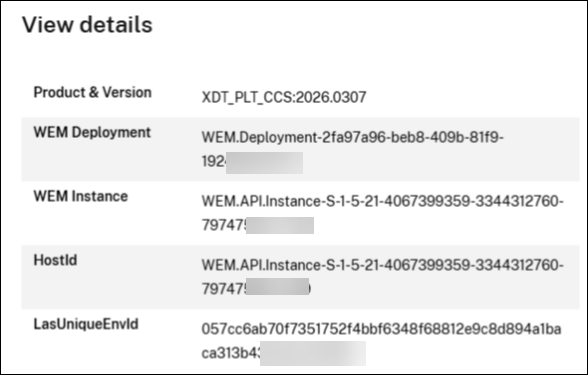
Click … > View Details for an activation to review detailed information:
-
Product & Version: Product_Edition_Model and BurnInDate used when activating with LAS. BurnInDate is usually the product release date.
-
WEM Deployment: Deployment ID
-
WEM Instance: Machine SID
-
HostID: Machine SID
-
LasUniqueEnvID: Unique ID of the instance for which LAS provides activation
-
Check connectivity to the license server
Before WEM calls the LAS SDK, the WEM infrastructure service sends a POST request to the following endpoints:
https://{licenseServerAddress}:{lasLicenseServerPort}/lic_admin/lasentitlements
https://{licenseServerAddress}:{lasLicenseServerPort}/ls_server/serverinfo
<!--NeedCopy-->
Where:
- licenseServerAddress is the address of the Citrix License Server.
- lasLicenseServerPort is the port used by the LAS service (default: 8083).
If either URL is blocked or unreachable, the following error appears in the Citrix WEM Infrastructure Service Debug.log:
<CheckLasEnabled>d__27.MoveNext() : Error sending POST request: A task was canceled.
<!--NeedCopy-->
Ensure the WEM infrastructure server can reach both URLs without network or firewall restrictions.
Test connectivity
Run the following commands from the WEM infrastructure server to verify that it can reach the license server. Replace <licenseServer> with your license server address.
-
Check that the LAS port is reachable:
Test-NetConnection <licenseServer> -Port 8083
<!--NeedCopy-->
TcpTestSucceeded : Trueconfirms the port is open. -
Check that the LAS endpoints respond:
curl.exe -k -X POST "https://<licenseServer>:8083/lic_admin/lasentitlements" -H "Content-Type: application/json" -d "{\"ver\":\"1.0\"}"
curl.exe -k -X POST "https://<licenseServer>:8083/ls_server/serverinfo" -H "Content-Type: application/json" -d "{\"ver\":\"1.0\"}"
<!--NeedCopy-->
Note:
The
-koption bypasses TLS certificate validation and is intended for connectivity diagnostics only. Do not use it in production configuration.
If a command fails or times out, the WEM infrastructure server cannot reach the endpoint. Check the network path, firewall rules, and the license server address.
Troubleshoot license server certificate issues
Certificate validation can fail if the certificate is expired, not yet valid, or does not match the license server name.
Certificate expired or not yet valid
If the license server certificate has expired or is not yet valid, one of the following errors appears in the Citrix WEM Infrastructure Service Debug.log:
LICENSING: license server certificate NOT valid, is expired, subject '{subject}', issuer '{issuer}'
<!--NeedCopy-->
LICENSING: license server certificate NOT valid, used too soon, subject '{subject}', issuer '{issuer}'
<!--NeedCopy-->
Resolution:
- If the certificate has expired, renew it.
- If the certificate is newly issued and not yet valid, wait until its validity period begins, and then retry.
License server hostname mismatch
If the license server hostname does not match the certificate, the following error appears in the Citrix WEM Infrastructure Service Debug.log:
LICENSING: license server certificate NOT valid, hostname mismatch, subject '{subject}', issuer '{issuer}'
<!--NeedCopy-->
Resolution:
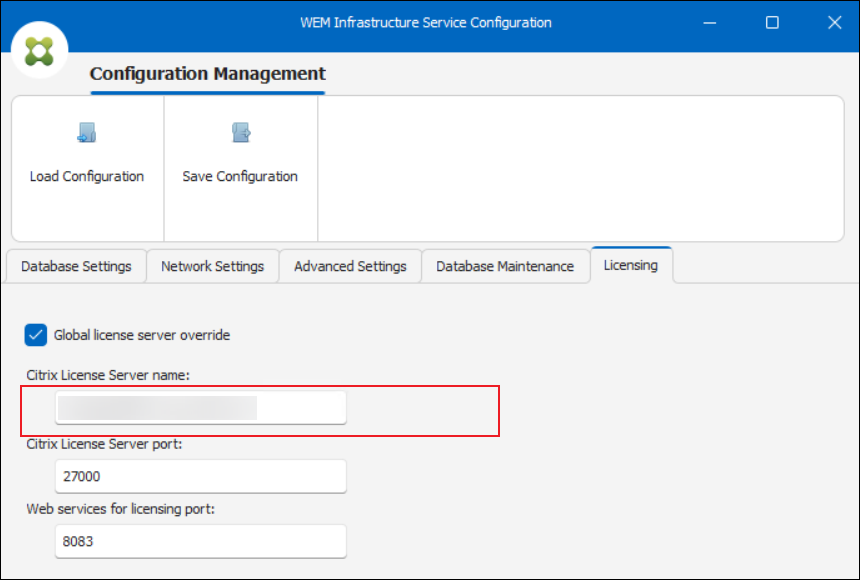
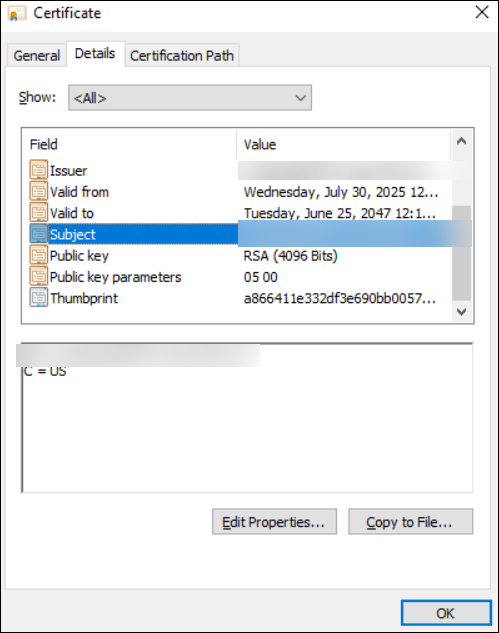
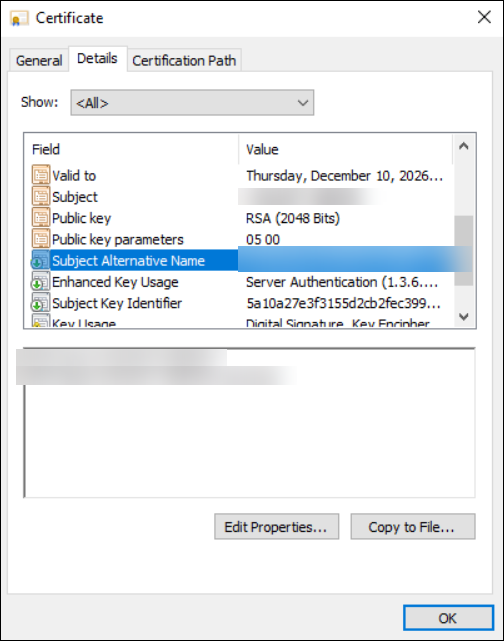
Verify that the Citrix License Server name you specified matches one of the names defined in the certificate. The hostname must match either of the following:
- The Subject field of the certificate.
- A DNS name listed in the Subject Alternative Name (SAN) extension of the certificate.
If the hostname does not match any of these entries, update the license server name, or reissue the certificate with the correct DNS names.
The certificate acceptance dialog box does not appear
If the license server certificate is not trusted, the Accept Security Certificate dialog box should appear, and you must manually accept the certificate to proceed.
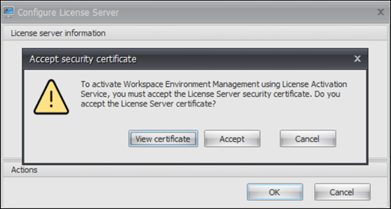
WEM retrieves license and certificate information from the following URL:
https://{licenseServerAddress}:{lasLicenseServerPort}/ls_server/serverinfo
<!--NeedCopy-->
If this URL is blocked or unreachable, WEM cannot retrieve the license server information, and the certificate acceptance dialog box does not appear.
Resolution:
Ensure the WEM infrastructure server can reach the URL above without any network or firewall restrictions.
Force the certificate acceptance dialog box to appear
If you need to force the certificate acceptance dialog box to appear, follow the steps for your configuration method.
If you configured the license server for a specific WEM infrastructure server using the WEM Infrastructure Service Configuration utility:
- Delete the registry value SpecificLasLicenseServerCertificateThumbprint under HKEY_LOCAL_MACHINE\SYSTEM\CurrentControlSet\Control\Norskale\Infrastructure Services.
- Reopen the WEM Infrastructure Service Configuration utility.
-
Click Save Configuration again.
This action triggers the Accept Security Certificate dialog box, allowing you to manually accept the license server certificate.
If you configured the license server globally in the WEM console:
- Clear the value of GlobalLasLicenseServerCertificateThumbprint in the VUEMParameters table in the database.
- Reconfigure the license server in the WEM console. This action triggers the certificate acceptance process.
Caution:
Editing the registry incorrectly can cause serious problems that might require you to reinstall the operating system. Back up the registry before you modify it.
Collect verbose LAS logs
If the preceding steps do not resolve the issue, enable trace-level logging and collect the LAS client log for Citrix Support. Enable logging on the component that reports the problem:
- The WEM infrastructure server for issues with the infrastructure services or the legacy console.
- The web console server for issues with the web console.
To enable logging, follow these steps:
- On the affected server, open Registry Editor (
regedit.exe). -
Navigate to the following key:
HKEY_LOCAL_MACHINE\SOFTWARE\Citrix\WEM\Licensing <!--NeedCopy--> -
Create a String Value (REG_SZ) with the following settings:
-
Name:
LasLicenseServerLogLevel -
Value:
Trace
-
Name:
-
Restart the service for the change to take effect:
- On the WEM infrastructure server, restart the Citrix WEM Infrastructure Service.
- On the web console server, restart the Citrix WEM Public API Service.
-
Reproduce the issue, and then collect the Citrix WEM LAS Client Log.log file and provide it to Citrix Support. The log file is located in the
Licensing\Lassubfolder of the component’s installation folder:-
WEM infrastructure server:
<Infrastructure Service installation folder>\Licensing\Las. By default, the installation folder isC:\Program Files (x86)\Citrix\Workspace Environment Management Infrastructure Services. -
On-premises web console server:
<Web Console installation folder>\Licensing\Las. By default, the installation folder isC:\Program Files (x86)\Citrix\Workspace Environment Management Web Console.
-
WEM infrastructure server:
Caution:
Editing the registry incorrectly can cause serious problems that might require you to reinstall the operating system. Back up the registry before you change it.