
Configure policies
All the policies for Adaptive Authentication NetScaler® instance (for example, OAuth, smart access, and syslog) are configured on Adaptive Authentication instance.
Note:
-
The default timeout for LDAP or RADIUS actions is set to 3 seconds. We recommend to increase the timeout to 15 seconds.
-
For RADIUS server deployment, add all connector private IP addresses as the RADIUS clients in the RADIUS server.
How to connect to your Adaptive Authentication instance:
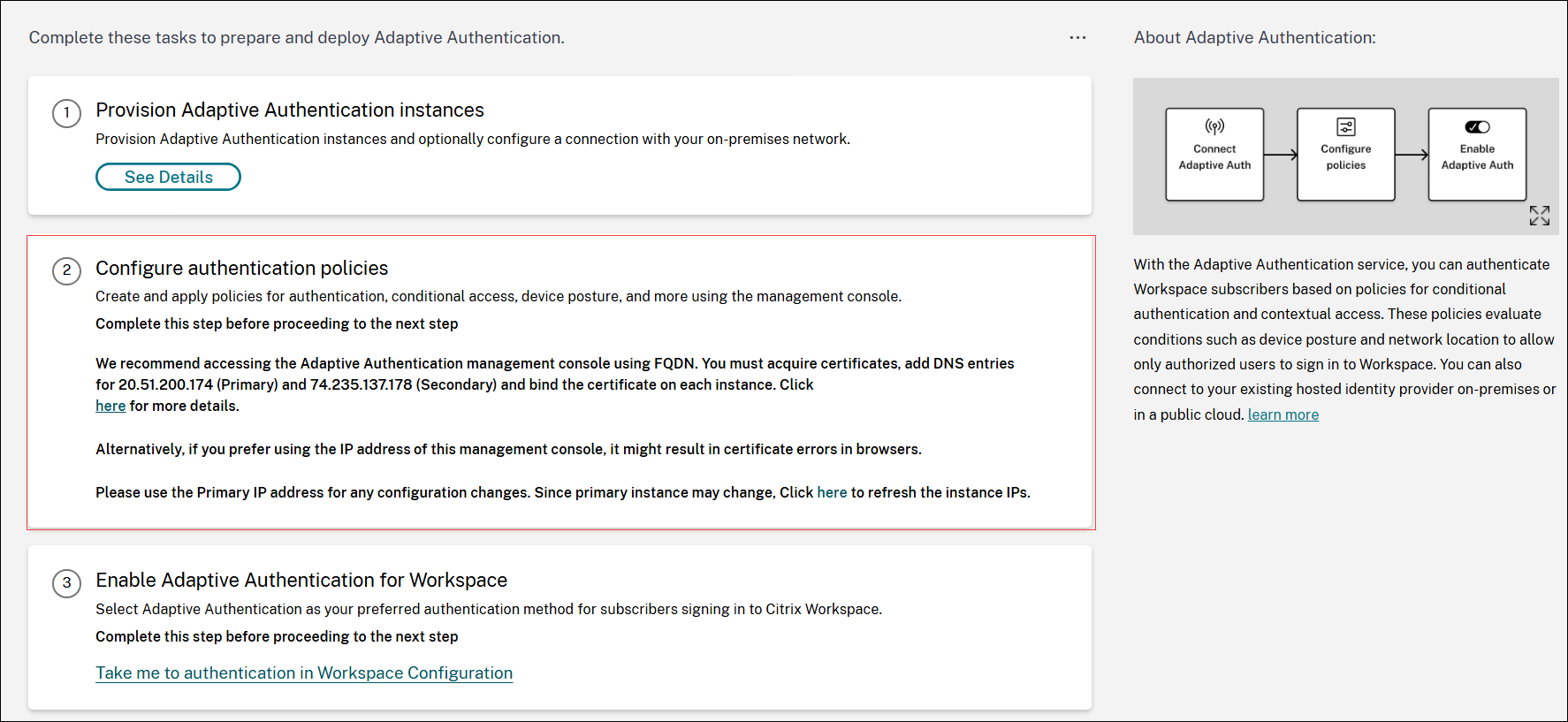
After the provisioning, you can access the Adaptive Authentication management IP address directly. You can access the Adaptive Authentication management console using the FQDN or your primary IP address.
Important:
To access the Adaptive Authentication management console using the FQDN, see Configure SSL for ADC Admin UI access.
Access the Adaptive Authentication management console:
-
To access the Adaptive Authentication using your primary address, do the following:
-
Copy the primary IP address from the Configure Authentication policies section in the GUI and access the IP address in your browser.
-
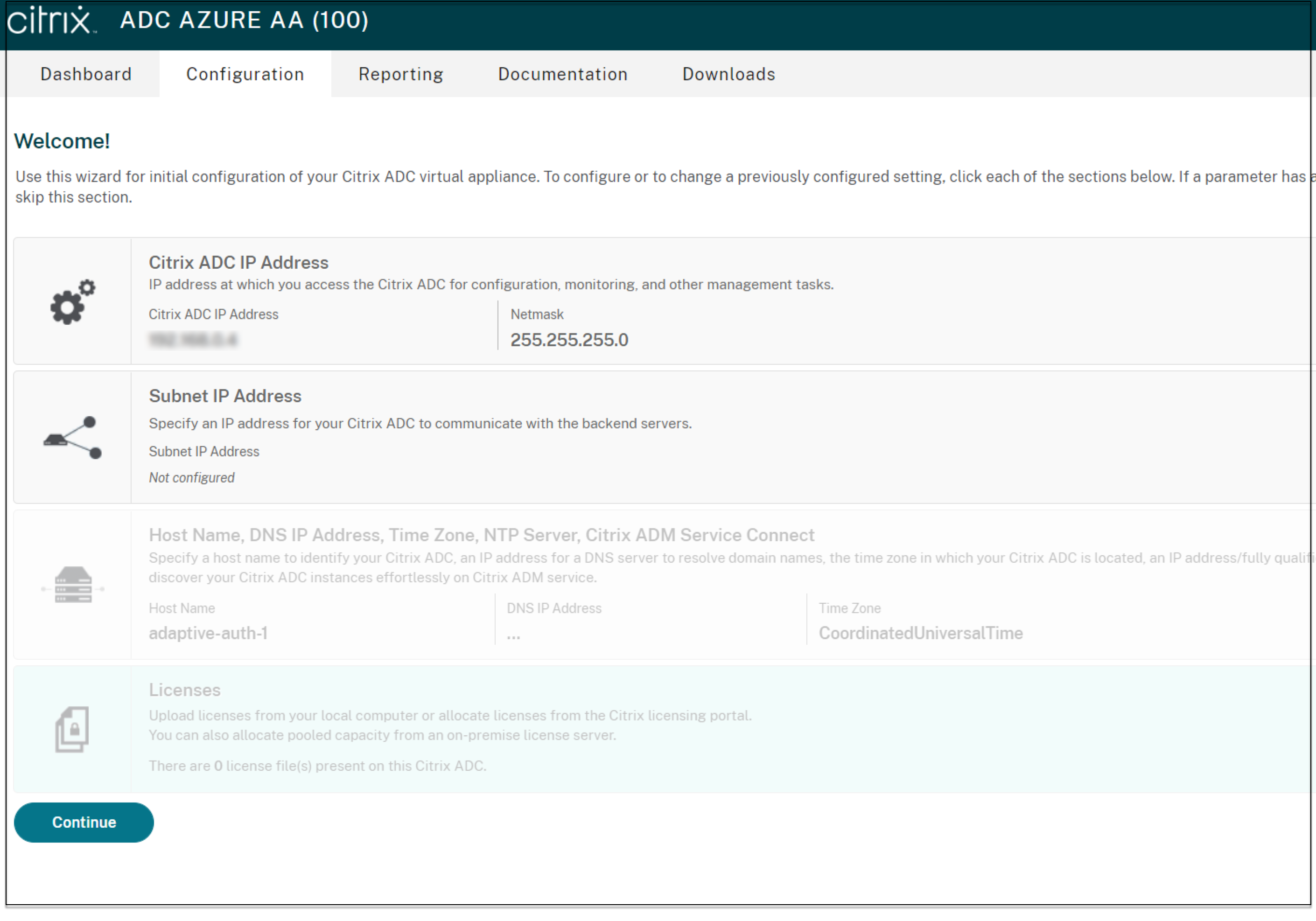
Log in using the credentials that you’ve entered while provisioning.
-
Click Continue.
-
Navigate to Configuration > Security > AAA - Application Traffic > Virtual Servers.
-
Add the authentication policies. For various use cases, see Sample LDAP and LDAPS load balancing configuration and Sample authentication configurations.
-