
Automated actions
Automated actions allow administrators to attach remediation actions to alert policies. When a critical alert is triggered, the configured action executes automatically on the affected machines. This enables closed-loop remediation without manual intervention.
Automated actions are available for both Citrix alerts and Advanced alert policies that target machine-level conditions.
Prerequisites
-
Citrix DaaS or Citrix Virtual Apps and Desktops version 2611 or later
-
Administrator permissions: Full administrator or custom administrator with the automated actions permission enabled
Configure an automated action on an alert policy
Automated actions are configured within the alert policy creation or edit workflow. Each alert policy supports one automated action.
Step 1: Create or edit an alert policy
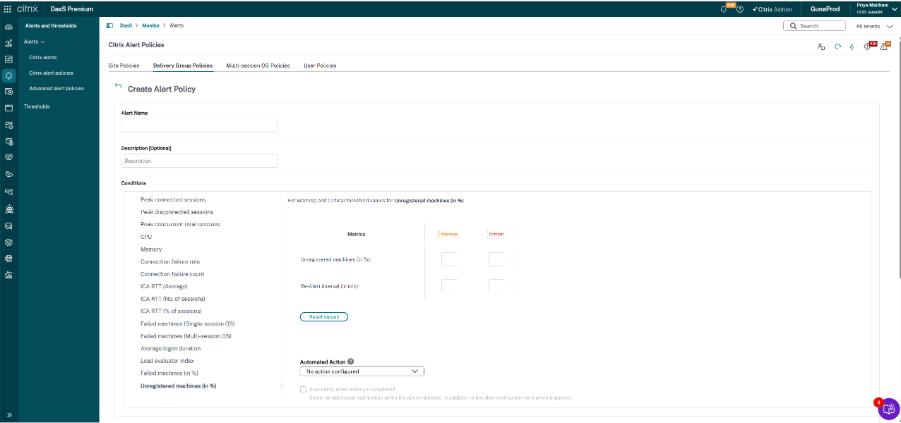
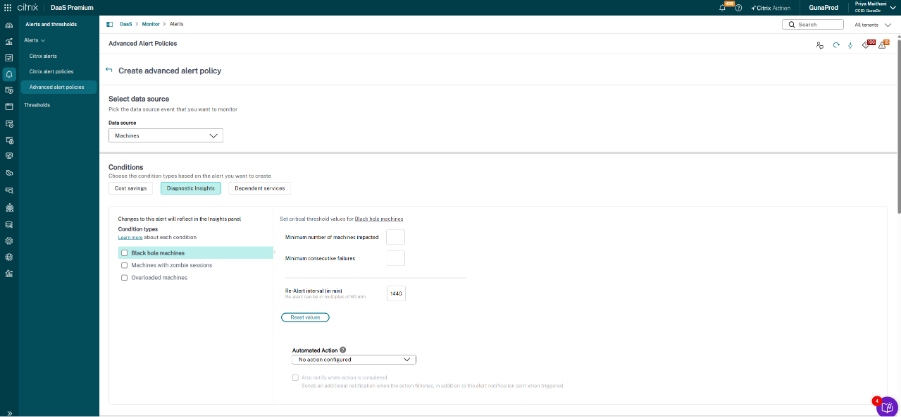
Navigate to Alerts > Citrix Alerts Policy or Alerts > Advanced Alert Policies. Create a new policy or edit an existing one.
Step 2: Set alert conditions
Configure the warning and critical thresholds for the alert condition. Automated actions execute only when the critical threshold is breached.
Step 3: Select an automated action
In the Automated Action section of the policy, select an action from the dropdown.
| Action | Description |
|---|---|
| Restart machine | Restarts the affected machine |
| Force restart machine | Forces a restart of the affected machine without waiting for sessions to end |
| Power on machine | Powers on the affected machine |
Step 4: Configure notification preferences
Select the notification method (email, webhook, or both). Notifications for policies with automated actions include the action status in addition to the standard alert details.
Step 5: Save the policy
Review the policy configuration and select Save.
Recommended alert-to-action mappings
The following table lists common alert conditions and the recommended automated actions for each.
| Alert condition | Recommended actions |
|---|---|
| Unregistered Machines (%) | Restart, ForceRestart |
| Blackhole Machines | Restart, ForceRestart |
| Zombie Machines | Restart, ForceRestart |
| Overloaded Machines | Restart, ForceRestart |
Action execution behavior
When an alert triggers at the critical threshold, the automated action executes on the affected machine. The system enforces the following behavior:
-
One action at a time. If a previous automated action on the same machine is still in progress, the system does not start a new action. The skipped action is logged with the reason.
-
Failure. If an action fails, the status shows as Failed.
-
Scope enforcement. The action applies only to machines within the alert policy scope. Machines excluded via scope exceptions are not affected.
-
Critical threshold only. Automated actions execute only when the critical threshold is breached. Warning-level alerts do not trigger automated actions.
Action Limit
-
Power State: Mark as Skipped (Not Supported) if non-power managed.
-
Global Limit: Check DB; if the current hour > 500 actions, mark excess as Skipped.
-
30-Minute Rule: Check DB; if the machine had an action in the last 30 mins, mark as Skipped.
-
24-Hour Rule: Check DB; if the machine had 3 actions in the last 24 hours, mark as Skipped.
Action status and notifications
Alert notifications for policies with automated actions include the action outcome. Three statuses are possible:
| Status | Description |
|---|---|
| Completed | The automated action executed successfully on the affected machine |
| In progress | The automated action is currently executing. A follow-up notification is sent when the action completes or fails |
| Failed | The automated action did not complete successfully. The notification includes the failure reason |
| Skipped | Reason for each skip (for example, "Previous action in progress" or "Action limit reached") |
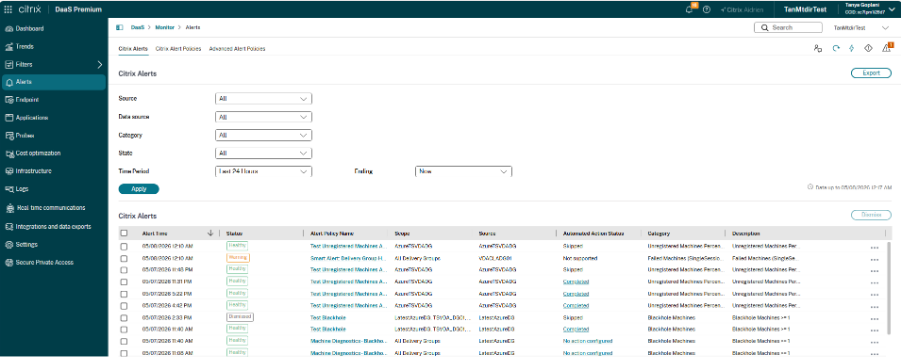
Action status is visible on the Alerts page. Select an alert to view the action details, including the target machine, action type, timestamp, and outcome.
Audit logging
All automated action events are recorded in the audit log. Navigate to Logs to view the audit trail.
Automated action audit entries
| Field | Description |
|---|---|
| Administrator | "System" for automated executions |
| Alert policy name | Name of the alert policy that triggered the action |
| Data source | The alert data source (for example, Machines, Delivery Group) |
| Target machine | Machine on which the action was executed |
| Action | The specific action performed (for example, Put in maintenance mode, Restart machine) |
| Timestamp | Date and time of the event |
| Result | Outcome of the action (Completed, Failed, Skipped) |
| Metadata | Additional details including scope, threshold values, and skip reason (if applicable) |
Troubleshooting
Automated action is configured but does not execute when the alert triggers.
Solution:
-
Verify the alert triggered at the critical threshold. Automated actions do not execute for warning-level alerts.
-
Review the action status on the alert details page for skip reasons (for example, "Previous action in progress" or "Action limit reached").