
Citrix DaaS™ for Google Cloud
With Studio, you can deploy and manage virtual apps and desktops on Google Cloud. For information about supported features, see the Citrix Virtual Apps and Desktops feature matrix.
To deploy and manage Google Cloud apps and desktops using Studio, follow these steps:
-
Order Citrix DaaS for Google Cloud from the Google Cloud Marketplace.
-
Sign in to Citrix Cloud.
-
In the DaaS tile, click Manage to open Studio.
-
Deploy virtual apps and desktops using one of these workflows provided in the Manage section:
-
Quick Deploy (recommended for fast, guided deployment). For more information, see Quick Deploy for Google Cloud.Note:To perform advanced configurations or management options, convert your deployment to the full configuration mode. For more information, see Convert a deployment.
-
Full Configuration (recommended for advanced configuration requirements). For more information, see Get started: Plan and build a deployment.
-
Note:
For step-by-step instructions on deploying and configuring virtual apps and desktops on Google Cloud, see this Citrix Tech Zone article: Citrix virtualization on Google Cloud. This article covers defining the deployment architecture, preparing the Google Cloud project, configuring network services, and deploying Active Directory.
Quick Deploy for Google Cloud
Quick Deploy for Google Cloud provides a simplified user experience for connecting Citrix DaaS to Google Cloud and creating a deployment of virtual apps and desktops. Its streamlined user interface guides admins along the key steps of this journey and removes unnecessary complications.
This interface offers basic configuration, without advanced features.
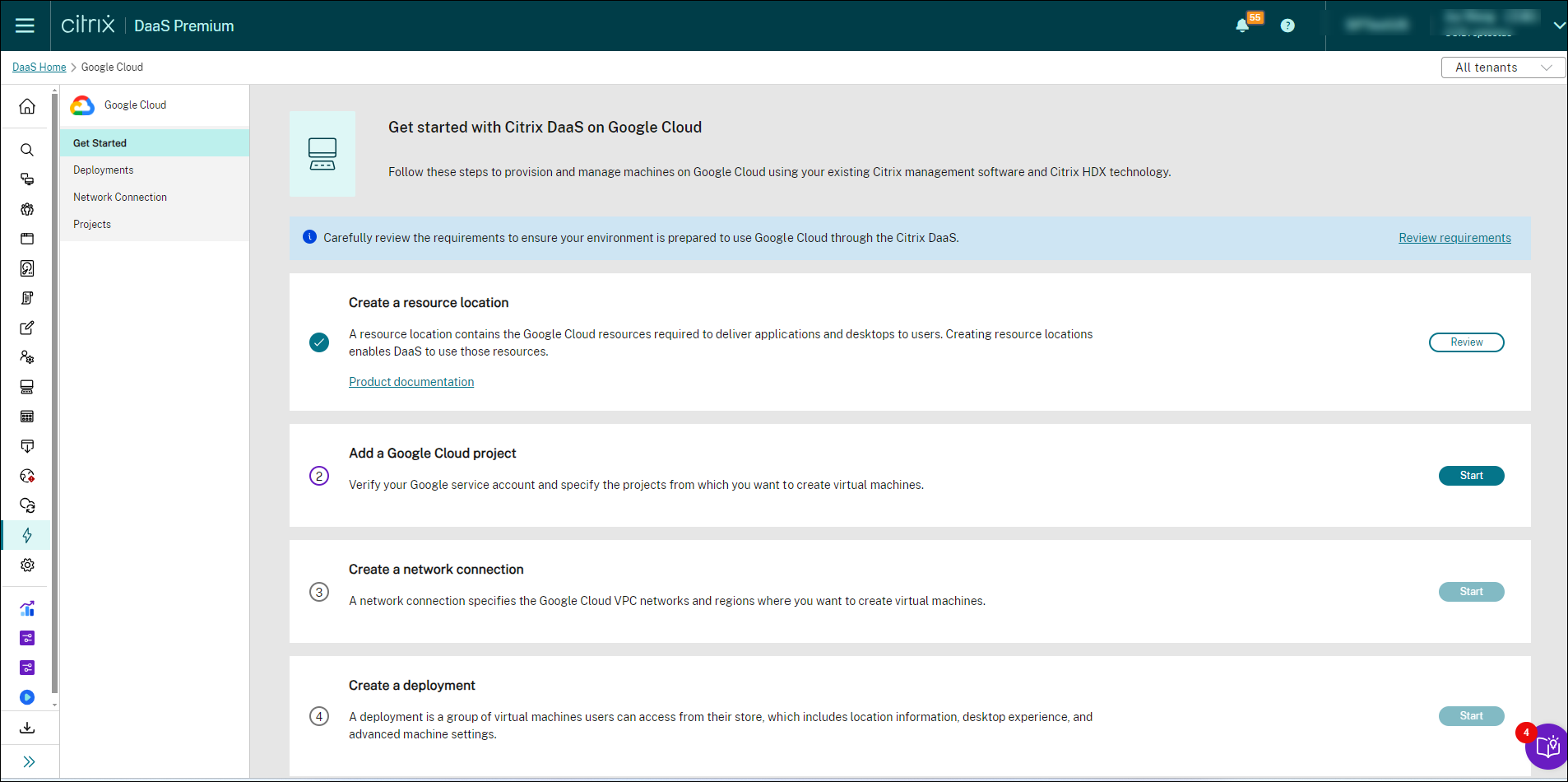
To deploy virtual apps and desktops using Quick Deploy, follow the onscreen wizard to complete these steps:
-
Create a resource location
-
Add a Google Cloud project
-
Create a network connection
-
Create a deployment
After you create a deployment, perform these tasks as necessary:
-
Convert a deployment to the full configuration mode for advanced settings and management option.
Launch Quick Deploy for Google Cloud
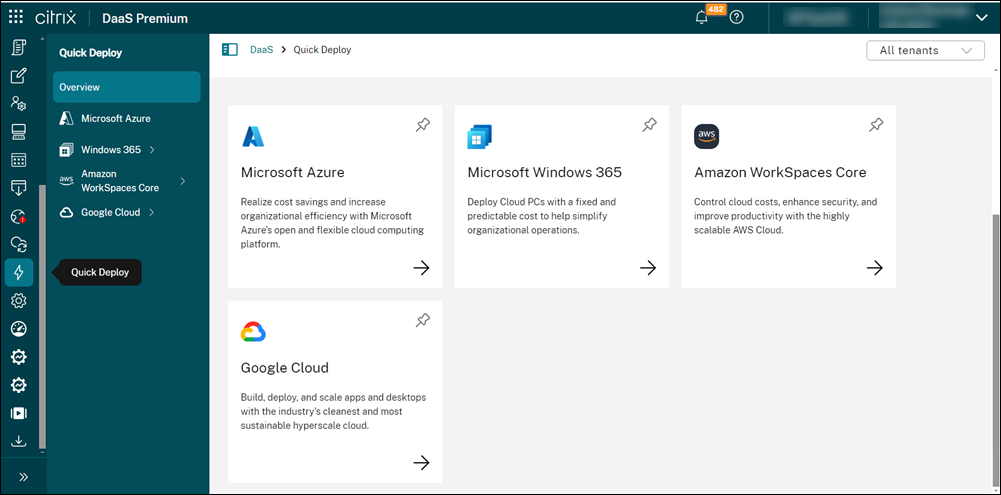
Quick Deploy for Google Cloud can be accessed from within Studio, by selecting the Quick Deploy node.
To begin the Quick Deploy process, review the steps provided on the Get Started page. Start with Review requirements.
Manage user access rights
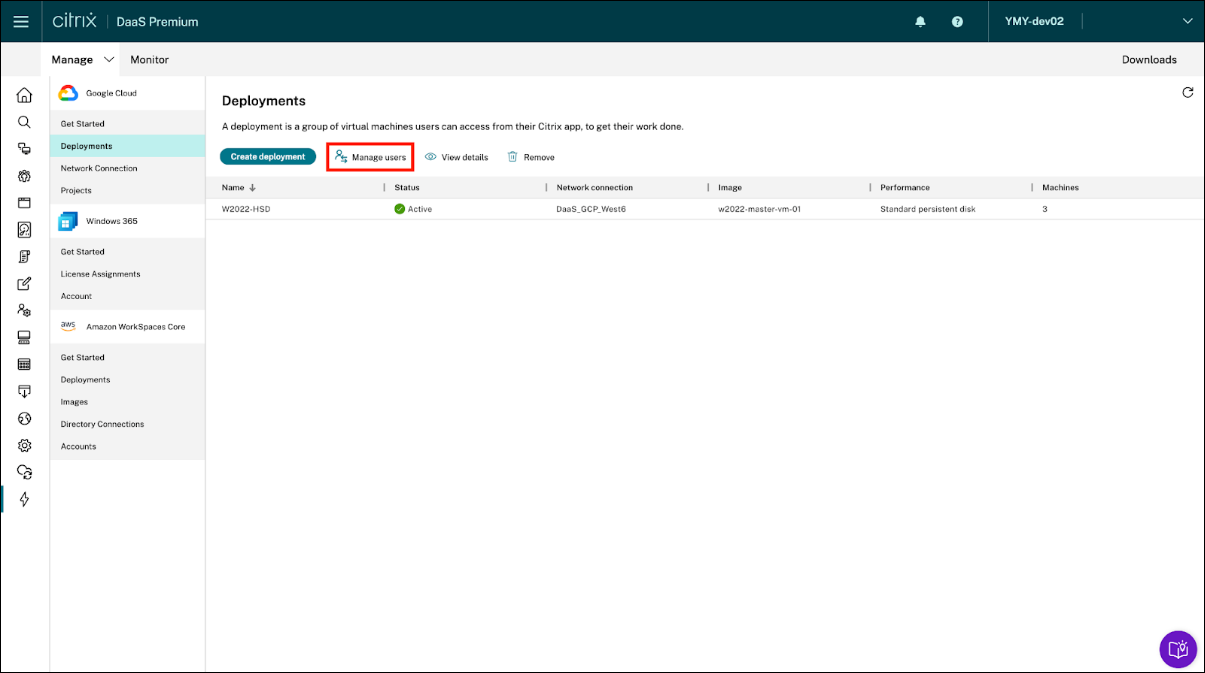
After a deployment is created, grant users access permissions as necessary. To complete this task, select the respective deployment and then select Manage users.
Convert a deployment
Before you perform any advanced configurations or management activities, ensure you convert the deployments. To convert a deployment:
-
Click Deployments in the left navigation.
-
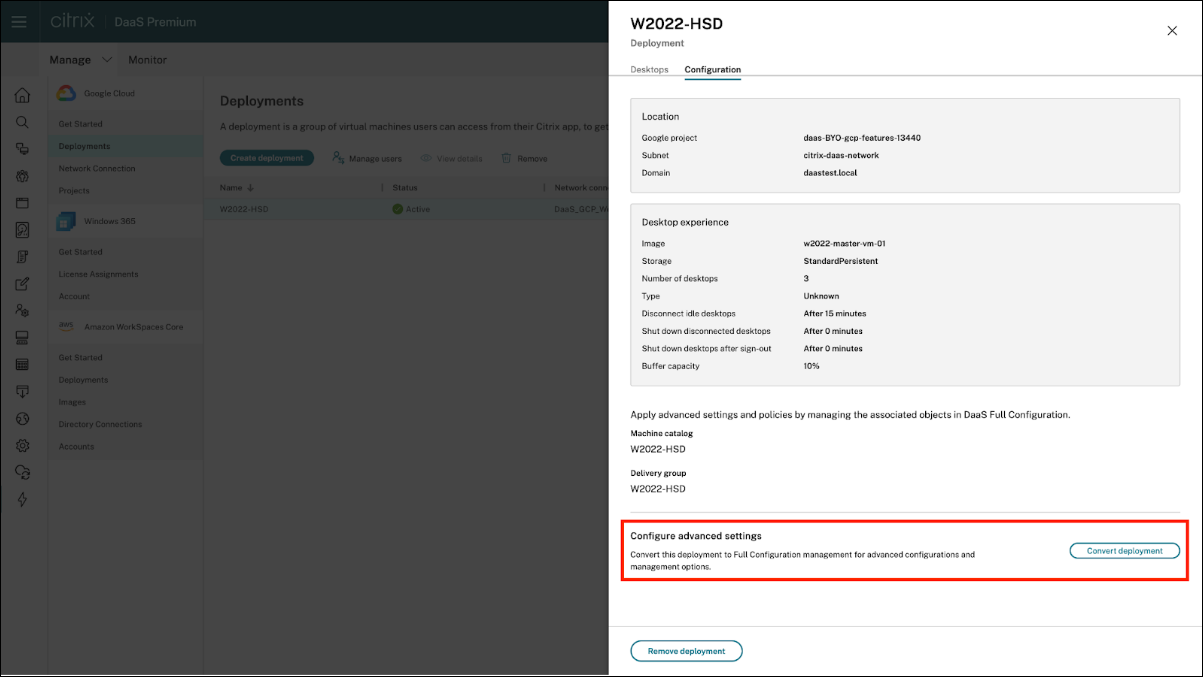
Select a deployment and click View details.
-
Click the Configuration tab and select Convert deployment.
Note:
Once a deployment is converted, the action is irreversible and the converted deployments no longer appears in Quick Deploy.