
Troubleshooting
To confirm that EDT is being used as the transport protocol for the session, you can use Director or the
CtxSession.exe command-line utility on the VDA.
In Director, look up the session and select Details. If the Connection type is
HDX and the Protocol is UDP, EDT is being used as the transport protocol for the session.
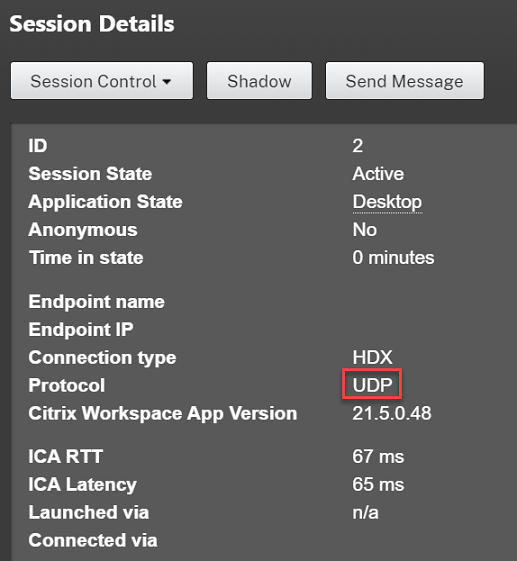
To use the CtxSession.exe utility, launch a Command Prompt or PowerShell within the session and run
ctxsession.exe. To see verbose statistics, run ctxsession.exe -v. If EDT is in use, the transport protocol shows one of the following:
-
UDP > ICA® (Session Reliability disabled)
-
UDP > CGP > ICA (Session Reliability enabled)
-
UDP > DTLS > CGP > ICA (ICA is DTLS-encrypted end-to-end)
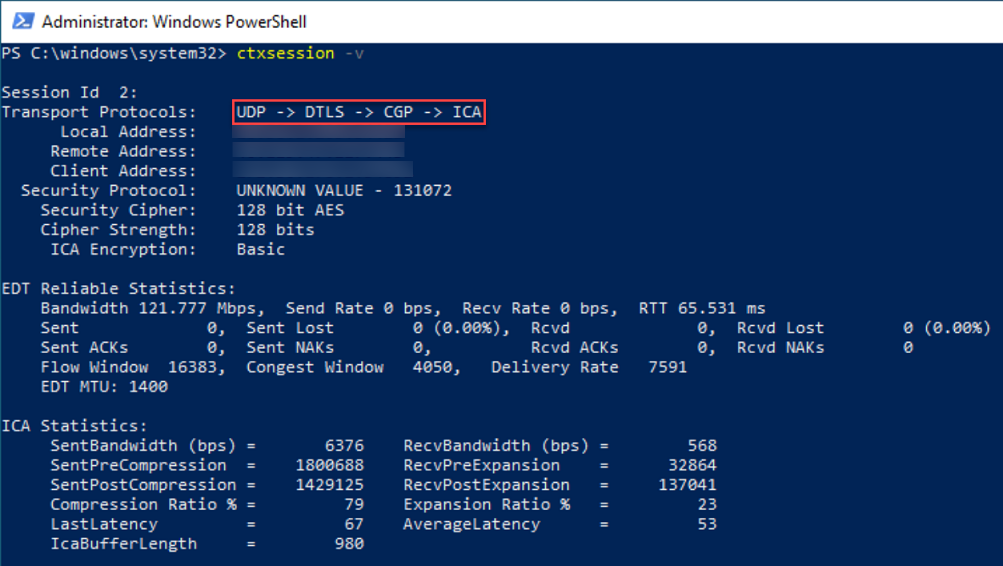
When sessions fail to connect with EDT
To troubleshoot Adaptive Transport and EDT, we suggest the following:
-
Review the System requirements, Network requirements, Known issues, and Things to know, and ensure that all items have been addressed.
-
Check if there are Citrix® policies in Studio or GPO overwriting the desired HDX Adaptive Transport setting.
-
Check if there are settings on the client overwriting the desired HDX Adaptive Transport setting. This can be a GPO preference, a setting configured using the optional Workspace app administrative template, or a manual configuration of the HDXoverUDP setting in the registry or client's configuration file.
-
On multi-session VDA machines, ensure that the UDP listeners are active. Open a command prompt in the VDA machine and run
netstat -a -p udp. For more information, see How to Confirm HDX Enlightened Data Transport Protocol. -
Check if the appropriate firewall rules have been configured in both network firewalls and firewalls running on the VDA machines.
-
Launch a direct session internally, bypassing the NetScaler® Gateway or Citrix Gateway Service, and check the protocol in use. If the session uses EDT, the VDA is ready to use EDT for external connections through NetScaler Gateway or Citrix Gateway Service.
-
If EDT works for direct internal connections and not for sessions going through NetScaler Gateway or Citrix Gateway Service:
-
Ensure that Session Reliability is enabled.
-
If using NetScaler Gateway, ensure that your configuration adheres to the required configuration outlined in Configure NetScaler Gateway to support Enlightened Data Transport and HDX Insight.
-
-
If using Citrix Gateway Service, ensure that Rendezvous is enabled and working.
-
Check if your users’ connections require a non-standard MTU. Connections with an effective MTU lower than 1500 bytes cause EDT packet fragmentation, which in turn can affect performance or even cause session launch failures. This issue is common when using VPNs, some Wi-Fi access points, and mobile networks, such as 4G and 5G. Ensure that you either have MTU Discovery enabled or are setting a custom MTU as outlined in How to configure MSS when using EDT on networks with non-standing MTU.
Known issues
-
When using NetScaler Gateway, asymmetrical network paths can cause MTU Discovery to fail. This is due to an issue on Gateway that causes the Don’t Fragment (DF) bit in the EDT packets’ header not to be propagated. A fix for this issue is available, starting with firmware release 13.1 build 17.42. For details on how to enable the fix, see the NetScaler Gateway documentation.
-
MTU Discovery can fail for users that connect through a DS-Lite network. Some modems fail to honor the DF bit when packet processing is enabled, preventing MTU Discovery from detecting fragmentation. In this situation, the following are the available options:
-
Disable packet processing on the user’s modem.
-
Disable MTU Discovery and use a hardcoded MTU as described in How to configure MSS when using EDT on networks with non-standing MTU.
-
Disable Adaptive Transport to force sessions to use TCP. If only a subset of users are affected, consider disabling it on the client side so that other users can continue to use EDT.
-