Shared iPads
The shared iPad feature allows multiple users to use an iPad. The user experience can be personalized even though the devices are shared. You can use shared iPads for education or business. Apple School Manager (ASM) supports the instructor and student roles in addition to the roles Apple Business Manager (ABM) supports.
Prerequisites for Shared iPads
-
Apple School Manager or Apple Business Manager
-
Citrix Endpoint Management
-
Any iPad Pro, iPad fifth generation, iPad Air 2 or later, and iPad mini 4 or later
-
At least 32 GB of storage
-
Supervised devices
Configure Shared iPads
Multiple students or employees can share an iPad for different purposes.
Either you or device owners enroll Shared iPads and then deploy device policies, apps, and media to the devices. After that, users provide their managed Apple ID credentials to sign in to a Shared iPad. If you previously deployed an Education Configuration policy to students, they no longer sign-in as an "Other User" to share devices.
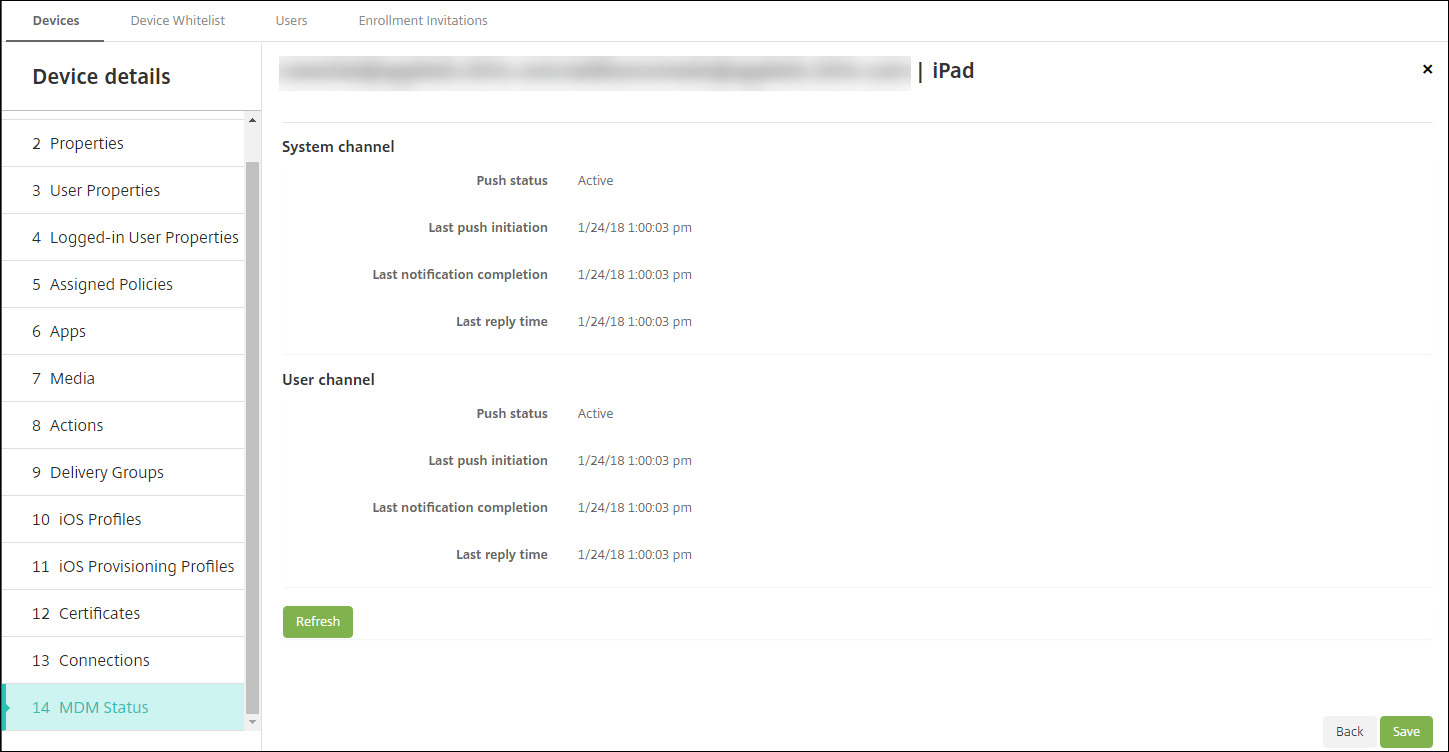
Citrix Endpoint Management uses two communications channels for Shared iPads: The system channel for the device owner (instructor or supervisor) and the user channel for the current resident user (student or employee). Citrix Endpoint Management uses those channels to send the appropriate MDM commands for the resources supported by Apple.
Resources that deploy over the system channel are:
-
Device policies, such as Education Configuration, Lock Screen Message, Maximum Resident Users, and Passcode Lock Grace Period
-
Device-based Volume Purchase apps Apple doesn't support Enterprise apps or user-based Volume Purchase apps on Shared iPads. Apps installed on a Shared iPad are global to the device and not per user.
-
User-based Volume Purchase iBooks Apple supports assignment of user-based Volume Purchase iBooks on Shared iPads.
Resources that deploy over the user channel are:
-
Device policies: Apps Notifications, Home Screen Layout, Restrictions, and Webclip.Citrix Endpoint Management supports only these device policies over the user channel.
When configuring device policies, you specify the deployment channel in the policy setting Profile scope.
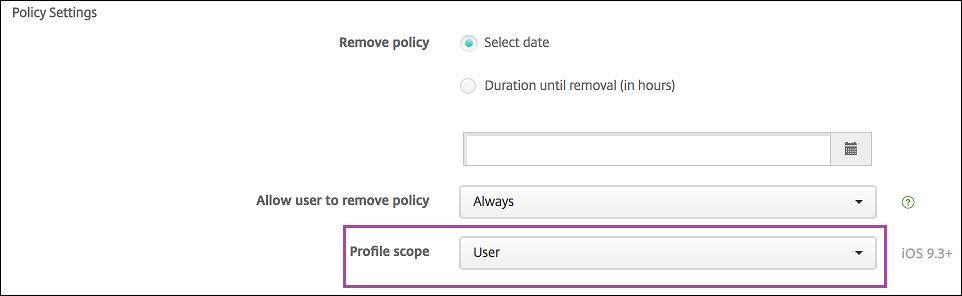
To remove device policies that you deployed over the user channel, be sure to choose a Deployment scope of User for the Profile Removal policy.
General workflow
Typically, you provide preconfigured and supervised Shared iPads to device owners. Those individuals then distribute the devices to students or employees. If you don't distribute pre-enrolled Shared iPads: Be sure to provide the device owners with their Citrix Endpoint Management server passwords so they can enroll their devices.
The general workflow for configuring and enrolling Shared iPads is as follows.
-
Use the Citrix Endpoint Management server console to add ASM or ABM accounts (Settings > Apple Deployment Program) with Shared mode enabled. For more information, see "Manage accounts for Shared iPads" next.
-
As described in this section, add the required device policies, apps, and media to Citrix Endpoint Management. Assign those resources to delivery groups.
-
Have the device owners do a hard reset on the Shared iPads. The Remote Management screen for enrollment appears.
-
The device owners enroll the Shared iPads. Citrix Endpoint Management deploys configured resources to each enrolled Shared iPad. After an automatic restart, device owners can share the devices with users. A sign-in page appears on the iPad.
-
A device user enters their Managed Apple ID and temporary ASM password. The Shared iPad authenticates to ASM and prompts the user to create an ASM password. For the next sign into the Shared iPad, the device user provides the new ASM password.
-
Another device user who shares the iPad can then sign in by repeating the previous step.
Add ASM accounts for each device group
When you create multiple ASM/ABM accounts from the Citrix Endpoint Management server console, you automatically import groups of Shared iPads:
-
Device Group 1 MDM Server > Device Group 1 account
-
Device Group 2 MDM Server > Device Group 2 account
-
Device Group N MDM Server > Device Group N account
Requirements specific to Shared iPads are as follows:
-
One ASM/ABM account for each device group with these settings enabled:
-
Require device enrollment
-
Supervised mode
-
Shared mode
-
-
For a given educational organization, be sure to use the same Education suffix for all ASM accounts.
Media for Shared iPads
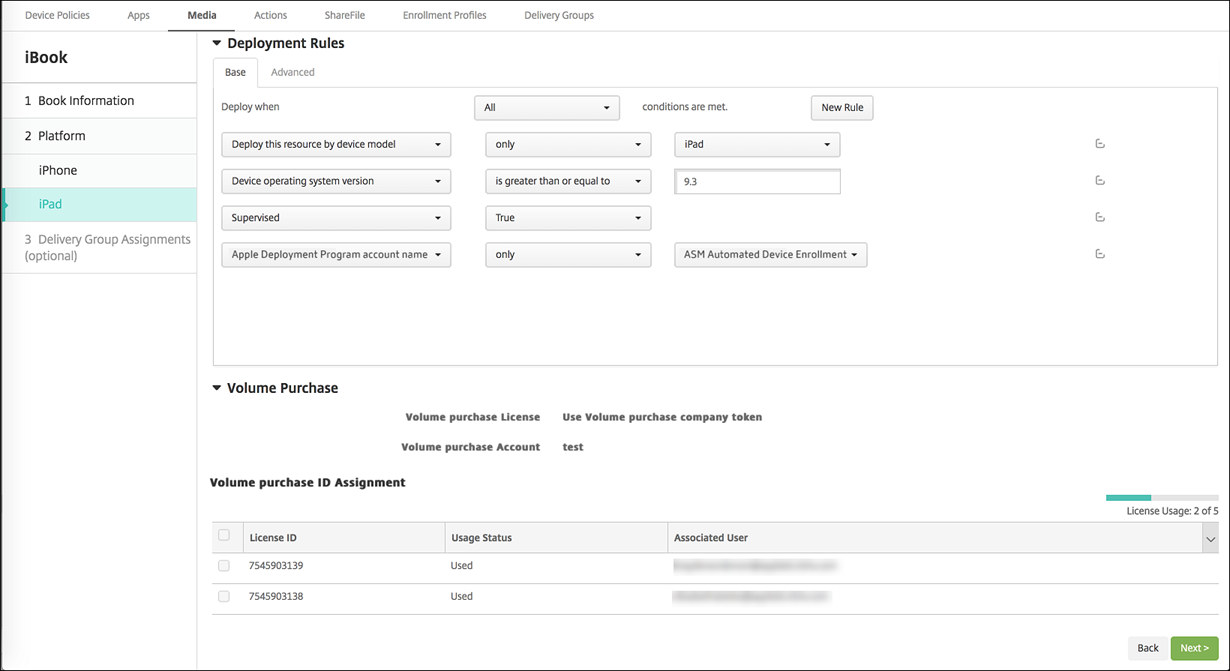
Shared iPads support assignment of user-based Volume Purchase iBooks. Before deploying iBooks on a Shared iPad, Citrix Endpoint Management sends a request to the Apple Volume Purchase server to assign Volume Purchase licenses to users. To check the Volume Purchase assignments, go to Configure > Media > iPad and expand Volume Purchase.
Deployment rules for Shared iPads
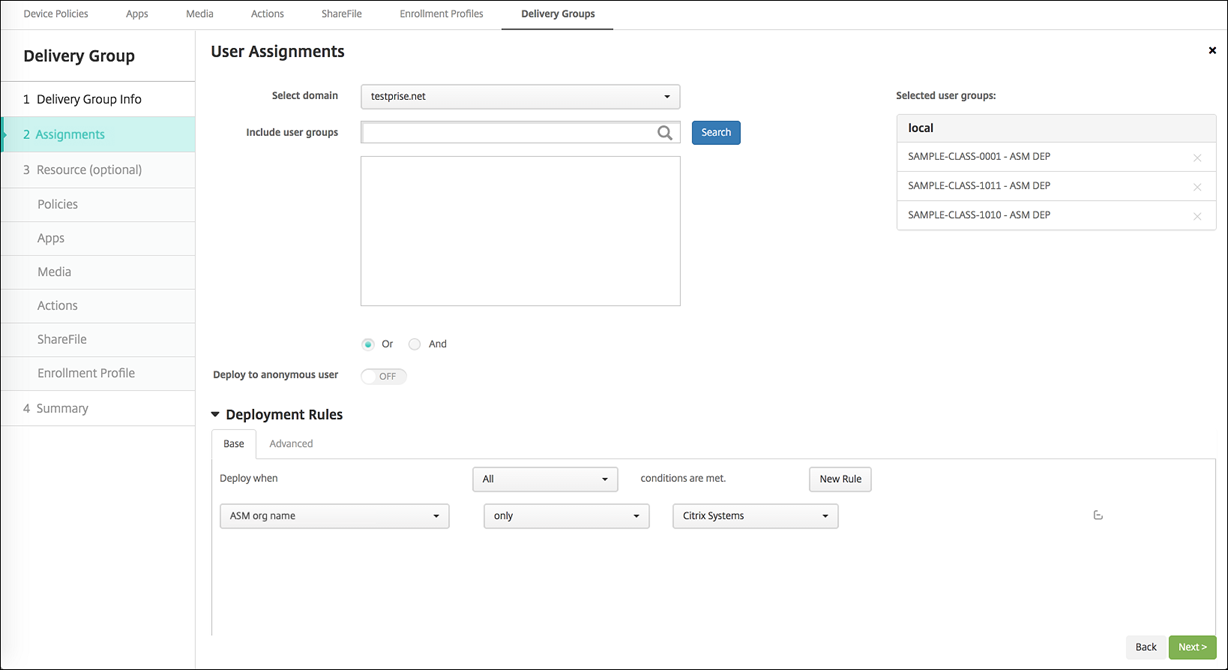
For Shared iPad deployment, the rules at the delivery group level don't apply because they relate to user properties. To filter the policies, apps, and media for each group of devices: Add a deployment rule for the resources based on the account name. For example:
-
For the Device Group 1 account, set this deployment rule:
 Apple Deployment Program account name
 Only
 Device Group 1 account
-
For the Device Group 2 account, set this deployment rule:
 Apple Deployment Program account name
 Only
 Device Group 2 account
-
For the Device Group N account, set this deployment rule:
 Apple Deployment Program account name
 Only
 Device Group N account
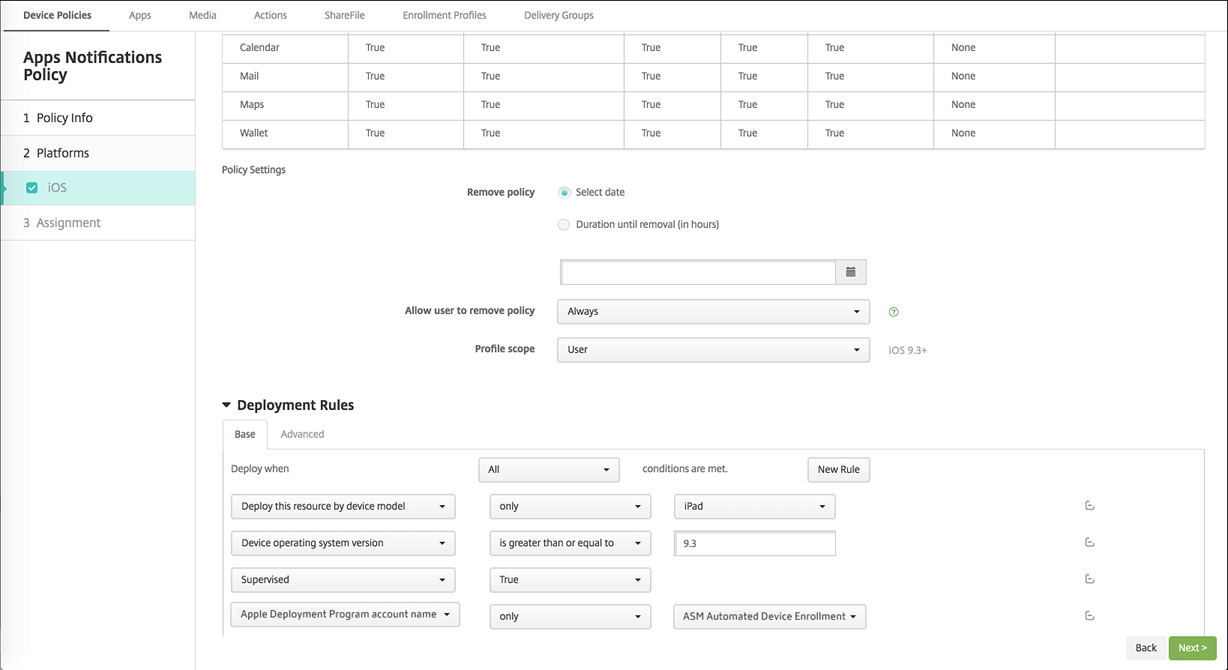
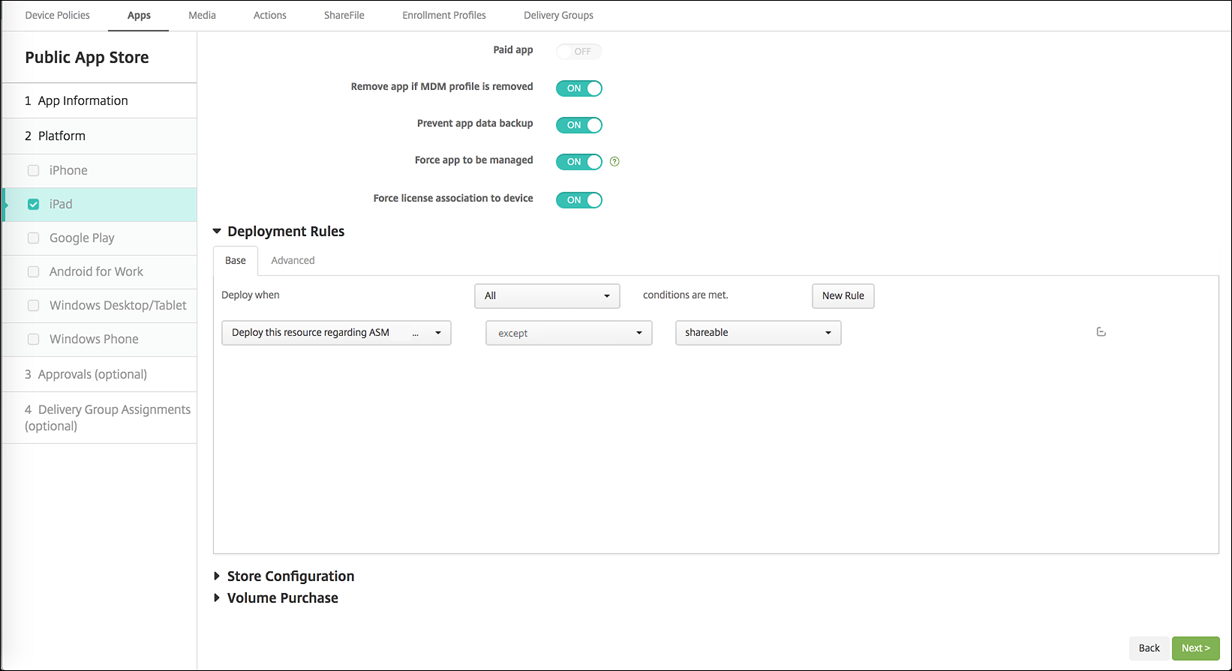
To deploy the Apple Classroom app only to device owners (using unshared iPads), filter the resources by ASM shared status with these deployment rules:
 Deploy this resource regarding ASM/ABM shared mode
 only
 unshared
Or:
 Deploy this resource regarding ASM/ABM shared mode
 except
 shareable
Delivery groups for Shared iPads
For the device group:
-
Configure one delivery group. For instructors, assign all the classes that the Education Configuration policy defines.
-
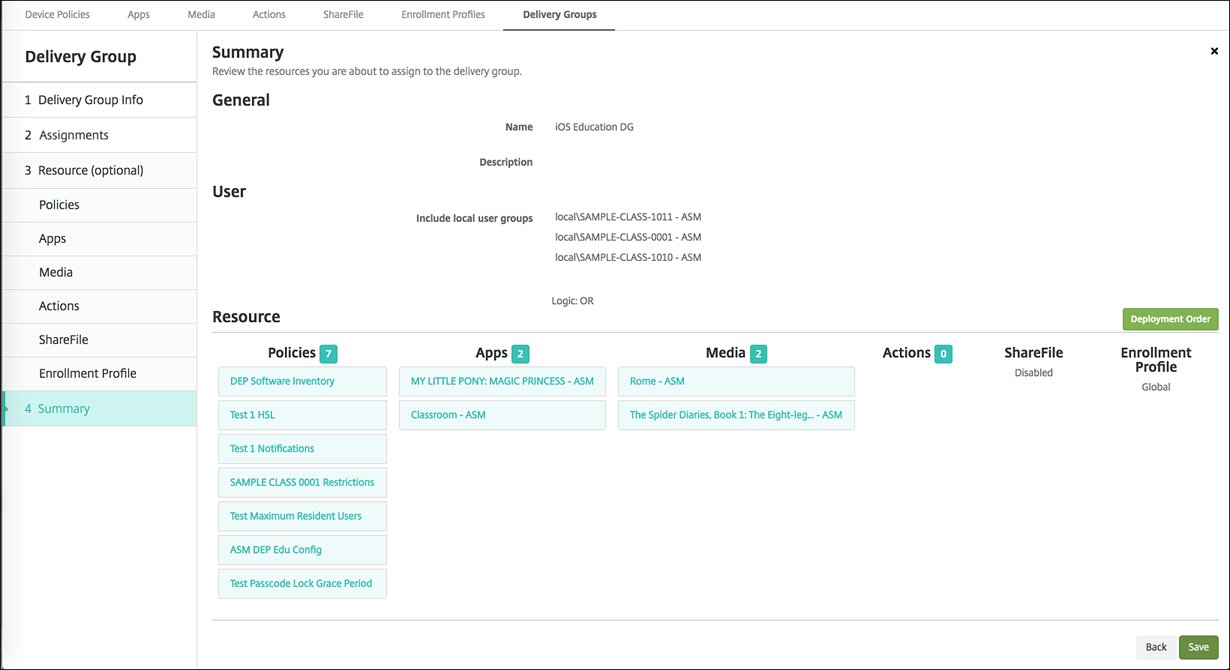
That delivery group must include these MDM resources:
-
Device policies:
-
Education Configuration (for ASM)
-
Lock Screen Message
-
Apps Notifications
-
Home Screen Layout
-
Restrictions
-
Maximum Resident Users
-
Passcode Lock Grace Period
-
-
Required Volume Purchase apps
-
Required Volume Purchase iBooks
-
Security actions for Shared iPads
In addition to existing security actions, you can use these security actions for Shared iPads:
-
Get Resident Users: Lists the users that have active accounts on the current device. This action forces a sync between the device and the Citrix Endpoint Management console.
-
Logout Resident User: Forces a log out of the current user.
-
Delete Resident User: Deletes the current session for a specific user. The user can sign in again.
-
Delete All Users: Deletes all users on the device.
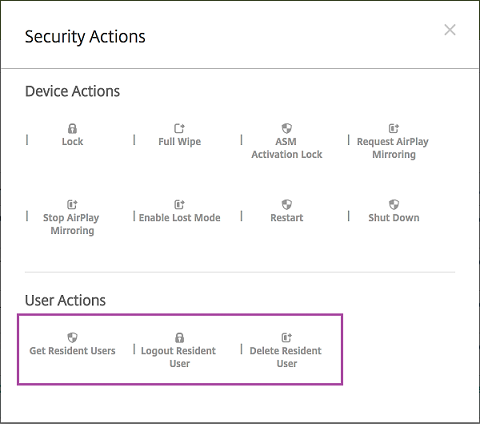
After you click Delete Resident User, you can specify the user name.
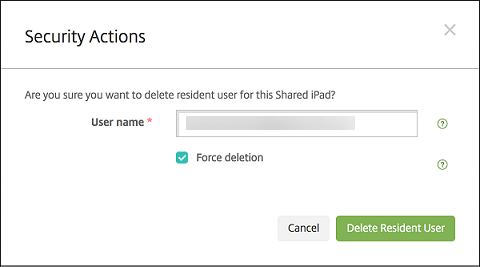
Results of security actions appear on the Manage > Devices > General and Manage > Devices > Delivery Groups pages.
Get information about Shared iPads
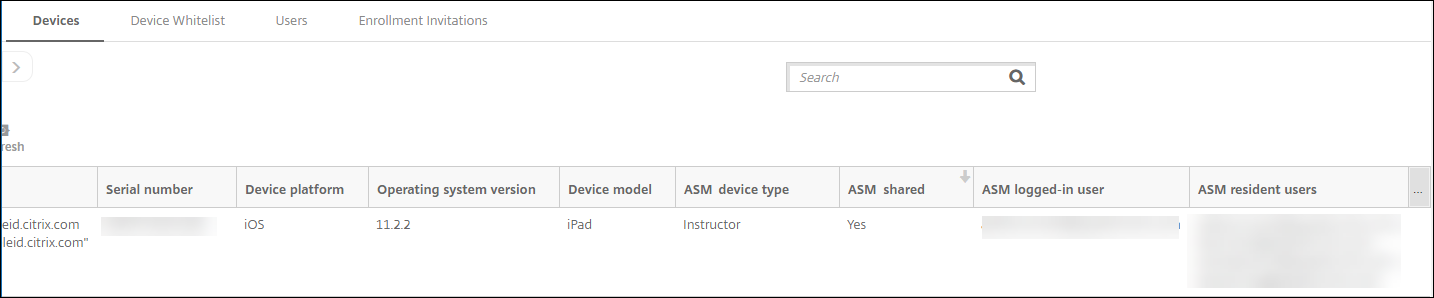
Find information specific to Shared iPads on the Manage > Devices page:
-
Look up:
-
Whether a device is shared (ASM/ABM shared)
-
Who is logged in to the shared device (ASM/ABM logged-in user)
-
All users assigned to the shared device (ASM/ABM resident users)
-
-
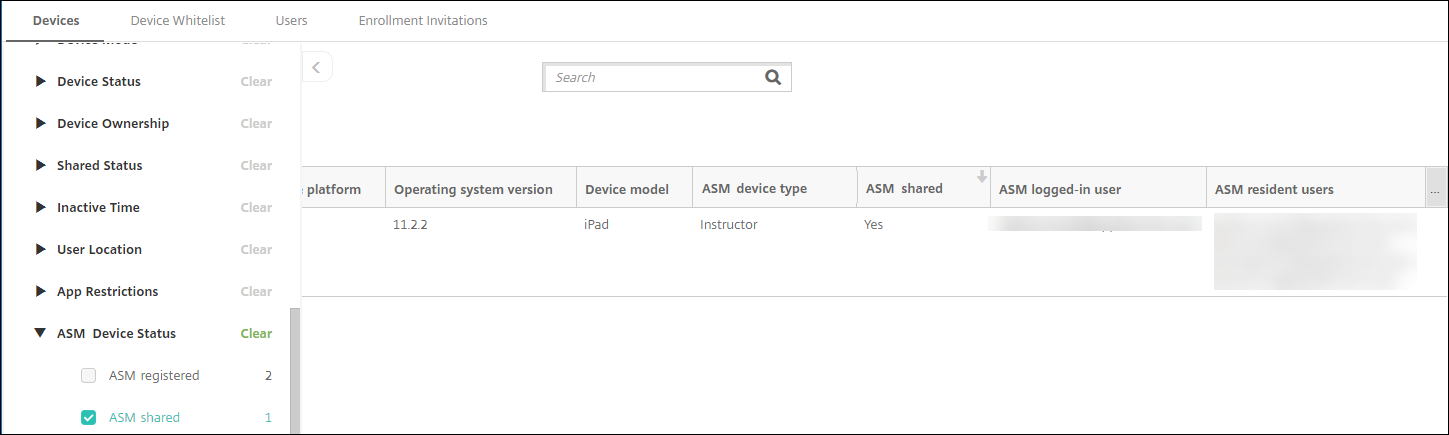
Filter the device list by its ASM/ABM Device Status:
-
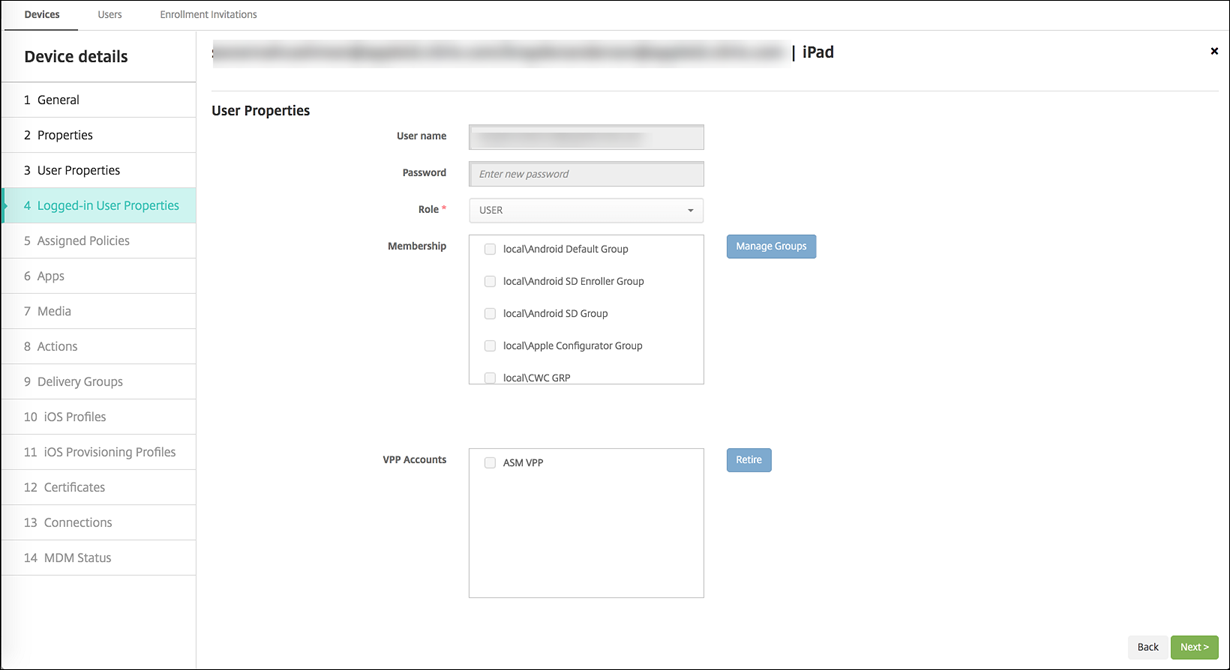
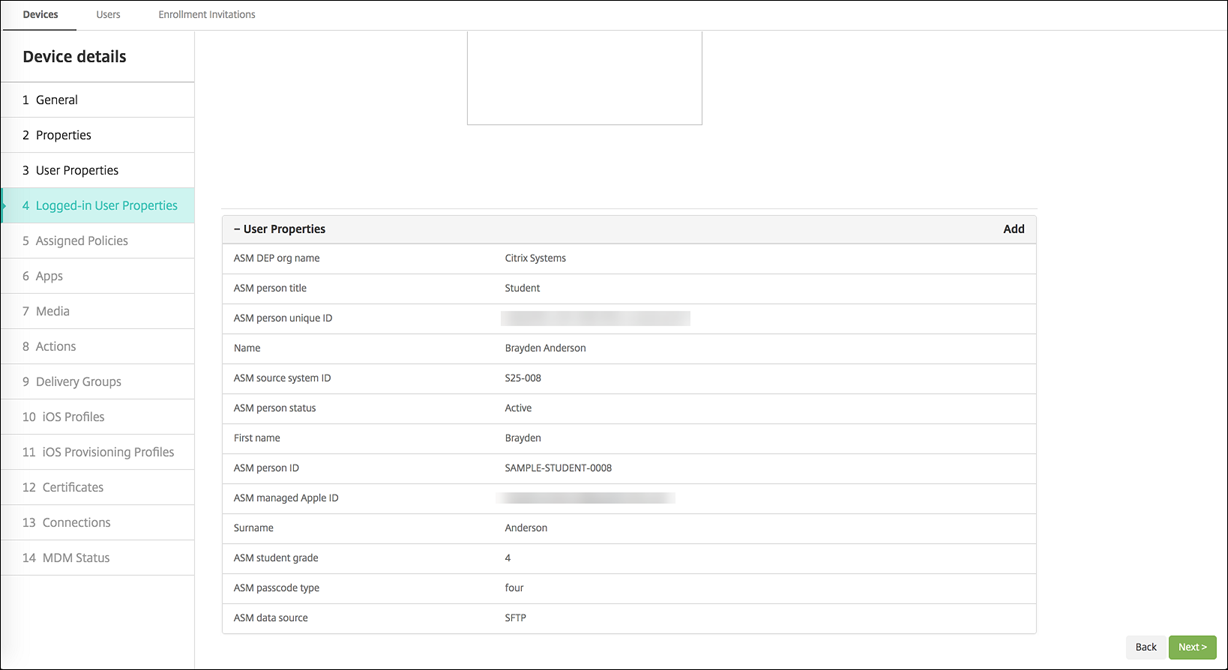
View details about the user logged in to a Shared iPad, on the Manage > Devices > Logged-in User Properties page.
-
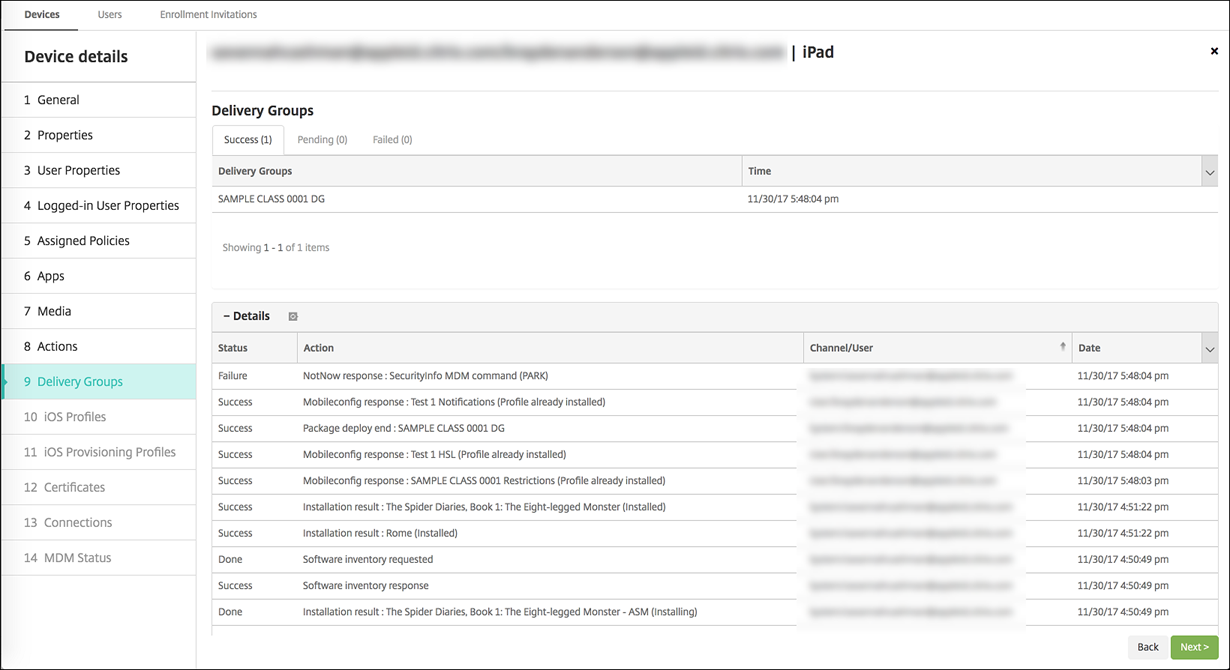
See the channel used to deploy resources to device owners and users in a delivery group on the Manage > Devices > Delivery Groups page. The Channel/User column shows the type (System or User) and the recipient.
-
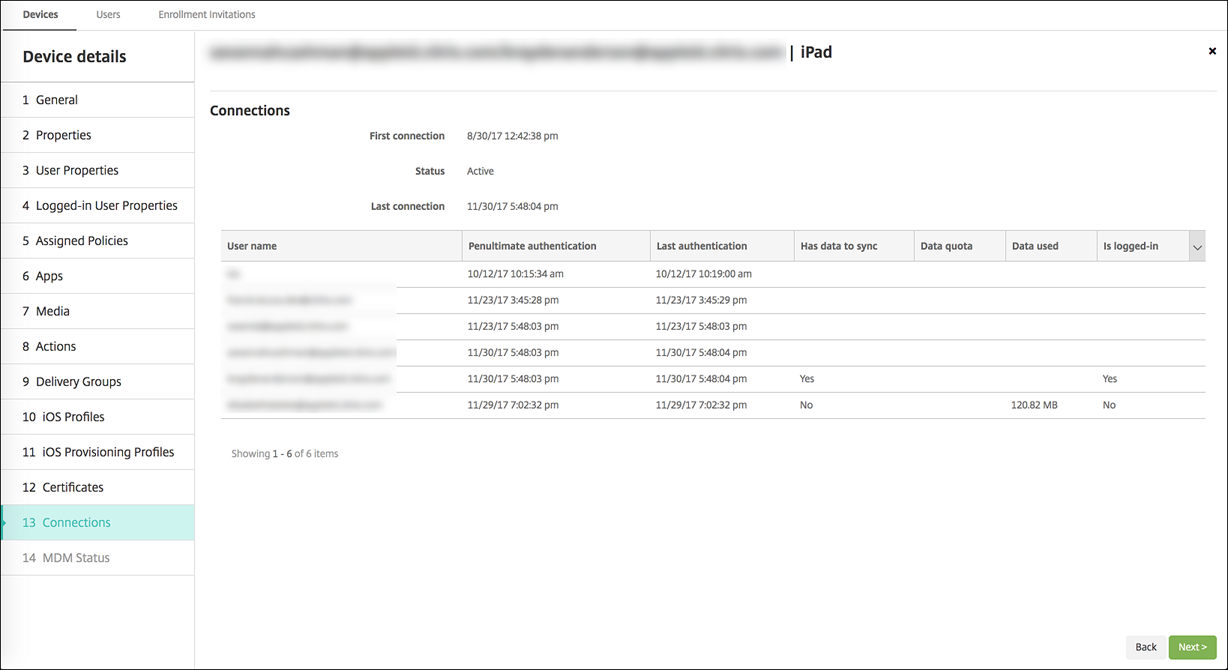
Get information about resident users:
-
Has data to sync: Whether the user has data to be synchronized to the cloud.
-
Data quotas: The data quota set for the user in bytes. A quota might not appear if user quotas are temporarily off or aren't enforced for the user.
-
Data used: The amount of data used by the user in bytes. A value might not appear if an error occurs as the system gathers the information.
-
Is logged in: Whether the user is logged on to the device.
-
-
View the push status for both channels.