
App access device policy
The app access device policy allows you to define a list of apps that must be installed, can be installed, or must not be installed. If the apps on a device contradict this policy, Citrix Endpoint Management marks the device as out of compliance. You can then create an automated action to react to that device compliance.
Important:
The app access device policy doesn't prevent a user from installing a forbidden app or uninstalling a required app.
You can only configure one type of access policy at a time. Each policy has a list of required apps, suggested apps, or forbidden apps, but not a mix within the same app access policy. If you create a policy for each type of list, name each policy carefully, so you know which policy applies to which list of apps.
To add or configure this policy, go to Configure > Device Policies. For more information, see Device policies.
iOS and Android (legacy DA) settings
-
Access policy: Select the type of list to configure for this policy.
-
Required: The app must exist on the device. If the app doesn't exist, the device is marked as out of compliance. Required is the default option.
-
Forbidden: The app must not exist on the device. If the app does exist, the device is marked as out of compliance.
-
-
To add one or more apps to the list:
-
Click Add and then configure the following:
-
App name: Enter an app name.
-
App Identifier: Enter an optional app identifier.
-
-
Click Save.
-
Repeat these steps for each app that you want to add.
-
Configure automated actions based on app access compliance
-
Add an app access policy to require or forbid apps.
-
Configure two automated actions based on whether the apps in question are required or forbidden:
-
Required
-
Mark a device as out of compliance if a required app doesn't exist on the device.
-
Mark a device as compliant once that required app is installed.
-
-
Forbidden
-
Mark a device as out of compliance if a forbidden app exists on the device.
-
Mark a device as compliant once that forbidden app is no longer installed. For information on setting up automated actions, see Automated actions.
-
-
-
Create a restriction policy with the settings that you want to implement on out of compliance devices.
-
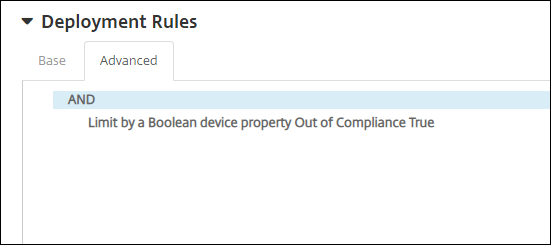
As part of the restriction policy, add an advanced deployment rule with the options Limit by a Boolean device property, Out of Compliance, and True. See Restrictions device policy.
-
-
Create a profile removal policy to remove the restriction policy once the device is back in compliance.
-
Add an advanced deployment rule with the options Limit by a Boolean device property, Out of Compliance, and False. See Profile removal device policy.