
Tags
Introduction
Tags are strings that identify items such as machines, applications, desktops, delivery groups, application groups, and policies. After creating a tag and adding it to an item, you can tailor certain operations to apply to only items that have a specified tag.
-
Tailor search displays in Studio.For example, to display only applications that have been optimized for testers, create a tag named “test” and then add (apply) it to those applications. You can now filter the Studio search with the tag “test”.
-
Publish applications from an application group or specific desktops from a delivery group, considering only a subset of the machines in selected delivery groups. This is called a tag restriction.With tag restrictions, you can use your existing machines for more than one publishing task, saving the costs associated with deploying and managing more machines. A tag restriction can be thought of as subdividing (or partitioning) the machines in a delivery group. Its functionality is similar, but not identical, to worker groups in XenApp releases earlier than 7.x.Using an application group or desktops with a tag restriction or can be helpful when isolating and troubleshooting a subset of machines in a delivery group.
-
Schedule periodic restarts for a subset of machines in a delivery group.Using a tag restriction for machines enables you to use new PowerShell cmdlets to configure multiple restart schedules for subsets of machines in a delivery group. For examples and details, see Manage delivery groups.
-
Tailor the application (assignment) of Citrix® policies to a subset of machines in delivery groups, delivery group types, or OUs that have (or do not have) a specified tag.For example, if you want to apply a Citrix policy only to the more powerful workstations, add a tag named “high power” to those machines. Then, on the Assign Policy page of the Create Policy wizard, select that tag and the Enable check box. You can also add a tag to a delivery group and then apply a Citrix policy to that group. For details, see Create policies.
You can apply tags to:
-
Machines
-
Applications
-
Machine catalogs (PowerShell only; see Tags on machine catalogs)
-
Delivery groups
-
Application groups
You can configure a tag restriction can be configured when creating or editing the following in Studio:
-
A desktop in a shared delivery group
-
An application group
Important:
A tag can be explicitly applied to a machine or can be explicitly applied at the machine catalog or delivery group level. When a tag is applied at the machine catalog or delivery group level, all machines within that catalog or delivery group implicitly inherit the tag. These inherited tags cannot be removed at the machine level. To remove the tag effect, the tag must be removed from the machine catalog or delivery group level.
Tag restrictions for a desktop or an application group
A tag restriction involves several steps:
-
Create the tag and then add (apply) it to machines.
-
Create or edit a group with the tag restriction (in other words, "restrict launches to machines with tag x").
A tag restriction extends the broker's machine selection process. The broker selects a machine from an associated delivery group subject to access policy, configured user lists, zone preference, and launch readiness, plus the tag restriction (if present). For applications, the broker falls back to other delivery groups in priority order, applying the same machine selection rules for each considered delivery group.
Example 1: Simple layout
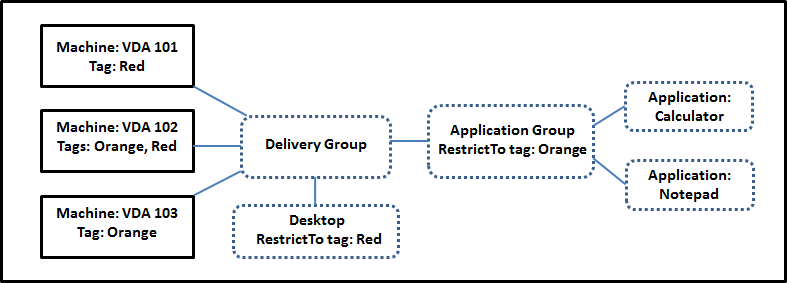
This example introduces a simple layout that uses tag restrictions to limit which machines are considered for certain desktop and application launches. The site has one shared delivery group, one published desktop, and one application group configured with two applications.
-
Tags have been added to each of the three machines (VDA 101-103).
-
The desktop in the shared delivery group was created with a tag restriction named "Red". A desktop can be launched only on machines in that delivery group that have the tag "Red": VDA 101 and 102.
-
The application group was created with the "Orange" tag restriction, so each of its applications (Calculator and Notepad) can be launched only on machines in that delivery group that have the tag "Orange": VDA 102 and 103.
Machine VDA 102 has both tags (Red and Orange), so it can be considered for launching the applications and the desktop.
Example 2: More complex layout
This example contains several application groups that were created with tag restrictions. This results in the ability to deliver more applications with fewer machines than would otherwise be needed if you used only delivery groups.
How to configure example 2 shows the steps used to create and apply the tags, and then configure the tag restrictions in this example.
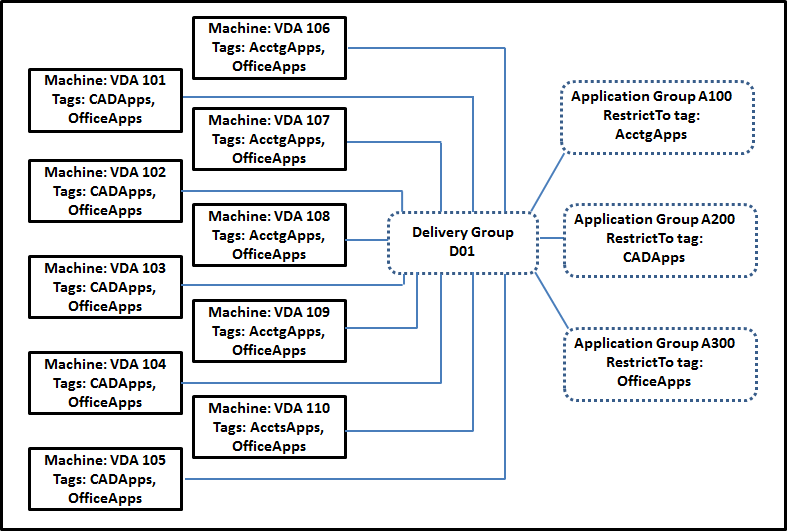
This example uses 10 machines (VDA 101-110), one delivery group (D01), and three application groups (A100, A200, A300). By applying tags to each machine and then specifying tag restrictions when creating each application group:
-
Accounting users in the group can access the apps they need on five machines (VDA 101–105)
-
CAD designers in the group can access the apps they need on five machines (VDA 106-110)
-
Users in the group who need Office applications can access the Office apps on 10 machines (VDA 101-110)
Only 10 machines are used, with only one delivery group. Using delivery groups alone (without application groups) would require twice as many machines, because a machine can belong to only one delivery group.
Manage tags and tag restrictions
Tags are created, added (applied), edited, and deleted from selected items through the Manage Tags action in Studio.
(Exception: Tags used for policy assignments are created, edited, and deleted through the Manage Tags action in Studio. However, tags are applied (assigned) when you create the policy. See Create policies for details.)
Tag restrictions are configured when you create or edit desktops in delivery groups, and when you create and edit application groups.
Use the Manage Tags dialogs in Studio
In Studio, select the items you want to apply a tag to (one or more machines, applications, a desktop, a delivery group, or an application group) and then select Manage Tags in the Actions pane. The dialog box lists all the tags that have been created in the Site, not just for the items you selected.
-
A check box containing a check mark indicates that the tag has already been added to the selected items. (In the screen capture below, the selected machine has the tag named "Tag1" applied.)
-
If you selected more than one item, a check box containing a hyphen indicates that some, but not all selected items have that tag added.
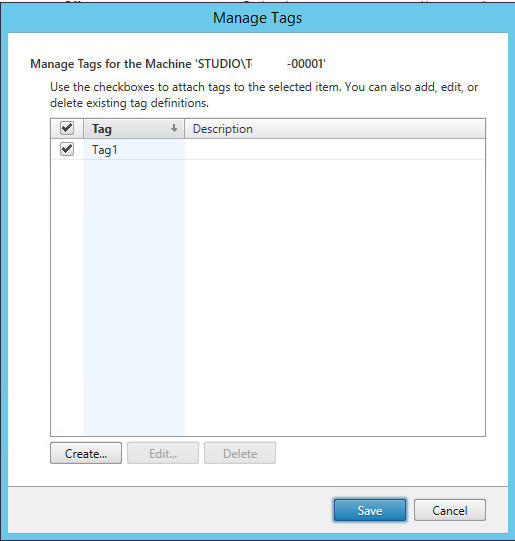
The following actions are available from the Manage Tags dialog box. Be sure to review Cautions when working with tags.
-
To create a tag:Click Create. Enter a name and description. Tag names must be unique and are not case-sensitive. Then click OK. (Creating a tag does not automatically apply it to any items you have selected. Use the check boxes to apply the tag.)
-
To add (apply) one or more tags:Enable the check box next to the tag name. If you selected multiple items and the check box next to a tag contains a hyphen (indicating that some, but not all selected items already have the tag applied), changing it to a check mark affects all selected machines.If you attempt to add a tag to one or more machines, and that tag is being used as a restriction in an application group, you are warned that the action can result in making those machines available for launch. If that's what you intended, proceed.
-
To remove one or more tags:Clear the check box next to the tag name. If you selected multiple items and the check box next to a tag contains a hyphen (indicating that some, but not all selected items already have the tag applied), clearing the check box removes the tag from all selected machines.If you attempt to remove a tag from a machine that is using that tag as a restriction, you are warned that the action can affect which machines are considered for launch. If that's what you intended, proceed.
-
To edit a tag:Select a tag and then click Edit. Enter a new name, description, or both. You can edit only one tag at a time.
-
To delete one or more tags:Select the tags and then click Delete. The Delete Tag dialog box indicates how many items currently use the selected tags (for example "2 machines"). Click an item to display more information. For example, clicking a "2 machines" item displays the names of the two machines that have that tag applied. Confirm whether you want to delete the tags.You cannot use Studio to delete a tag that is used as a restriction. First, edit the application group and remove the tag restriction or select a different tag.
When you're done in the Manage Tags dialog box, click Save.
To see if a machine has any tags applied: Select Delivery Groups in the navigation pane. Select a delivery group in the middle pane and then select View Machines in the Actions pane. Select a machine in the middle pane and then select the Tags tab on the Details pane.
Manage tag restrictions
Configuring a tag restriction is a multi-step process: You first create the tag and add/apply it to machines. Then, you add the restriction to the application group or the desktop.
-
Create and apply the tag:Create the tag and then add (apply) it to the machines affected by the tag restriction, using the Manage Tags actions described earlier.
-
To add a tag restriction to an application group:Create or edit the application group. On the Delivery Groups page, select Restrict launches to machines with the tag and then select the tag from the list.
-
To change or remove the tag restriction on an application group:Edit the group. On the Delivery Groups page, either select a different tag from the list or remove the tag restriction entirely by clearing Restrict launches to machines with the tag.
-
To add a tag restriction to a desktop:Create or edit a delivery group. Click Add or Edit on the Desktops page. In the Add Desktop dialog box, select Restrict launches to machines with the tag and then select the tag from the menu.
-
To change or remove the tag restriction on a delivery group:Edit the group. On the Desktops page, click Edit. In the dialog box, either select a different tag from the lists or remove the tag restriction entirely by clearing Restrict launches to machines with the tag.
How to configure example 2
The following sequence shows the steps to create and apply tags, and then configure tag restrictions for the application groups illustrated in the second example.
VDAs and applications have already been installed on the machines and the delivery group has been created.
Create and apply tags to the machines:
-
In Studio, select delivery group D01 and then select View Machines in the Action pane.
-
Select machines VDA 101-105 and then select Manage Tags in the Actions pane.
-
In the Manage Tags dialog box, click Create and then create a tag named
CADApps. Click OK. -
Click Create again and create a tag named OfficeApps. Click OK.
-
While still in the Manage Tags dialog box, add (apply) the newly created tags to the selected machines by enabling the check boxes next to each tag's name (
CADAppsandOfficeApps). When you're done, close the dialog box. -
Select delivery group D01, select View Machines in the Action pane.
-
Select machines VDA 106-110 and then select Manage Tags in the Actions pane.
-
In the Manage Tags dialog box, click Create. Create a tag named
AcctgApps. Click OK. -
Apply the newly created
AcctgAppstag and theOfficeAppstag to the selected machines by clicking the check boxes next to each tag's name, and then close the dialog box.
Create the application groups with tag restrictions.
-
In Studio, select Applications in the navigation pane and then select Create Application Group in the Actions pane. The Create Application Group wizard launches.
-
On the Delivery Groups page of the wizard, select delivery group D01. Select Restrict launches to machines with tag and then select the
AcctgAppstag from the list. -
Complete the wizard, specifying the accounting users and the accounting applications. (When adding the application, choose the From Start menu source, which searches for the application on the machines that have the
AcctgAppstag.) On the Summary page, name the groupA100. -
Repeat the preceding steps to create application group
A200, specifying machines that have theCADAppstag, plus the appropriate users and applications. -
Repeat steps to create application group
A300, specifying machines that have theOfficeAppstag, plus the appropriate users and applications.
More information
Blog post: How to assign desktops to specific servers.