Develop in a workspace
Developer
This article covers the everyday work of developing inside a Citrix SecurSpaces™ workspace: connecting, installing tools, running and previewing an application, using secrets, and sharing what you build.
If you’re new to SecurSpaces, work through Tutorial: Your first workspace first.
About the examples: the examples here use Node.js, because it reads clearly whatever language you work in. Nothing on this page is Node-specific. The platform treats every toolchain the same way, so substitute your own commands —
pip installfornpm install,go runforyarn dev, and so on.
Choose how you connect
You can work in a workspace two ways.
| Method | What it is | Best for |
|---|---|---|
| Cloud IDE | VS Code for Web, running in a browser tab | Getting started, any device, short sessions |
| Local IDE over SSH | Your own installed IDE, connected to the workspace | Day-to-day work, familiar setup and shortcuts |
The Cloud IDE needs nothing installed: select Open on the workspace card and it opens in a new tab.
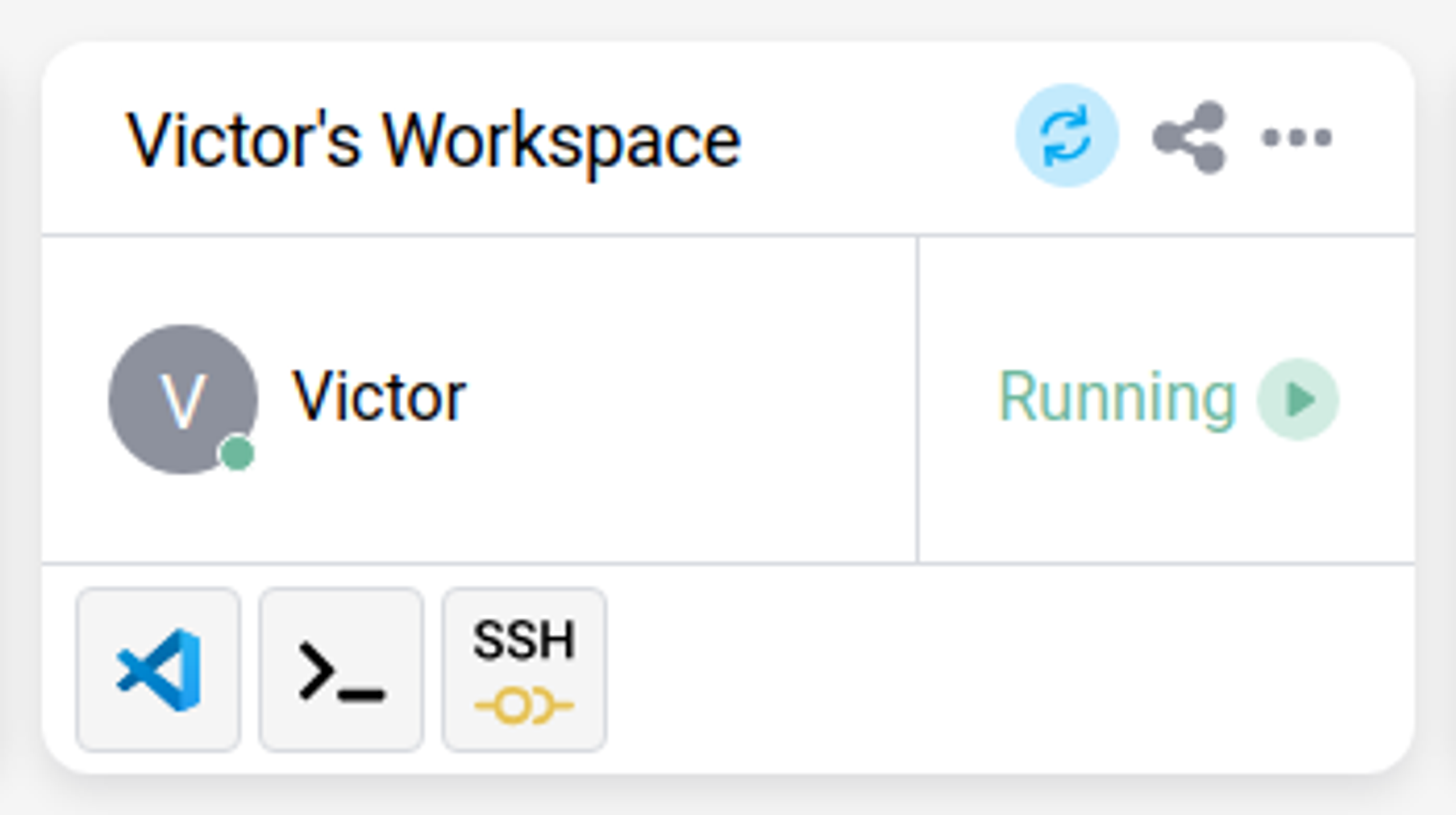
The buttons on the workspace card are your entry points: the VS Code icon opens the Cloud IDE, the terminal icon opens a shell, and the SSH icon opens the Connect Via SSH dialog.
VS Code for Web is the only Cloud IDE the platform ships. If your team needs a different browser-based IDE, it can be built into a custom workspace image — talk to your platform administrator. For local IDEs, SecurSpaces supports VS Code Desktop, Cursor, Windsurf, Kiro, and JetBrains Gateway, plus any SSH-capable editor. See Connect to a workspace via SSH.
Move files in and out of a workspace
The simplest way to bring a local file in is to drag it from your file manager onto the Cloud IDE window. To take a file out, use the Cloud IDE’s Download action in the file explorer context menu.
File transfer may be restricted on your platform, since it’s a data loss prevention control. If dragging a file has no effect, ask your platform administrator whether transfers are permitted for your project.
Install tools and dependencies
A workspace is containerized and ephemeral: it is recreated from its base image on every start. Tools you
install at runtime persist only if they live on the persistent /home/developer/ volume. System-wide
installs (for example, sudo apt-get install) are discarded when the workspace restarts.
Before installing anything, choose an approach that matches what you need to keep:
-
User-scoped tools (
nvm,pyenv,pipx,cargo install, and similar) install under/home/developer/and persist automatically. - Per-launch setup or one-off packages belong in a startup script.
- System packages and runtimes shared across a team belong in a custom container image.
Project dependencies installed into your project directory persist, as long as the project sits under
/home/developer. Package managers that install globally by default need redirecting into your home
directory. For example, with npm:
npm config set prefix ~/.npm-global
export PATH=~/.npm-global/bin:$PATH
<!--NeedCopy-->
Add the PATH line to your .bashrc or .zshrc file through your profile configuration to make it
permanent.
For the full guidance and trade-offs, see What persists in a SecurSpaces Workspace.
Run and preview an application
Start your application the way you normally would:
cd /home/developer/my-project
yarn dev
<!--NeedCopy-->
Your server must listen on 0.0.0.0, not localhost. A server bound to localhost is reachable only
from inside the container, so the platform can’t detect it and you can’t preview it. Most frameworks bind
correctly in development mode, but some need telling:
npx vite --host 0.0.0.0
npx next dev -H 0.0.0.0
<!--NeedCopy-->
The same applies in any language — for example, Flask needs --host=0.0.0.0, and a Go server should listen
on :8080 rather than 127.0.0.1:8080.
When the server starts, VS Code detects the open port and shows a notification: A workspace application is available at the port [number]. Select Preview to open the application in an editor tab.
The preview address follows the pattern https://<workspace-id>-port-<number>.proxy.<domain>, so traffic
reaches your application through the platform. You can paste that address into any browser tab. The
Workspace Apps panel in the SecurSpaces console lists every exposed port.
Running several services at once works as expected: a frontend on port 3000 and an API on port 4000 are both detected and both reachable.
Run services your project depends on
Workspaces support Docker-in-Docker, so databases, caches, and message queues run inside the workspace just as they would on your own machine. Define them with Docker Compose:
# docker-compose.yml
version: '3.8'
services:
  postgres:
    image: postgres:15
    environment:
      POSTGRES_DB: myapp
      POSTGRES_USER: dev
      POSTGRES_PASSWORD: devpass
    ports:
      - "5432:5432"
<!--NeedCopy-->
Start, check, and stop them:
docker-compose up -d
docker ps
docker-compose down
<!--NeedCopy-->
Your application reaches these services through localhost, the same as in local development.
Some images provide the Docker Compose plugin rather than the standalone command. In that case use
docker compose with a space; the subcommands are identical.
Use secrets and environment variables
Credentials, tokens, and service addresses reach your workspace as secrets, injected at start. You don’t
maintain a .env file for them, and they never enter your code or your Git history.
| Type | Set by | Where it applies |
|---|---|---|
| Personal secret | You, in Profile > Security | Every workspace you own, by default |
| Project secret | Project owner, in project resources | The project, then attached to workspaces |
Neither type is all-or-nothing:
- Personal secrets inject into every workspace you own by default. To narrow that, switch the secret to Custom List and select the workspaces it applies to.
- Project secrets are attached to individual workspaces when the workspace is created, or through the workspace template.
Both types inject as an environment variable or as a file. File secrets appear in the /secrets
folder; environment secrets appear in env output and in your language’s environment API:
const apiKey = process.env.MY_API_KEY;
<!--NeedCopy-->
Three things worth knowing:
- Changes need a restart. Adding, editing, or retargeting a secret takes effect when the affected workspaces reboot.
- Names become environment variable names, so they can’t contain spaces, hyphens, or special characters, and names reserved by Linux are rejected.
- Personal secrets win on a name clash. If a workspace secret has the same name as one of your personal secrets, the value comes from your personal secret.
For more information, see Secrets.
Share a running application
Workspace Apps expose a running application to other project members, so a reviewer, designer, or tester can open your work without a deployment or a workspace of their own.
- In the SecurSpaces console, open the Project Overview page.
- From the Workspace Apps menu, select Create Workspace App.
- Set the Port your application runs on, a Name, and who it’s shared with — Public, Project Sharing, or specific members.
- Select Save.
You can also select the … icon on your workspace and select Edit Ports.
For more information, see Workspace Apps.
Work with a shared workspace
After sharing a workspace, you and another user can work in it at the same time. Changes appear in real time, so you can co-edit a file together — useful for pairing on a problem or walking someone through unfamiliar code.
Both of you are working in the same container, so a command one of you runs affects the other’s session too.
Persist your work
Keep everything you care about under /home/developer. That includes your code, your dependencies, and your
shell configuration. Anything outside it is discarded when the workspace restarts.
For system-level tools you need every time, use a startup script or ask your project owner to add them to the workspace template image. See What persists in a SecurSpaces Workspace.
Troubleshooting
| Issue | Solution |
|---|---|
| A tool is missing from the workspace | The template may be the wrong one. Ask your project owner which to use. |
| Packages disappear after a restart | Move your project and its dependency directory under /home/developer. |
| The application isn’t reachable | Bind the server to 0.0.0.0, then check the exposed port in Workspace Apps. |
| Calls to a database or service fail | Confirm the container runs with docker ps, then start it with docker-compose up -d. |
| Docker containers don’t start | Run docker info. If Docker is unavailable, ask your project owner about privileged mode. |
| File changes don’t trigger a reload | Raise the file watcher limit with sudo sysctl -w fs.inotify.max_user_watches=524288. |
No space left on device |
Delete unused dependency directories, or increase the workspace disk size under Edit Workspace > Resources > Disk size. |
| Dragging a file into the IDE does nothing | File transfer may be restricted. Ask your platform administrator. |
Related information
In this article
- Choose how you connect
- Move files in and out of a workspace
- Install tools and dependencies
- Run and preview an application
- Run services your project depends on
- Use secrets and environment variables
- Share a running application
- Work with a shared workspace
- Persist your work
- Troubleshooting
- Related information