
App access end-user experience explained
Citrix Secure Private Access™ apps can be accessed in the following ways:
-
Through the Citrix Secure Access™ client:
-
Access Web/SaaS apps: After logging into the Citrix Secure Access client, end users can access Web/SaaS apps using their native browser such as Chrome.
-
Access TCP/UDP apps: After logging into the Citrix Secure Access client, end users can access TCP/UDP applications through a client application (for example Remote Desktop Protocol (RDP)).
-
-
Agentless access: Allows users to access enterprise web apps without the need for a client. End users can access enterprise web applications without installing a dedicated client on their devices. End users can simply enter the app URLs in their native browser.
Access a Web app through the Citrix Secure Access client
-
Log in to the Citrix Secure Access client.
-
After the secure access session is established, open a native browser (for example Chrome).
-
In the browser, enter the URL of the enterprise web app that you want to access.
Access a TCP/UDP app through the Citrix Secure Access client
If RDP is configured, end users must perform the following steps to access the TCP/UDP app.
-
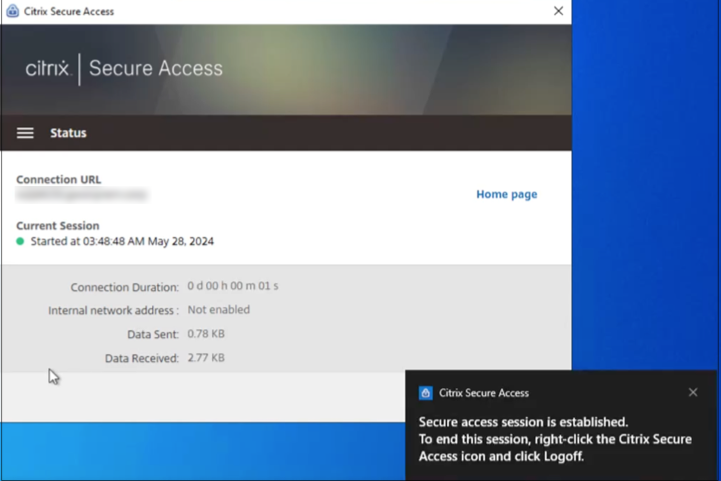
Log in to the Citrix Secure Access client.
-
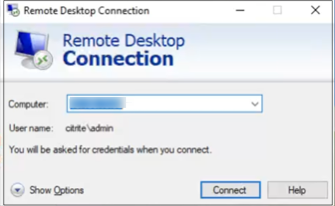
After the secure access session is established, start a remote desktop connection.
-
Press the Windows key, type Remote Desktop Connection, and press Enter.
-
Enter the IP address or host name of the computer that you trying to connect to.
-
Click Connect. You might be prompted to enter the credentials.
-
Enter the user name and password for the remote computer and then click OK.
-
A remote desktop connection is established now and the end user can interact with the remote computer.
For more information about the Citrix Secure Access client, see Citrix Secure Access client.