Role-based access control
Citrix SecurAccess™ ZTNA uses a role-based access control model to manage user permissions and access levels. This means that each user is assigned a specific role, and that role determines what they can and cannot do within the system. This model helps to ensure that users have the appropriate level of access to perform their tasks, while also preventing them from accessing sensitive data or functions that they must not have access to.
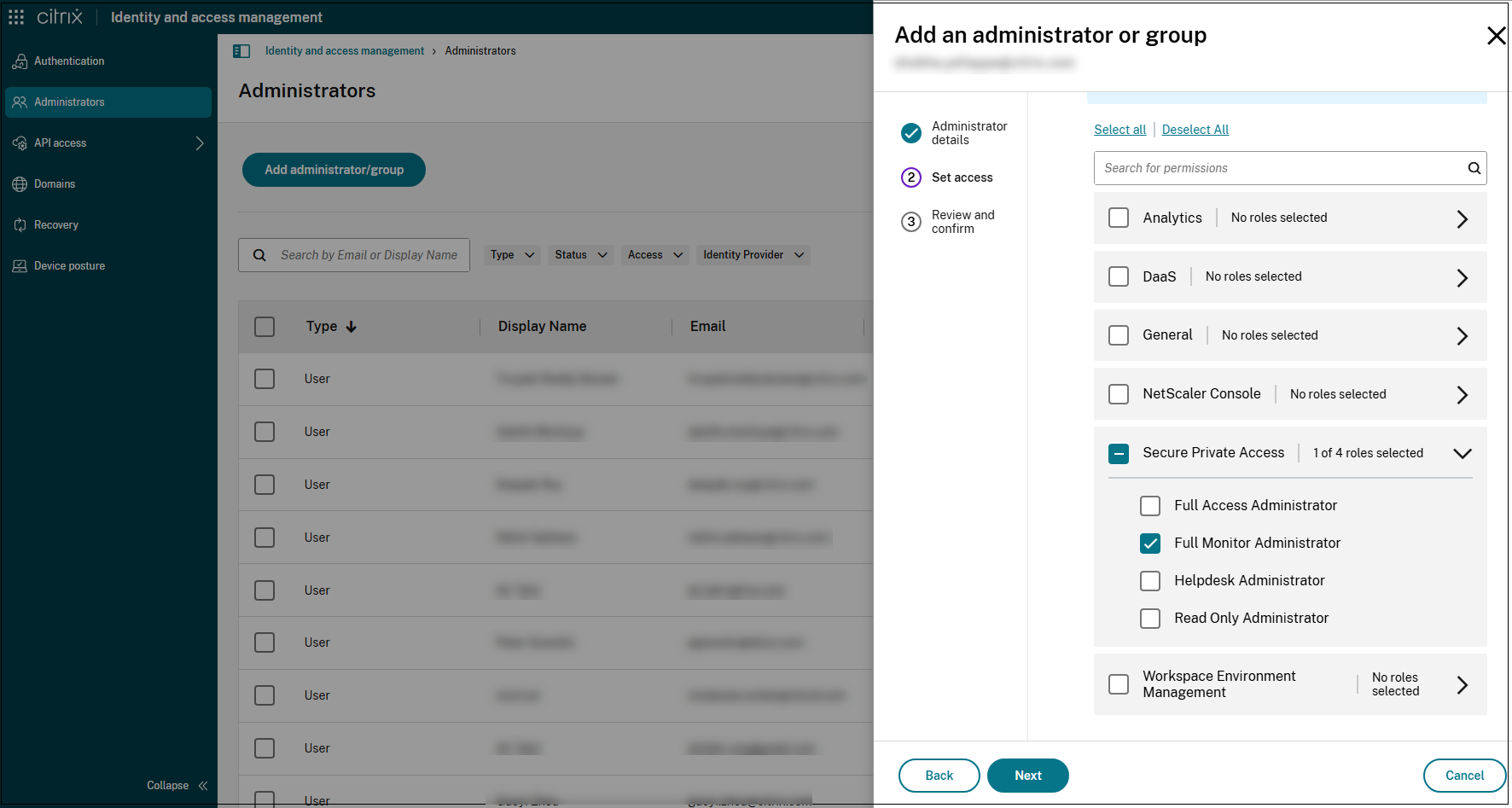
The following four main roles are available for Citrix SecurAccess ZTNA admins. Each of these roles has a different set of permissions, which are designed to match the needs of different types of users.
-
Full Access Administrator
-
Read Only Administrator
-
Full Monitor Administrator
-
Helpdesk Administrator
Note:
To monitor Citrix SecurAccess ZTNA using DaaS Monitor, administrators must be assigned the DaaS role in addition to one of the Citrix SecurAccess ZTNA roles.
The following table provides a brief description of each role:
| Role | Description |
|---|---|
| Full Access Administrator | Intended for individuals who need complete control over the configuration, management, and operation of the Citrix SecurAccess ZTNA environment. The Full Access Administrator has the following privileges. |
| Access to all Citrix SecurAccess ZTNA functionalities. | |
| Permissions to create, edit, and modify apps, policies, and settings within the Citrix SecurAccess ZTNA console. | |
| Read Only Administrator | Intended for individuals who need to monitor and analyze the Citrix SecurAccess ZTNA activities and system performance. The Read Only Administrator has the following privileges. |
| Access to the Citrix SecurAccess ZTNA dashboard. | |
| Ability to view all Citrix SecurAccess ZTNA application configurations and settings. | |
| The Read Only Administrator does not have the privileges to any of the create/update/delete functionality. | |
| Full Monitor Administrator | Intended for users responsible for monitoring Citrix SecurAccess ZTNA activity and performance in the Monitor console. The Full Monitor Administrator has the following privileges. |
| Access to all monitoring dashboards and reporting tools within Citrix SecurAccess ZTNA. | |
| Ability to view all Citrix SecurAccess ZTNA configurations and settings. | |
| The Full Monitor Administrator does not have permissions to create, edit, or modify Citrix SecurAccess ZTNA configurations, policies, or settings. | |
| Helpdesk Administrator | Intended for Helpdesk personnel responsible for troubleshooting and triaging user access issues. The Helpdesk Administrator has the following privileges. |
| Limited visibility into Citrix SecurAccess ZTNA configurations and settings, focusing on information relevant to troubleshooting in the Monitor console. | |
| Access to specific troubleshooting tools and diagnostic utilities within the Citrix SecurAccess ZTNA console. | |
| View the troubleshooting and the Monitor dashboard. | |
| The Helpdesk Administrator does not have permissions to create, edit, or modify Citrix SecurAccess ZTNA configurations or policies. |
Roles and privileges
The following table summarizes the roles and privileges:
| Full Access Administrator | Read Only Administrator | Full Monitor Administrator | Helpdesk Administrator | |
|---|---|---|---|---|
| Create/edit/delete apps | Yes | No | No | No |
| Create/edit/delete policies | Yes | No | No | No |
| Edit configurations/settings | Yes | No | No | No |
| View configurations/settings | Yes | Yes | Yes | Limited |
| View the logging and troubleshooting widget in the Citrix SecurAccess ZTNA dashboard | Yes | Yes | Yes | Yes |
| Search for users | Yes | Yes | Yes | No |
| Retrieved configured domains | Yes | Yes | Yes | No |
| View the Users, Applications, Access Policies widgets in the Citrix SecurAccess ZTNA dashboard | Yes | Yes | Yes | No |
| View the sessions and applications in the Monitor dashboard | Yes | Yes | Yes | Limited |
| Access reporting tools | Yes | No | Yes | Limited |
Enable role-based access to admins
Perform the following steps to enable role-based access to admins:
-
After signing in to Citrix Cloud™, select Identity and Access Management from the menu.
-
On the Identity and Access Management page, click Administrators, and then click Add administrator/group. The console displays all the current administrators in the account.
-
In Add an administrator or group, select the identity provider from which you want to select the administrator. Sometimes, Citrix Cloud might prompt you to sign in to the identity provider first (for example, Azure Active Directory).
-
If Citrix Identity is selected, enter the user’s email address, and then click Next.
-
Select Custom access, and then click the > icon in Citrix SecurAccess ZTNA.
-
Select one of the following roles and click Next.
-
Full Access Administrator
-
Read Only Administrator
-
Full Monitor Administrator
-
Helpdesk Administrator
-
-
Click Send invitation.
Note:
The Analytics and General services must be enabled for all Citrix SecurAccess ZTNA roles. The Analytics service is necessary for monitoring and reporting, while the General services are required for authentication, domains, authorization, traffic routing, and other functionalities.