
Install VDAs using SCCM
Overview
Microsoft Endpoint Configuration Manager, formerly System Center Configuration Manager (SCCM) is a Windows product that enables the management, deployment, and security of devices and applications across an enterprise.
Note:
The following article describes only recommendations based on how Citrix® has tested the environment. You can customize these steps according to your needs. Citrix is not responsible for any updates or tweaks needed to this to fit customer needs.
Recommendations
-
To successfully deploy a Virtual Delivery Agent (VDA) using SCCM or similar software distribution tools, Citrix recommends using the VDA installer in a sequence of steps.
-
Citrix does not recommend using the VDA Cleanup Utility as part of a VDA installation or upgrade. Use the VDA Cleanup Utility only in the limited case when the VDA installer has previously failed.
Before you begin
The required number of restarts during the installation of the VDA depends on the environment. For example:
-
A restart might be required for pending updates or restarts from earlier software installations.
-
Files previously locked by other processes might need updates, forcing an extra restart.
-
Some optional components in the VDA installer (such as Citrix Profile Management and Citrix Files) might require a restart.
-
When you upgrade a VDA, the machine on which it is installed must be in maintenance mode, with no sessions.
-
When a VDA installation runs for the first time on a machine, the VDA installer being used is copied onto that machine. For more information on VDA installation, see Installers.
SCCM Task Sequencer manages all required restarts.
Key steps to deploy VDA using SCCM
The following steps describe how to deploy VDA using SCCM on the virtual machine.
Step 1: Install the VDA
After identifying all prerequisites, use SCCM Task Sequencer to complete the following tasks:
-
Install the VDA from an accessible copy of the installation media or from one of the VDA standalone installers:
-
VDAWorkstationSetup_XXXX.exe -
VDAServerSetup_XXXX.exe -
VDAWorkstationCoreSetup_XXXX.exe
For more information about VDA installers, see Installers.Note:When you upgrade a VDA, the machine on which it is installed must be in maintenance mode, with no sessions. -
-
When a VDA installation runs for the first time on a machine, the VDA installer being used is copied onto that machine.
-
When you use a VDA installer other than
VDAWorkstationCoreSetup_XXXX.exe, the VDA installer is copied to%ProgramData%\Citrix\XenDesktopSetup\XenDesktopVdaSetup.exe. -
When you use
VDAWorkstationCoreSetup_XXXX.exe, the VDA installer is copied to%ProgramData%\Citrix\XenDesktopSetup\XenDesktopRemotePCSetup.exe.
-
-
The directory location of the VDA installer is also stored in the registry
HKEY_LOCAL_MACHINE\SOFTWARE\Citrix\MetaInstall” “MetaInstallerInstallLocation”. -
Add the command-line options
/NOREBOOT,/NORESUME, and/QUIETto your command-line options.-
/QUIET: Don’t show the user interface during installation, so that SCCM has control of the installation process. -
/NOREBOOT: Suppress the VDA installer from restarting automatically. SCCM triggers restarts when needed. -
/NORESUME: Usually, when a restart is needed during the installation, the VDA installer sets a runonce registry key (\HKEY_LOCAL_MACHINE\SOFTWARE\Microsoft\Windows\CurrentVersion\RunOnce). Windows uses the key to open the VDA installer when the machine restarts. This is an issue for SCCM, because SCCM cannot monitor the installation and capture the exit code.
-
Step 2: Create an organization unit (OU)
-
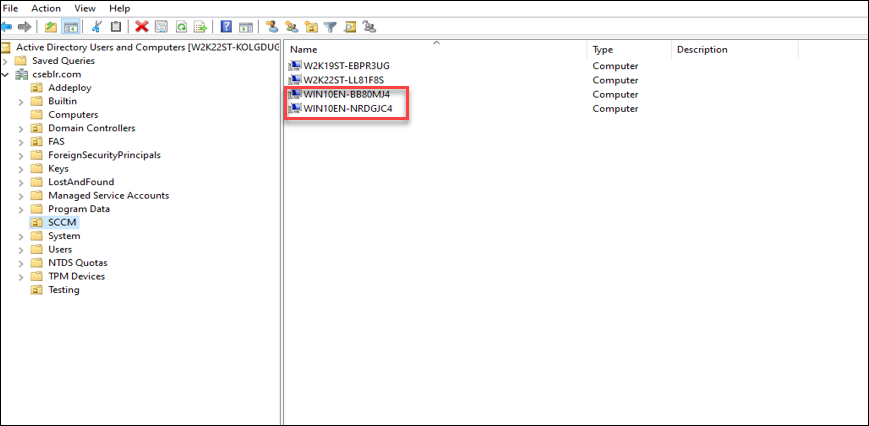
Create two domain-joined virtual machines you want to add to the OU. When the virtual machines are initially created, they are in the Computers folder. Move the virtual machines to the SCCM folder. Example: WIN10EN-BB80MJ4.cseblr.com W2K19ST-EBPR3UG.cseblr.com
-
In Microsoft Configuration Manager, go to
\Administration\Overview\Hierarchy Configuration\Discovery Methods\. -
Click Active Directory System Discovery, and select the Enable Active Directory System Discovery check box to enable auto-discovery of the newly created virtual machines.
-
Click the
 icon to select new containers.
-
In the Location section, add the Path where your SCCM virtual machines are located.
-
Go to
\Administration\Overview\Site Configuration\Sitesand right-click the SCCM VDA. -
Select Client Installation Settings > Client Push Installation. The Client Push Installation Properties window opens.
-
Once the VMs are set to
Enabled, you can see the list of VMs as illustrated in the following images.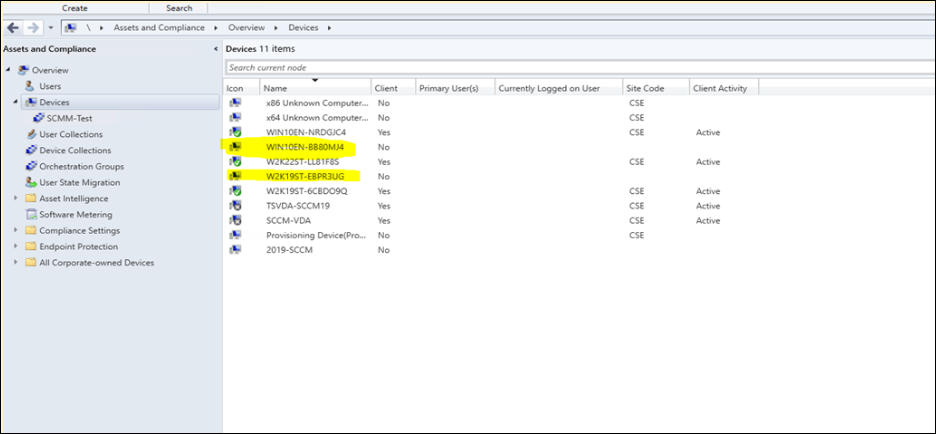
-
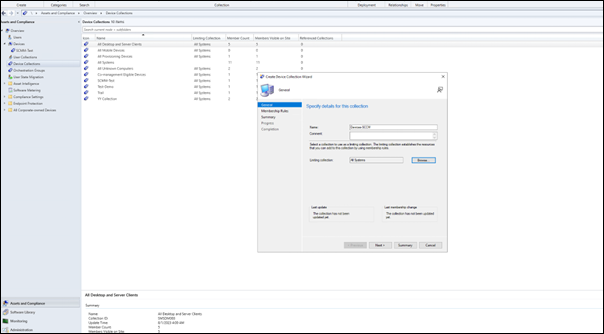
Create Device collection to create the OU. Enter the Name of the Collection Name.
-
Follow the wizard instructions.
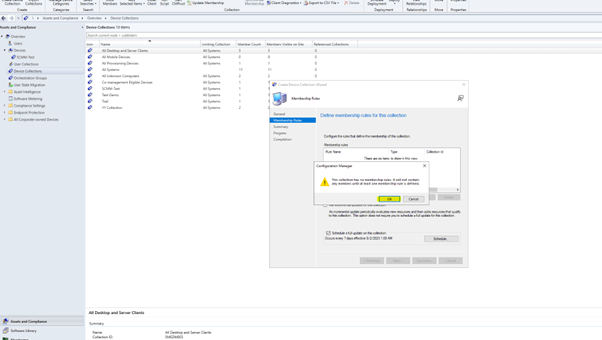 The OU is created.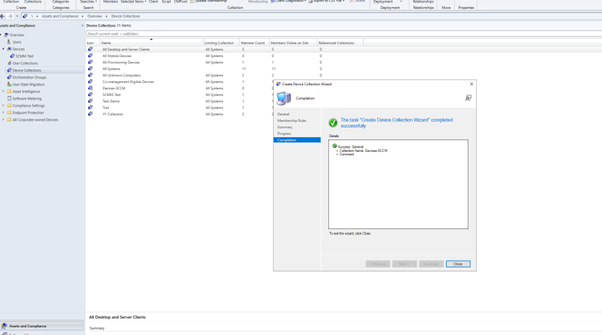
-
Add the created VMs to the newly created Device Collection.
-
Right-click the VM. Select Add Selected Items > Add Selected Items to Existing Device Collection.
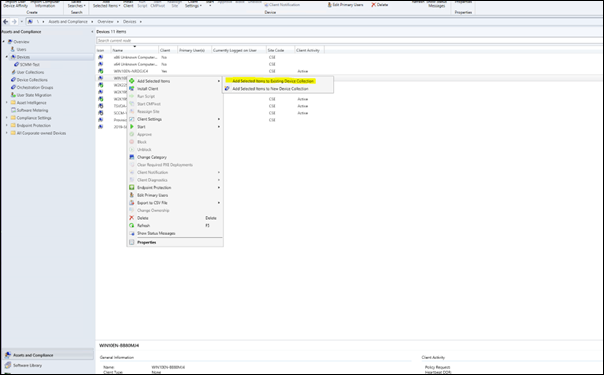
-
In the Select Collection window, select the required device name. In this example, it is
Devices-SCCM.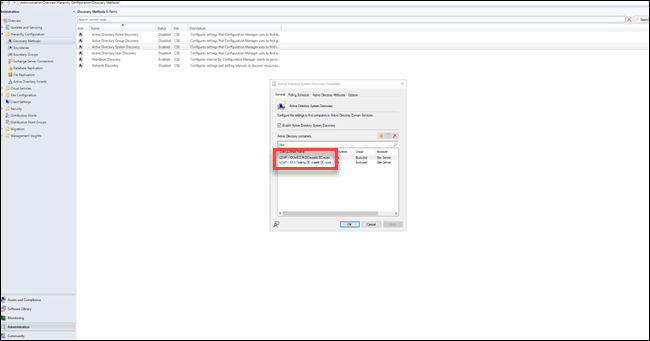
Devices-SCCMis listed in Assets and Compliance > Overview > Device Collections.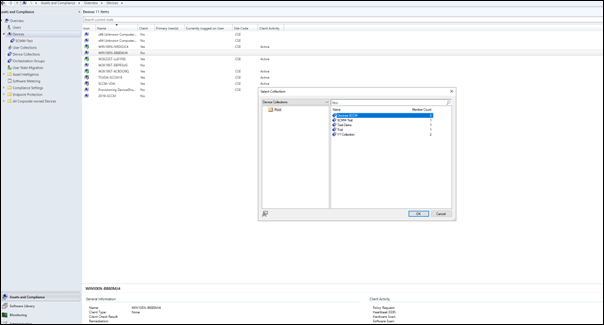
-
-
Select Install Client on Device Collector.
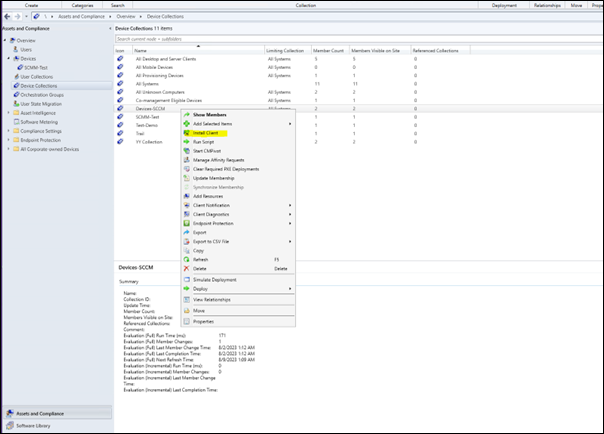
-
Select the required installation Site.
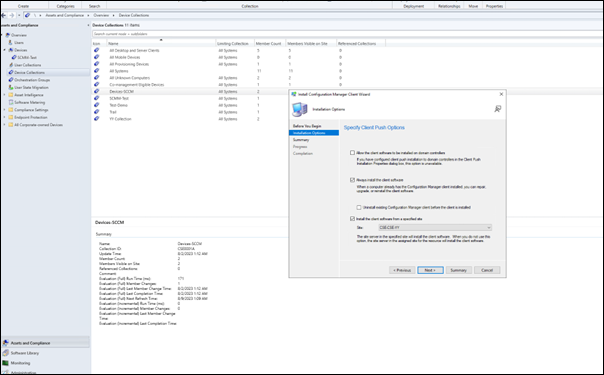
-
Follow the wizard instructions. Install Configuration Manager Client Wizard is completed successfully.
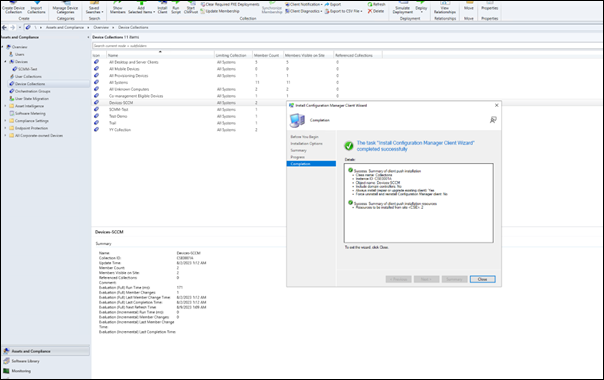
For detailed information, see Manage collections in the Microsoft documentation.
Step 3: Verify the machines
-
On the client machine, verify that the client is installed by checking if the
CCMExecprocess is running.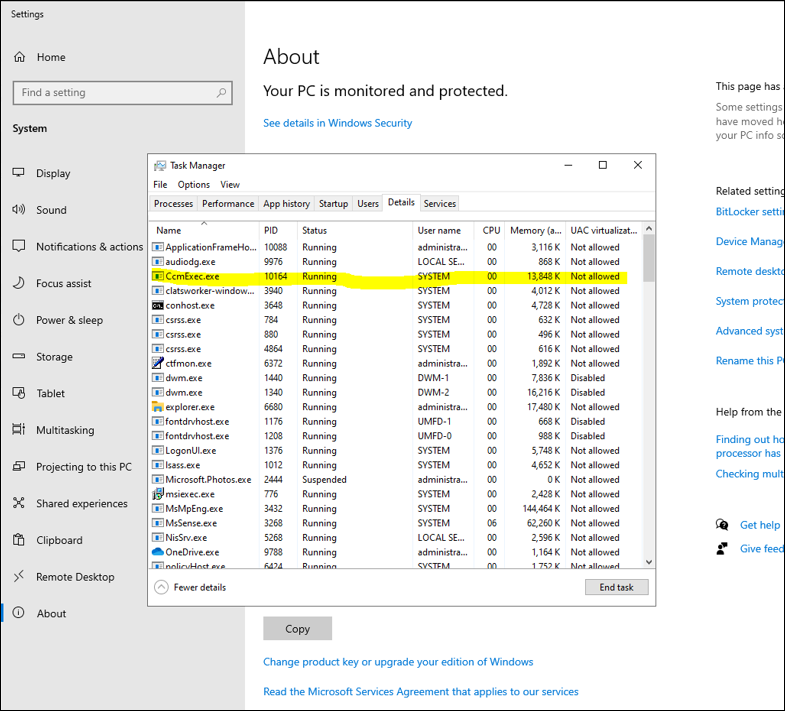
-
Verify if the Client is running for the VMs on SCCM.
Step 4: Use VDA to distribute content
The following steps describe how you can use the deployed VDA to distribute content on the associated virtual machines.
Create a package
-
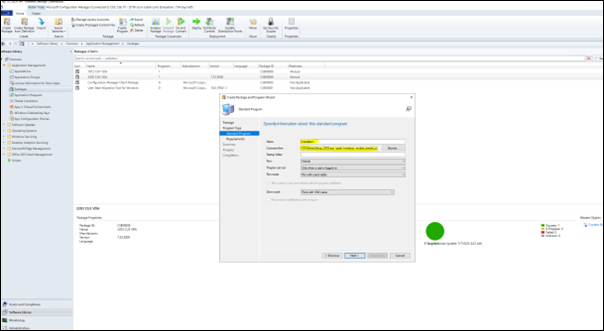
To create a package, right-click the VDA you want and click Create Package.
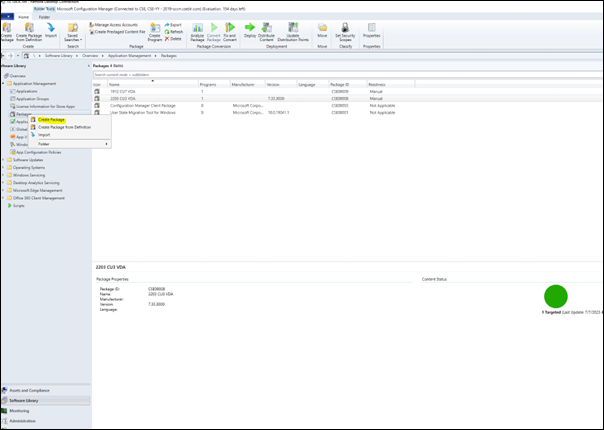
-
Specify the location of the source files for this package by clicking Browse.
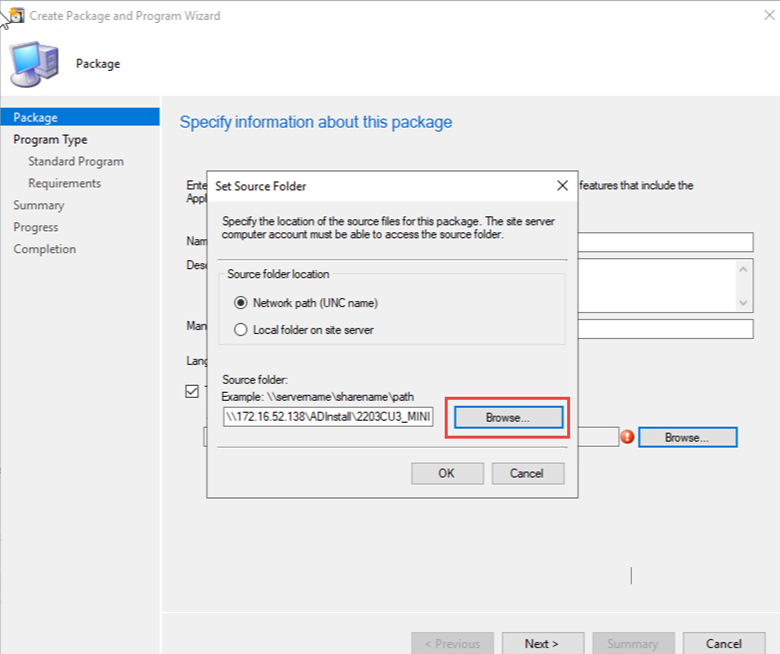
-
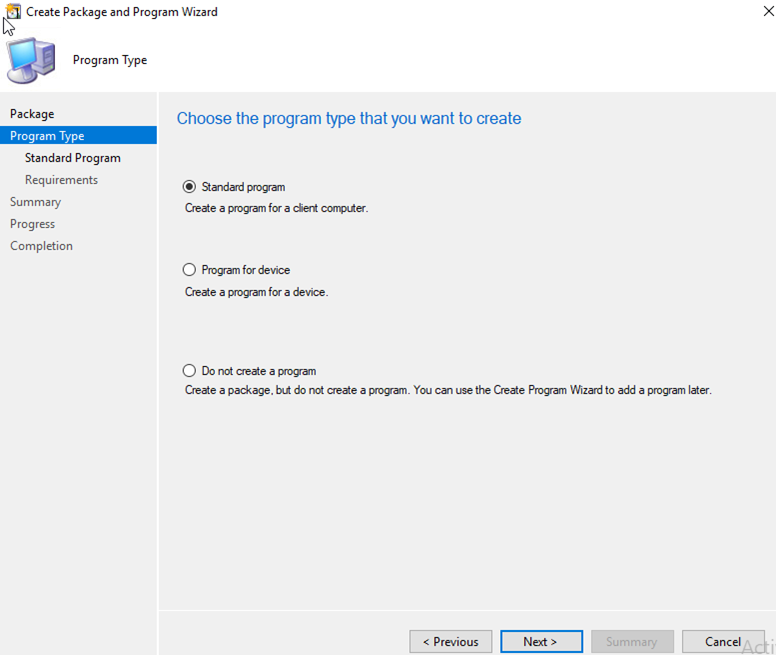
Select the package type that you want.
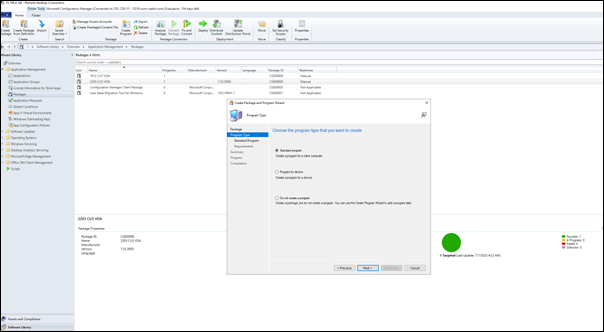
-
Enter the package Name and Command line.
-
Click Next.
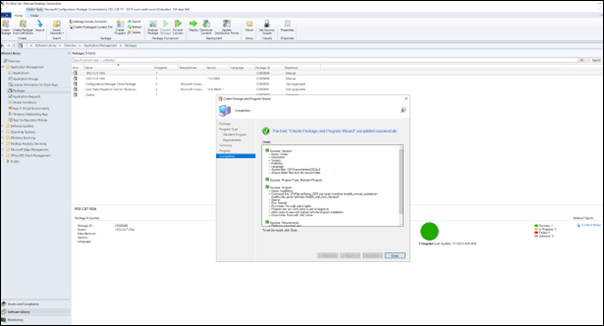
For detailed information, see the Packages and programs in Configuration Manager in the Microsoft documentation.
Distribute content
-
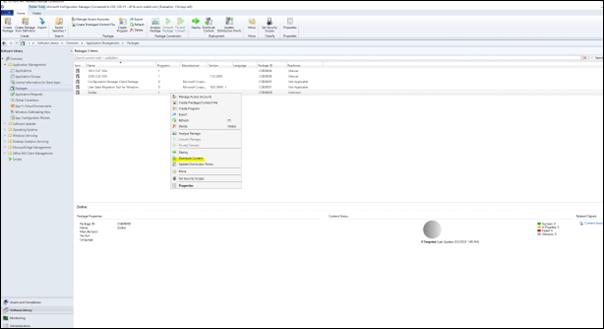
Right-click the package name you have created.
-
Select Distribute Content.
-
In the Distribute Content Wizard window, select the location of the source files for the package that you have created. In this example, it is
2019-SCCM. Click Next.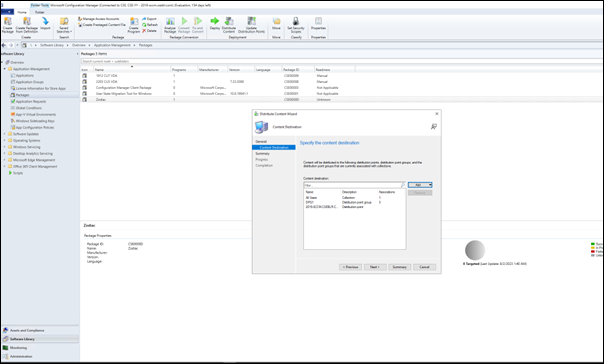
-
Verify that the Package (in this example,
Zodiac) is available to deploy.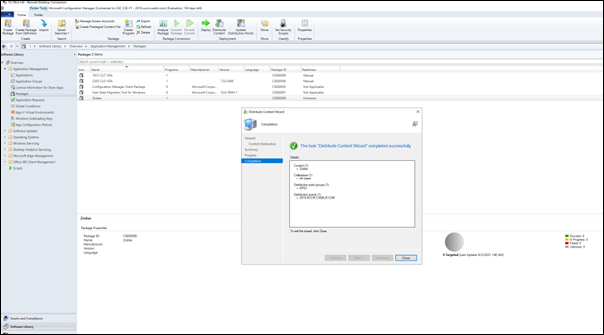 The following image illustrates that the package is available to deploy.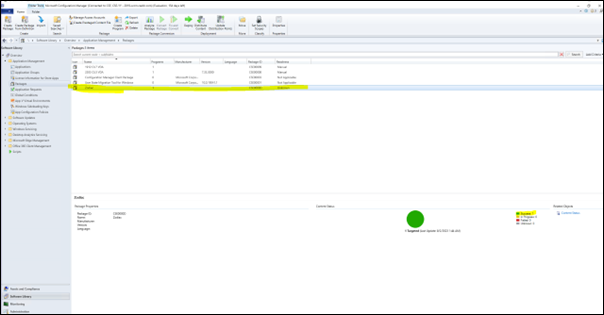
For detailed information, see Deploy and manage content for Configuration Manager in the Microsoft documentation.
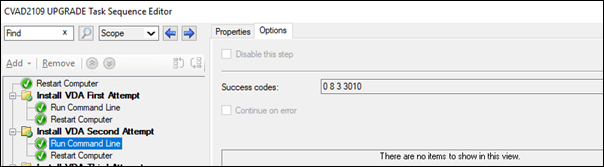
Example installation sequence using SCCM
The following example shows the installation sequence.
-
Restart Computer: Prepare the machine by restarting the machine.
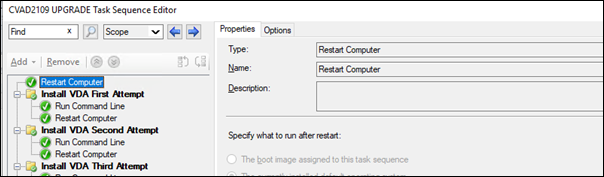
-
Install VDA First Attempt: Start the VDA installation.
-
Add the
/quiet,/noreboot, and/noresumeoptions to your command-line options. -
Run the VDA installer of your choice (local image or one of the minimal installers).
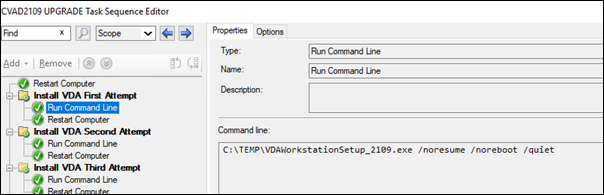
-
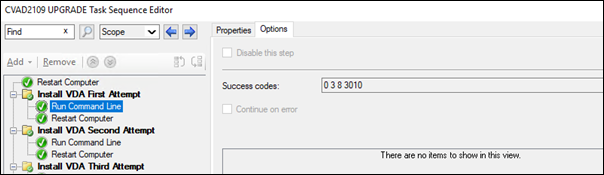
SCCM must capture the return code.
-
If the return code is 0 or 8, the installation is complete, and a restart is needed.
-
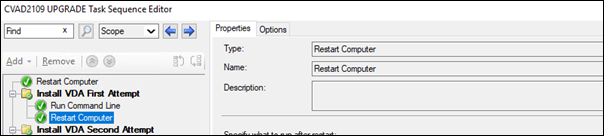
If a return code is 3, restart the machine and then pass control to Install VDA Second Attempt.
-
-
-
Install VDA Second Attempt: Continue VDA installation.
-
After Install VDA First Attempt if the file
%programdata%\Citrix\XenDesktopSetup\CitrixVirtualDesktopAgent.xmlexists, the installation is not complete and must be continued after the restart completes.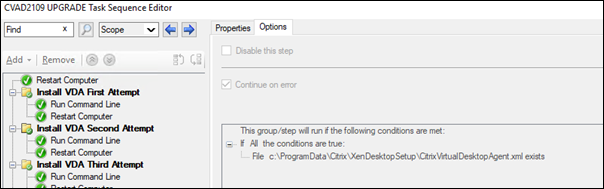
-
Install VDA Second Attempt repeats until the file
%programdata%\Citrix\XenDesktopSetup\CitrixVirtualDesktopAgent.xmldoes not exist or a return code other than 0 or 8 is returned. Treat any other return code as an error, and INSTALL VDA SECOND ATTEMPT should report an error and stop. -
Resume the VDA installation by running the appropriate VDA installer (
XenDesktopVdaSetup.exefor most cases, orXenDesktopRemotePCSetup.exeifVDAWorkstationCoreSetup_XXXX.exewas used) from the file%programdata%\ Citrix\XenDesktopSetup\directory with no command-line parameters. (The VDA installer uses the parameters it saved during the first run of the installer.)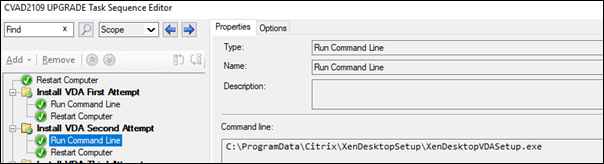
-
Watch for the return code from the VDA installer.
-
0 or 8: Success, installation complete, restart required.
-
3: Installation is not complete. Restart the machine and repeat INSTALL VDA SECOND ATTEMPT until the file
%programdata%\ Citrix\XenDesktopSetup\CitrixVirtualDesktopAgent.xmldoes not exist or until a 0 or 8 is returned. Treat any other return code as an error, and INSTALL VDA SECOND ATTEMPT should report an error and end.
-
-
For more information about return codes see Citrix installation return codes.
VDA installation command examples
The available installation options vary, depending on which installer is used. See the following articles for command line option details.
Installation commands for Remote PC Access
-
The following command uses the single-session core VDA installer (
VDAWorkstationCoreSetup.exe):VDAWorkstationCoreSetup.exe /quiet /controllers “control.domain.com” /enable_hdx_ports /noresume /noreboot -
The following command uses the single-session full VDA installer (
VDAWorkstationSetup.exe):VDAWorkstationSetup.exe /quiet /remotepc /physicalmachine /controllers “control.domain.com” /enable_hdx_ports /noresume /noreboot
Installation command for dedicated VDI
-
The following command uses the single-session full VDA installer (
VDAWorkstationSetup.exe):VDAWorkstationSetup.exe /quiet /components vda /controllers “control.domain.com” /enable_hdx_ports /enable_remote_assistance /noresume /noreboot