
Migrate on-premises configurations to on-premises site
This article describes the steps to migrate your on-premises configurations from one site to another on-premises site using Automated Configuration Tool (ACT).
Requirements
-
Both on-premises sites must be domain joined to the same domain.
-
Use Citrix Virtual Apps and Desktops™ version 2305 or later.
Steps
-
Download the Automated Configuration Tool and review the system requirements. See Download Automated Configuration.
-
Open ACT and export your on-premises site using the following the command.
Export-CvadAcToFileSee Supported migration objects for the list of components supported for migration. For information on the steps to export, see Export on-premises configuration. The parent folder%HOMEPATH%\\Documents\\Citrix\\AutoConfigalways contains the exported files from the most recent export. -
Launch the ACT on the target site. You must see an
AutoConfigfolder created in%HOMEPATH%\\Documents\\Citrix.
-
Copy the
.ymlfiles from the Export folder in the source site to the target site's%HOMEPATH%\\Documents\\Citrix\\AutoConfigfolder.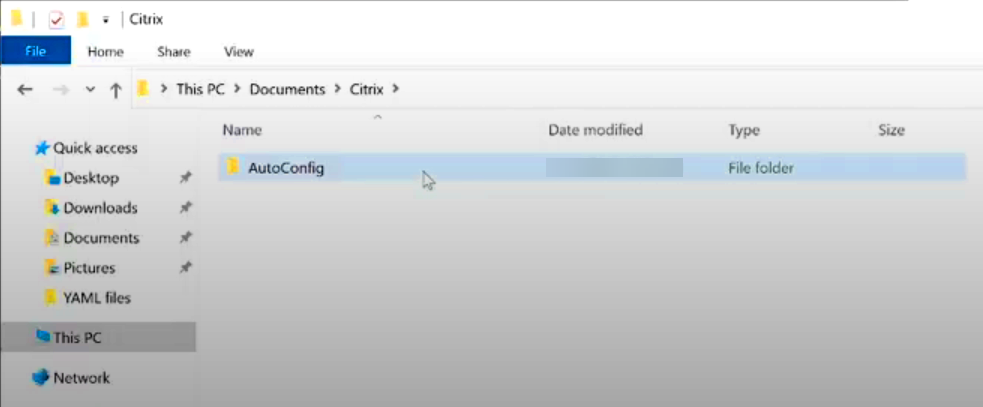
-
Specify the environment that you are working in using the
Set-CvadAcCustomerInfoFilecommand. For example:Set-CvadAcCustomerInfoFile -Environment OnPremThis command updates the CustomerInfo file with the environment.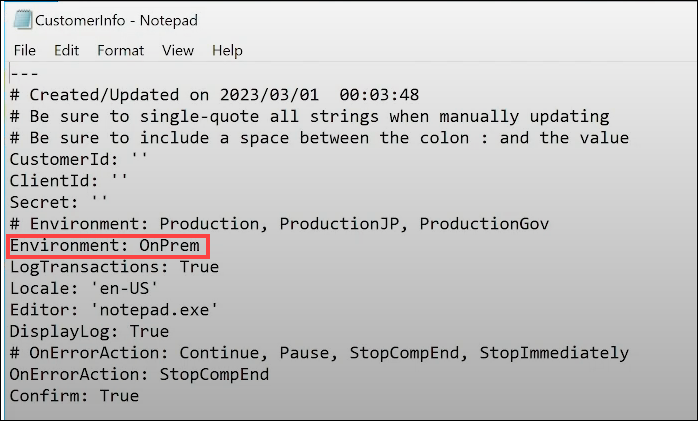
-
Migrate the configuration files using the following command.
Import-CvadAcToFileIf you want to import from a different folder rather than theAutoConfigfolder, run the following:Import-CvadAcToFile -Sourcefolder PATHNote:If you are migrating host connections, then update theCvadAcSecurity.ymlfile with the connection information for each host type. See Update the security file for host connections.If you encounter any errors or exceptions, see the Fixups section in the log file. -
Verify that your configurations are migrated on your target site using Web Studio.