Single sign-on for Citrix Workspace app using Microsoft Azure as the IdP
You can configure Security Assertion Markup Language (SAML) single sign-on (SSO) for ChromeOS devices. Use Microsoft Entra ID (formerly known as Azure Active Directory) as a SAML IdP and Google Admin as the service provider (SP).
You can configure this feature for managed users only. We have added Citrix VMs to the local Active Directory (AD) that are created on Azure, as a use case. If you have on-premises AD-based VMs on Azure and Microsoft Entra ID users, follow this article.
Prerequisites
The following prerequisites require administrator privileges:
-
Active Directory (AD)
Install and configure an Active Domain Controller in your setup. For more information, see Installing AD DS by using Server Manager. To install Active Directory Domain Services using Server Manager, follow the steps 1 through 19.
-
Certificate Authority (CA)
Install CA. For more information, see Install the Certification Authority.
A certificate authority can be installed and configured on any of the following machines:
- a new dedicated machine
- an existing CA machine
- an installation of this certificate authority component on Citrix Cloud Connector
- the Active Directory machine
-
Citrix Cloud and Citrix Cloud Connector
If you’re new to Citrix Cloud, define a Resource Location, and have the connectors configured. It’s recommended you have at least two cloud connectors deployed in production environments. For information on how to install Citrix Cloud Connector, see Cloud Connector Installation.
-
Global administrator account on Azure portal
You must be a global administrator in Microsoft Entra ID. This privilege helps you to configure Citrix Cloud to use the Entra ID as an IdP. For information on the permissions that Citrix Cloud requests when connecting and using Entra ID, see Azure Active Directory Permissions for Citrix Cloud.
-
Federated Authentication Service (optional).
For more information, see Enable single sign-on for workspaces with Citrix Federated Authentication Service.
-
Global administrator account on Google admin console
-
Citrix Workspace app
Get started
To get started, do the following:
-
Join all the machines to the Domain before you configure the installed software or Roles on them.
-
Install the Citrix Cloud Connector software on the respective machine, but don’t configure anything yet.
-
Install the Citrix FAS on the respective machine, but don’t configure anything yet.
How to configure Citrix Cloud to use Azure AD as an IdP
Note:
Make sure you fulfill all the prerequisites.
-
To connect Entra ID to Citrix Cloud, see Connect Azure Active Directory to Citrix Cloud.
-
To add administrators to Citrix Cloud from Entra ID, see Add administrators to Citrix Cloud from Azure AD.
-
To sign in to Citrix Cloud using Entra ID, see Sign-in to Citrix Cloud using Azure AD.
-
To enable advanced Entra ID capabilities, see Enable advanced Azure AD capabilities.
-
To reconnect to Entra ID for the updated app, see Reconnect to Azure AD for the updated app.
-
To reconnect Entra ID, see Reconnect to Azure AD for the updated app.
-
To sync accounts with Entra ID Connect, see Sync accounts.
It’s recommended you sync your on-premises AD accounts with the Entra ID.
Note:
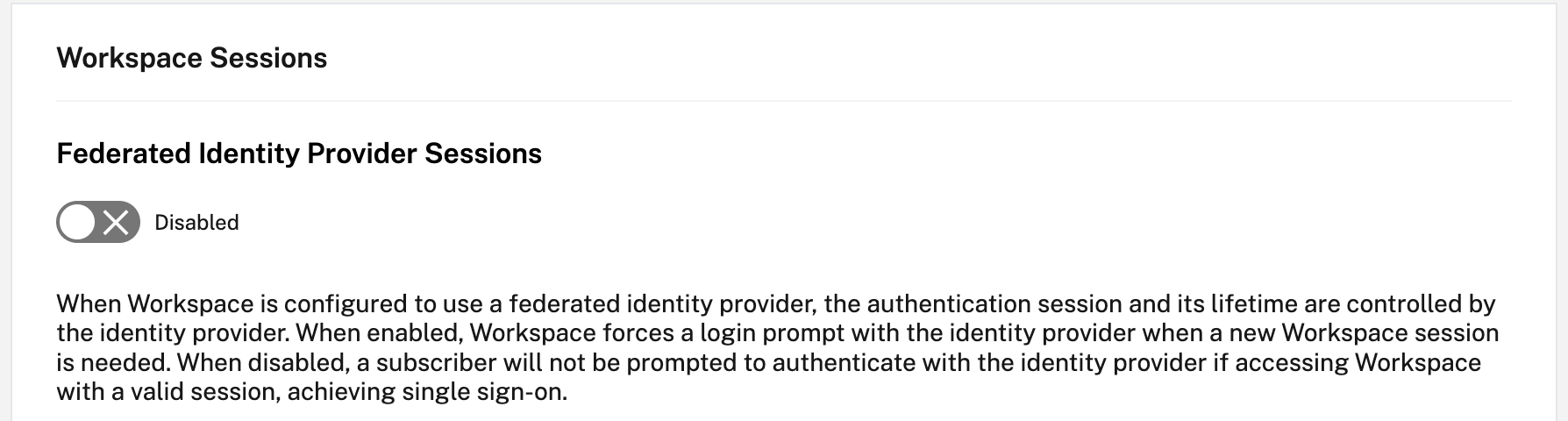
Disable the login prompt for Federated Identity Provider Sessions in the Citrix Workspace Configuration.
Set up SSO and user provisioning between Microsoft Azure and ChromeOS on the Azure portal
After you set up the provisioning of SSO between a Microsoft Entra ID tenant and Google for ChromeOS, end users can sign in to an Azure authentication page instead of the Google sign-in screen on their ChromeOS devices.
For more information, see:
- The Google article Set-up SSO and user provisioning between Microsoft Azure and ChromeOS.
and
- The Microsoft tutorial Microsoft Entra ID SSO integration with Google Cloud / G Suite Connector by Microsoft.
To set up SSO on the Azure portal:
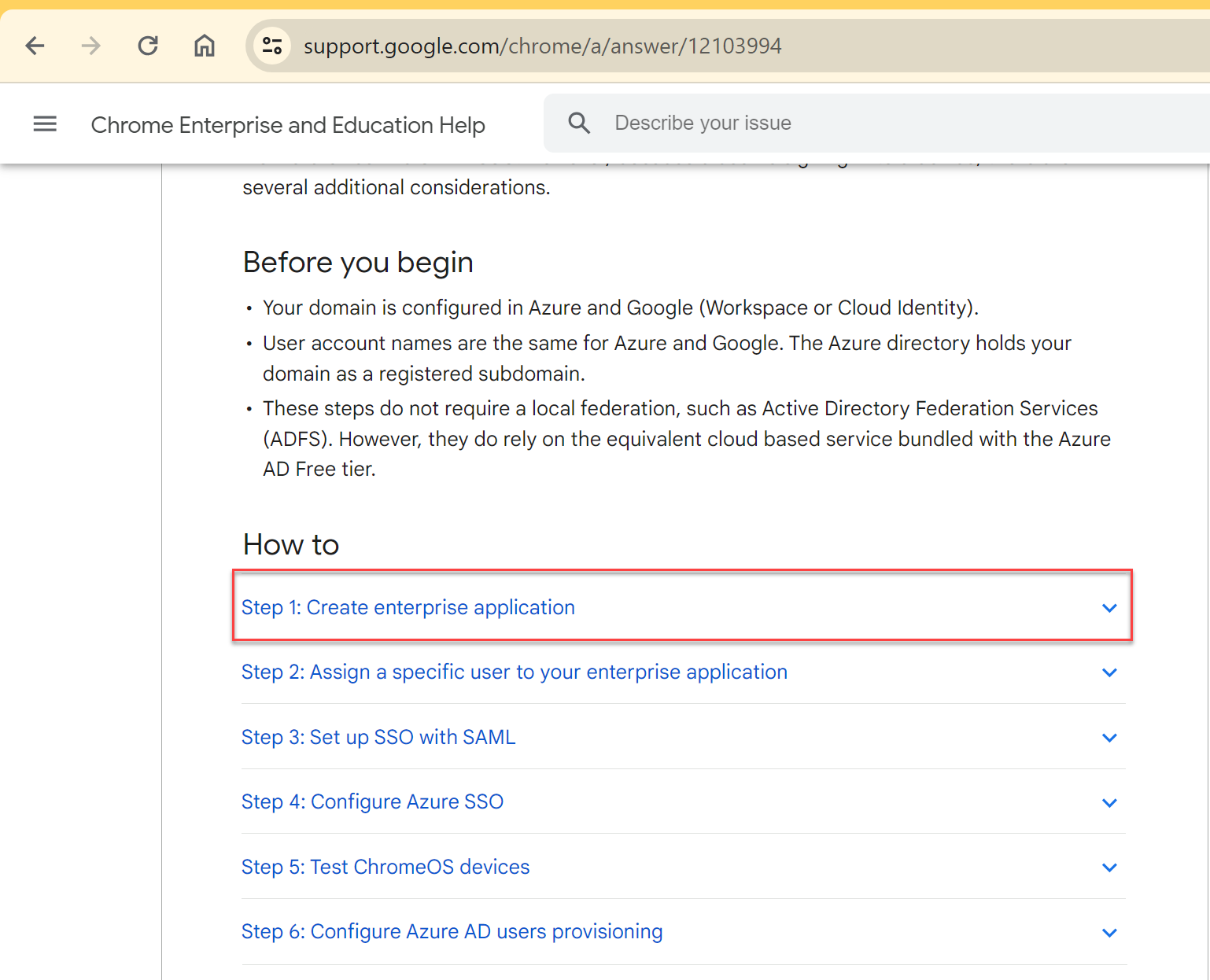
- Create an enterprise application in the Microsoft Entra ID portal. For more information, see step 1 in the Google article Set-up SSO and user provisioning between Microsoft Azure and ChromeOS.
-
Assign a user or multiple users to the enterprise application that you created in step 1. For more information, see step 2 in the Google article Set-up SSO and user provisioning between Microsoft Azure and ChromeOS.
-
Set up SSO with SAML. For more information, see step 3 in the Google article Set-up SSO and user provisioning between Microsoft Azure and ChromeOS.
Note:
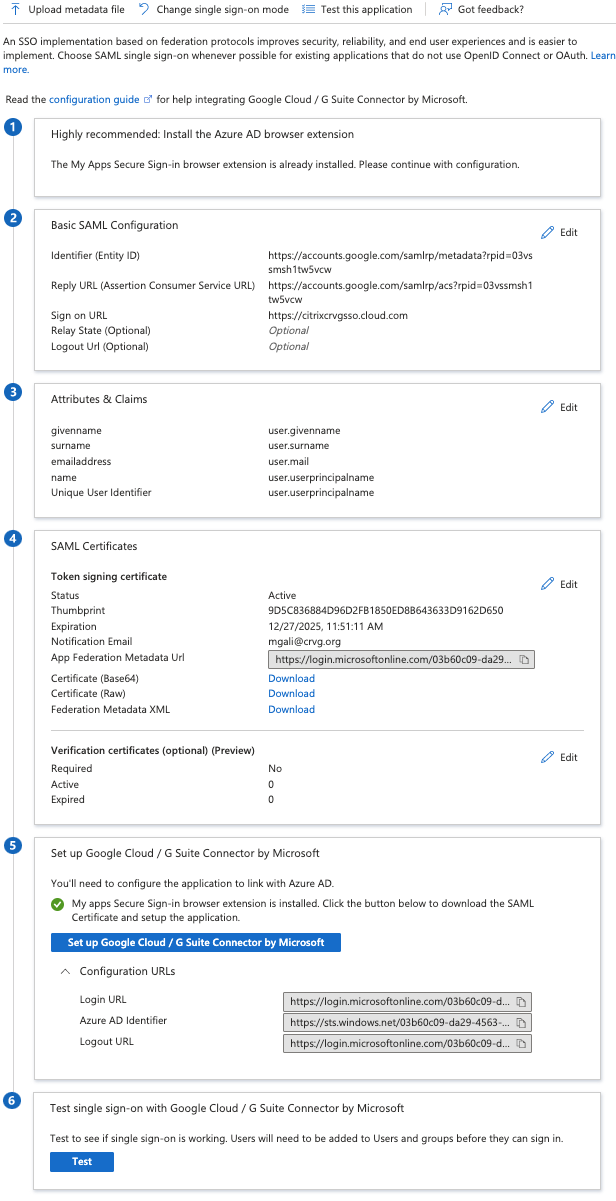
It’s recommended you change the Basic SAML configuration after the creation of the SAML policy in the Google Admin policy.
After you set up URLs on the Azure portal for SAML-based single sign-on, the application appears as follows.
Validation Checkpoint
When you enter the store URL, the Azure IdP’s sign-in page must appear. If unsuccessful, revisit the Set-up SSO and user provisioning between Microsoft Azure and ChromeOS on the Azure Portal steps.
Configure SAML SSO profile with Google Admin Console
- Add the Domain, users, and create an OU. For more information, see A complete guide to Google Organizational Units.
- Create the SAML SSO profile with Microsoft Entra ID as the IdP. For more information, see Configuring SAML single sign-on (SSO) for Azure AD Users.
Validation Checkpoint
Using the Chromebook, you must be able to sign in to Citrix Workspace app using Azure credentials. When you enter the store URL in the browser, you must be able to sign in.
Configure SSO for Citrix Workspace app for ChromeOS using SAML SSO Chrome extension
To configure SSO using the SAML extension, do the following:
-
Install and configure SAML SSO for the Chrome app extension on Chrome devices.
To install the extension, click SAML SSO for Chrome Apps.
-
The extension retrieves SAML cookies from the browser and provides them to the Citrix Workspace app for ChromeOS.
-
Configure the extension with the following policy to allow Citrix Workspace app to get SAML cookies. The following is the JSON data:
{
"whitelist": {
    "Value": [
        {
            "appId": "haiffjcadagjlijoggckpgfnoeiflnem",
            "domain": "login.microsoftonline.com"
        }
    ]
}
}
<!--NeedCopy-->
Validation Checkpoint
When you start Citrix Workspace app with the Azure IdP store and SSO extension, your sign-in to the Citrix Workspace app must be successful.
Deploy FAS to achieve SSO to virtual apps and desktops
To achieve SSO for virtual apps and desktops, you can deploy a Federated Authentication Service (FAS).
Note:
Without FAS, you’re prompted for the Active Directory user name and password. For more information, see Enable single sign-on for workspaces with Citrix Federated Authentication Service.
Entra ID single sign-on support for VDA with Azure AD credentials
Previously, users were prompted for credentials when launching HDX sessions with Microsoft Entra ID joined VDAs because there was no SSO support for VDA with Entra ID credentials. This prompting creates challenges for users who migrate from traditional Active Directory to Azure AD as their primary identity provider.
Starting with version 2511, Citrix Workspace app for ChromeOS now provides a seamless single sign-on (SSO) experience for VDAs with Entra ID credentials. This feature eliminates the need for users to enter credentials when launching HDX sessions with Microsoft Entra ID joined VDAs, providing a streamlined authentication experience.
With this feature, users who have adopted Entra ID joined VDAs can now enjoy seamless authentication without manual credential entry for each VDA launch.
Note:
This feature is enabled by default.
Applicability
This feature applies to app and desktop session launches with pure and hybrid Entra ID joined VDAs of version 2507 and above with the specified OS versions.
System requirements
Virtual Delivery Agent (VDA):
- Version: 2507
- Type: Single session or multi session
VDA machine identity:
- Microsoft Entra ID joined
- Microsoft Entra ID hybrid joined
Session host OS:
- Windows 11 24H2 with the 2025-08 Cumulative Update Preview for Windows 11 Version 24H2 - KB5068221 (OS Build 26100.6588 and above)
- Server OS - Preview Build 27924 and above
For more information on Entra ID SSO, see Microsoft Entra ID single sign-on in Citrix DaaS documentation.
Known limitations in the feature
Citrix Workspace app for ChromeOS does not support SSO for hybrid launches from browser because it lacks in-memory ICA support.
How to configure
Google Admin Policy
For managed devices and users, administrators can disable the feature using the Google Admin Policy as follows:
- Sign in to the Google Admin Policy.
- Go to Device management > Chrome Management > User Settings.
-
Add the following JSON strings to the
policy.txtfile under theengine_settingskey.Note:
You can apply this configuration to the following as well:
- Device > Chrome > Apps and extensions > Users and browsers > Search for the extension > Policy for extensions.
- Device > Chrome > Apps and extensions > Kiosks > Search for the extension > Policy for extensions.
- Device > Chrome > Apps and extensions > Managed guest sessions > Search for the extension > Policy for extensions.
-
Make sure that you set the attribute
enableAADSSOtofalse. The following is an example of JSON data:{ "settings": { "Value": { "settings_version": "1.0", "engine_settings": { "features": { "enableAADSSO”: false } } } } } <!--NeedCopy--> - Save the changes.
Troubleshoot
This article focuses on the logs that you need to collect when SSO fails and users receive unexpected credential prompts after their session launches.
Prerequisites
-
Cloud Broker - 126
-
VDA - 2507
-
Citrix Workspace app for ChromeOS - 2509
-
Citrix Workspace app for ChromeOS - set the attribute enableAADSSO to true from Citrix Workspace app for ChromeOS 2509 and later.
Logs to troubleshoot Entra ID single sign-on support for VDA with Azure AD credentials setup
This article describes the logs that you can collect when SSO fails and users receive unexpected credential prompts after the session launches.
To collect logs:
- Collect the basic Citrix Workspace app logs. For more information, see How to collect logs.
-
Collect the network traces for MSAL token fetch status:
i. Open the Chrome browser and navigate to
chrome://net-export/. ii. Select Start Logging to Disk and select the option Include raw bytes (will include cookies and credentials) as shown in the following screenshot. Select the file location.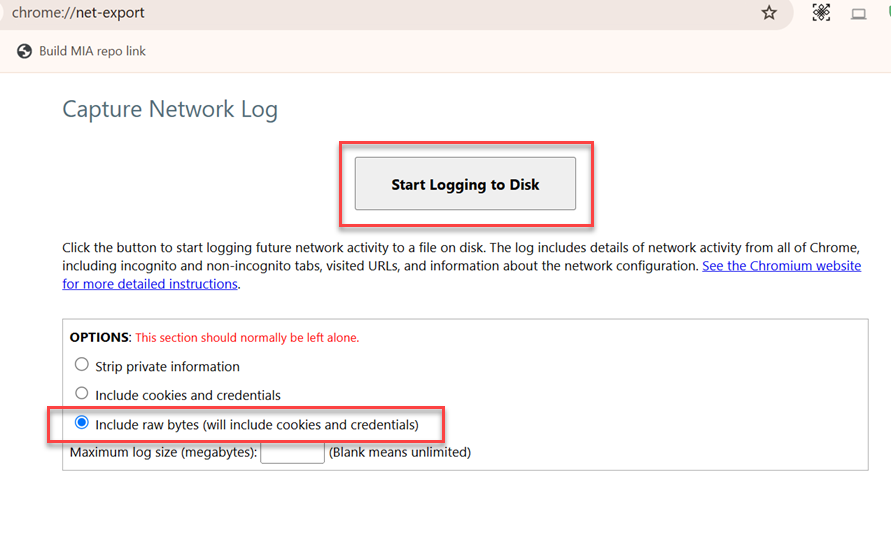
iii. Start a Citrix Workspace app for ChromeOS session to reproduce the issue and collect the traces. Select Stop logging in
chrome://net-export/. - Collect Citrix Diagnostic Facility (CDF) traces from the VDA for all modules and startup tracing. Follow the steps to collect a CDF trace at system startup because SSO can fail even with successful capability negotiation from Citrix Workspace app.
Known limitations
-
Citrix Workspace app for ChromeOS doesn’t support SSO for hybrid launch because it lacks in-memory ICA support.
-
If session launch takes more than 30 seconds, AAD SSO login might fail and prompt users for credentials.
Support for single-tenant Microsoft Entra ID
This feature lets you use single sign-on (SSO) with Microsoft Entra ID credentials to access virtual apps and desktops on Microsoft Entra hybrid-joined session hosts. To configure VDA SSO, use your customer-specific single-tenant Entra ID client app. For more information, see Microsoft Entra single sign-on.
In this article
- Prerequisites
- Get started
- How to configure Citrix Cloud to use Azure AD as an IdP
- Set up SSO and user provisioning between Microsoft Azure and ChromeOS on the Azure portal
- Configure SAML SSO profile with Google Admin Console
- Configure SSO for Citrix Workspace app for ChromeOS using SAML SSO Chrome extension
- Deploy FAS to achieve SSO to virtual apps and desktops
- Entra ID single sign-on support for VDA with Azure AD credentials
- Support for single-tenant Microsoft Entra ID