
Configure G Suite
To configure G Suite for single sign-on through SAML, perform the following:
-
Log on to G Suite as an admin user.
-
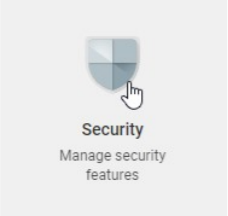
Click Security.
-
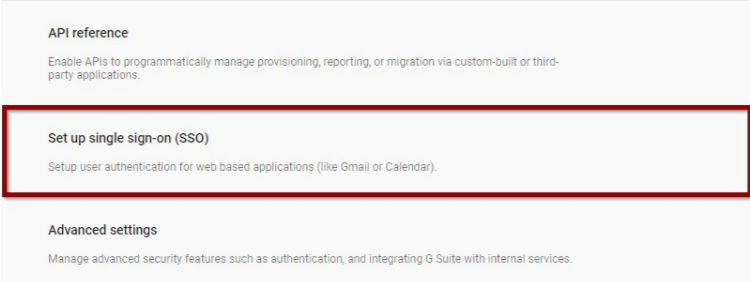
In the Security page, click Set up single sign-on (SSO).
-
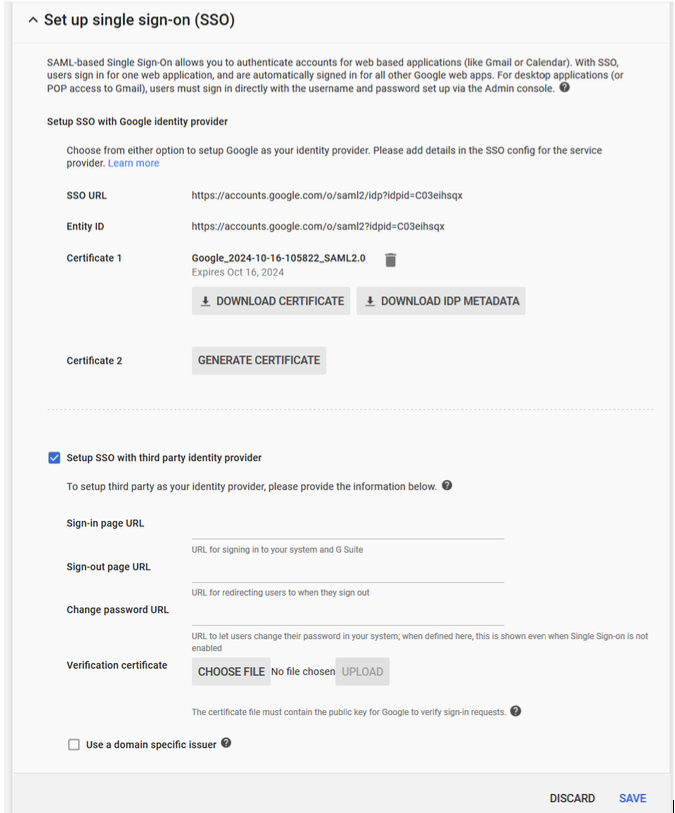
In the Set up single sign-on (SSO) page, select Setup SSO with third party identity provider and enter the details.
-
Sign-in page URL - You can copy the SAML SSO login URL from the Citrix Cloud wizard (Citrix Gateway Service > Add a Web/SaaSApp > Single sign on > Login URL).
-
Verification certificate - You can download the certificate from the Citrix Cloud wizard (Citrix Gateway Service > Add a Web/SaaS App > Single sign on > Certificate).
-
Use a domain specific issuer - Select the check box.
-