
Remote Browser Isolation (RBI) control
Citrix Remote Browser Isolation (RBI) integrated with Citrix CEP allows organizations to securely grant access to necessary but untrusted websites without exposing local endpoints to potential web-based threats. By seamlessly redirecting specific web traffic to an isolated, cloud-hosted environment, administrators can maintain strict security postures without hindering employee productivity.
Administrators can define fully qualified domain names (FQDNs) and wildcards that open in Citrix Remote Browser Isolation (RBI). When a user whose managed Chrome profile has the Citrix SecurAccess extension visits one of these domains, the local browser does not render the page. Instead, the tab opens an isolated remote browser session hosted by Citrix RBI, and the user works in that session.
How it works
Some websites are needed for work but are risky to open on the endpoint, for example sites that the organization doesn't sanction or trust. Blocking these sites prevents users from working. Opening them in the local browser runs their code on the endpoint, where malicious code can exploit browser flaws to attack it.
Using Browser Policies > Remote Browser Isolation (RBI) policy in the SecurAccess ZTNA console, administrators can list such domains or FQDN. Pages from these domains then run in a remote browser instead of the local one.
Prerequisites
Ensure that the following prerequisites are met to use the RBI browser policy:
-
Citrix Remote Browser Isolation is deployed for the same Citrix Cloud customer. The remote browsers run in the customer's own Azure subscription, and the customer must set this up beforehand, as described in Get started with Remote Browser Isolation. At least one RBI catalog must have Allow SecurAccess sessions to use this catalog turned ON.
-
A SecurAccess subscription that includes web and SaaS application access.
-
An administrator with full access to SecurAccess ZTNA.
-
Users with Google Chrome and a managed profile in which the Citrix SecurAccess extension is force installed.
-
Citrix SecurAccess ZTNA is configured with Google Chrome Enterprise Premium integration. For details, see Integration with Google Chrome Enterprise Premium.
-
The end user has installed the latest Google Chrome browser with the Citrix SecurAccess browser extension.
Note:
SecurAccess ZTNA doesn't verify the RBI configuration and accepts the policy either way. Without an RBI entitlement, every launch fails.
Configure the RBI policy
-
Go to Policies > Browser Policies.
-
On the Remote Browser Isolation (RBI) card, click Manage, and then select Add Rule.
-
Rule details: Enter a rule name (required, up to 512 characters, unique within this policy) and, optionally, a description.
-
Conditions: The default is All users.
-
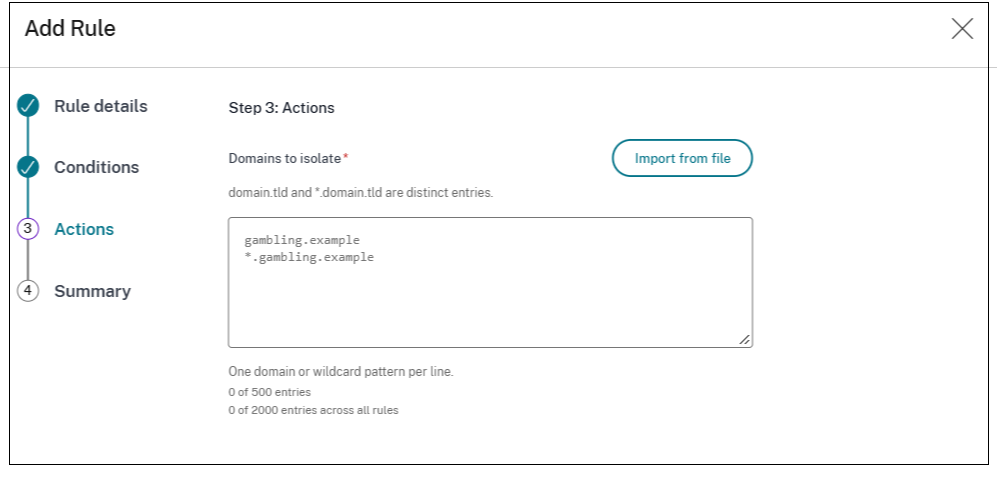
Actions: In Domains to isolate, enter one domain or wildcard per line. To add multiple domains at once, select Import from file. For details, see Import a list of domains.
-
Click Save. All rules of the policy are saved at once.
Note:
To stop all isolation for the tenant, turn off Enable Remote Browser Isolation (RBI) in the panel and select Save.
How matching works
-
To cover a domain and all its subdomains, enter both forms in the same rule. When an entry has only one form, the console displays a message with a button that adds the other form. For example, it displays "example.com covers only the domain itself. Subdomains are not included." The message appears after you leave the Domains to isolate field or after an import, and only when all entries are valid. You can ignore it and continue.
Entry Opens in RBI Doesn't open in RBI example.com example.com only www.example.com, a.b.example.com *.example.com Subdomains, such as www.example.com and deeper ones such as a.b.example.com example.com itself Both entries example.com and all its subdomains NA -
Matching is case insensitive. Entries are stored as typed.
-
A port in the address is ignored. https://example.com:8443/ is treated like https://example.com/.
-
A domain must match exactly, and a wildcard matches by domain suffix. For example, example.com doesn't match example.company or notexample.com.
-
When several rules apply to a user, their domain lists are combined.
Rules for entries
The SecurAccess ZTNA console validates every entry before you can continue.
-
A domain must contain a dot. Each part can contain letters, digits, and hyphens, must not start or end with a hyphen, and the last part must have at least two characters.
-
The only supported wildcard form is *. at the start of an entry (for example, *.example.com). Top-level domain wildcards (for example, *.com) aren't allowed.
-
IP addresses aren't allowed. Enter international domain names in punycode (xn--...).
-
An entry can have at most 253 characters, excluding the leading *.
-
An entry can appear only once per rule (casing is ignored).
-
Google infrastructure domains (google.com, googleapis.com, securegateway.goog, and any of their subdomains) are rejected.
-
Citrix Gateway domains (for example, netscalergateway.net) trigger a warning that names them (The list contains Citrix gateway domains: ...). You can finish the rule, but saving the policy then fails with Failed to save policy. Please try again. The error doesn't indicate which entry caused it.
-
A rule can have up to 500 entries, and the policy can have up to 2,000 entries across all rules. A domain entered in both forms counts as two entries.
Import a list of domains
You can import a list of domains instead of adding each one.
-
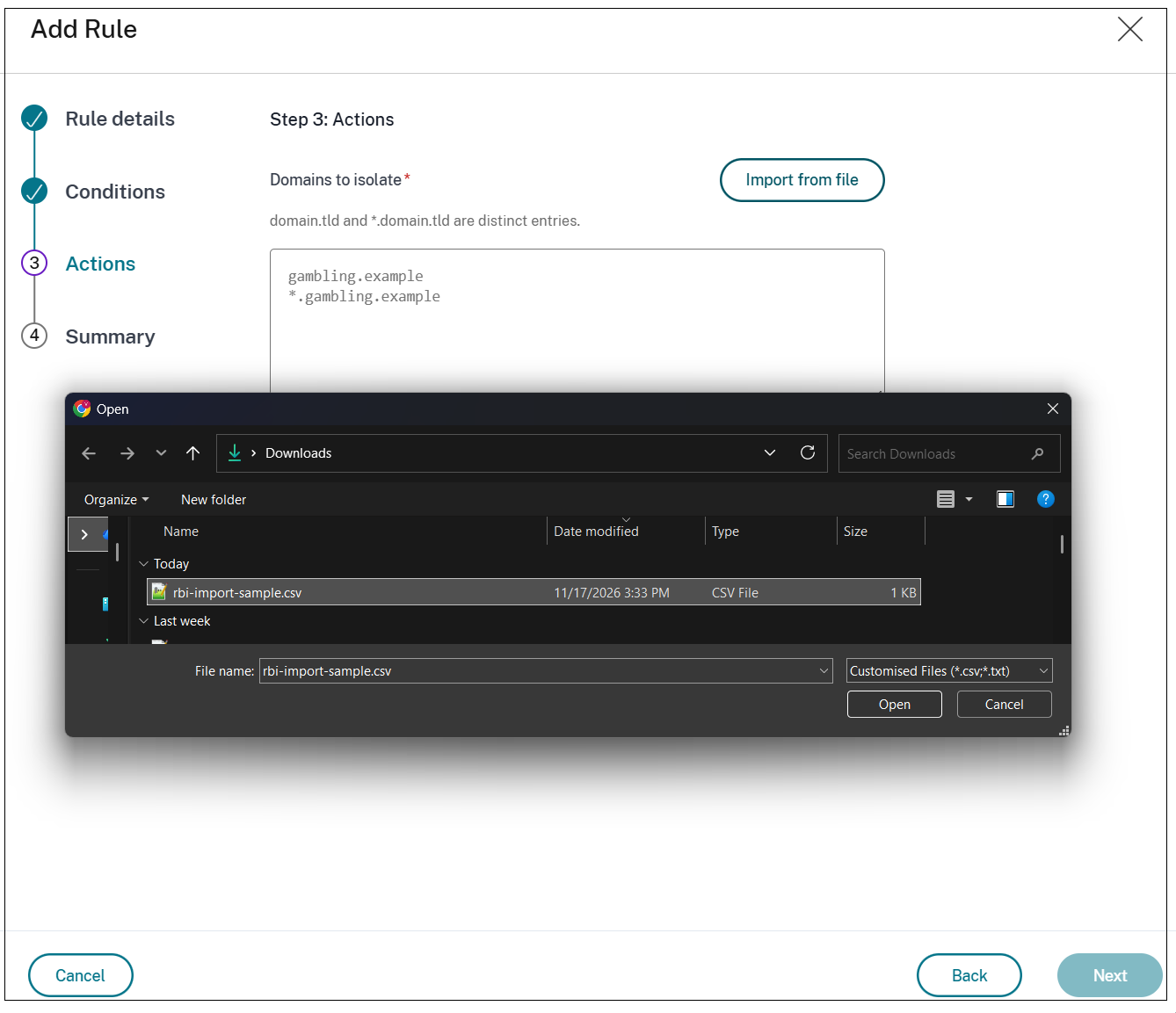
Click Import from file to import a list of domains.
-
This field accepts a .csv or .txt file of up to 256 KB, with one entry per line.
-
A first line that looks like a column header is skipped.
-
Before anything is added, a preview shows how many entries are ready. It also lists the lines that weren't accepted, with the line number and reason (the first 200 lines, followed by "and N more lines").
-
Add N domains adds the accepted entries to the ones already entered. Cancel leaves the list unchanged.
-
A file with more than 500 valid entries can't be imported into a single rule.
-
Important considerations
-
Enter both forms of each domain in the same rule. Entries with only one form are affected by two open defects in the extension.
-
Don't isolate your identity provider. If the domain of your sign-in page is isolated, sign-in pages opened by other applications also open in RBI, and those applications might not complete sign-in.